


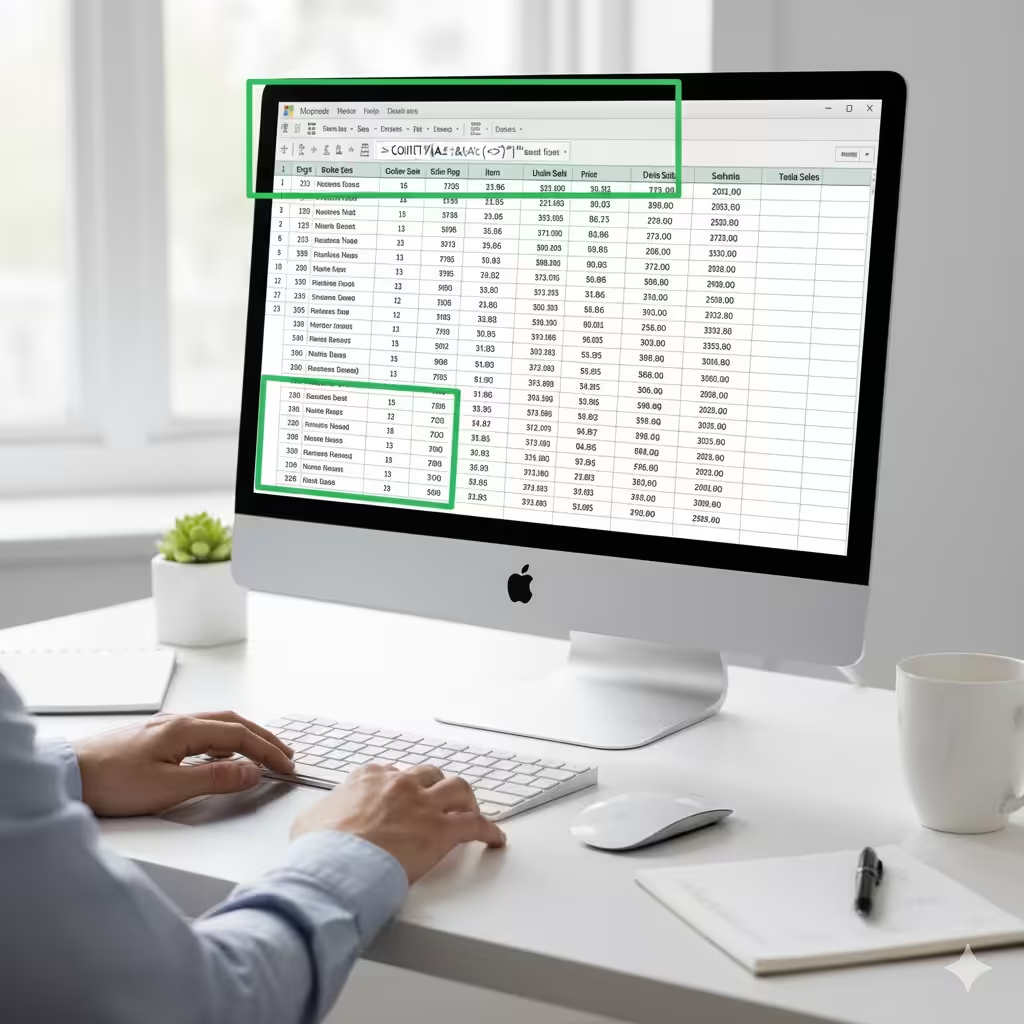
How to Use COUNTIF in Excel to Count Non-Empty Cells
Microsoft Excel is one of the most powerful tools for organizing, analyzing, and managing data. Among its many useful functions, the COUNTIF function stands out for its ability to count cells that meet a specific condition. Whether you’re working with large data sets, tracking performance, or creating dynamic reports, COUNTIF helps automate the counting process and eliminates manual work.
One common scenario is counting non-blank cells — that is, cells that contain data or text rather than being empty. In this article, you’ll learn how to use the COUNTIF function to count non-blank cells in Excel, along with examples, step-by-step instructions, and helpful tips to improve your efficiency.
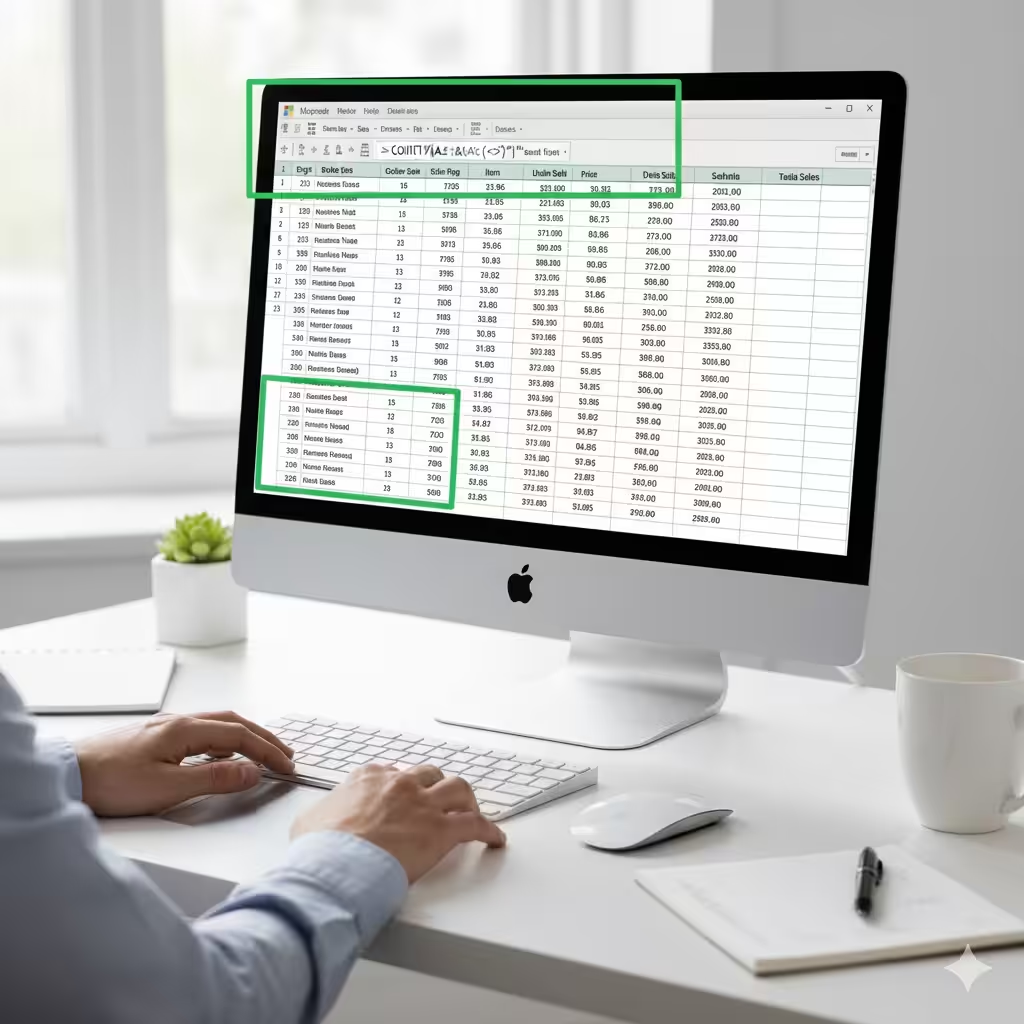
Understanding the COUNTIF Function in Excel
The COUNTIF function in Excel is used to count the number of cells in a range that meet a specific condition or criterion. It’s part of the Statistical function category and is extremely useful when you need to summarize data based on certain rules.
The basic syntax of the COUNTIF function is:
-
range: The group of cells you want to test.
-
criteria: The condition that must be met for the cell to be counted.
For example, if you want to count how many cells in range A1:A10 contain the word “Yes,” you would use:
But what if you want to count all cells that are not empty? That’s where COUNTIF becomes even more powerful.

How to Use COUNTIF to Count Non-Blank Cells
To count all cells that contain data (non-blank cells), you can use a simple COUNTIF formula with the “not equal to blank” operator.
Formula:
Here’s what this formula does:
-
The range defines where Excel should look (e.g., A1:A100).
-
The criteria
"<>"means “not equal to blank.”
So, if you enter this formula:
Excel will count every cell in that range that contains a number, text, or any value — excluding empty cells.
Step-by-Step Guide: Counting Non-Blank Cells Using COUNTIF
Let’s walk through the process step by step so you can apply it easily in your own spreadsheets.
Step 1: Open Your Excel Sheet
Open the Excel file that contains the data you want to analyze. You can use any data set, such as a list of names, sales numbers, or responses in a survey.
Step 2: Select a Blank Cell for the Formula
Click on a blank cell where you want the count result to appear. This is where Excel will display the number of non-blank cells after you enter the formula.
Step 3: Enter the COUNTIF Formula
Type the following formula:
Replace A1:A50 with your actual data range.
Step 4: Press Enter
After typing the formula, press Enter. Excel will immediately calculate and show the total number of cells that contain data within your specified range.
For example, if 35 cells in A1:A50 have values and 15 are empty, the result will be 35.
Example: Counting Non-Blank Cells in a Data List
Imagine you have a list of employee names in column A:
| Employee Name |
|---|
| John Smith |
| Sarah Lee |
| (blank) |
| David Jones |
| Maria Clark |
| (blank) |
You want to know how many employees have been entered in the list.
You can use this formula:
The result will be 4, since there are four cells containing names and two that are blank.
Alternative Methods to Count Non-Blank Cells
Although COUNTIF is a simple and effective option, there are other methods you can use to count non-empty cells depending on your needs.
1. Using the COUNTA Function
The COUNTA function counts all cells in a range that are not empty — similar to COUNTIF, but even simpler.
This formula gives the same result as COUNTIF(A1:A100, "<>"), but COUNTA also counts cells with formulas that return an empty string (“”).
If you only want to exclude truly empty cells, COUNTA is often the fastest option.
2. Using COUNTIFS for Multiple Conditions
If you want to count non-blank cells that also meet another condition, you can use the COUNTIFS function.
For example, to count cells in column A that are not blank and greater than 50 in column B:
This counts only the cells that meet both criteria, giving you a more precise result.
3. Using a Filter or Table
If you prefer not to use formulas, Excel also allows you to apply filters:
-
Select your data.
-
Go to Data → Filter.
-
Filter out blank cells and look at the count in the status bar.
This approach is useful for quick, one-time checks.
COUNTIF vs. COUNTA: Which One Should You Use?
While both functions can count non-blank cells, there are subtle differences:
| Function | Description | Counts Formulas Returning Empty Strings (“”) |
|---|---|---|
| COUNTIF(range, “<>”) | Counts cells not equal to blank | No |
| COUNTA(range) | Counts all non-empty cells | Yes |
So, if your dataset contains formulas that return empty strings (for example, =IF(A1>5, "Yes", "")), COUNTIF will ignore them, while COUNTA will count them.
Tips for Working with COUNTIF in Excel
-
Use dynamic ranges: Combine COUNTIF with named ranges or Excel Tables for automatic updates when new data is added.
-
Combine with IF or SUM: Use COUNTIF inside other formulas to create conditional totals or summaries.
-
Check for hidden characters: Sometimes cells that appear empty contain spaces. Use
TRIMorCLEANto remove them. -
Use wildcards: COUNTIF also supports wildcards like
*(any number of characters) and?(a single character) for flexible matching.
Example:
This counts all cells with text, ignoring blanks.
Common Issues When Counting Non-Blank Cells
1. Cells Contain Spaces or Invisible Characters
Cells may look empty but actually contain spaces or non-printable characters. To fix this, use:
or
2. Cells with Formulas Returning Empty Strings
As mentioned earlier, formulas like =IF(B1>0, "Yes", "") create cells that look blank but technically are not.
If you want COUNTIF to ignore these, use this formula instead:
This method counts only truly non-empty cells.
Practical Uses of Counting Non-Blank Cells
Counting non-blank cells is useful in many real-world Excel tasks, such as:
-
Tracking data completion: Count how many entries are filled vs. missing in a form.
-
Project management: See how many tasks have assigned team members.
-
Survey analysis: Determine the number of responses submitted.
-
Sales tracking: Count days with recorded sales figures.
-
Attendance records: Identify how many days have been marked present.
By automating these counts, you save time and reduce manual errors.
Conclusion
The COUNTIF function is a simple yet powerful Excel tool that allows you to count cells meeting specific conditions. When used with the "<>" operator, it becomes a quick and reliable method to count non-blank cells in any dataset.
Whether you’re managing attendance, tracking data entry, or summarizing reports, COUNTIF helps you focus on what matters — accurate, automated results.
And remember: if you want a quick alternative, COUNTA offers a one-step way to count all non-empty cells, while COUNTIFS lets you combine multiple conditions for advanced analysis.