


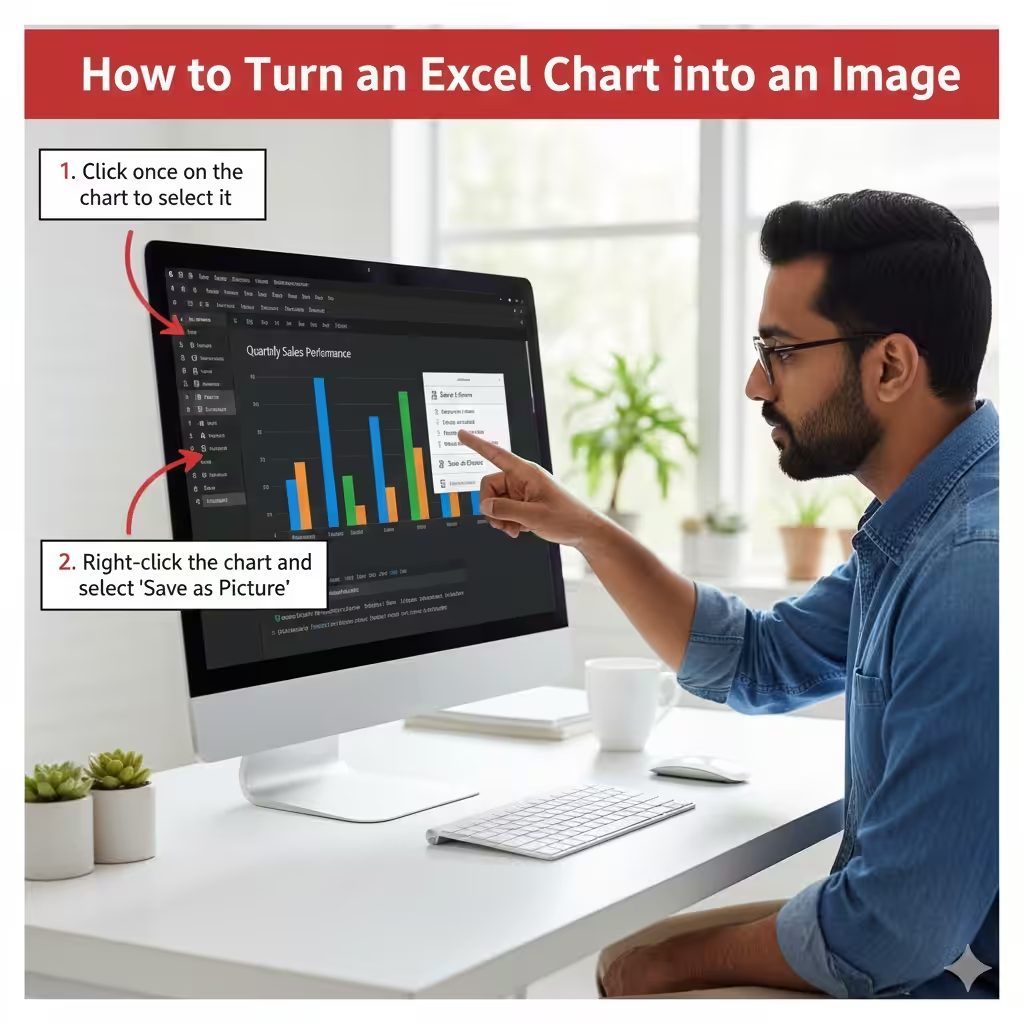
How to Turn an Excel Chart into an Image
Microsoft Excel is widely used for data analysis and visualization, and charts are one of its most powerful features. Charts help present complex data in a clear and visual way, making them ideal for reports, presentations, websites, and documentation. However, there are many situations where you may need to save an Excel chart as an image file rather than keep it inside a spreadsheet.
Saving an Excel chart as an image allows you to reuse it in PowerPoint slides, Word documents, emails, or web content without requiring Excel to open the file. This guide explains multiple reliable methods to save Excel charts as images, covering built-in features, copy-paste techniques, exporting options, and tips to preserve image quality.
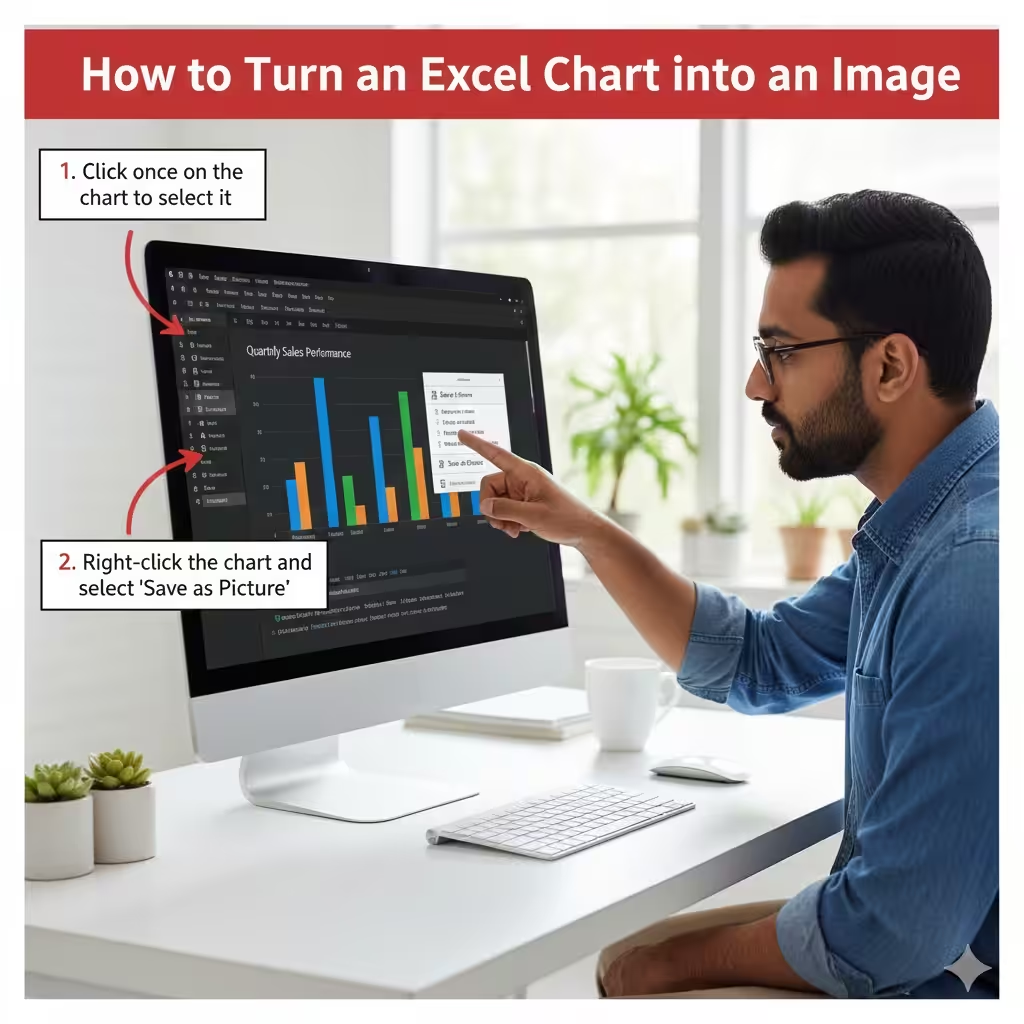
Why Save an Excel Chart as an Image?
There are several reasons why users prefer to convert Excel charts into image files.
Easy Sharing
Images can be shared easily through email, messaging apps, or cloud platforms without compatibility issues.
Use in Presentations
PowerPoint and other presentation tools work better with images than embedded Excel objects.
Preserve Formatting
Saving charts as images prevents accidental edits or layout changes.
Web and Documentation Use
Charts saved as images can be uploaded to websites, reports, blogs, or manuals.
Understanding your goal helps you choose the most suitable method.
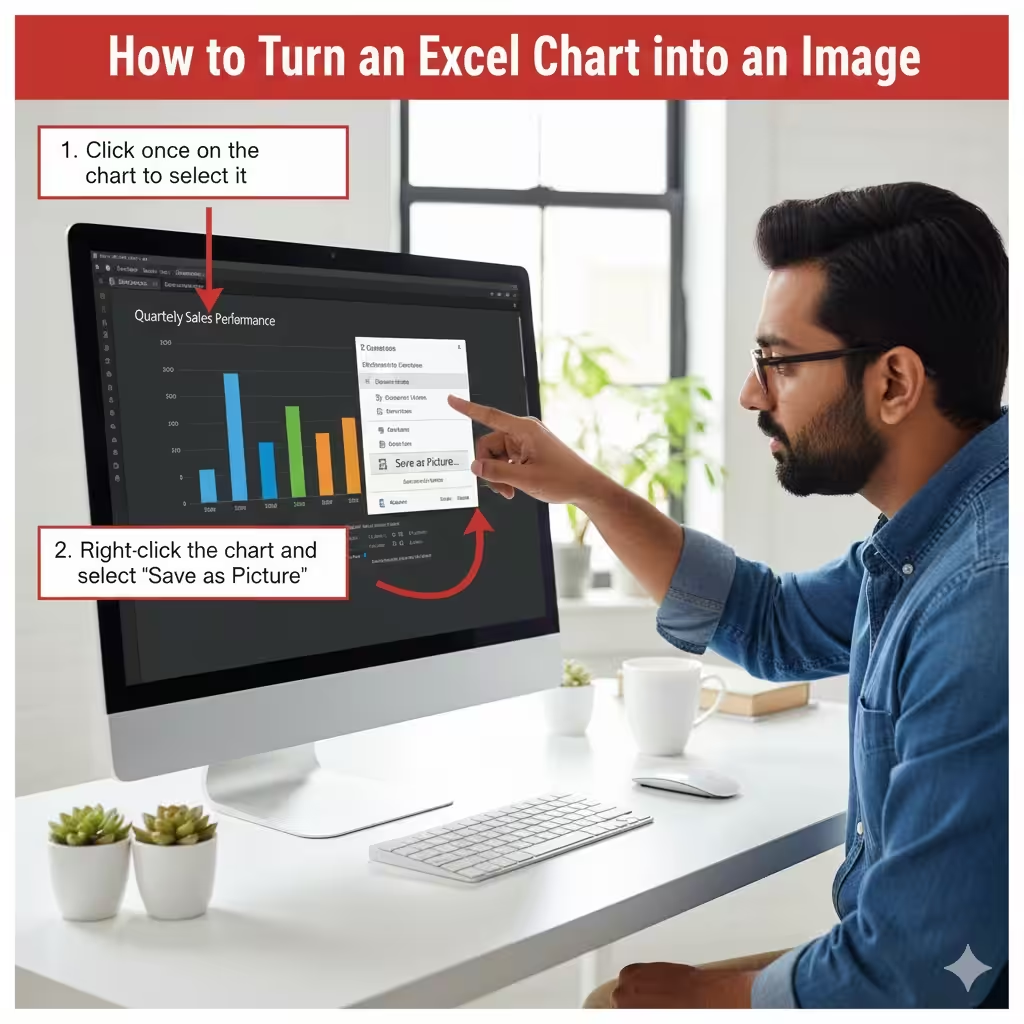
Save an Excel Chart as an Image Using Right-Click
The easiest method to save an Excel chart as an image is using Excel’s built-in right-click option.
Steps to Save a Chart as an Image
-
Open your Excel workbook
-
Click once on the chart to select it
-
Right-click the chart
-
Choose Save as Picture
-
Select a location on your computer
-
Choose the image format (PNG, JPEG, or GIF)
-
Click Save
This method is quick and works well for most users.
Supported Image Formats
-
PNG (best for quality and transparency)
-
JPEG (smaller file size)
-
GIF (limited color range)
PNG is generally recommended for charts.
Copy and Paste the Chart as an Image
Another simple method is copying the chart and pasting it as an image into another application.
Steps to Copy a Chart as an Image
-
Click the chart to select it
-
Press Ctrl + C
-
Open an image editor such as Paint
-
Press Ctrl + V
-
Save the file as PNG or JPEG
Alternatively, you can paste the chart into Word or PowerPoint and then right-click to save it as an image.
Advantages of This Method
-
Works on all Excel versions
-
Allows quick resizing
-
Useful if the right-click option is unavailable
However, this method may slightly reduce image quality depending on the application used.
Use the “Copy as Picture” Feature
Excel provides a more advanced option called Copy as Picture, which allows you to control image appearance and resolution.
How to Use Copy as Picture
-
Select the chart
-
Go to the Home tab
-
Click the arrow under Copy
-
Select Copy as Picture
-
Choose As shown on screen or As shown when printed
-
Choose Picture
-
Click OK
Paste the copied image into an image editor or document and save it.
When to Use This Method
-
When high-quality images are required
-
When preparing charts for printing
-
When preserving exact colors and fonts
Save an Excel Chart Using the Export Method
Advanced users can export charts using Excel’s VBA editor. This is especially useful when saving multiple charts automatically.
Export Chart Using VBA
-
Press Alt + F11 to open the VBA editor
-
Click Insert → Module
-
Enter the following code:
-
Modify the file path as needed
-
Run the macro
This method ensures high-quality output and automation.
Who Should Use VBA Export
-
Users working with large datasets
-
Professionals generating reports regularly
-
Users who need batch exporting
Save a Chart Sheet as an Image
If your chart is located on a dedicated chart sheet, you can save it easily.
Steps
-
Click the chart sheet tab
-
Right-click the chart
-
Choose Save as Picture
-
Select image format and save
Chart sheets usually export with better resolution than embedded charts.
Improve Image Quality When Saving Charts
To ensure your chart looks sharp and professional, follow these tips.
Increase Chart Size Before Saving
Larger charts result in higher resolution images. Resize the chart before exporting.
Use PNG Format
PNG preserves clarity, text sharpness, and transparency better than JPEG.
Adjust Font Sizes
Small fonts may become blurry when saved. Increase font sizes slightly before saving.
Use “As Shown When Printed” Option
This improves output quality, especially for reports and print materials.
Common Problems and Solutions
Saving charts as images is usually straightforward, but some issues may arise.
Blurry or Pixelated Images
-
Resize the chart larger before saving
-
Use PNG format
-
Avoid excessive scaling after saving
Colors Look Different
-
Use Copy as Picture with “As shown when printed”
-
Check display scaling settings in Windows
Missing Chart Elements
-
Ensure the entire chart is selected
-
Avoid overlapping objects
-
Use chart sheets instead of embedded charts
Insert the Saved Chart Image Into Other Applications
Once saved, you can insert the chart image into:
-
PowerPoint presentations
-
Word documents
-
Email attachments
-
Web pages
-
PDFs
This ensures compatibility across platforms and devices.
Conclusion
Saving an Excel chart as an image is an essential skill for anyone working with data visualization. Whether you use the simple right-click method, Copy as Picture, or advanced VBA export, Excel offers flexible ways to convert charts into image files. Choosing the right method depends on your quality requirements, workflow, and final use case.