


How to Change Axes in an Excel Scatter Chart
Switching axes in an Excel scatter chart is a common task when you realize that your data has been plotted the wrong way around. Unlike column or line charts, scatter charts treat both axes as value axes, which gives you more flexibility—but also makes it easier to mix up X and Y values. If your chart looks inverted, trends don’t make sense, or variables are reversed, switching axes is usually the solution.
This guide explains what switching axes really means in scatter charts, why Excel handles them differently, and provides clear, step-by-step methods to swap X and Y values correctly. You’ll also learn best practices, common mistakes, and troubleshooting tips to ensure your chart accurately represents your data.
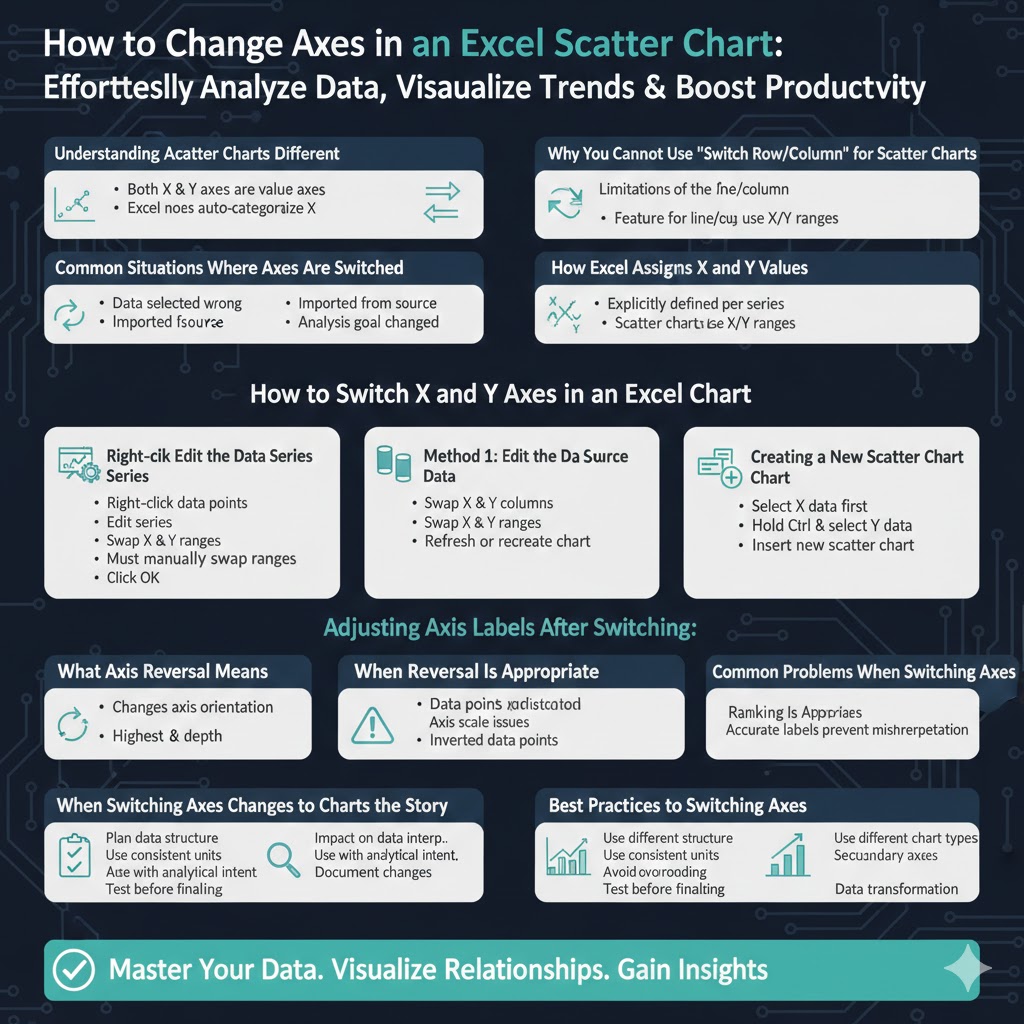
Understanding Axes in an Excel Scatter Chart
What Makes Scatter Charts Different
In scatter (XY) charts, both the horizontal (X) and vertical (Y) axes represent numerical values. Excel does not automatically assume categories on the X-axis like it does with line or column charts.
Why Axes Matter
The X-axis usually represents an independent variable (such as time, distance, or input), while the Y-axis represents a dependent variable (such as sales, output, or measurement results). Reversing them can completely change how data is interpreted.
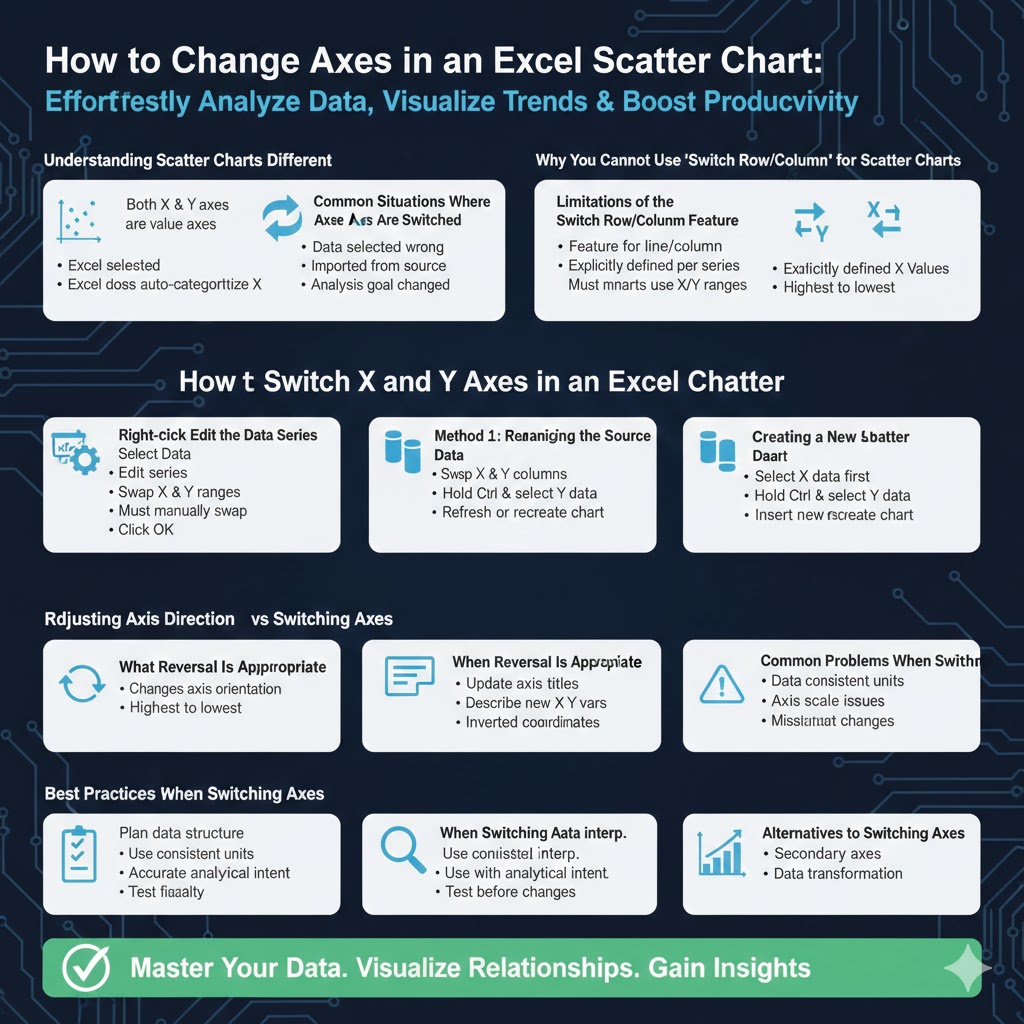
Common Situations Where Axes Are Switched
Axis switching is often needed when:
-
Data was selected in the wrong order
-
Data was imported from another source
-
You changed the analysis goal mid-project
Why You Cannot Use “Switch Row/Column” for Scatter Charts
Limitations of the Switch Row/Column Feature
In scatter charts, the “Switch Row/Column” option does not work because Excel treats each data series independently with defined X and Y ranges.
How Excel Assigns X and Y Values
Excel assigns X values and Y values explicitly for each series, rather than inferring them from layout.
What This Means for Users
To switch axes in a scatter chart, you must manually swap the X and Y value ranges.
How to Switch X and Y Axes in an Excel Scatter Chart
Method 1: Edit the Data Series
This is the most reliable and commonly used approach.
Step-by-Step Instructions
-
Click the scatter chart to select it
-
Right-click the plotted data points and choose Select Data
-
Choose the data series and click Edit
-
Swap the ranges in the X values and Y values fields
-
Click OK to apply the changes
Your chart will instantly update with the axes switched.
When to Use This Method
Use this approach when you want full control over how each series is plotted.
Method 2: Rearranging the Source Data
Why This Works
By physically swapping the columns in your worksheet, Excel will plot them differently when the chart is refreshed or recreated.
Steps
-
Copy the X values and paste them into the Y column
-
Copy the Y values and paste them into the X column
-
Update or recreate the scatter chart
Pros and Cons
This method is simple but can disrupt formulas or references elsewhere in your worksheet.
Method 3: Creating a New Scatter Chart
When Starting Fresh Is Better
If your chart is complex or includes multiple series, recreating it may be faster and cleaner.
Steps
-
Select the correct X data first
-
Hold Ctrl and select the Y data
-
Insert a new scatter chart
This ensures Excel assigns axes correctly from the beginning.
Switching Axes with Multiple Data Series
Understanding Multiple Series Behavior
Each series in a scatter chart has its own X and Y values.
How to Switch Axes for All Series
You must repeat the swap process for each series individually.
Best Practice
Label series clearly to avoid confusion during editing.
Reversing Axis Direction vs Switching Axes
What Axis Reversal Means
Reversing an axis changes its direction (for example, highest to lowest), but does not swap X and Y variables.
How to Reverse an Axis
-
Right-click the axis
-
Select Format Axis
-
Enable Values in reverse order
When Reversal Is Appropriate
Use axis reversal when working with depth, rankings, or coordinate systems that require inverted orientation.
Adjusting Axis Labels After Switching
Why Labels Need Updating
After switching axes, old labels may no longer match the data meaning.
How to Update Axis Titles
-
Select the chart
-
Add or edit axis titles
-
Clearly describe the new X and Y variables
Accurate labels prevent misinterpretation.
Common Problems When Switching Axes
Data Points Appear Distorted
This can happen if X and Y ranges have different scales or units.
Axis Scale Issues
After switching, axis minimum and maximum values may need adjustment.
Missing Data Points
Ensure the swapped ranges contain only numeric values and no blanks.
Best Practices for Scatter Charts in Excel
Plan Data Structure in Advance
Organize your worksheet so X values are clearly separated from Y values.
Use Consistent Units
Mixing units can lead to misleading visuals.
Avoid Overcrowding
Limit the number of series to maintain clarity.
Test Before Finalizing
Always double-check axis orientation before sharing or presenting.
When Switching Axes Changes the Story
Impact on Data Interpretation
Swapping axes can reveal new trends or hide existing ones.
Use with Analytical Intent
Choose the axis orientation that best supports your analytical goal.
Document Changes
If the chart is part of a report, explain why the axes were switched.
Alternatives to Switching Axes
Using Different Chart Types
In some cases, a line or column chart may better communicate the data.
Using Secondary Axes
For complex datasets, secondary axes can add clarity without switching.
Data Transformation
Transforming data may be more appropriate than swapping axes.
Conclusion
Switching axes in an Excel scatter chart is not as simple as clicking a single button, but once you understand how scatter charts handle X and Y values, the process becomes straightforward. By manually editing data series, carefully updating labels, and reviewing axis scales, you can ensure your chart accurately reflects the relationship between variables.