


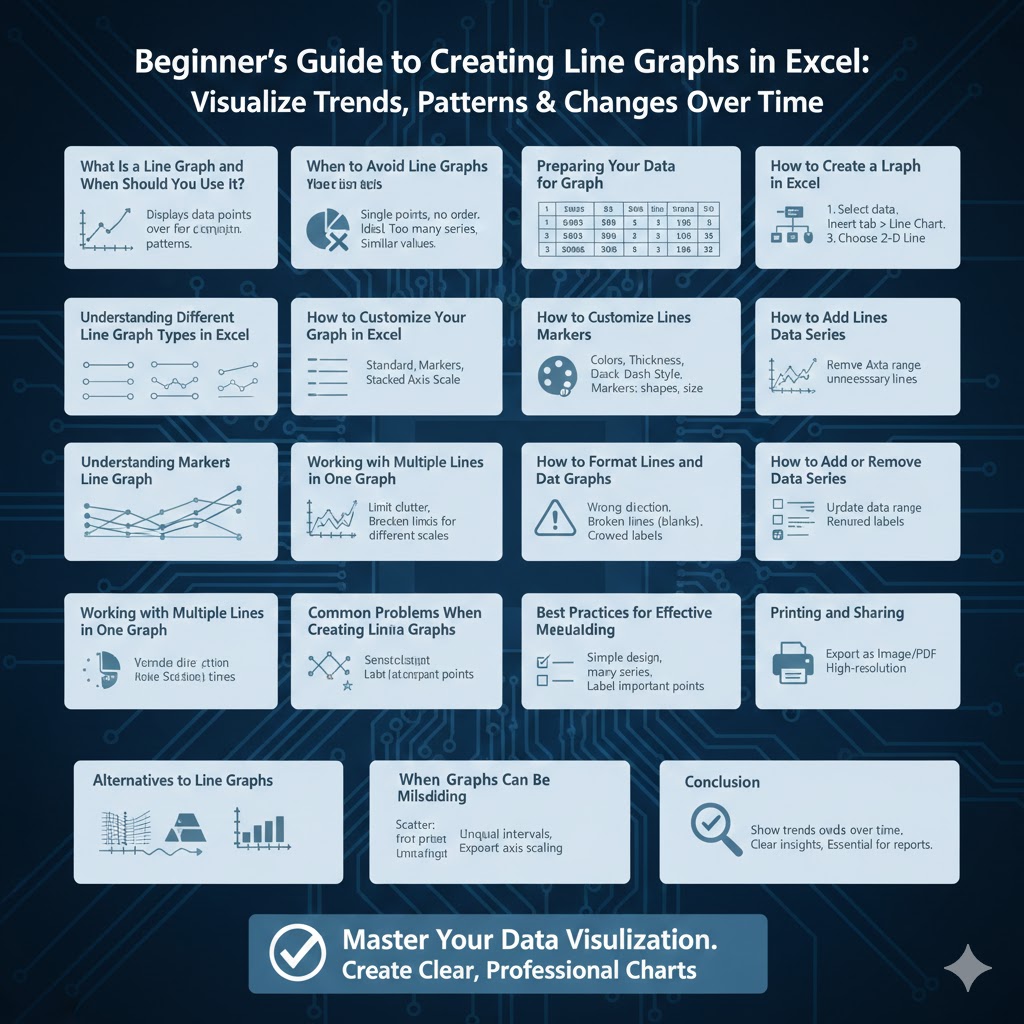
Beginner’s Guide to Creating Line Graphs in Excel
Line graphs are one of the most commonly used chart types in Excel because they are excellent for showing trends, patterns, and changes over time. Whether you are tracking sales growth, monitoring website traffic, analyzing scientific data, or comparing performance across periods, a well-designed line graph can turn raw numbers into clear insights.
This step-by-step guide explains how to create a line graph in Excel from scratch, customize it for clarity, and avoid common mistakes. By the end, you will be able to build professional-looking line graphs suitable for reports, presentations, and dashboards.
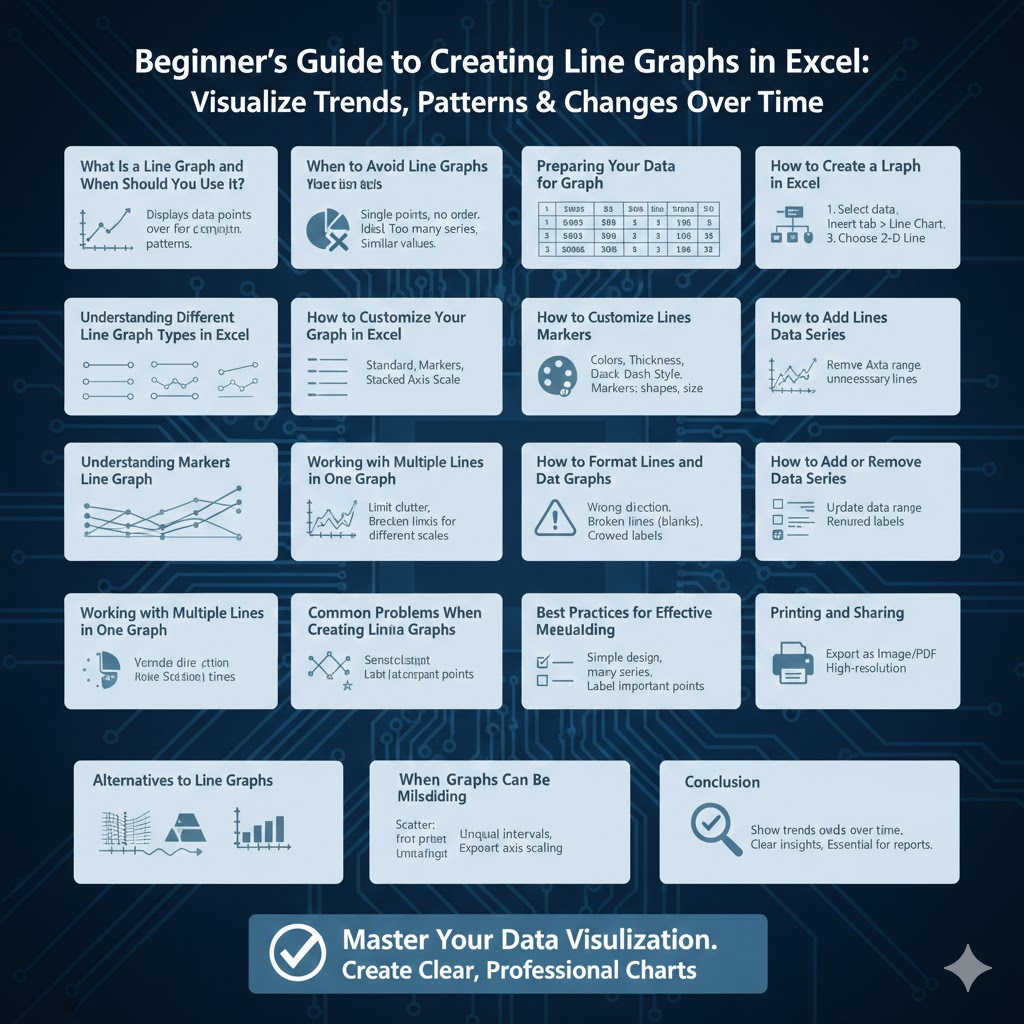
What Is a Line Graph and When Should You Use It?
Understanding Line Graphs
A line graph displays data points connected by straight lines. The horizontal axis usually represents time or ordered categories, while the vertical axis shows numerical values.
When Line Graphs Work Best
Line graphs are ideal when you want to:
-
Show trends over time
-
Compare changes across multiple data series
-
Highlight increases, decreases, or patterns
When to Avoid Line Graphs
Line graphs are not suitable for:
-
Single data points with no sequence
-
Categorical data without natural order
-
Very large numbers of unrelated series
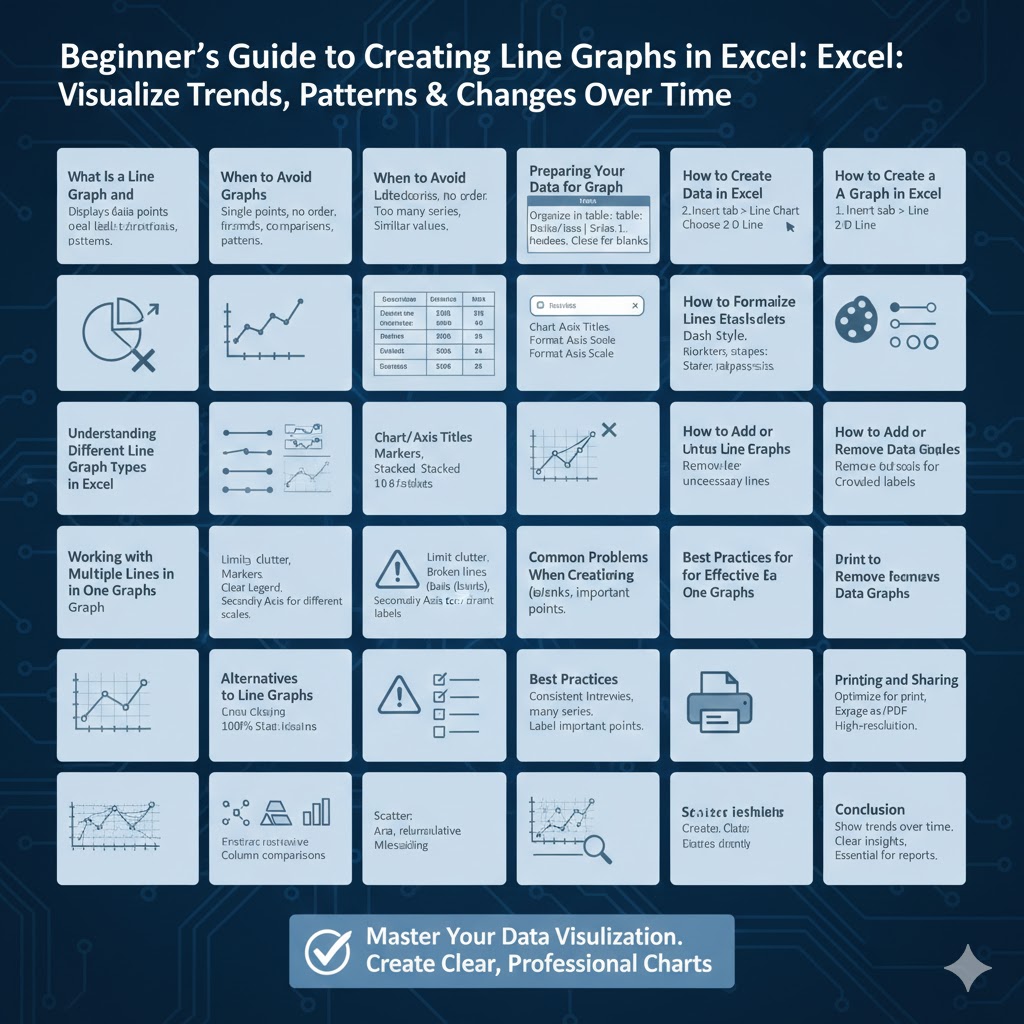
Preparing Your Data for a Line Graph
Organize Data Correctly
Excel expects data to be arranged in a table format. Typically:
-
The first column contains categories or dates
-
Each additional column contains a data series
Use Clear Headers
Column headers help Excel label the legend and axes automatically.
Check for Missing or Incorrect Values
Blank cells or text values can break lines or distort the graph.
How to Create a Line Graph in Excel
Step 1: Select Your Data
Highlight the entire data range, including headers.
Step 2: Insert the Line Graph
-
Go to the Insert tab
-
Click Insert Line or Area Chart
-
Choose 2-D Line or another line style
Excel will immediately generate a line graph using your data.
Step 3: Review the Initial Chart
Check that:
-
Each line represents the correct data series
-
The horizontal axis shows the intended categories or dates
Understanding Different Line Graph Types in Excel
Standard Line Chart
Shows simple trends with straight connecting lines.
Line with Markers
Displays individual data points clearly along the line.
Stacked Line Chart
Shows cumulative values rather than individual trends.
100% Stacked Line Chart
Displays proportional contribution over time, not absolute values.
How to Customize Your Line Graph
Adding and Editing Chart Titles
A clear title explains what the graph represents.
Editing Axis Titles
Axis titles clarify what the horizontal and vertical axes measure.
Formatting Axis Scales
Adjust minimum and maximum values to improve readability and avoid misleading visuals.
How to Format Lines and Markers
Changing Line Colors and Styles
Use contrasting colors to differentiate data series.
Adjusting Line Thickness
Thicker lines improve visibility in presentations.
Using Markers Effectively
Markers highlight individual data points but should be used sparingly.
How to Add or Remove Data Series
Adding New Data to the Graph
When you add new rows or columns to the source data, the chart can be updated to include them.
Removing Unnecessary Series
Simplify the graph by removing lines that do not support your message.
Reordering Series
Reordering affects legend order and visual emphasis.
Working with Multiple Lines in One Graph
Avoid Visual Clutter
Limit the number of lines to maintain clarity.
Use a Clear Legend
Legends help viewers identify each data series.
Consider Secondary Axes
If values differ greatly in scale, a secondary axis can help.
Common Problems When Creating Line Graphs
Data Plotted in the Wrong Direction
Use Switch Row/Column if Excel assigns series incorrectly.
Broken or Missing Lines
Check for blank cells or non-numeric values.
Crowded Axis Labels
Rotate or reduce label frequency for better readability.
Best Practices for Effective Line Graphs
Keep the Design Simple
Avoid excessive colors, effects, or gridlines.
Use Consistent Time Intervals
Uneven spacing can distort trend interpretation.
Label Important Points
Use data labels or annotations to highlight key changes.
Align with Your Audience
Tailor the level of detail to whether the graph is for technical or general viewers.
Printing and Sharing Line Graphs
Optimizing for Print
Ensure fonts and lines are thick enough to be readable in print.
Exporting as Images or PDFs
Excel allows you to export charts for use in documents or presentations.
Maintaining Quality
Use high-resolution formats when sharing digitally.
Alternatives to Line Graphs
Scatter Charts
Better for analyzing relationships between two numerical variables.
Area Charts
Useful when showing cumulative trends.
Column Charts
Better for comparing values across categories at a single point in time.
When Line Graphs Can Be Misleading
Unequal Time Intervals
Irregular spacing can exaggerate or minimize trends.
Too Many Series
Excessive lines reduce clarity and impact.
Improper Axis Scaling
Poor scaling can distort the true pattern of change.
Conclusion
Creating a line graph in Excel is a straightforward process, but making one that clearly communicates trends requires thoughtful preparation and formatting. By organizing your data correctly, choosing the appropriate line chart type, and applying best practices for design and labeling, you can transform raw data into meaningful visual insights.