


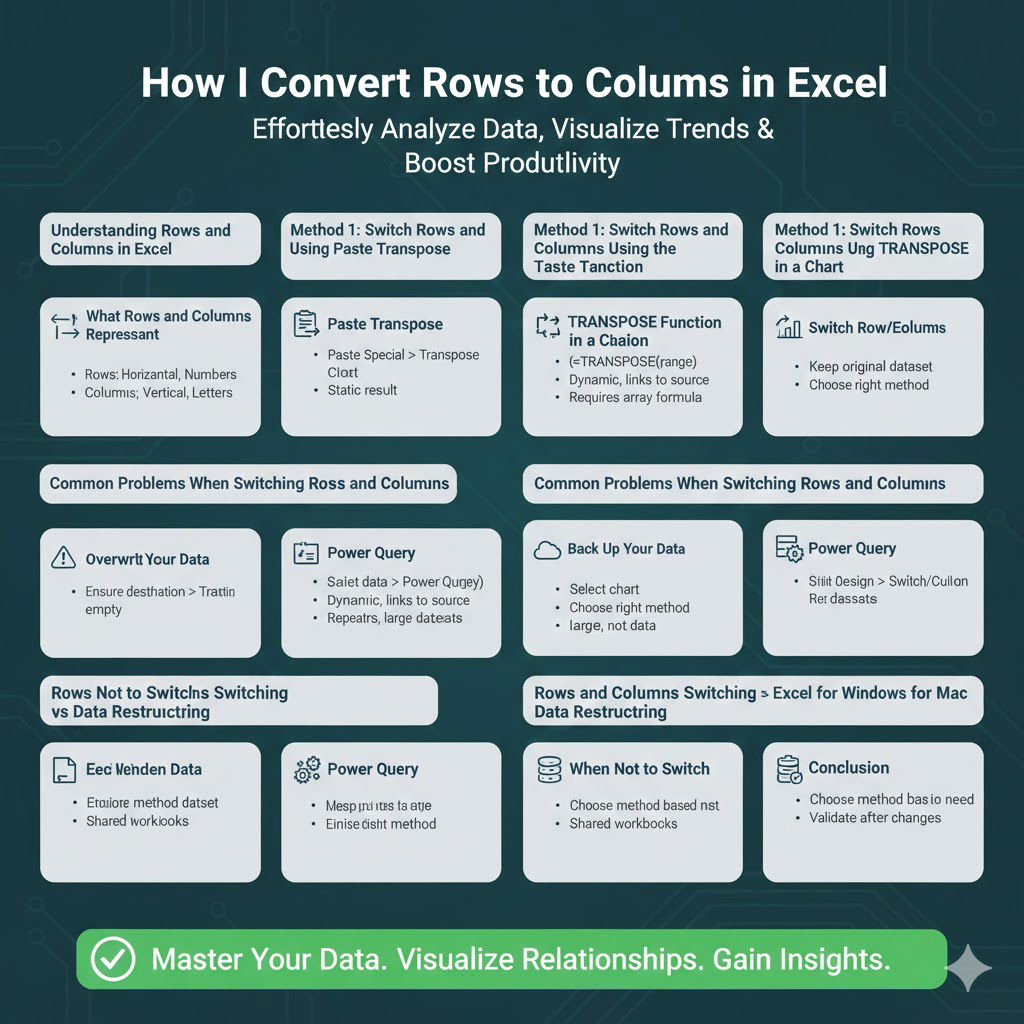
How to Convert Rows to Columns in Excel
Switching rows and columns in Excel is a common task when data is not arranged in the most useful format. Many spreadsheets are created or imported with data oriented incorrectly, making analysis, charting, or reporting more difficult than necessary. Fortunately, Excel provides several easy and reliable ways to switch rows and columns, depending on whether you need a one-time change or a dynamic solution that updates automatically.
This step-by-step guide explains all the practical methods to switch rows and columns in Excel, when to use each one, and how to avoid common mistakes.
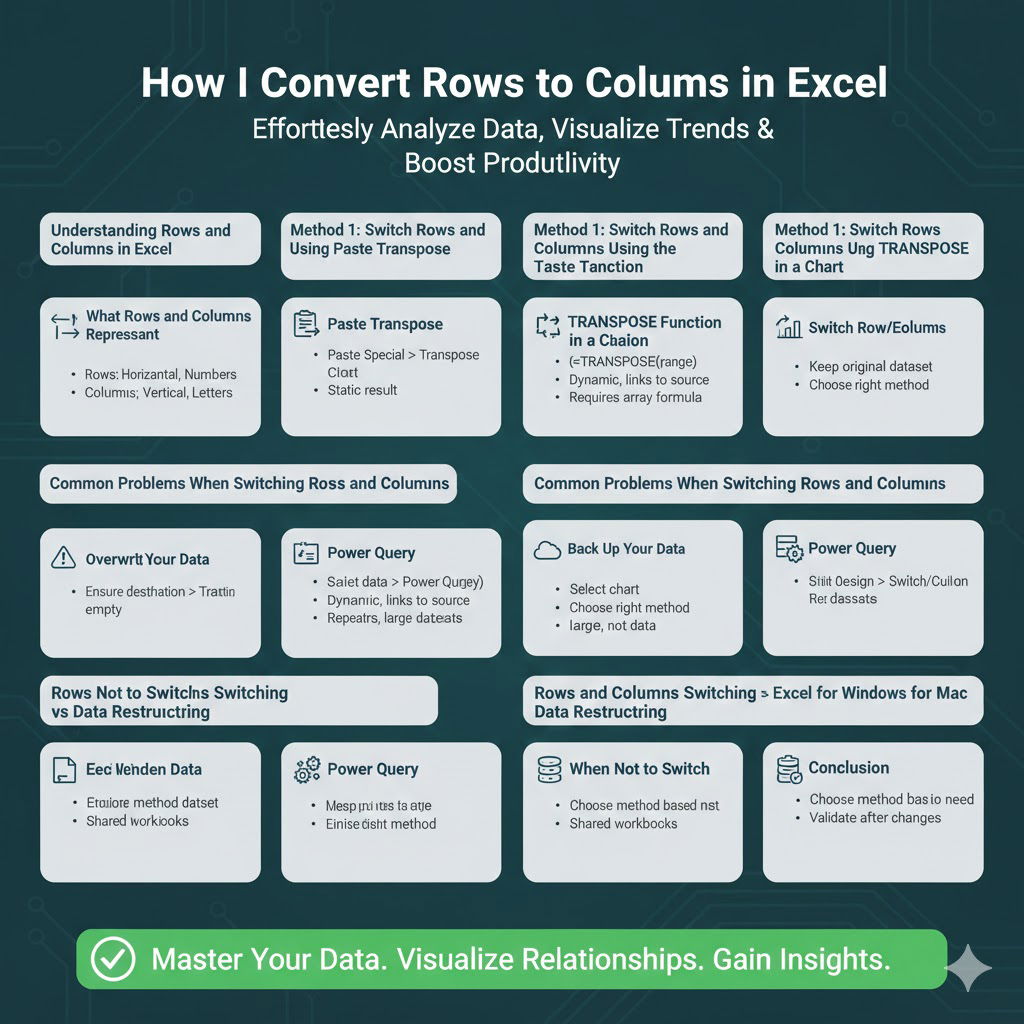
Understanding Rows and Columns in Excel
What Rows and Columns Represent
Rows run horizontally across the worksheet and are identified by numbers, while columns run vertically and are identified by letters. How data is arranged across rows and columns affects sorting, filtering, formulas, and chart creation.
Why Switching Rows and Columns Is Necessary
You may need to switch rows and columns when:
-
Data is imported from another system
-
Survey results are oriented incorrectly
-
Charts do not display as expected
-
Formulas are harder to apply in the current layout
Method 1: Switch Rows and Columns Using Paste Transpose
When to Use This Method
Paste Transpose is ideal for one-time data rearrangements where you do not need a live connection to the original data.
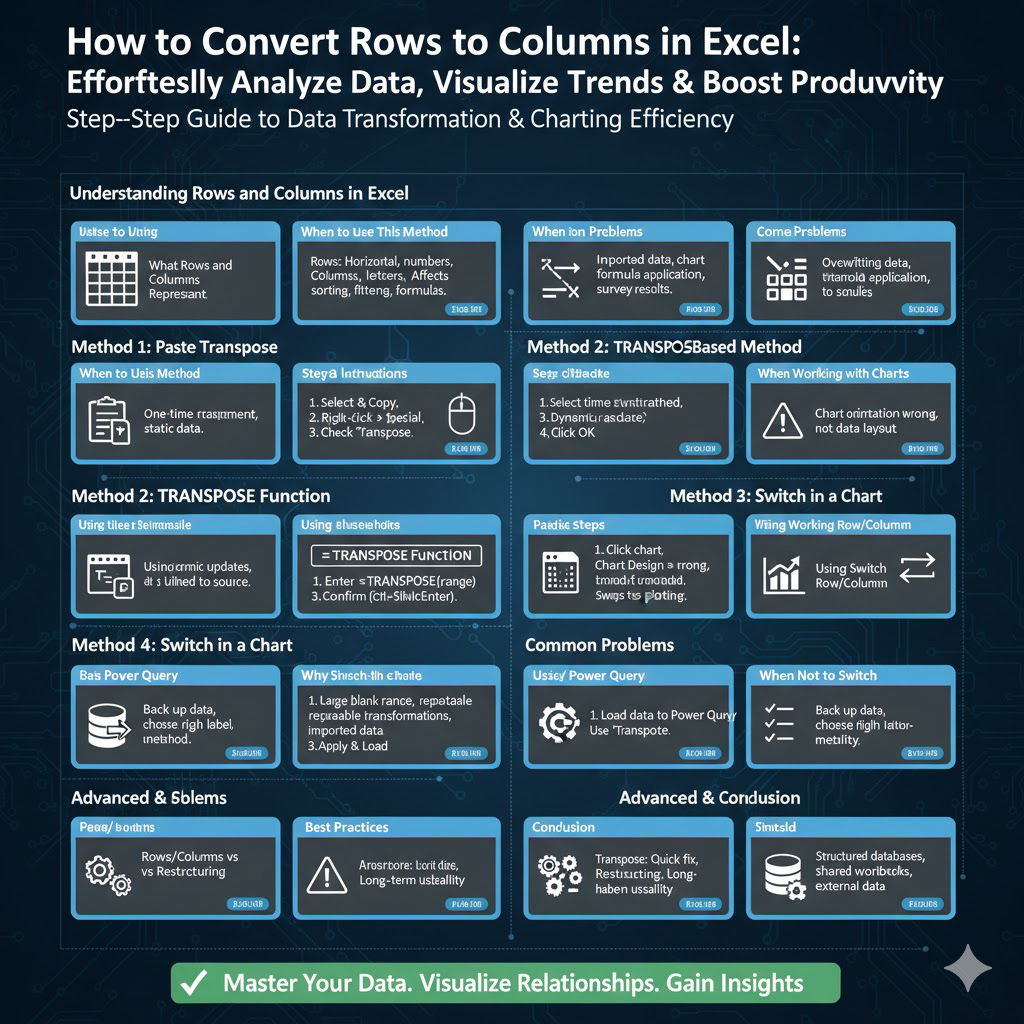
Step-by-Step Instructions
-
Select the data range you want to switch
-
Right-click and choose Copy
-
Select a new empty location
-
Right-click and choose Paste Special
-
Check the Transpose option
-
Click OK
Excel will instantly convert rows into columns and columns into rows.
Important Limitations
The transposed data is static and will not update if the original data changes.
Method 2: Switch Rows and Columns Using the TRANSPOSE Function
Why Use a Formula-Based Method
This method is best when you want the switched data to update automatically.
Using the TRANSPOSE Function
-
Select a blank area large enough to hold the transposed data
-
Enter the TRANSPOSE formula referencing the original range
-
Confirm the formula
Dynamic Results
Any change made to the source data will automatically reflect in the transposed output.
Things to Keep in Mind
The TRANSPOSE function creates linked data, so deleting the source can break results.
Method 3: Switch Rows and Columns in a Chart
When Working with Charts
Sometimes the data layout is fine, but the chart orientation is wrong.
Using Switch Row/Column
-
Click the chart
-
Go to the Chart Design tab
-
Click Switch Row/Column
Excel will swap how data series are plotted without changing worksheet data.
Best Use Case
This works well for column, bar, and line charts.
Method 4: Switch Rows and Columns Using Power Query
Why Power Query Is Powerful
Power Query is ideal for large datasets and repeated transformations.
Basic Steps
-
Load your data into Power Query
-
Use the Transpose option
-
Apply changes and load data back into Excel
Advantages
-
Handles large datasets efficiently
-
Keeps transformations repeatable
-
Ideal for imported data
Common Problems When Switching Rows and Columns
Overwriting Existing Data
Always ensure the destination area is empty before transposing.
Losing Formulas
Paste Transpose converts formulas into values by default.
Mismatched Data Sizes
Ensure the destination range is large enough to hold the switched data.
Best Practices for Switching Rows and Columns
Back Up Your Data
Always keep a copy of the original dataset before making changes.
Choose the Right Method
Use static methods for final reports and dynamic methods for ongoing analysis.
Label Headers Clearly
Headers may need to be renamed after switching.
Test Formulas and Charts
Confirm everything works correctly after the change.
When Not to Switch Rows and Columns
Highly Structured Databases
Some data layouts are designed intentionally and should not be altered.
Shared Workbooks
Changing data orientation can break references used by others.
Connected External Data
Transposing linked data sources may cause refresh issues.
Rows and Columns Switching vs Data Restructuring
Simple Transpose
Quick layout correction.
Full Restructuring
Better for long-term usability and reporting.
Choosing the Right Approach
Think about how the data will be used going forward.
Excel for Windows vs Excel for Mac
Feature Availability
Core transpose features are available on both platforms.
Interface Differences
Menu locations differ slightly, but functionality is the same.
Power Query Availability
Power Query support may vary by Excel version.
Conclusion
Switching rows and columns in Excel is a simple yet powerful way to improve data usability. Whether you use Paste Transpose for a quick fix, the TRANSPOSE function for dynamic updates, or Power Query for large and complex datasets, Excel offers flexible tools for every situation.