


Windows Explorer Not Responding? Here’s How to Fix It on Windows 10
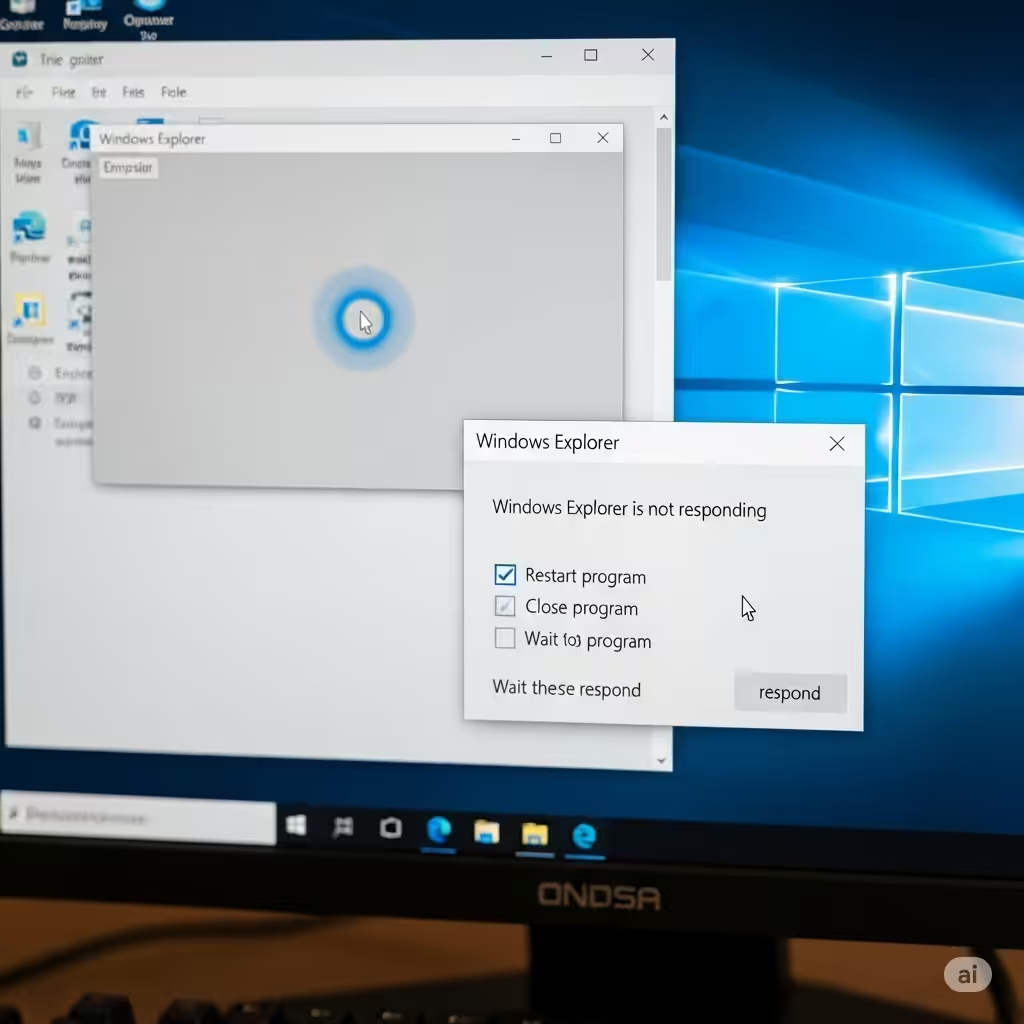
Windows Explorer, also known as File Explorer, is a core component of the Windows operating system that allows users to browse files, folders, and drives. When it stops responding, it can interrupt productivity and create frustration, especially if it happens frequently. Fortunately, there are several practical solutions to fix this issue.
This guide provides step-by-step methods to troubleshoot and resolve the “Windows Explorer not responding” error in Windows 10. Whether it’s caused by corrupted files, misbehaving software, or outdated drivers, this article covers the fixes you need.
Common Causes of Windows Explorer Not Responding
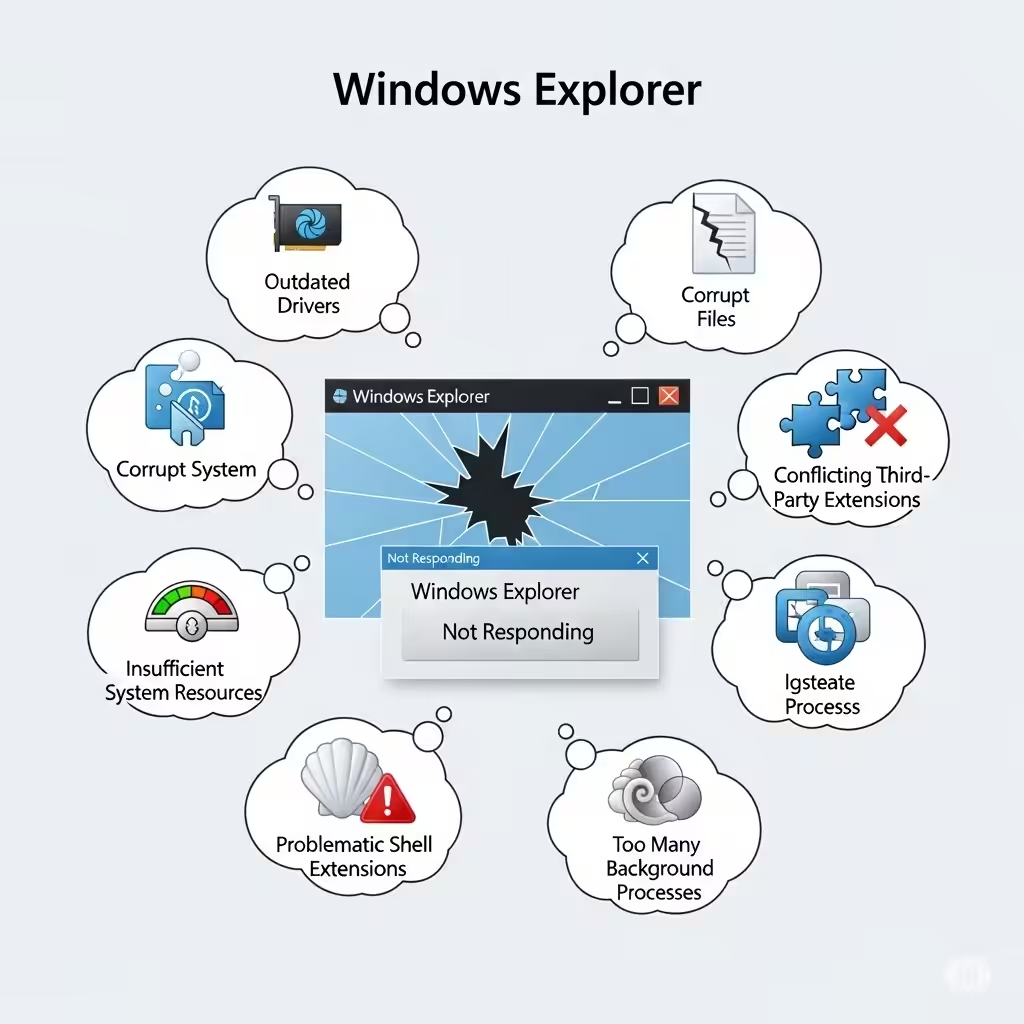
Before diving into the solutions, it’s helpful to understand what might be causing the issue. Here are some typical reasons:
-
Corrupted system files
-
Faulty or outdated display drivers
-
Third-party software interference
-
Too many open windows or processes
-
File Explorer cache build-up
-
Malware or virus infection
Once you’ve identified the possible causes, you can try the following methods to restore Explorer to full functionality.
Restart Windows Explorer
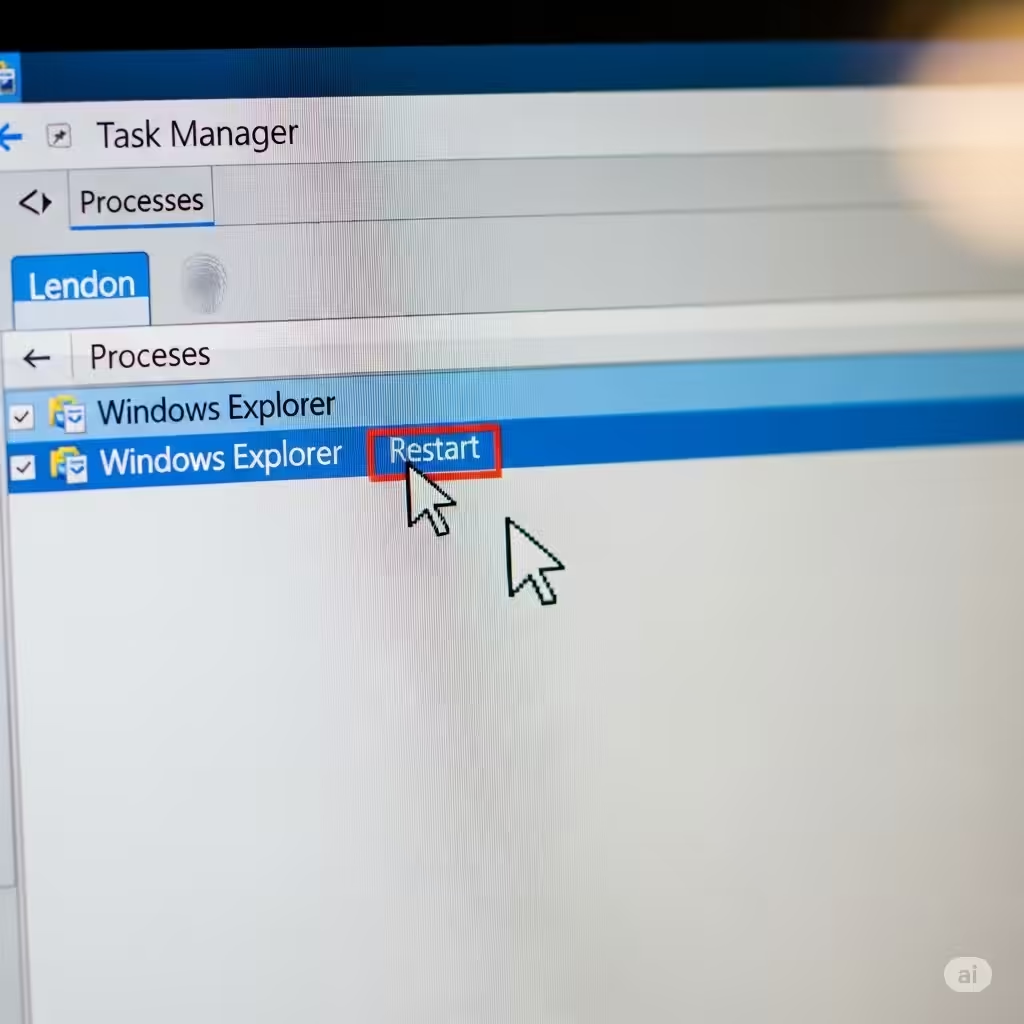
Sometimes the simplest fix is to restart Windows Explorer.
Steps:
-
Press Ctrl + Shift + Esc to open Task Manager.
-
Locate Windows Explorer under the Processes tab.
-
Right-click it and select Restart.
This will refresh the desktop, taskbar, and file windows without restarting the whole system. If the issue was temporary, this may resolve it right away.
Clear File Explorer History
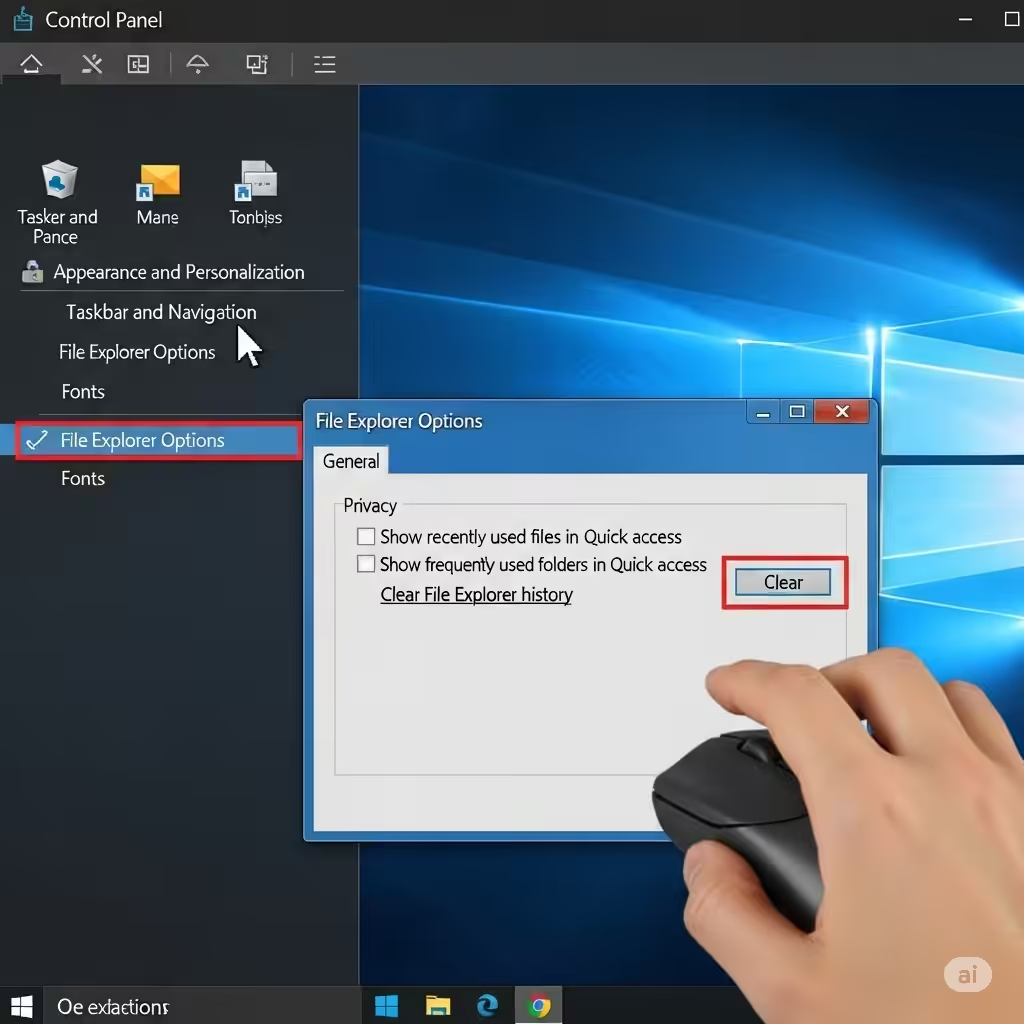
A corrupted Explorer history cache can cause the app to hang.
How to Clear:
-
Open the Control Panel.
-
Go to File Explorer Options.
-
Under the General tab, click Clear next to “Clear File Explorer history.”
-
Click OK to confirm.
After clearing the history, try reopening Windows Explorer to see if it behaves normally.
Run System File Checker (SFC)
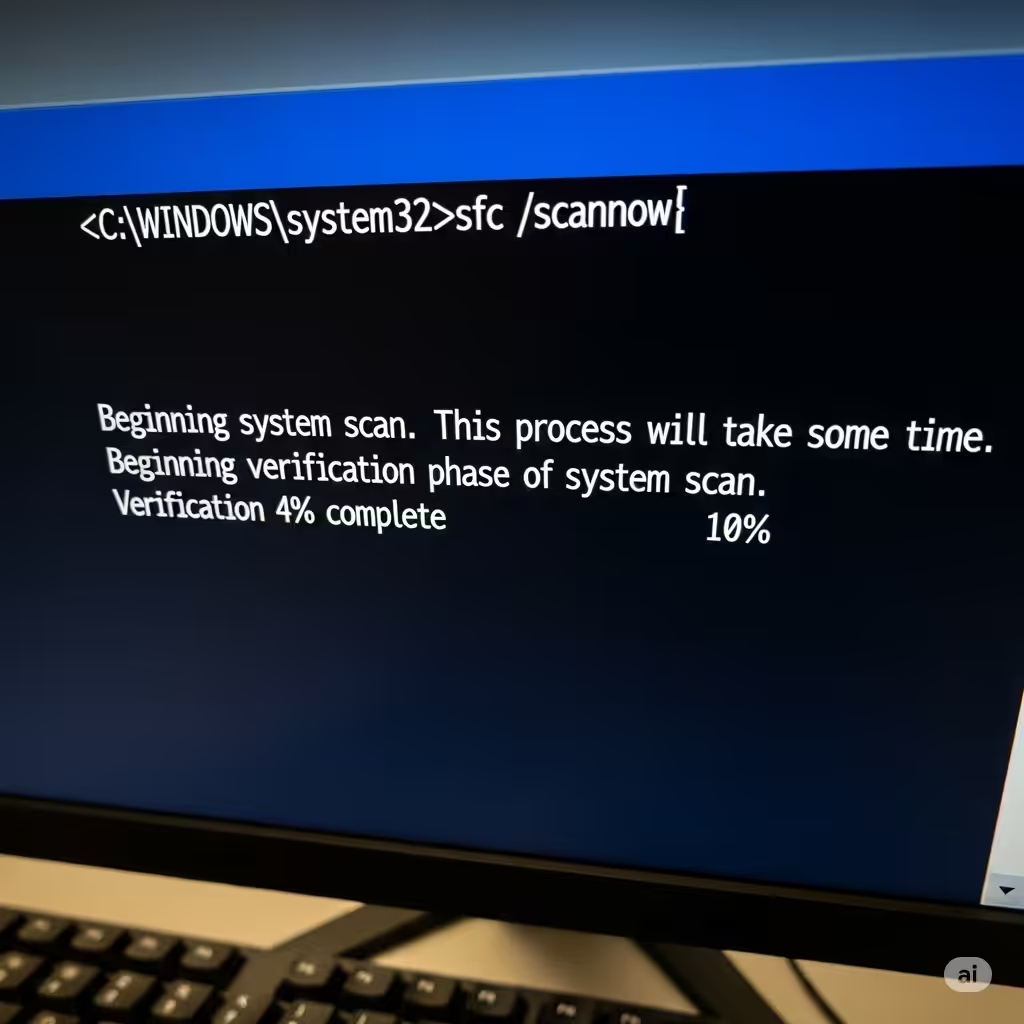
Corrupted or missing system files may cause Windows components, including Explorer, to malfunction.
Steps to Use SFC:
-
Press Windows + X and select Windows PowerShell (Admin) or Command Prompt (Admin).
-
Type the following command and press Enter:
-
Wait for the process to complete. It may take a few minutes.
This scan will automatically detect and repair corrupted system files.
Update Display Drivers
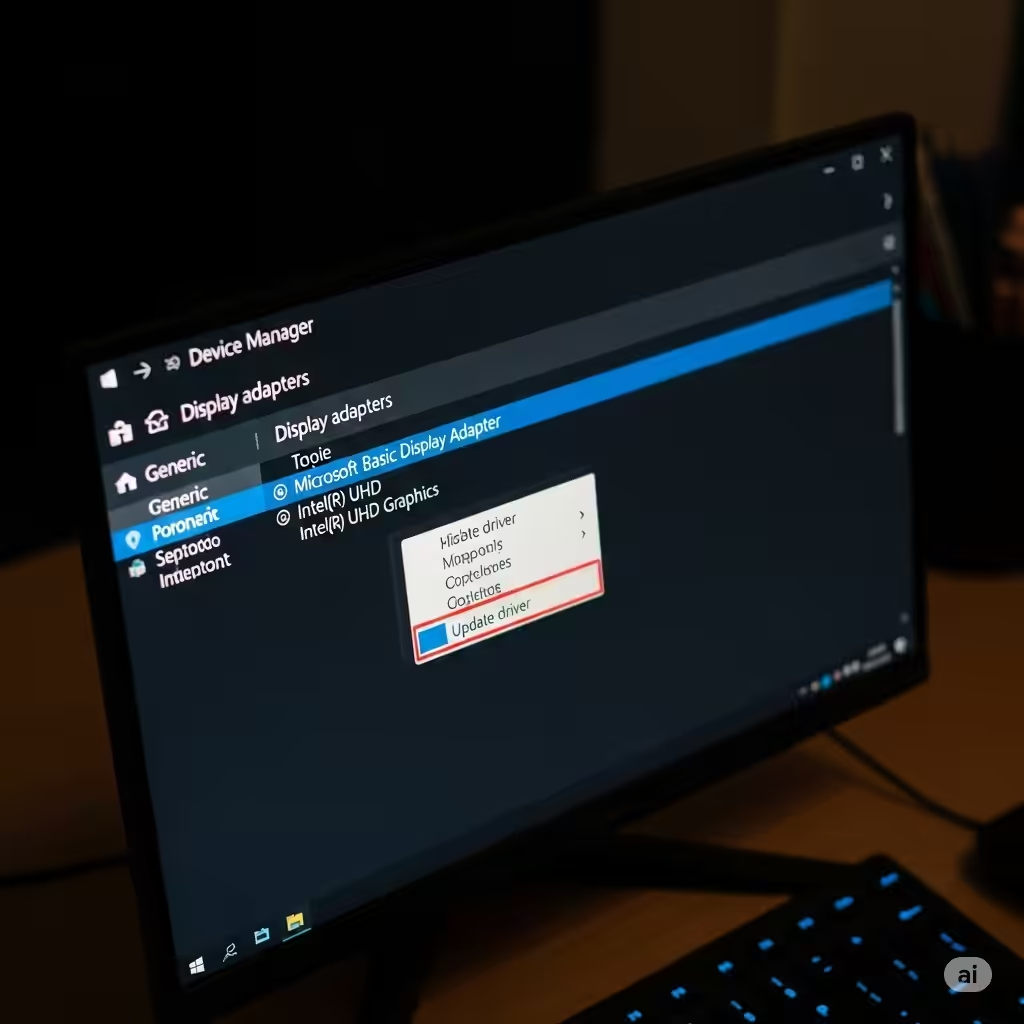
Since Windows Explorer is tied to the graphical user interface, display drivers can affect its stability.
Steps:
-
Press Windows + X and choose Device Manager.
-
Expand the Display adapters section.
-
Right-click your graphics card and select Update driver.
-
Choose Search automatically for updated driver software.
Alternatively, visit the manufacturer’s website (NVIDIA, AMD, Intel) to manually download the latest drivers.
Perform a Clean Boot
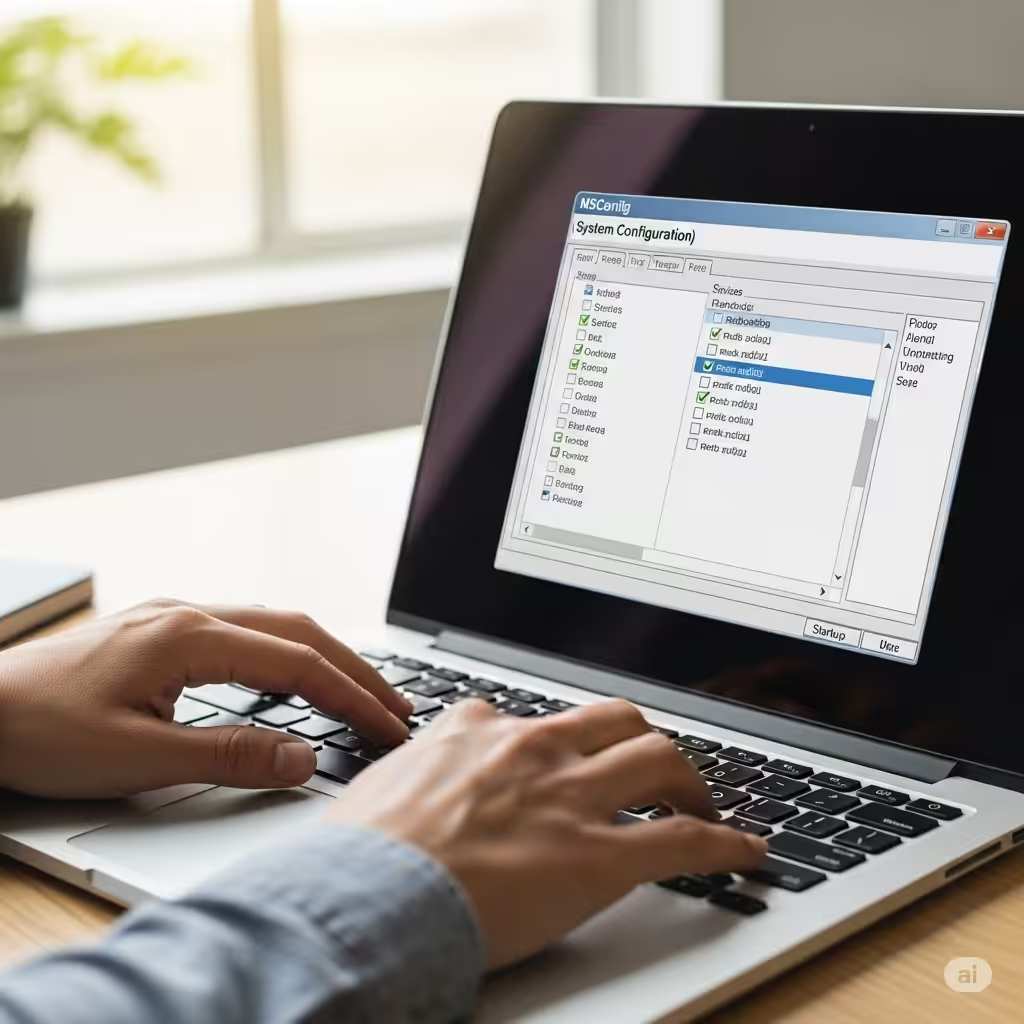
Third-party applications or services running in the background can conflict with File Explorer. A clean boot helps identify the culprit.
How to Perform a Clean Boot:
-
Press Windows + R, type
msconfig, and hit Enter. -
Go to the Services tab.
-
Check Hide all Microsoft services, then click Disable all.
-
Go to the Startup tab and click Open Task Manager.
-
Disable all startup items.
-
Restart your computer.
If Explorer works fine after the clean boot, re-enable each service or startup program one by one to find the one causing the issue.
Scan for Malware
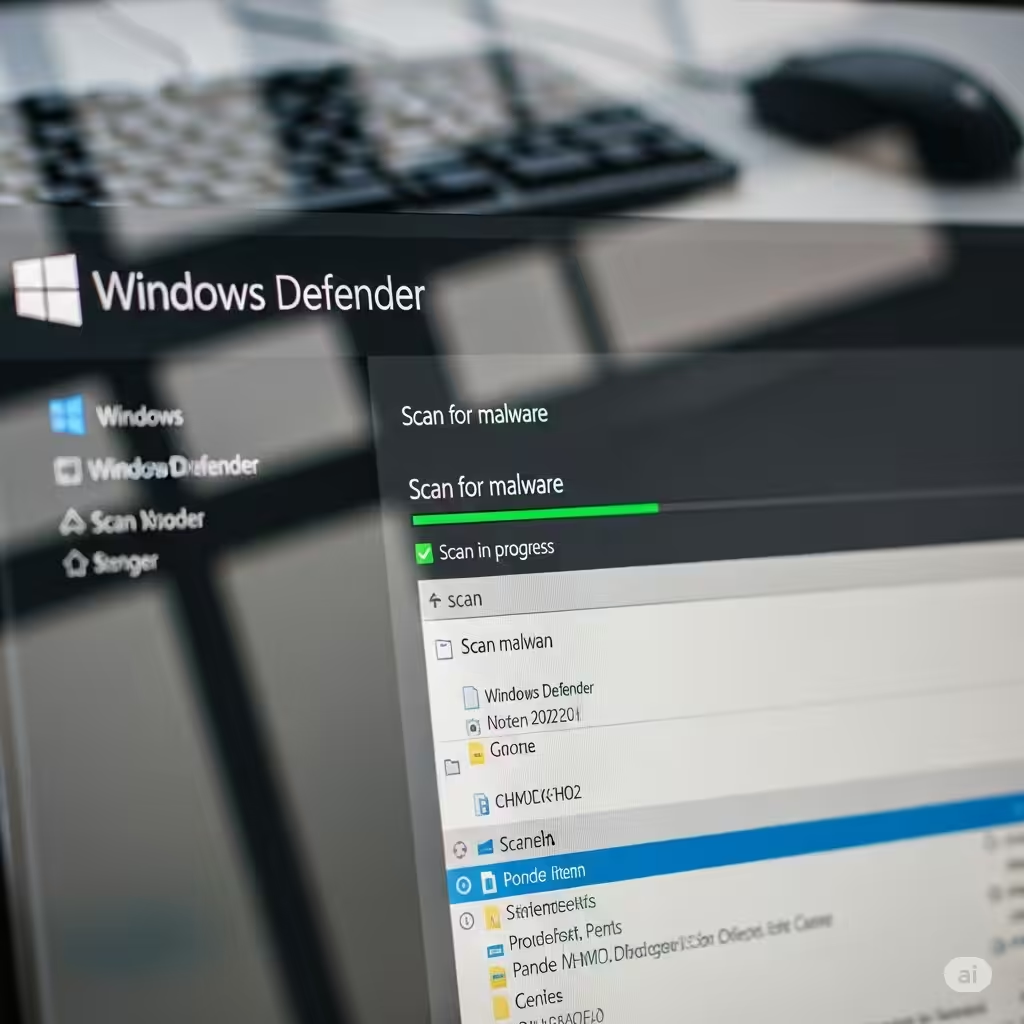
Malicious software can interfere with system operations, including File Explorer.
Recommended Tools:
-
Windows Defender (built-in)
-
Malwarebytes
-
HitmanPro
Run a full scan with one of these tools and remove any threats detected. Restart your system afterward.
Check for Windows Updates
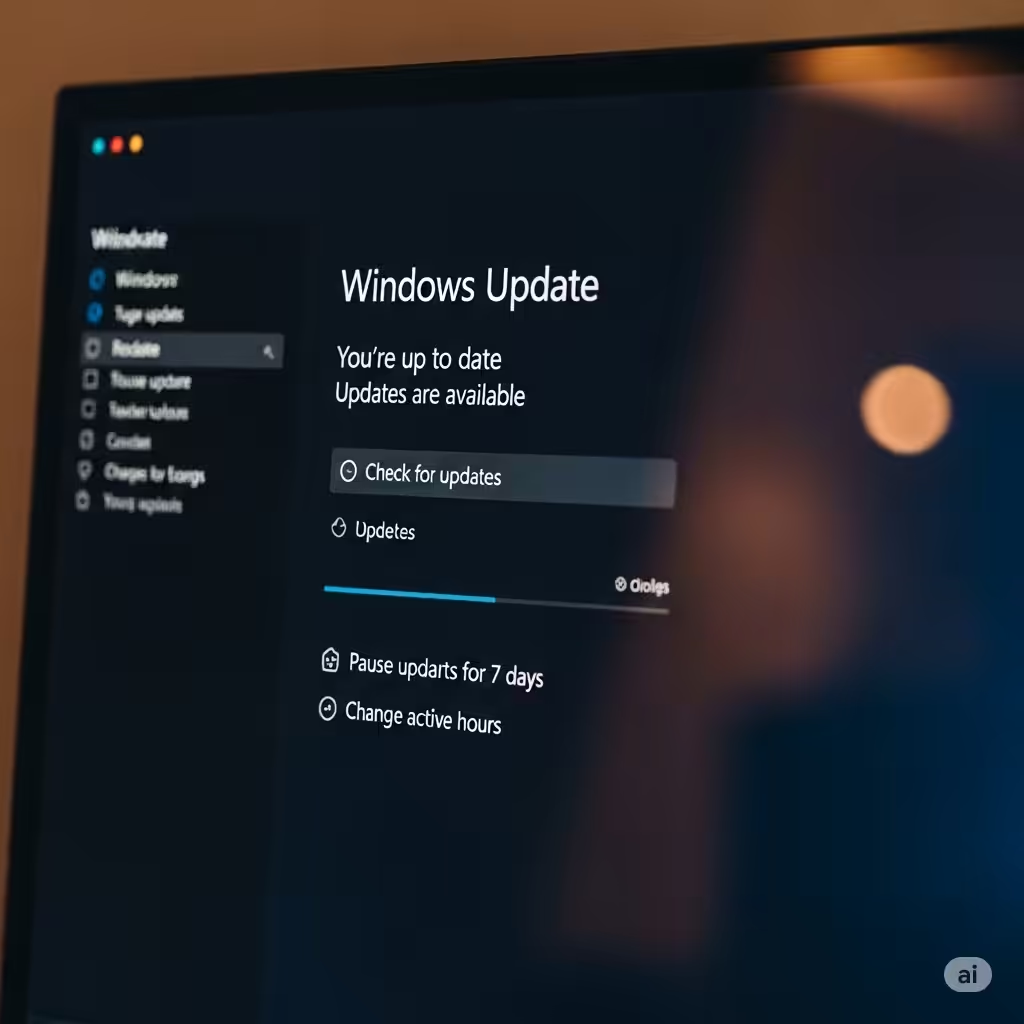
Missing system updates can lead to unexpected software behavior. Keeping Windows updated may resolve known bugs affecting Explorer.
Steps:
-
Go to Settings > Update & Security > Windows Update.
-
Click Check for updates.
-
Install any available updates and restart your computer.
Delete Temporary System Files
Over time, temporary files can build up and cause system slowdowns or glitches.
How to Clean Temp Files:
-
Press Windows + R, type
temp, and hit Enter. -
Delete all files in the folder.
-
Repeat the process with
%temp%andprefetch.
Also consider using Disk Cleanup for a more comprehensive cleanup.
Use System Restore
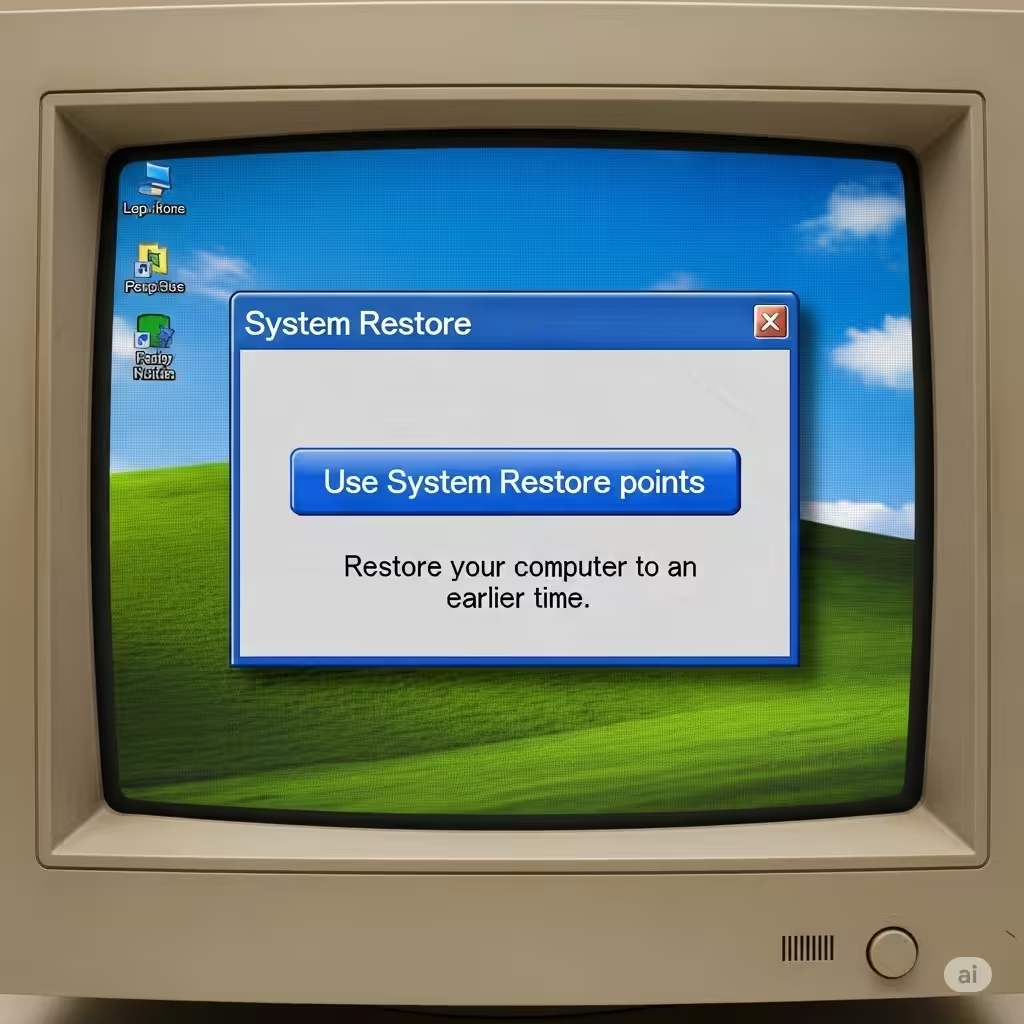
If the problem began recently, you can use System Restore to revert your system to an earlier point when everything worked fine.
Steps:
-
Search for System Restore in the Start Menu and open Create a restore point.
-
In the System Properties window, click System Restore.
-
Follow the prompts to choose a restore point and revert your system.
Note: This will not affect your personal files but may uninstall apps or drivers added after the restore point.
Create a New User Profile
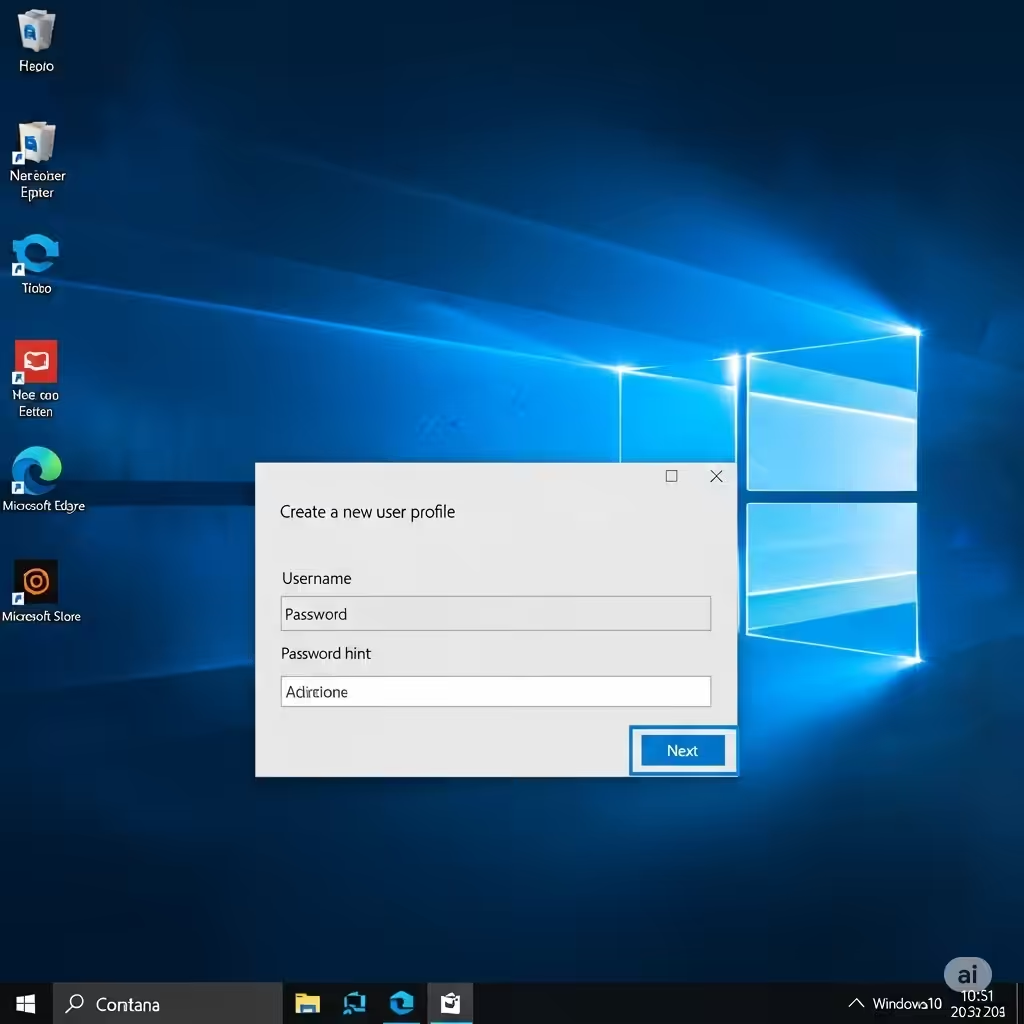
Sometimes the user profile gets corrupted, and that can affect core applications like File Explorer.
To Create a New User:
-
Go to Settings > Accounts > Family & other users.
-
Click Add someone else to this PC.
-
Follow the prompts to create a new account.
-
Log in with the new account and see if Explorer works normally.
If it does, consider transferring your files to the new account.
Reset Windows (As a Last Resort)
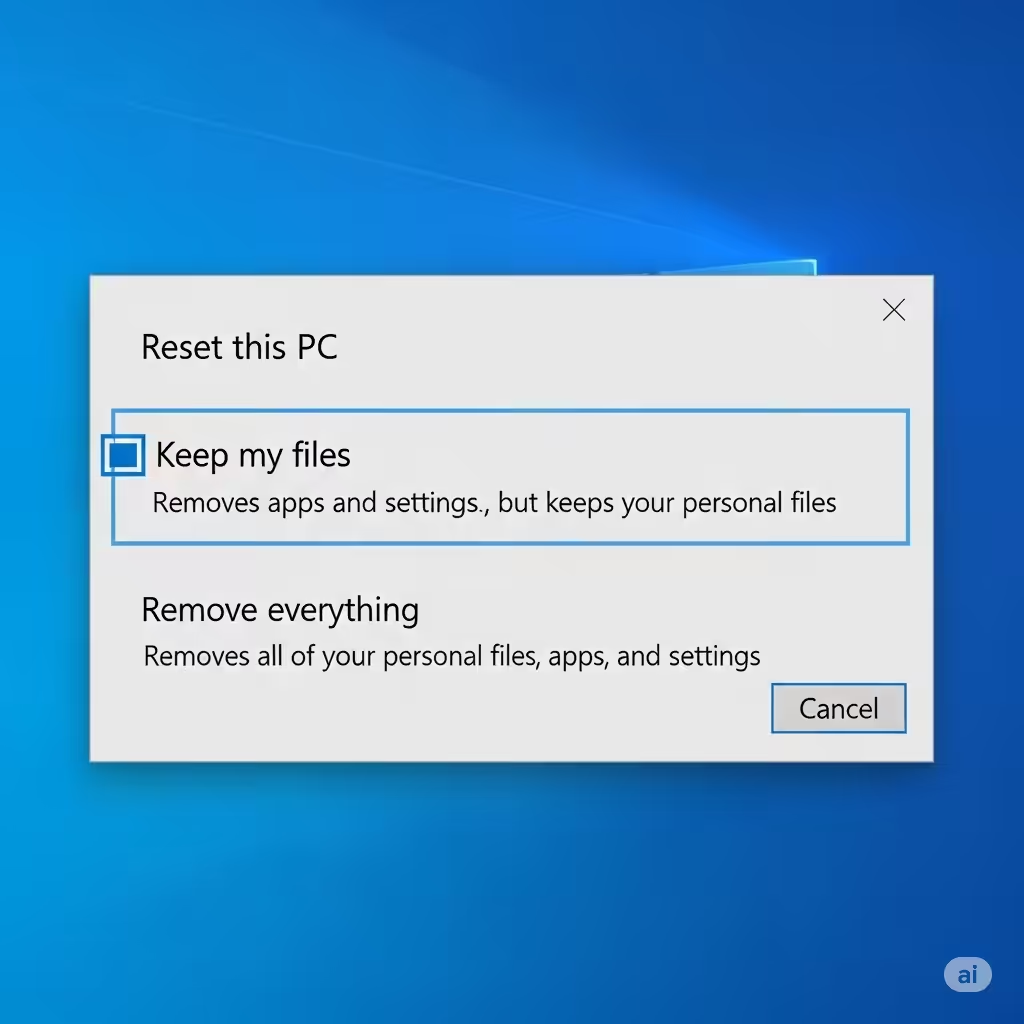
If all else fails, resetting your PC can fix deep-rooted issues.
Steps:
-
Go to Settings > Update & Security > Recovery.
-
Click Get started under Reset this PC.
-
Choose to Keep my files or Remove everything.
-
Follow the on-screen instructions.
Only do this if all other methods fail and you’re comfortable with reinstalling apps afterward.
Final Thoughts
The “Windows Explorer not responding” error on Windows 10 can be annoying, but it’s usually fixable using one of the methods above. Start with simple solutions like restarting Explorer or clearing its history. If that doesn’t work, proceed to more advanced fixes such as SFC, updating drivers, or performing a clean boot.
By following these steps, you should be able to restore Windows Explorer and prevent the issue from recurring. Always remember to keep your system updated and perform regular maintenance for a smoother experience.