


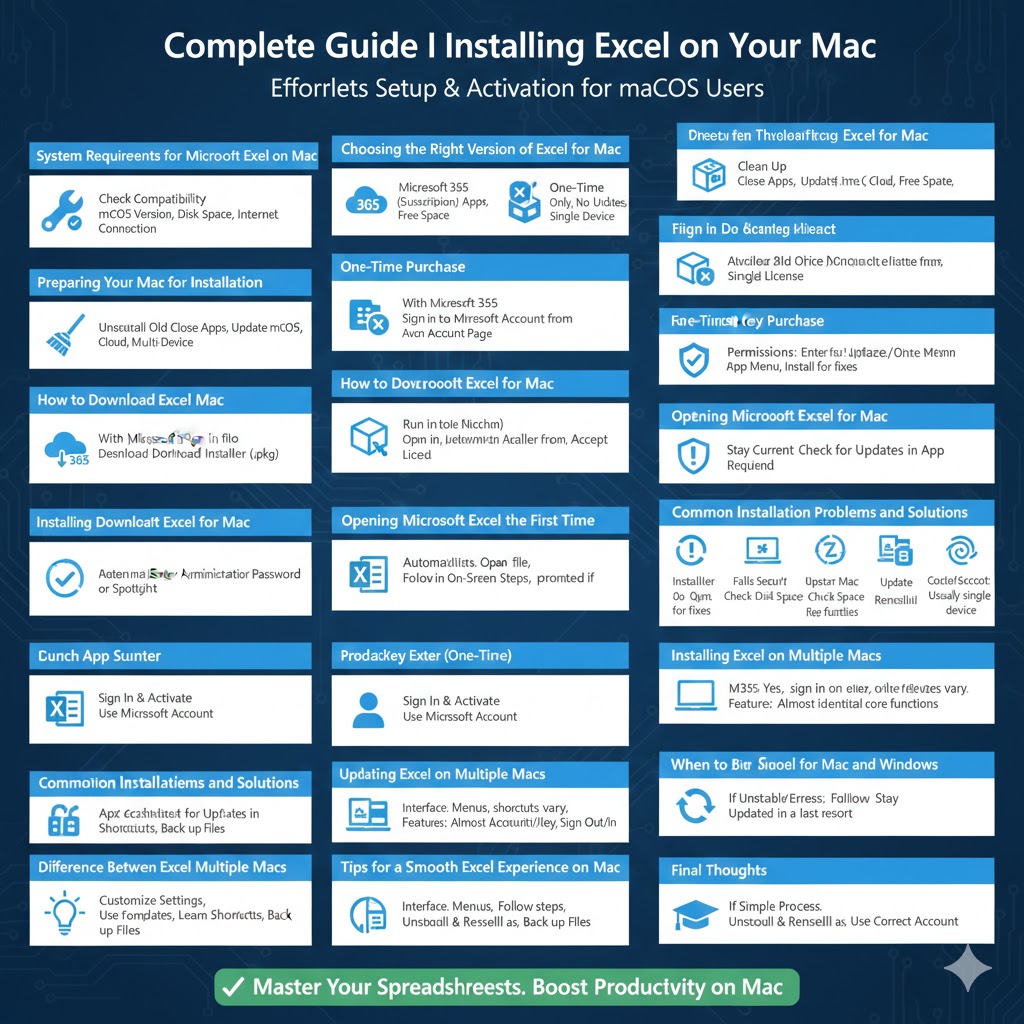
Complete Guide to Installing Microsoft Excel on Your Mac
Microsoft Excel for Mac is one of the most powerful spreadsheet applications available for macOS users. Whether you need it for budgeting, data analysis, reporting, or school assignments, Excel offers advanced features that go far beyond basic spreadsheet tools. Installing Excel on a Mac is a straightforward process, but the exact steps may vary depending on whether you are using a Microsoft 365 subscription or a one-time purchase version.
This complete step-by-step guide will walk you through everything you need to know to install Microsoft Excel for Mac correctly. From system requirements and download options to installation, activation, and troubleshooting, this article covers the entire process in clear and simple terms.
System Requirements for Microsoft Excel on Mac
Before installing Microsoft Excel, it’s important to ensure that your Mac meets the minimum system requirements. Installing Excel on an unsupported system can lead to performance issues or installation failures.
Most modern versions of Excel for Mac require a relatively recent version of macOS. You should also have enough free disk space to accommodate the application and future updates. A stable internet connection is necessary for downloading and activating Excel.
Checking your macOS version and available storage in advance helps prevent interruptions during installation.
Choosing the Right Version of Excel for Mac
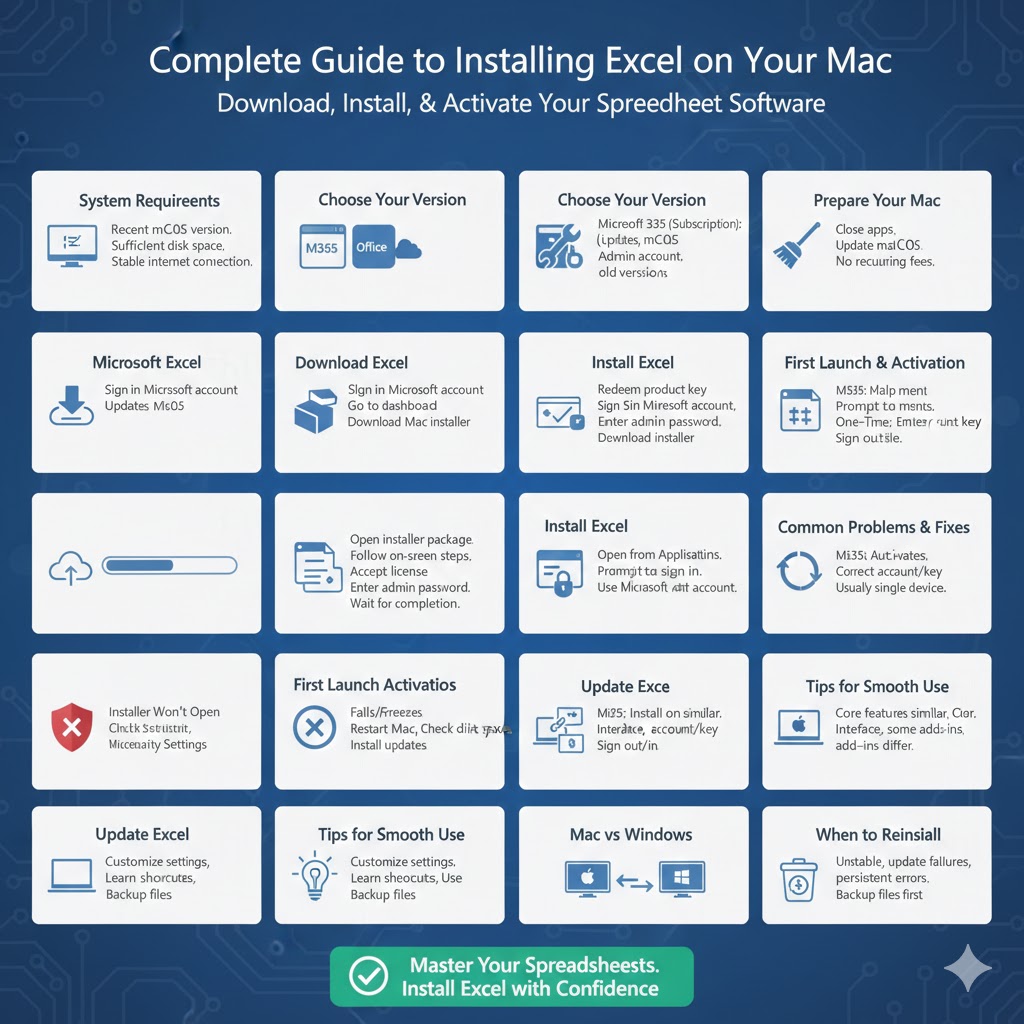
There are two main ways to get Microsoft Excel for Mac.
The first option is Microsoft 365, which is a subscription-based service. This option includes Excel along with other Office apps such as Word, PowerPoint, and Outlook. It also provides regular updates, cloud storage, and access across multiple devices.
The second option is a one-time purchase version of Office. This includes Excel but does not require ongoing payments. However, it may not receive feature updates as frequently as Microsoft 365.
Choosing the right version depends on how often you use Excel and whether you need access to the latest features.
Preparing Your Mac for Installation
Before starting the installation process, it’s a good idea to prepare your Mac.
Close unnecessary applications to free up system resources. Make sure your macOS is updated to the latest supported version. Sign in with an administrator account to avoid permission issues during installation.
If you previously installed an older version of Office, it may be helpful to uninstall it first to prevent conflicts.
How to Download Microsoft Excel for Mac
Downloading Excel with Microsoft 365
Open a web browser and sign in to your Microsoft account. Navigate to your Microsoft 365 dashboard and locate the install option. From there, select the Mac version of Office and start the download.
The installer file will usually download as a package file to your Downloads folder.
Downloading Excel as a One-Time Purchase
If you purchased Excel or Office as a one-time license, sign in to your Microsoft account and locate your purchased products. Download the Mac installer associated with your license.
If you bought a physical copy, you may need to redeem a product key first before downloading the installer.
Installing Microsoft Excel on Mac
Once the installer file is downloaded, the installation process begins.
Open the downloaded installer file. Follow the on-screen instructions and accept the license agreement. The installer will guide you through selecting the installation location and confirming permissions.
Depending on your system and internet speed, installation may take several minutes. During this process, your Mac may ask for your administrator password to proceed.
Once the installation is complete, you will see a confirmation message.
Opening Microsoft Excel for the First Time
After installation, you can find Excel in the Applications folder or by using Spotlight search.
When you open Excel for the first time, you may be prompted to sign in with your Microsoft account. This step is necessary to activate the software and unlock all features.
If Excel opens successfully, you will see the welcome screen with options to create a new workbook or open existing files.
Activating Microsoft Excel for Mac
Activation ensures that Excel is properly licensed and fully functional.
If you are using Microsoft 365, simply sign in with the Microsoft account associated with your subscription. Excel will activate automatically.
If you are using a one-time purchase version, you may be prompted to enter a product key. Once entered, Excel will verify the license and complete activation.
An internet connection is required during activation.
Updating Excel After Installation
Keeping Excel up to date is important for performance, security, and compatibility.
Excel for Mac includes a built-in update mechanism. You can check for updates directly from the application menu. Installing updates ensures you receive bug fixes and new features.
Regular updates also improve compatibility with newer macOS versions.
Common Installation Problems and Solutions
Installer Will Not Open
If the installer does not open, check your security settings. macOS may block applications downloaded from the internet. Allow the installer through system security settings and try again.
Installation Fails or Freezes
Restart your Mac and try the installation again. Ensure you have enough disk space and a stable internet connection.
Excel Will Not Launch After Installation
If Excel crashes or fails to open, update macOS and check for Office updates. Reinstalling Excel may also resolve the issue.
Activation Problems
Make sure you are using the correct Microsoft account or product key. Signing out and signing back in often resolves activation issues.
Installing Excel on Multiple Macs
Microsoft 365 subscriptions usually allow installation on multiple devices, depending on your plan. You can install Excel on another Mac by signing in with the same Microsoft account and downloading the installer again.
For one-time purchase licenses, installation is typically limited to one device unless otherwise specified.
Tips for a Smooth Excel Experience on Mac
After installation, take a few minutes to customize Excel settings to match your workflow. Adjust default fonts, enable autosave, and explore templates to get started quickly.
Learning basic keyboard shortcuts and trackpad gestures can also improve productivity when working with large spreadsheets.
Backing up important Excel files using cloud storage or external drives helps protect your data.
Differences Between Excel for Mac and Windows
Excel for Mac offers nearly all the core features found in the Windows version, but the interface and some advanced tools may differ slightly.
Menu layouts, shortcuts, and certain add-ins may not be identical. However, for most everyday tasks, Excel for Mac provides a powerful and reliable experience.
Understanding these small differences can help users transition smoothly between platforms.
When to Reinstall Excel
In some cases, reinstalling Excel may be necessary.
If Excel becomes unstable, fails to update, or shows persistent errors, uninstalling and reinstalling the application can restore proper functionality.
Always back up important files before reinstalling any software.
Final Thoughts
Installing Microsoft Excel for Mac is a straightforward process when you follow the correct steps. By choosing the right version, preparing your system, and completing installation and activation properly, you can start using Excel with confidence.