


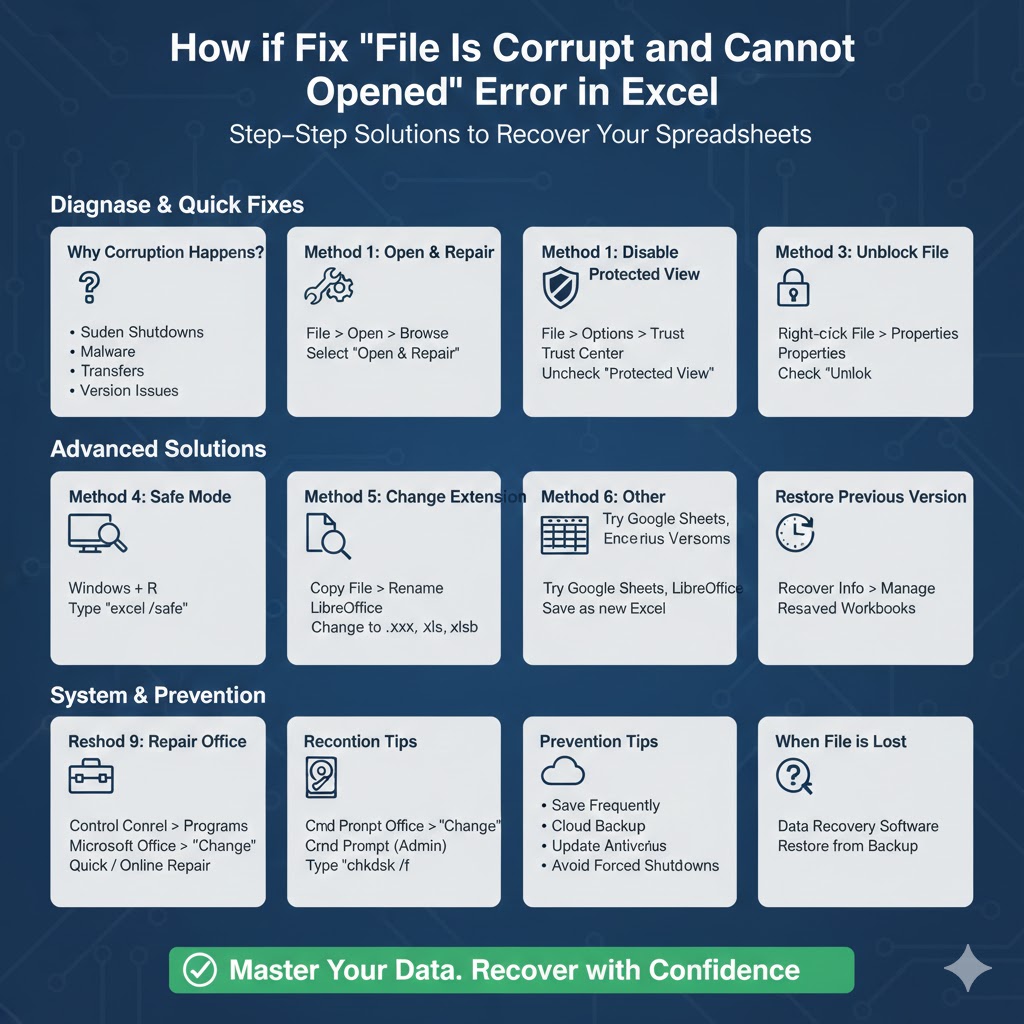
How to Fix the “File Is Corrupt and Cannot Be Opened” Error in Excel
Few things are more frustrating than trying to open an important spreadsheet and seeing the message: “The file is corrupt and cannot be opened.” Whether the file contains financial data, project reports, or school assignments, this error can disrupt your workflow and cause unnecessary stress.
Fortunately, this Excel error is often fixable. In many cases, the file is not completely lost. In this complete guide, you’ll learn what causes this issue and how to get rid of the “The file is corrupt and cannot be opened” error in Excel using proven step-by-step solutions.
Why Does Excel Say “The File Is Corrupt And Cannot Be Opened”?
Before fixing the problem, it helps to understand what may cause it. Excel files can appear corrupted for several reasons.
Common causes include:
-
Sudden system shutdowns while saving
-
Power outages
-
Malware infections
-
File transfer interruptions
-
Damaged storage devices
-
Compatibility issues between Excel versions
-
Incorrect file extensions
-
Blocked files downloaded from the internet
Sometimes, Excel’s security settings may falsely flag a file as corrupted even when it is not severely damaged.
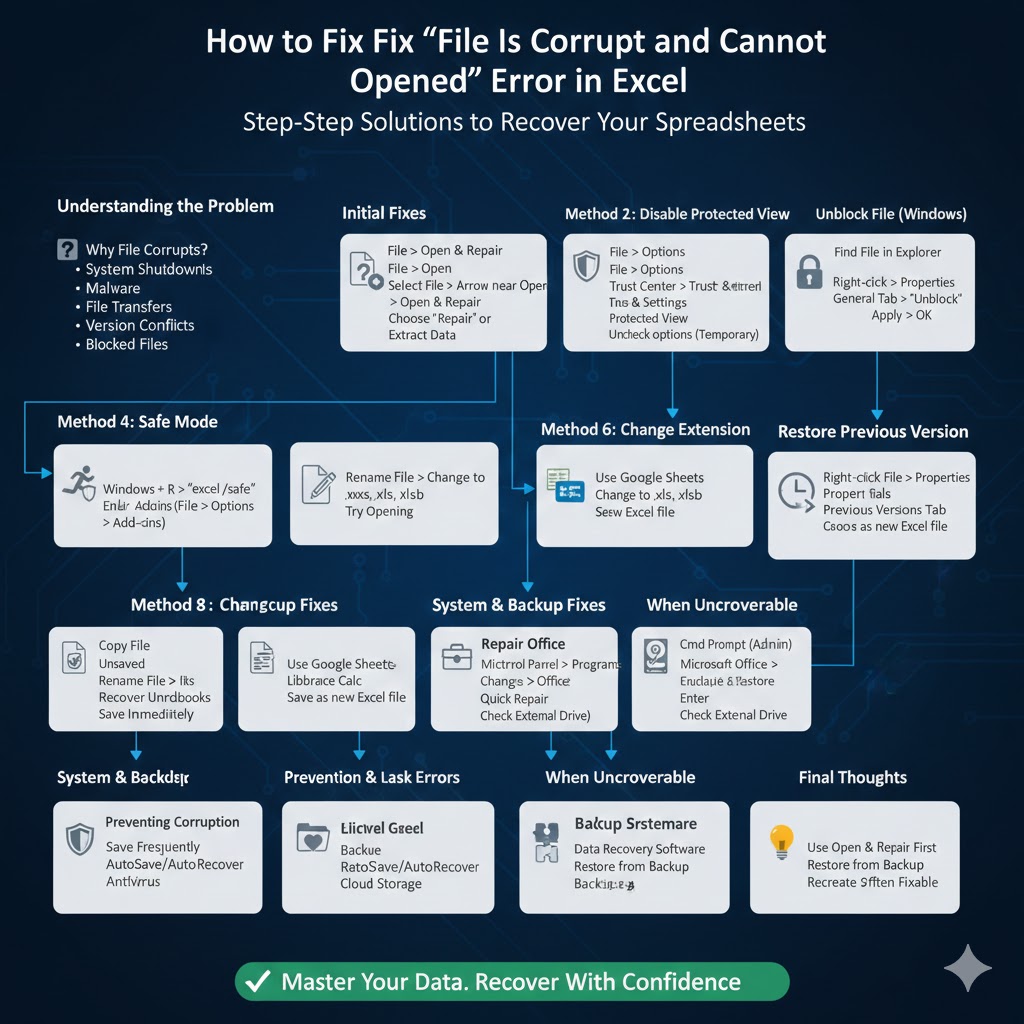
Method 1: Use Excel’s Open and Repair Feature
One of the easiest ways to fix a corrupted Excel file is by using the built-in Open and Repair tool.
Steps to Use Open and Repair
-
Open Microsoft Excel (do not open the file yet).
-
Click File.
-
Select Open.
-
Browse to the corrupted file.
-
Click the small arrow next to the Open button.
-
Choose Open and Repair.
-
Select Repair.
Excel will attempt to recover the file automatically.
If Repair does not work, repeat the process and select Extract Data instead. This may recover values and formulas even if formatting is lost.
Method 2: Disable Protected View
Excel may block files downloaded from the internet or received via email. In some cases, disabling Protected View temporarily can resolve the issue.
Steps to Disable Protected View
-
Open Excel.
-
Go to File > Options.
-
Select Trust Center.
-
Click Trust Center Settings.
-
Choose Protected View.
-
Uncheck the Protected View options temporarily.
-
Click OK and try opening the file again.
After opening the file successfully, it is recommended to re-enable Protected View for security purposes.
Method 3: Unblock the File in Windows
If the file was downloaded from the internet, Windows may block it automatically.
How to Unblock the File
-
Locate the Excel file in File Explorer.
-
Right-click the file and select Properties.
-
In the General tab, look for an Unblock checkbox near the bottom.
-
Check Unblock if available.
-
Click Apply and then OK.
Try opening the file again in Excel.
Method 4: Open the File in Safe Mode
Add-ins or configuration issues may interfere with opening files.
Open Excel in Safe Mode
Press Windows + R.
Type excel /safe and press Enter.
Excel will launch in Safe Mode without add-ins. Try opening the file again. If it works, a problematic add-in may be causing the issue.
You can disable add-ins by going to:
File > Options > Add-ins > Manage COM Add-ins > Go
Uncheck suspicious add-ins and restart Excel.
Method 5: Change the File Extension
Sometimes the file extension may be incorrect or damaged.
For example, a file saved as .xlsx might need to be renamed.
Steps to Change the Extension
-
Make a copy of the corrupted file.
-
Right-click the copy and rename it.
-
Change the extension to:
-
.xlsx
-
.xls
-
.xlsb
-
Try opening the file after renaming it.
Be careful when modifying file extensions, and always keep a backup copy.
Method 6: Open the File in Another Program
You can try opening the corrupted Excel file in another spreadsheet program.
Options include:
-
Google Sheets
-
LibreOffice Calc
-
Older versions of Excel
Sometimes these programs can open partially corrupted files and allow you to save the data in a new format.
After opening, save the file as a new Excel workbook and try reopening it in Excel.
Method 7: Restore a Previous Version
If you saved the file previously, you may be able to restore an earlier version.
Restore Previous Versions in Windows
-
Right-click the file.
-
Select Properties.
-
Go to the Previous Versions tab.
-
Choose an available version and click Restore.
This works if File History or System Restore was enabled.
Method 8: Recover Unsaved Workbooks
If the file became corrupted during saving, Excel may have an autosaved copy.
Open Excel.
Go to File > Info.
Click Manage Workbook.
Select Recover Unsaved Workbooks.
Look for a recent version of your file and save it immediately.
Method 9: Update or Repair Microsoft Office
Corruption errors may be caused by issues with the Office installation.
Repair Office
-
Open Control Panel.
-
Go to Programs and Features.
-
Find Microsoft Office.
-
Click Change.
-
Choose Quick Repair.
If the issue continues, select Online Repair.
Updating Excel to the latest version can also resolve compatibility errors.
Method 10: Check for Disk Errors
Storage issues can damage files.
Run Disk Check
-
Open Command Prompt as Administrator.
-
Type:
chkdsk /f -
Press Enter.
This scans your drive for errors and attempts repairs.
If your file was stored on a USB drive or external disk, test it on another device.
Preventing Excel File Corruption
Prevention is always better than recovery.
To reduce the risk of file corruption:
-
Save files frequently
-
Use AutoSave and AutoRecover
-
Avoid forced shutdowns
-
Keep your antivirus updated
-
Store important files in cloud storage
-
Regularly back up important data
Cloud storage solutions like OneDrive automatically save versions of your files, making recovery much easier.
When the File Cannot Be Recovered
In rare cases, the file may be severely damaged beyond repair.
If none of the above methods work, you may need to:
-
Use professional data recovery software
-
Restore from backup
-
Recreate the spreadsheet
Although this situation is frustrating, consistent backup habits can prevent permanent data loss.
Final Thoughts
The “The file is corrupt and cannot be opened” error in Excel can seem alarming at first, but it is often fixable. In many cases, using the Open and Repair feature or adjusting security settings resolves the problem quickly.