


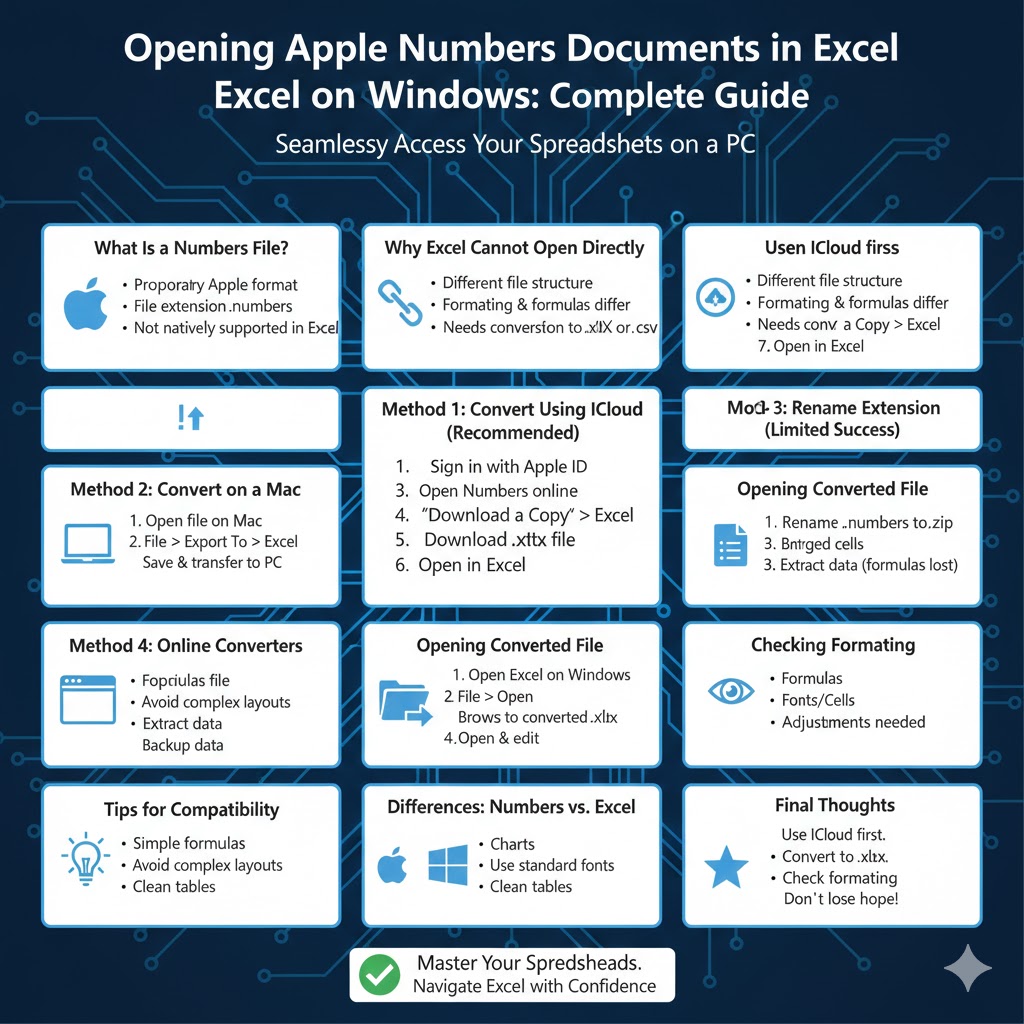
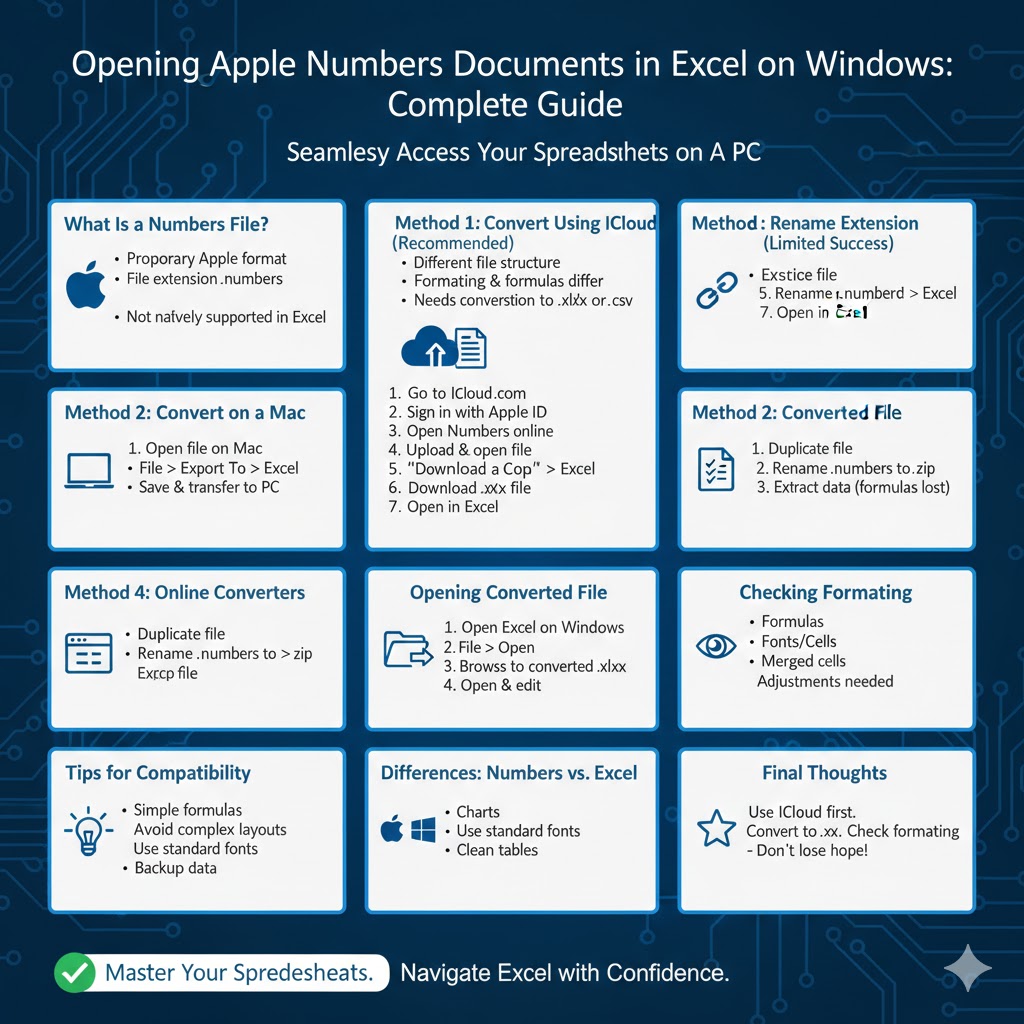
Opening Apple Numbers Documents in Excel on Windows: Complete Guide
Apple Numbers is a spreadsheet application designed for macOS and iOS, while Microsoft Excel is the most widely used spreadsheet tool on Windows. If someone sends you a Numbers file and you’re using a Windows PC, you may wonder how to open it properly. Since Numbers files are not natively supported by Excel, opening them requires a few extra steps.
In this complete step-by-step guide, you’ll learn how to open a Numbers file in Excel on Windows using multiple reliable methods. Each solution is explained clearly so you can choose the one that works best for your situation.
What Is a Numbers File?
A Numbers file is a spreadsheet created using Apple Numbers. It usually has the file extension .numbers. Unlike Excel files, which typically use .xlsx or .xls, Numbers files are structured differently and are designed to work best within Apple’s ecosystem.
Because of these differences, Excel on Windows cannot directly open a Numbers file without converting it first.
Why Excel Cannot Open Numbers Files Directly
Microsoft Excel for Windows does not support the .numbers file format by default. This is because:
-
Numbers is proprietary to Apple
-
File structures differ between Excel and Numbers
-
Some formatting and formulas are handled differently
To open a Numbers file in Excel, the file must first be converted into a compatible format such as .xlsx or .csv.
Method 1: Convert Numbers File Using iCloud (Recommended)
The easiest and most reliable way to open a Numbers file in Excel on Windows is by using iCloud. This method preserves most formatting and formulas.
Step-by-Step Instructions Using iCloud
-
Open a web browser on your Windows PC.
-
Go to the iCloud website.
-
Sign in with your Apple ID.
-
Click on Numbers.
-
Upload the Numbers file if it is not already in your iCloud storage.
-
Open the file in Numbers online.
-
Click the More Options button (three dots or gear icon).
-
Select Download a Copy.
-
Choose Excel as the file format.
The file will download as an .xlsx file, which you can open directly in Excel on Windows.
This method is highly recommended because it requires no additional software and works entirely through a web browser.
Method 2: Convert the File on a Mac
If you have access to a Mac, you can easily convert the Numbers file before transferring it to your Windows computer.
Steps to Convert on Mac
-
Open the Numbers file on your Mac.
-
Click File in the menu bar.
-
Select Export To.
-
Choose Excel.
-
Adjust export settings if needed.
-
Click Next and save the file.
Once exported, copy the Excel file to your Windows PC and open it normally in Excel.
This method provides excellent compatibility and maintains most spreadsheet features.
Method 3: Rename the File Extension (Limited Success)
In some cases, you can extract data from a Numbers file by changing its extension. This method does not always work, but it may be useful for simple spreadsheets.
How to Rename the File
-
Make a copy of the Numbers file.
-
Right-click the copied file and choose Rename.
-
Change the extension from .numbers to .zip.
-
Open the ZIP file and look for data files inside.
This method is more technical and does not guarantee full recovery of formatting or formulas. It is best used as a last resort.
Method 4: Use Online File Conversion Tools
Several online tools allow you to convert Numbers files to Excel format. These tools can be useful if you do not have an Apple ID or access to a Mac.
General Steps for Online Conversion
-
Open a trusted online file conversion website.
-
Upload the Numbers file.
-
Select Excel as the output format.
-
Download the converted file.
After downloading, open the file in Excel.
While convenient, this method may have limitations on file size and data privacy. Avoid uploading sensitive or confidential spreadsheets.
Method 5: Ask the Sender to Convert the File
If you received the Numbers file from someone else, the simplest solution may be to ask them to export it as an Excel file.
This is often the best option if the spreadsheet contains complex formulas, charts, or formatting that must be preserved accurately.
Opening the Converted File in Excel on Windows
Once the Numbers file is converted to Excel format:
-
Open Microsoft Excel on your Windows PC.
-
Click File > Open.
-
Browse to the converted file.
-
Select the file and click Open.
Excel will load the spreadsheet, and you can begin editing it normally.
Checking Formatting and Data After Conversion
After opening the file in Excel, review it carefully.
Pay attention to:
-
Formulas and calculations
-
Charts and graphs
-
Fonts and cell formatting
-
Merged cells
-
Conditional formatting
Some advanced Numbers features may not translate perfectly into Excel. Minor adjustments are often required.
Common Issues When Opening Numbers Files in Excel
Missing Formatting
Certain fonts or styles used in Numbers may not appear exactly the same in Excel. You can manually adjust formatting as needed.
Formula Errors
Some Numbers-specific formulas may not work in Excel. Review formulas and replace them with Excel-compatible versions if necessary.
Charts Not Displaying Correctly
Charts may need to be recreated in Excel, especially if they use unique Numbers chart styles.
Tips for Better Compatibility Between Numbers and Excel
To improve compatibility when working with Numbers and Excel:
-
Use simple formulas when possible
-
Avoid complex layouts
-
Do not rely heavily on Numbers-only features
-
Use standard fonts available on Windows
-
Keep data organized in clean tables
These practices make file conversion smoother and reduce the chance of errors.
When to Use CSV Instead of Excel Format
If you only need the raw data and not the formatting, exporting the file as CSV can be useful.
CSV files are widely supported and easy to open in Excel. However, they do not preserve formulas, formatting, or multiple sheets.
CSV is best for data transfer rather than full spreadsheet editing.
Differences Between Numbers and Excel
While both Numbers and Excel serve similar purposes, they differ in several ways.
Numbers focuses on design and simplicity, making it ideal for visually appealing spreadsheets. Excel is more powerful for data analysis, advanced formulas, and large datasets.
Understanding these differences helps explain why some elements may not convert perfectly.
Final Thoughts
Opening a Numbers file in Excel on Windows is entirely possible, even though Excel does not support the format directly. The most reliable solution is to use iCloud to convert the file to Excel format. Other methods, such as exporting on a Mac or using online converters, also work depending on your situation.