


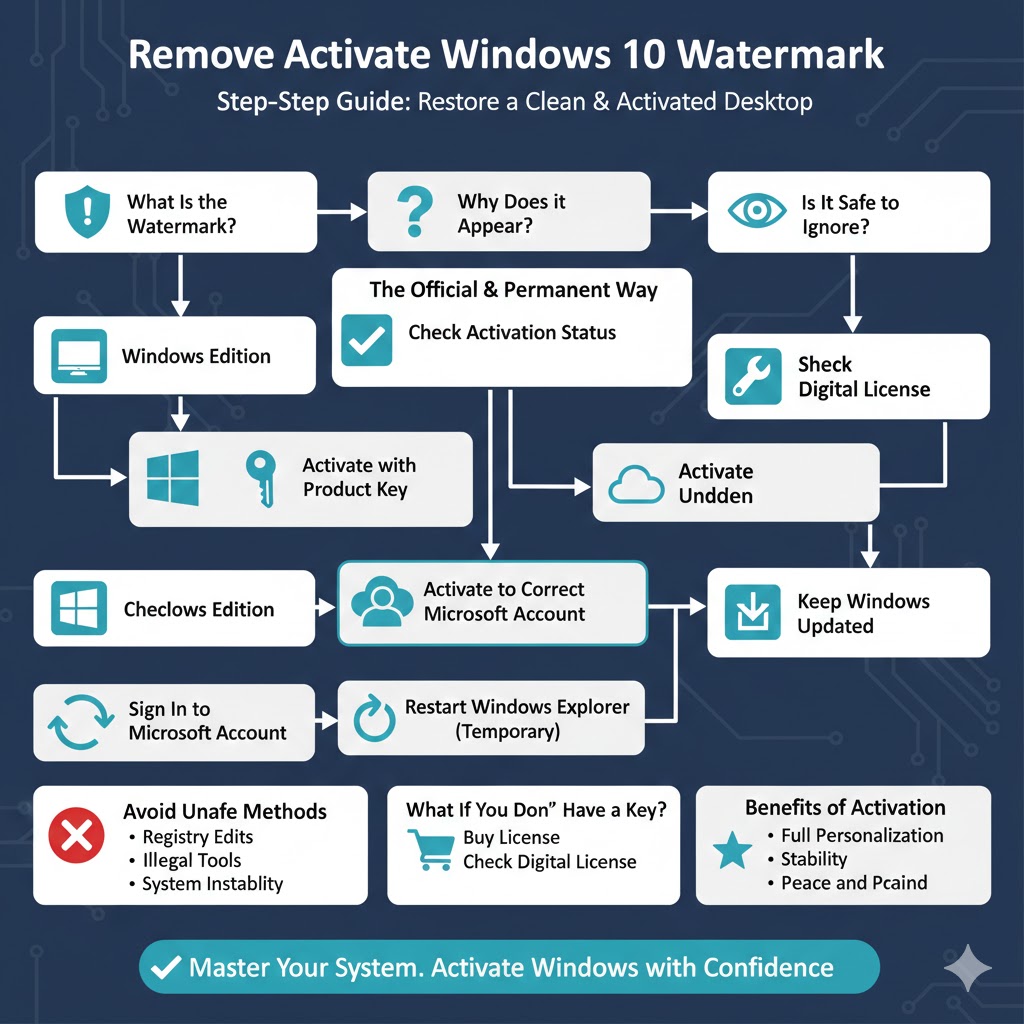
Remove the Activate Windows 10 Watermark: Step-by-Step Guide
If you are using Windows 10 and see the message “Activate Windows – Go to Settings to activate Windows” in the bottom-right corner of your screen, you are not alone. This watermark appears when Windows is not activated or when activation cannot be verified. While it does not block access to your computer, it can be distracting, especially when working, presenting, or gaming.
In this complete guide, you’ll learn how to remove the Activate Windows 10 watermark the proper and legitimate way. We’ll explain why the watermark appears, how Windows activation works, and the safest solutions to make it disappear permanently without risking system stability.
What Is the Activate Windows 10 Watermark?
The Activate Windows watermark is a persistent notification displayed on the desktop when your copy of Windows 10 is not activated. It typically appears after installation or when Windows fails to verify an existing license.
The watermark serves as a reminder that certain personalization features are restricted until Windows is properly activated.
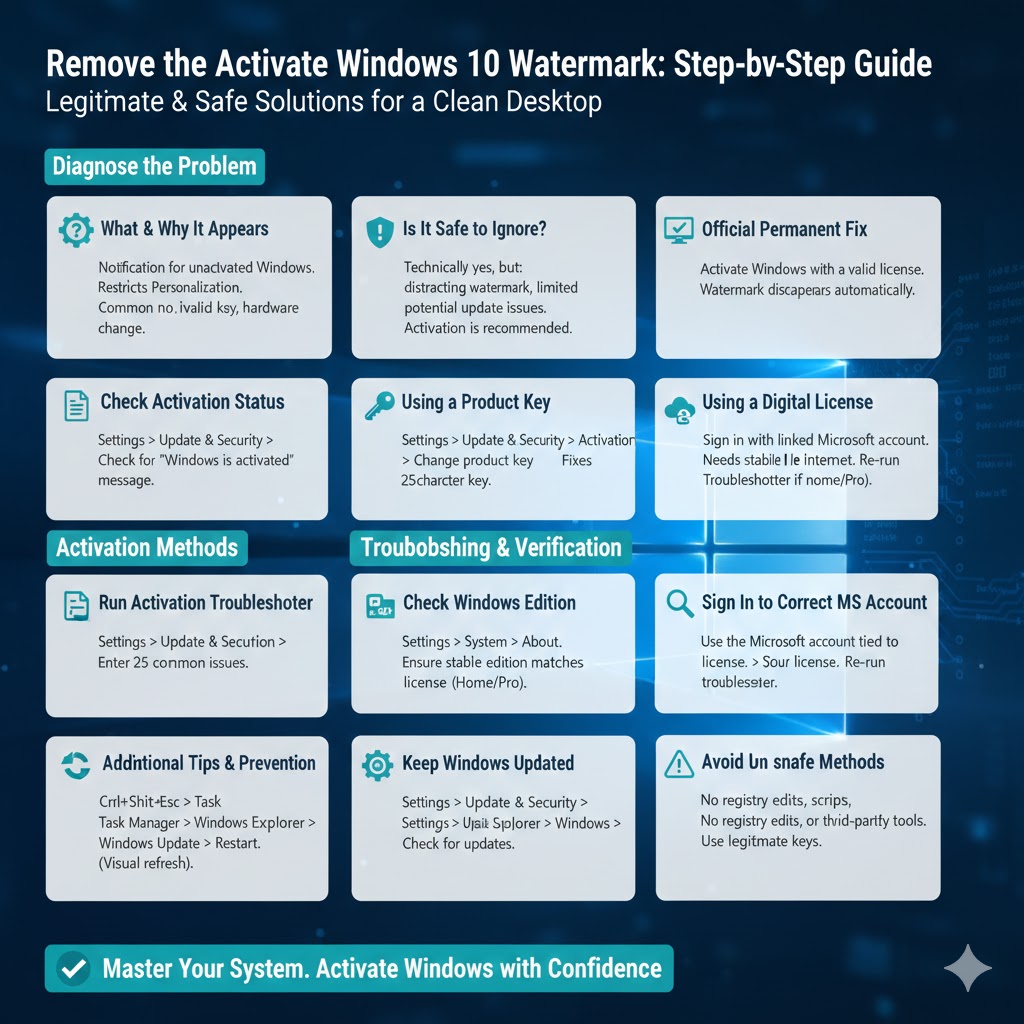
Why Does the Activate Windows Watermark Appear?
There are several reasons why Windows 10 may display this watermark.
Common causes include:
-
Windows was installed without a product key
-
The product key is invalid or expired
-
A hardware change triggered reactivation
-
Windows activation servers could not be reached
-
The license type does not match the Windows edition
-
The system was upgraded without proper activation
Understanding the cause helps you choose the correct solution.
Is It Safe to Ignore the Activate Windows Watermark?
Technically, you can continue using Windows 10 without activation, but there are limitations.
Unactivated Windows may:
-
Display the watermark continuously
-
Restrict personalization options
-
Show activation reminders
-
Cause issues with updates or features in the long term
For the best experience and full access to features, activating Windows is strongly recommended.
The Official and Permanent Way to Remove the Watermark
The only permanent and legal way to remove the Activate Windows watermark is by activating Windows with a valid license.
Once Windows is activated, the watermark disappears automatically without requiring a restart in most cases.
Check Your Windows 10 Activation Status
Before taking action, confirm whether Windows is already activated or not.
How to Check Activation Status
-
Open Settings
-
Go to Update & Security
-
Click Activation
You will see one of the following messages:
-
“Windows is activated”
-
“Windows is not activated”
-
An activation error message
If Windows is already activated but the watermark still appears, a troubleshooting step may be needed.
Activate Windows 10 Using a Product Key
If you have a valid product key, activation is quick and straightforward.
Steps to Activate Windows 10
-
Open Settings
-
Go to Update & Security
-
Select Activation
-
Click Change product key
-
Enter your 25-character product key
-
Click Next and follow the prompts
Once activation is complete, the watermark should disappear.
Activate Windows 10 Using a Digital License
Many systems use a digital license instead of a product key. This is common if Windows came preinstalled or was upgraded from an earlier version.
How Digital License Activation Works
If you sign in with the Microsoft account linked to your Windows license, activation happens automatically when Windows connects to the internet.
To ensure this works:
-
Make sure you are signed in with the correct Microsoft account
-
Check that your internet connection is stable
-
Allow a few minutes for activation to verify
Use the Windows Activation Troubleshooter
If Windows should be activated but isn’t, the built-in troubleshooter can often fix the issue.
How to Run the Activation Troubleshooter
-
Open Settings
-
Go to Update & Security
-
Click Activation
-
Select Troubleshoot
The tool checks for common activation problems and attempts to resolve them automatically.
This is especially useful after hardware changes such as replacing a motherboard.
Make Sure Your Windows Edition Matches Your License
Windows licenses are edition-specific. For example, a Windows 10 Home key will not activate Windows 10 Pro.
How to Check Your Windows Edition
-
Open Settings
-
Go to System
-
Click About
If the installed edition does not match your license, Windows activation will fail and the watermark will remain.
In this case, switching to the correct edition or using the correct license is required.
Sign In to the Correct Microsoft Account
If you previously activated Windows using a Microsoft account, signing into a different account may cause activation issues.
To fix this:
-
Sign out of your current account
-
Sign in using the Microsoft account linked to your Windows license
-
Re-run the Activation Troubleshooter
This often restores activation without needing a product key.
Restart Windows Explorer (Temporary Visual Refresh)
In rare cases, the watermark remains even after successful activation. Restarting Windows Explorer can refresh the display.
How to Restart Explorer
-
Press Ctrl + Shift + Esc to open Task Manager
-
Find Windows Explorer
-
Right-click it and choose Restart
This does not bypass activation but can refresh the desktop if activation was completed successfully.
Keep Windows Updated
Outdated system files may interfere with activation verification.
To check for updates:
-
Open Settings
-
Go to Update & Security
-
Click Windows Update
-
Select Check for updates
Installing the latest updates ensures proper communication with Microsoft’s activation servers.
Avoid Unsafe “Watermark Removal” Methods
You may find guides online that claim to remove the Activate Windows watermark using registry edits, command-line scripts, or third-party tools.
These methods are not recommended because they:
-
Do not activate Windows
-
May violate license terms
-
Can cause system instability
-
May stop working after updates
-
Pose security risks
Only proper activation guarantees a permanent and safe solution.
What If You Don’t Have a Product Key?
If you don’t currently have a product key, you have a few legitimate options:
-
Purchase a Windows license from Microsoft or an authorized retailer
-
Check if your PC originally came with a digital license
-
Contact your organization if using a work or school device
Once a valid license is applied, the watermark will disappear automatically.
Benefits of Activating Windows 10
Activating Windows does more than remove the watermark.
You also gain:
-
Full personalization settings
-
Improved system stability
-
Better update compatibility
-
Peace of mind knowing Windows is properly licensed
For most users, activation is well worth it.
Final Thoughts
The Activate Windows 10 watermark is a reminder that your system needs proper activation. While it can be annoying, it serves an important purpose and should not be bypassed using unsafe methods.