


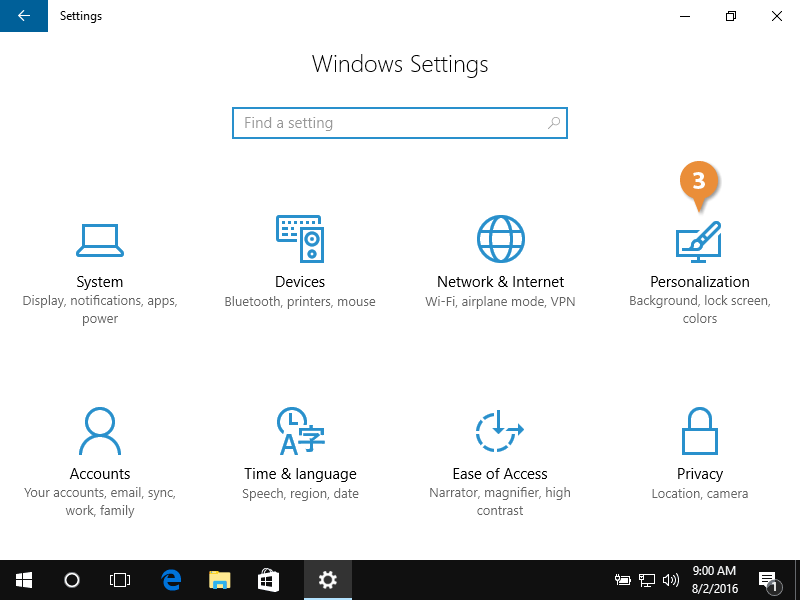
Guide to Installing Windows Without a DVD or USB Drive
Installing Windows without a DVD or USB drive might seem challenging at first, but it’s entirely possible using tools like a virtual hard disk, network installation, or ISO mounting. This method is particularly helpful when you don’t have access to bootable media. Follow the detailed instructions below to successfully install Windows on your computer.
Step 1: Check System Requirements
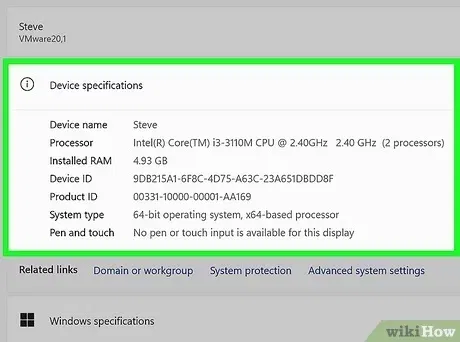
Before starting, ensure your computer meets the requirements for installing Windows:
- Processor: 1 GHz or faster.
- RAM: 2 GB for 64-bit or 1 GB for 32-bit.
- Disk Space: At least 20 GB for a fresh installation.
- Existing Operating System: A working version of Windows (7, 8, 8.1, or 10) is required for this method.
Step 2: Download the Windows ISO File

- Visit Microsoft’s Website:
- Go to the Microsoft Download Page.
- Select the Version of Windows:
- Choose the version of Windows you want to install (Windows 10 or 11, for example).
- Download the ISO File:
- Instead of creating bootable media, download the ISO file directly to your computer. Save it in an accessible location like your desktop or a dedicated folder.
Step 3: Mount the ISO File

Modern versions of Windows (Windows 8, 8.1, 10, and 11) have a built-in feature for mounting ISO files:
- Locate the ISO File:
- Navigate to the folder where you downloaded the ISO file.
- Mount the ISO:
- Right-click on the ISO file and select Mount. This will create a virtual drive in This PC.
- Access the Virtual Drive:
- Open File Explorer, and you will see the virtual drive listed. This contains all the installation files for Windows.
Step 4: Start the Installation Process

- Open the Setup File:
- Inside the virtual drive, double-click on the file named setup.exe to launch the Windows installation wizard.
- Follow the On-Screen Instructions:
- Choose whether to upgrade your current operating system or perform a clean installation.
- For a clean installation, back up your data beforehand, as this will erase everything on your system drive.
- Enter the Product Key:
- During the installation, you’ll be prompted to enter your Windows product key. If you don’t have it, you can choose the option to activate Windows later.
- Choose Installation Type:
- Select Custom Installation if you want to perform a fresh install. Otherwise, choose Upgrade to keep your existing files and applications.
Step 5: Complete the Installation
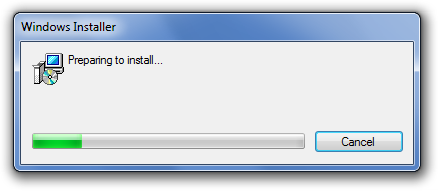
- Wait for Installation:
- The installer will copy files, install features, and configure your system. This process may take 30 minutes to an hour, depending on your computer’s speed.
- Restart the Computer:
- Your system will restart several times during the installation process.
- Set Up Windows:
- After installation, follow the on-screen prompts to configure settings like region, keyboard layout, and user account.
Alternative Method: Install Windows Using a Network
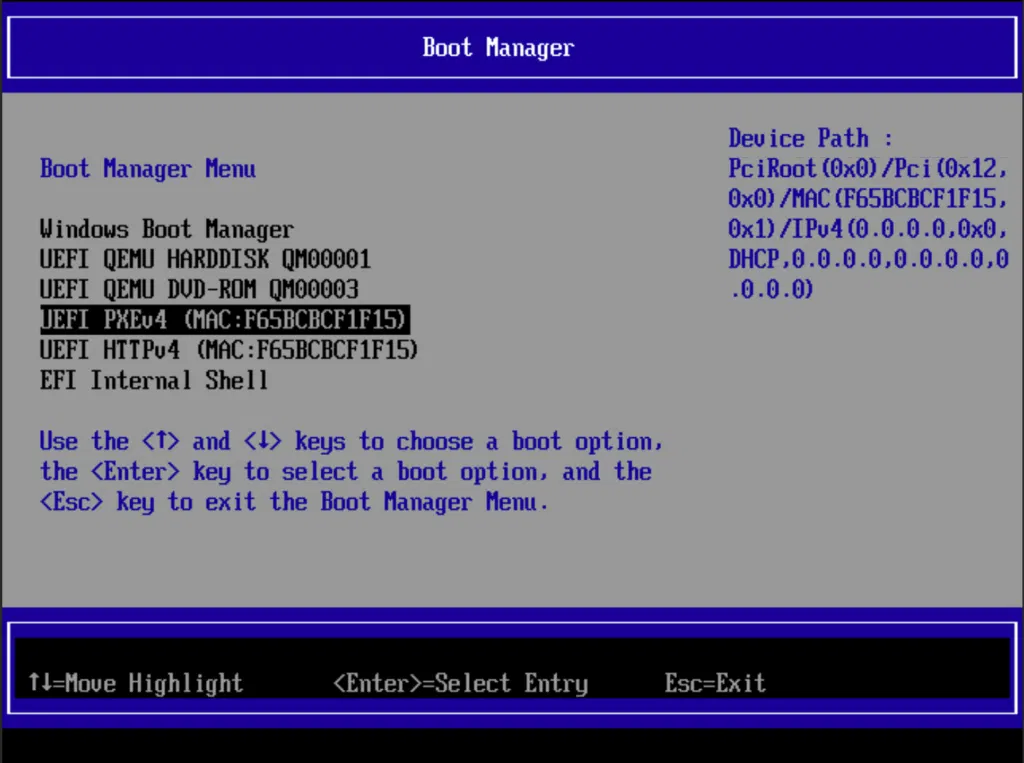
If you don’t want to use a DVD, USB, or ISO, you can install Windows through a network. This method is more suitable for IT professionals or users with access to a server.
1. Use PXE Boot
- PXE (Preboot Execution Environment) allows your computer to boot and install an operating system over a network.
- You’ll need a PXE-enabled server and a network connection.
2. Configure BIOS Settings
- Access your BIOS/UEFI settings and enable PXE Boot.
- Set your network device as the primary boot option.
3. Begin the Installation
- Restart your computer and follow the instructions provided by the network installation service.
Step 6: Post-Installation Setup
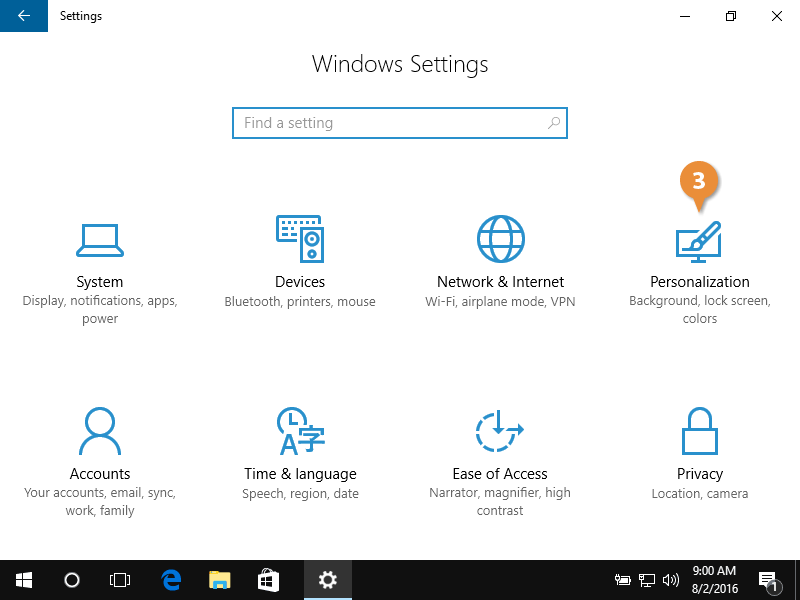
After the installation is complete, take the following steps:
- Activate Windows:
- Go to Settings > Update & Security > Activation, and enter your product key to activate Windows.
- Install Updates:
- Open Windows Update to download and install the latest updates and drivers for your system.
- Install Essential Software:
- Install your preferred browser, antivirus software, and any other necessary applications.
Troubleshooting Common Issues
1. ISO File Fails to Mount
- Ensure your Windows version supports ISO mounting. If not, use third-party tools like WinCDEmu or PowerISO.
2. Low Disk Space
- Free up disk space by deleting unnecessary files or using an external hard drive.
3. Installation Errors
- Restart your computer and try again. Make sure your existing Windows installation is functioning properly before starting the process.
Benefits of Installing Windows Without a DVD/USB
- Convenience: No need for external devices like USB drives or DVDs.
- Speed: Faster installation process compared to bootable media.
- No Additional Tools Required: All you need is a working computer and an ISO file.
Conclusion
Installing Windows without a DVD or USB drive is an efficient and straightforward method, thanks to the built-in ISO mounting capabilities in modern Windows versions. By following the steps outlined above, you can successfully install or upgrade your operating system without any external media. Whether you use ISO files or a network installation, this method offers flexibility and convenience for users without access to traditional bootable devices.