



How to Install the Latest Office Version from Your Office 365 Plan
If you are subscribed to Microsoft Office 365 (now called Microsoft 365), you automatically receive the latest updates and features as long as your subscription remains active. However, many users are unsure how the upgrade process works, how to ensure they are using the newest version, and what steps to take when upgrading from an older installed version such as Office 2013, 2016, or 2019. This guide explains everything you need to know about upgrading Office through your Office 365 subscription, including eligibility, steps, troubleshooting, and best practices.
By the end of this article, you will understand exactly how to upgrade Office to the latest version available, how to manage installations, and what to do when you encounter problems during the upgrade.

Understanding Office 365 (Microsoft 365) Upgrades
Office 365 subscribers do not need to manually purchase new versions of Office when they are released. Instead, updates and upgrades are included as part of the subscription.
What Is Included in Your Subscription?
Your Office 365 subscription includes:
-
Access to the latest versions of Office apps (Word, Excel, PowerPoint, Outlook, OneNote, etc.)
-
Regular feature updates
-
Security patches and performance improvements
-
Cloud storage through OneDrive
-
Installation rights on multiple devices depending on your plan
Because your subscription keeps your apps up to date, upgrading is usually automatic.
Automatic vs. Manual Upgrades
-
Automatic upgrades occur when your apps are installed using the Microsoft 365 installer and your device is connected to the internet.
-
Manual upgrades may be needed if automatic updates are disabled or if you installed a perpetual version of Office earlier (like Office 2016 or Office 2019).
Understanding which type applies to you helps you take the correct steps.
Check If You Are Eligible for an Upgrade
Before upgrading, make sure your subscription is active.
Verify Your Subscription Status
-
Go to account.microsoft.com and sign in.
-
Select Services & subscriptions.
-
Find your Microsoft 365 plan.
-
Ensure it says Active.
If your subscription has expired, you cannot upgrade your Office apps until it is renewed.
Check Your Installed Office Version
-
Open any Office app, like Word.
-
Click File > Account.
-
Look under Product Information.
-
Review the About Word or Office Updates section.
If the version number is outdated, you may need to trigger an update.
How to Upgrade Office Through Office 365 (Microsoft 365)
Once your subscription is confirmed active, you can proceed with the upgrade. Below are step-by-step methods to ensure you are running the newest version.
Method 1: Upgrade Office Through Office Updates
This is the easiest and most common method.
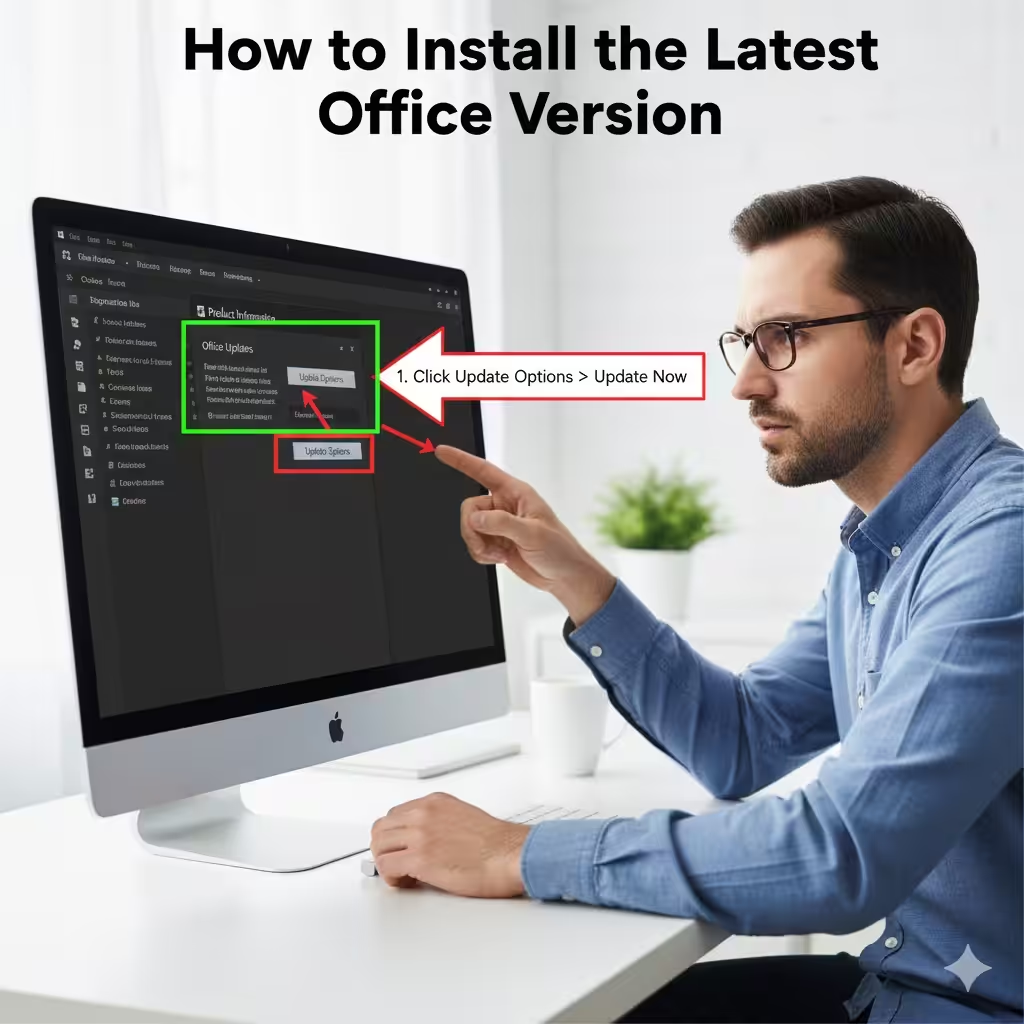
Steps to Upgrade Using Office Updates
-
Open any Office app (Word, Excel, etc.).
-
Go to File > Account.
-
Under Product Information, locate Office Updates.
-
Click Update Options.
-
Select Update Now.
Windows will download and install the latest version automatically.
If No Update Options Are Available
This may happen if:
-
Office is managed by your organization’s IT policy
-
You installed a perpetual version (Office 2016/2019)
-
Automatic updates are disabled
If so, continue with the next method.
Method 2: Install Office Again from Your Microsoft Account
Sometimes, the best way to upgrade is to reinstall Office entirely.
Steps to Reinstall the Latest Version
-
Sign in at https://www.office.com.
-
Click Install Office from the top right.
-
Download the Microsoft 365 installer.
-
Run the installer and follow the on-screen instructions.
-
Office will automatically replace older versions and install the latest apps.
This method ensures you receive the newest full version available.
What Happens to Older Office Versions?
-
Office 365 apps will automatically replace older versions.
-
Files and settings remain intact.
-
No documents are deleted during installation.
This makes the process safe and user-friendly.
Method 3: Uninstall Older Office Versions Before Upgrading
If the upgrade fails or creates conflicts, you may need to manually uninstall older versions first.
How to Uninstall Older Versions
-
Open Control Panel.
-
Select Programs and Features.
-
Find your old Office installation (e.g., Office 2013/2016/2019).
-
Click Uninstall.
-
Restart your computer.
-
Install the latest Microsoft 365 version through your account.
Removing older versions ensures smooth installation.
Method 4: Enable Office Updates in Windows Settings
If updates are disabled at the system level, Office won’t upgrade.
Enable Updates Through Settings
-
Go to Settings > Update & Security.
-
Select Windows Update.
-
Click Advanced options.
-
Ensure Receive updates for other Microsoft products is enabled.
After enabling this, try updating Office again through the apps.
Upgrading Office on macOS
If you use a Mac, the upgrade process is slightly different.
Steps for Mac Users
-
Open the App Store.
-
Go to the Updates tab.
-
Look for Microsoft Office updates.
-
Click Update All or update them individually.
You can also reinstall Office from your Microsoft account for a complete upgrade.
Troubleshooting Upgrade Problems
Upgrades sometimes fail due to system or configuration issues. Here’s how to fix common problems.
Problem: Update Button Is Missing
-
Check if your Office is part of Office 365 Business and managed by your IT admin.
-
Ensure you installed Office from your Microsoft 365 subscription, not a standalone license.
Problem: Updates Fail to Install
Try:
-
Restarting your computer
-
Running Office as administrator
-
Clearing temporary files
-
Checking your internet connection
Problem: Office Shows “Non-Commercial Use”
This indicates a license conflict. Sign out of Office and sign back in with your Microsoft 365 account.
Tips to Keep Office Up to Date Automatically
-
Keep Windows Updates enabled
-
Avoid installing cracked or third-party Office versions
-
Sign in with your Microsoft 365 account
-
Keep your subscription active
This ensures you always have the latest version with the newest features.
Conclusion
Upgrading Office through an Office 365 (Microsoft 365) subscription is usually simple because updates are included automatically. Whether you update through the Office app, reinstall from your Microsoft account, or uninstall older versions before upgrading, the process is designed to be smooth and user-friendly.
With an active subscription, you always have access to the newest versions of Microsoft Office apps, ensuring better security, new features, and improved performance. By following the steps in this guide, you can confirm your upgrade status, resolve issues, and keep your Office environment running at its best.