


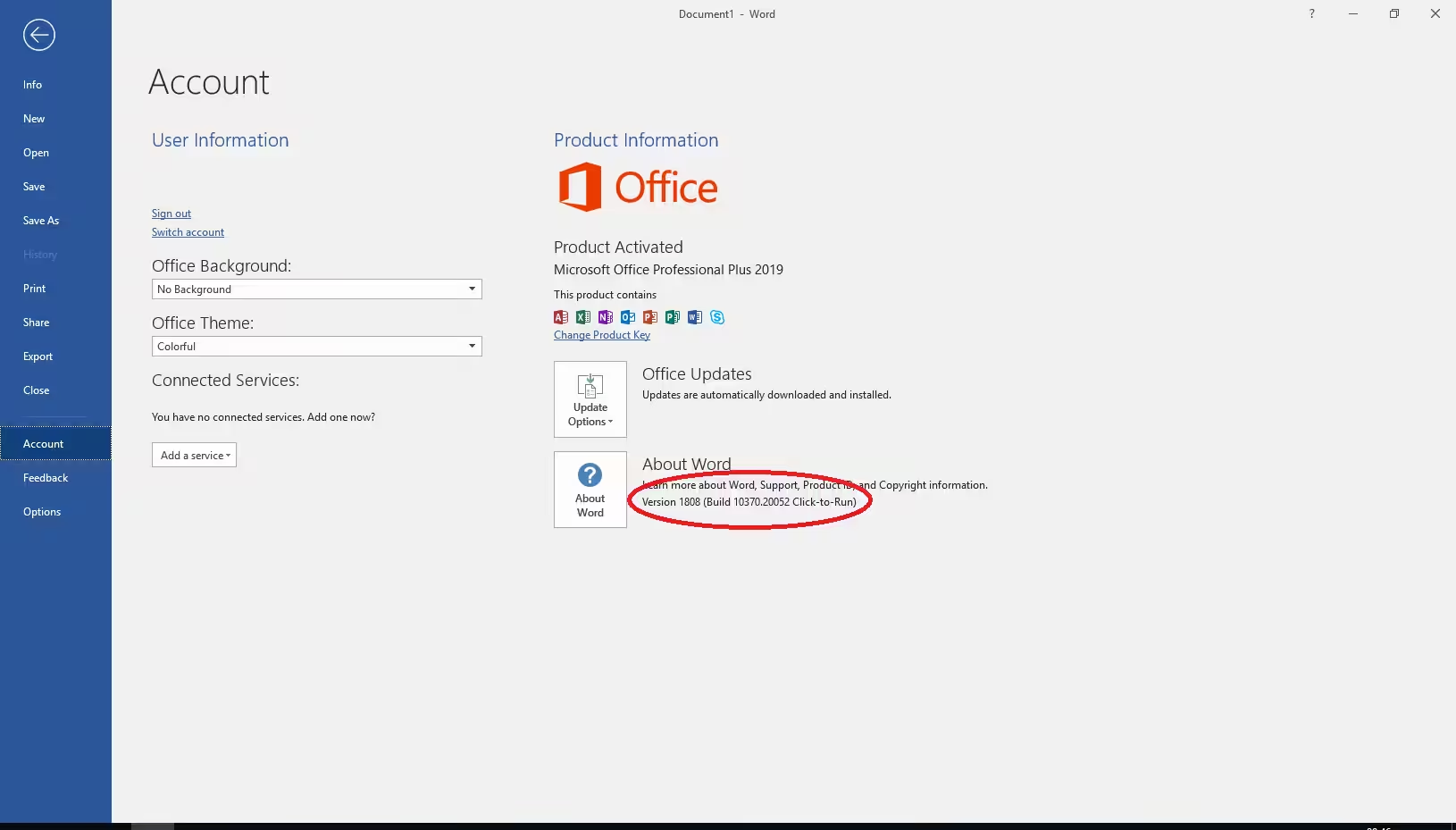
How to Install the Latest Updates for Office 2019
Microsoft Office 2019 is a stable and powerful suite of productivity applications, including Word, Excel, PowerPoint, Outlook, and more. However, many users eventually want to upgrade Office 2019 to access new features, improved security, and better compatibility with modern devices and cloud services. Since Office 2019 is a one-time purchase, it does not automatically upgrade to future versions. This makes the upgrade process different from Microsoft 365 (Office 365), which includes continuous updates.
If you’re unsure how upgrading works or what your options are, this comprehensive guide will walk you through everything you need to know about upgrading from Office 2019 to a newer version—whether that’s Office 2021, Microsoft 365, or preparing your system for a new installation.
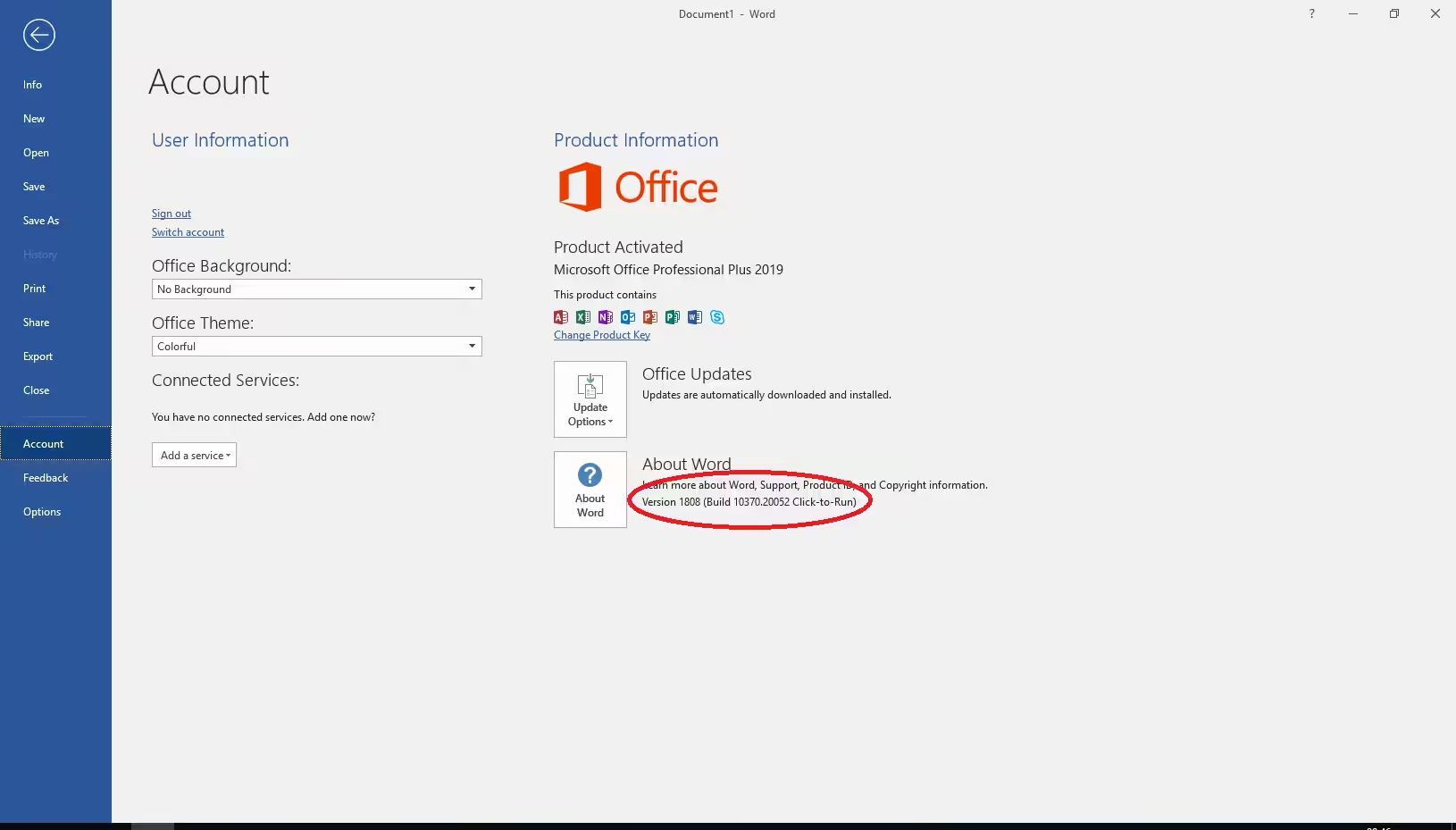
Understanding How Office 2019 Upgrades Work
Before beginning the upgrade, it’s essential to know how Office 2019 differs from Microsoft 365 subscriptions.
Is Office 2019 Automatically Upgraded?
No. Office 2019 is a perpetual license, which means:
-
You receive security updates and bug fixes
-
You do not receive feature updates
-
You do not get new versions such as Office 2021 or Microsoft 365
-
You keep Office 2019 forever, but it stays exactly as it is
If you want newer features, you must purchase the next version or switch to Microsoft 365.
Why Upgrade Office 2019?
Users typically upgrade because they want:
-
New productivity features
-
Enhanced cloud integration
-
Improved security
-
Better performance and reliability
-
Compatibility with modern file formats and devices
-
Access to AI-powered tools (available in Microsoft 365)
Understanding your needs will help you choose the right upgrade path.
Check Your System Before Upgrading
Before upgrading, verify that your device meets the system requirements for the next Office version.
Steps to Prepare Your System
-
Check your Windows or macOS version.
-
Verify available disk space.
-
Ensure you have administrator rights to install software.
-
Back up important documents saved on your device.
These steps help prevent installation issues later.
Your Upgrade Options from Office 2019
There are two primary ways to upgrade:
Option 1: Upgrade to Office 2021
This is ideal if you want a one-time purchase without a subscription.
Option 2: Switch to Microsoft 365
This gives you continuous updates, new features, and cloud storage.
Each option works differently, and you can choose based on your needs and budget.
Method 1: Upgrade Office 2019 to Office 2021
If you prefer a perpetual license similar to Office 2019, upgrading to Office 2021 is the closest option.
Steps to Upgrade to Office 2021
-
Purchase Office 2021 from the Microsoft Store or an authorized reseller.
-
Sign in to your Microsoft account.
-
Redeem your product key (if you purchased a retail copy).
-
Download Office 2021.
-
Uninstall Office 2019 from your device.
-
Install Office 2021 using the new installer.
Why You Must Uninstall Office 2019 First
Office 2019 and Office 2021 cannot run side-by-side because:
-
They share system files
-
They use the same installation technology
-
Running both can cause licensing conflicts
Uninstalling ensures a clean and problem-free installation.
What Happens to Your Files?
Your documents (Word, Excel, etc.) are not deleted when uninstalling.
They remain safe on your device unless manually removed.
Method 2: Upgrade Office 2019 by Moving to Microsoft 365
Switching to Microsoft 365 gives you:
-
The newest version of Office apps
-
Auto-updates
-
1 TB of OneDrive cloud storage
-
Premium AI and productivity features
-
Advanced security tools
This is the most future-proof upgrade.
Steps to Switch to Microsoft 365
-
Purchase a Microsoft 365 subscription:
-
Microsoft 365 Personal
-
Microsoft 365 Family
-
Microsoft 365 Business plans
-
-
Go to https://www.office.com and sign in.
-
Select Install Office.
-
Download the Microsoft 365 installer.
-
Uninstall Office 2019 from your computer.
-
Install Microsoft 365 and sign in.
Microsoft 365 automatically updates to the latest version available.
Why Microsoft 365 Is the Best Upgrade
-
You constantly get new features
-
Updates happen monthly
-
You gain access to premium cloud services
-
The apps stay compatible with all future devices
-
You avoid having to buy Office again every few years
For most users, this option offers the best long-term value.
Method 3: Using Office Update Tools (Limited)
Some users believe Office 2019 can be upgraded via updates. This is not possible because:
-
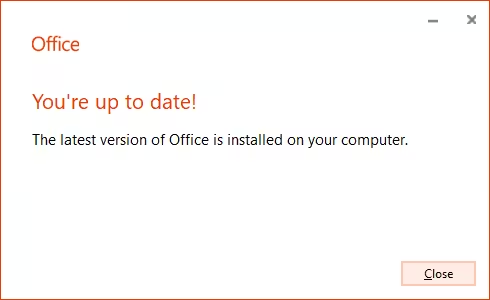
Office 2019 only receives security patches
-
Feature upgrades require purchasing a new version
-
No update can convert Office 2019 to Office 2021 or Microsoft 365
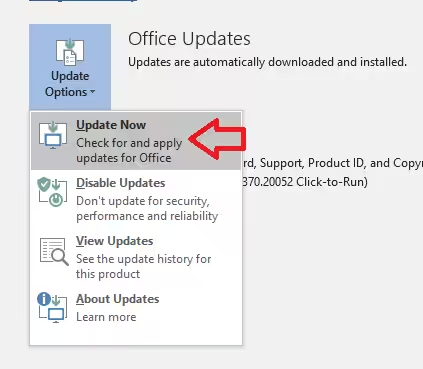
You cannot upgrade Office 2019 using the Update Options button inside Office apps.
How to Uninstall Office 2019 Before Upgrading
Removing Office 2019 ensures a clean installation for the next version.
Uninstall on Windows
-
Open Control Panel.
-
Select Programs and Features.
-
Find Microsoft Office 2019.
-
Click Uninstall.
-
Follow the on-screen instructions.
Uninstall on macOS
-
Open Finder.
-
Go to Applications.
-
Drag Office apps to the Trash.
-
Empty the Trash.
You can now install the upgraded version.
Troubleshooting Upgrade Issues
Upgrades sometimes fail due to technical conflicts.
Common Problems and Solutions
Problem: Installation fails halfway
– Restart your computer and reinstall.
Problem: Old version still appears
– Use the Microsoft Support and Recovery Assistant tool.
Problem: License not recognized
– Sign out of all Office apps and sign in again.
Problem: Apps show “Unlicensed Product”
– Reactivate using your Microsoft account.
Addressing these issues ensures a smooth upgrade experience.
Conclusion
Upgrading Office 2019 is not a traditional “update” process. Because Office 2019 is a one-time purchase, it does not automatically evolve into newer versions. Instead, you must choose one of two upgrade paths: purchasing Office 2021 or switching to Microsoft 365. Both options provide improved functionality, stronger security, and better performance.
Whether you prefer the simplicity of a one-time license or the power of continuous updates, following the steps in this guide will help you upgrade from Office 2019 smoothly and confidently.