


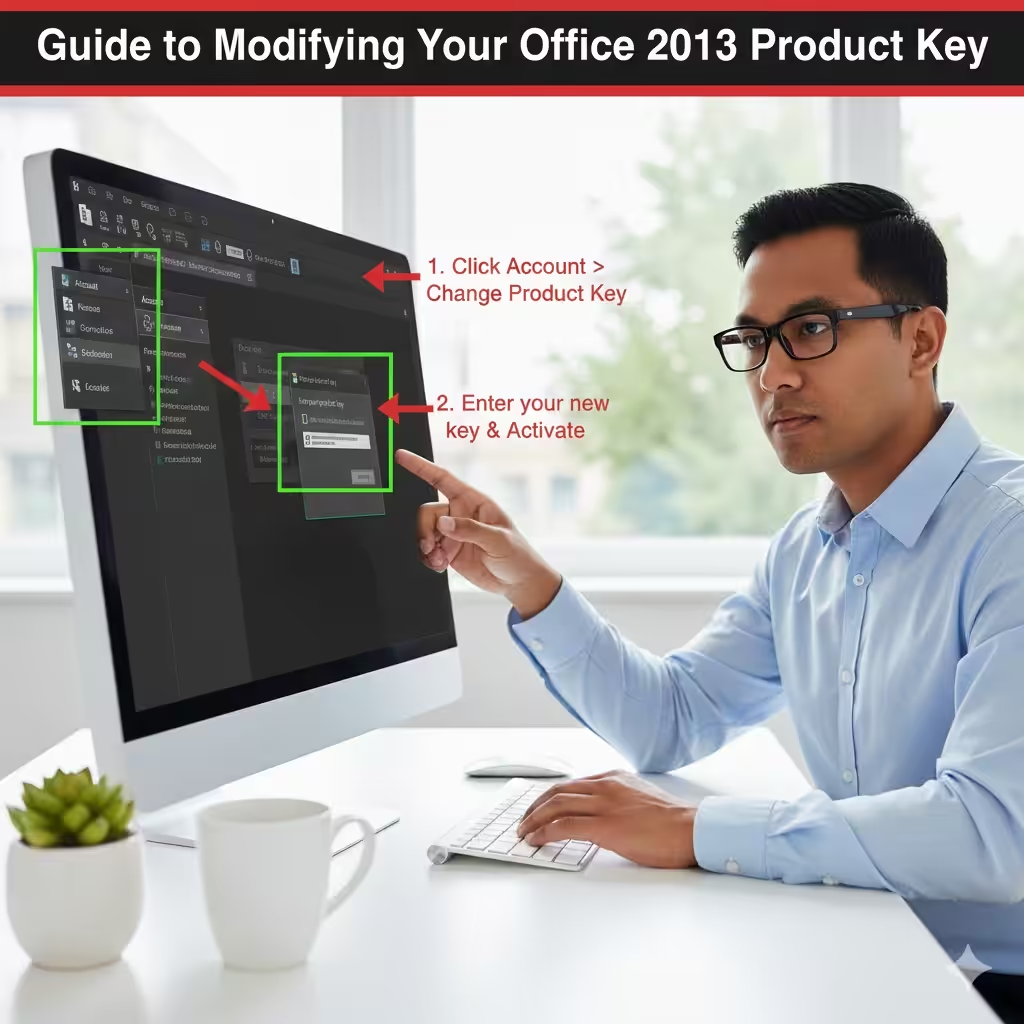
Guide to Modifying Your Office 2013 Product Key
Microsoft Office 2013 remains a reliable productivity suite for many users, even years after its release. However, situations often arise where you need to change the existing product key. You may have purchased a new license, upgraded your volume license agreement, switched computers, or encountered activation errors that require entering a fresh key. The good news is that Office 2013 provides multiple ways to change the product key, whether through the Control Panel, an Office application, or the Command Prompt.
This comprehensive guide walks you through everything you need to know about replacing your Microsoft Office 2013 product key. You’ll learn when a new key is required, the available methods, and troubleshooting steps to ensure successful activation.
When You Need to Change Your Office 2013 Product Key
Before diving into the steps, it’s helpful to understand why you might need to update your product key.
Common Reasons to Change the Product Key
-
You purchased a new valid Office 2013 license.
-
You’re transferring Office to a different computer.
-
The current key is no longer valid or has activation issues.
-
You entered the wrong product key during installation.
-
You switched from a trial version to the full version.
-
Your previous activation was blocked due to hardware changes.
Regardless of the reason, changing the key is straightforward if you follow the steps carefully.
How to Prepare Before Changing Your Product Key
Before updating your Office 2013 key, make sure to prepare the following:
1. Ensure You Have a Valid Product Key
A product key for Office 2013 includes 25 characters in the format:
XXXXX-XXXXX-XXXXX-XXXXX-XXXXX
2. Close All Office Applications
Exit Word, Excel, Outlook, PowerPoint, and any other Office program to prevent conflicts during the process.
3. Confirm Administrative Access
You must have administrator rights on your Windows computer to modify licensing information.
4. Back Up Important Documents
Changing a product key does not affect your documents, but it’s always a good practice to keep backups.
Once these steps are complete, you’re ready to begin.
Method 1: Change Office 2013 Product Key Through the Control Panel
This method works on most installations and is often the easiest way to update your key.
Steps to Change the Key via Control Panel
-
Open the Control Panel.
-
Click Programs and Features (or Uninstall a program).
-
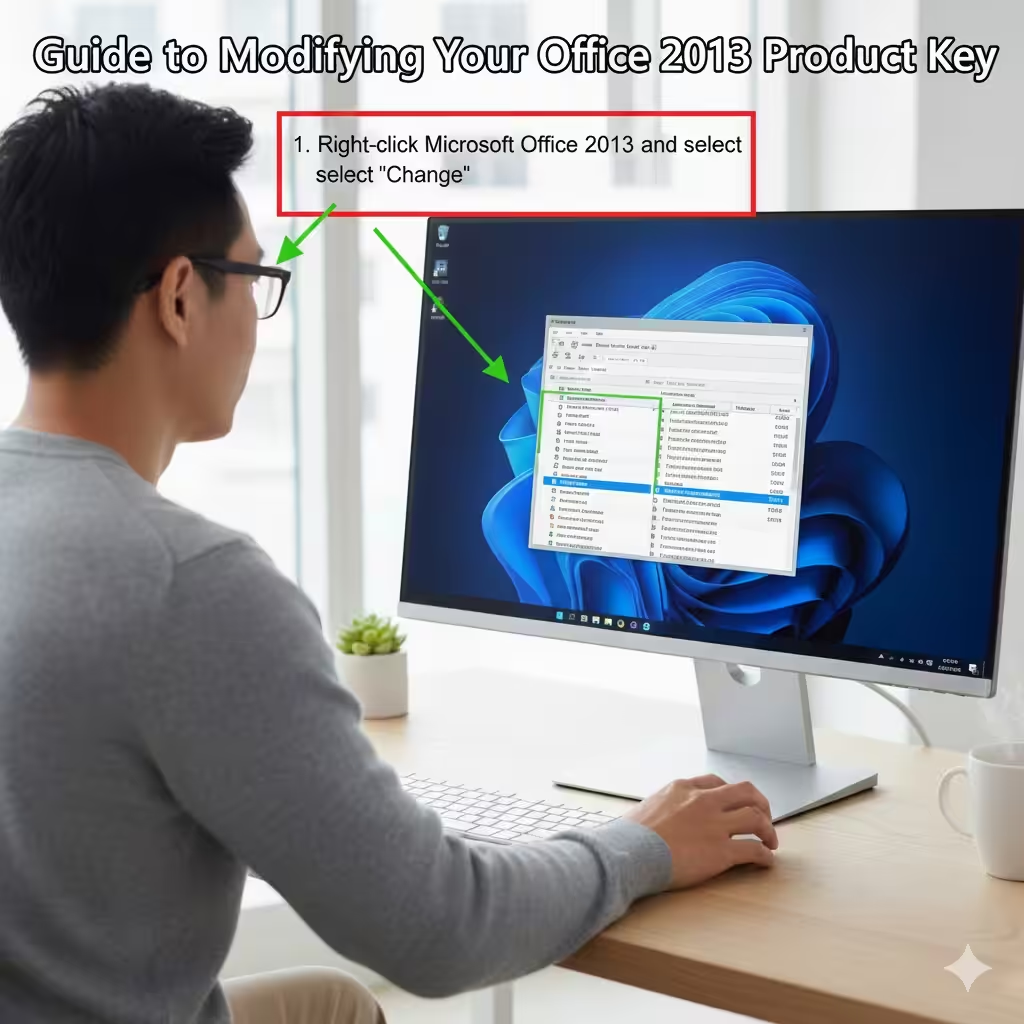
Find Microsoft Office 2013 in the list.
-
Right-click it and select Change.
-
Choose Enter a Product Key from the options that appear.
-
Type your new 25-character product key.
-
Click Continue and follow the prompts.
Once the process finishes, Office may prompt you to activate online or by phone.
When This Method Works Best
-
Standard retail installations
-
Multiple activations allowed
-
Changing from trial to full version
If the option to change the key does not appear, try one of the methods below.
Method 2: Change Office 2013 Product Key Through an Office Application
If you prefer to update the product key directly from within Word, Excel, or another app, this method is quick and convenient.
Steps to Change the Product Key in Office Apps
-
Open any Office 2013 application (e.g., Word).
-
Click File in the top-left corner.
-
Select Account or Office Account.
-
Under Product Information, click Change Product Key.
-
Enter the new product key in the field provided.
-
Click Install or Continue to apply the changes.
Office will attempt to activate the new key automatically.
Why This Method Is Useful
-
You can access it easily from any Office app
-
You instantly see your activation status
-
Works well for personal or single-user licenses
If the product key area does not accept input, you may be dealing with a volume license installation.
Method 3: Change Office 2013 Product Key Using Command Prompt (Volume License)
For business users or systems installed using a volume license edition, the Command Prompt offers the most reliable way to replace the product key.
Steps for Changing the Key with Command Prompt
-
Open the Command Prompt as an administrator.
-
Navigate to the Office 15 installation folder.
-
For 64-bit Windows with 32-bit Office:
cd \Program Files (x86)\Microsoft Office\Office15 -
For 64-bit Office:
cd \Program Files\Microsoft Office\Office15
-
-
Enter the command to uninstall the existing product key:
cscript ospp.vbs /unpkey:XXXXX
(Replace XXXXX with the last 5 characters of your current key.) -
Enter your new product key:
cscript ospp.vbs /inpkey:NEWPRODUCTKEY -
Activate the new key:
cscript ospp.vbs /act
Best for Advanced Users
This method is ideal for:
-
IT administrators
-
Corporate environments
-
Systems installed via VL media
-
Troubleshooting keys that refuse to activate
Command-line activation provides detailed error codes that help diagnose issues.
How to Verify the New Product Key Is Activated
After changing the key, it’s important to confirm activation.
Ways to Check Activation
-
Open any Office app → File → Account → Check Product Activated
-
Use the command prompt:
cscript ospp.vbs /dstatus
If Office displays “Product Activated,” the change was successful.
Troubleshooting Product Key Problems
Sometimes issues arise during or after changing the product key. Here are common problems and solutions.
1. Invalid Product Key Error
Possible causes:
-
Typo in the key
-
Wrong edition (e.g., using Office 2016 key for Office 2013)
-
Key already used too many times
Fix: Re-enter the key or verify it matches the Office version.
2. Activation Limit Reached
Retail keys allow only a limited number of activations.
Fix:
Contact Microsoft Support and request a reset.
3. Cannot Change Key Through Control Panel
This happens with volume license or preinstalled versions.
Fix:
Use the Command Prompt method instead.
4. Office Stuck in Reduced Functionality Mode
This means the key is not activated.
Fix:
Run activation again usingcscript ospp.vbs /act.
5. Product Key Change Option Missing
Some OEM or enterprise builds disable the option.
Fix:
Uninstall Office and reinstall it using your licensed installation media.
Conclusion
Changing your Microsoft Office 2013 product key is a simple process when you know the right steps. Whether you choose to update the key through the Control Panel, from within an Office app, or using command-line tools, each method helps you quickly transition to a new license. With the detailed instructions in this guide, you can successfully replace your product key, fix activation problems, and continue using Office 2013 without interruption.