


How to Locate Microsoft Office Programs on Windows 8.1, 8, or 7
Microsoft Office is one of the most widely used productivity suites, offering tools like Word, Excel, and PowerPoint. However, navigating to these applications can sometimes be confusing, especially if you’re using older versions of Windows, such as 8.1, 8, or 7. This guide will walk you through the steps to locate and access your Office applications with ease.
Finding Office Applications on Windows 8.1 or 8
Windows 8.1 and 8 introduced a new user interface with a Start Screen that may feel unfamiliar to some users. Here’s how to locate Microsoft Office on these systems:
1. Using the Start Screen Search
- Press the Windows key to open the Start Screen.

- Start typing the name of the Office application you want to open, such as “Word,” “Excel,” or “PowerPoint.”

- The search will automatically display matching results.
- Click on the application in the results to open it.
2. Pinning Office Applications to the Start Screen
To make accessing Office applications easier, you can pin them to your Start Screen:
- Search for the application using the steps above.
- Right-click on the application and select Pin to Start.

- The application icon will now appear on your Start Screen for quick access.
3. Accessing from the All Apps View
- On the Start Screen, swipe up from the bottom (or click the down arrow at the bottom-left corner) to open the All Apps view.

- Scroll through the list to locate the Microsoft Office folder.
- Open the folder to find all installed Office applications.
Finding Office Applications on Windows 7
Windows 7 features a more traditional Start Menu layout, making it easier to find installed programs. Here’s how to locate Office applications on this system:
1. Using the Start Menu
- Click the Start button in the lower-left corner of the screen.

- Look for the Microsoft Office folder in the list of programs.
- Click on the folder to expand it and view all installed Office applications.
- Select the application you want to open.
2. Using the Search Box
- Click the Start button.
- Type the name of the Office application (e.g., “Word” or “Excel”) into the search box at the bottom of the Start Menu.

- Click on the application in the search results to open it.
3. Creating Desktop Shortcuts
For quicker access, you can create shortcuts for your Office applications:
- Locate the application using the Start Menu.
- Right-click on the application and select Send to > Desktop (create shortcut).

- A shortcut will be added to your desktop, allowing you to open the application directly.
Checking if Office is Installed
If you cannot find Office applications using the steps above, you might need to confirm whether Microsoft Office is installed on your computer.
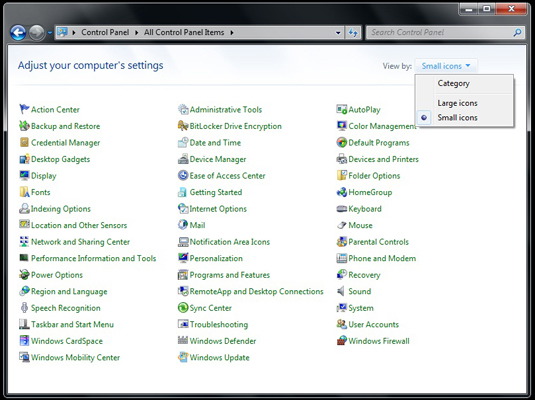
1. Using the Control Panel
- Press Windows + R, type
control, and press Enter to open the Control Panel. - Navigate to Programs > Programs and Features.
- Look for Microsoft Office in the list of installed programs.
- If it’s listed, Office is installed on your computer.
2. Checking the Installation Directory
- Open File Explorer (Windows Explorer on Windows 7).
- Navigate to the default installation path, typically:
C:\Program Files\Microsoft Office- Or
C:\Program Files (x86)\Microsoft Officefor 32-bit versions.
- Open the folder and look for subfolders like Office16, Office15, or Office14, which correspond to different Office versions.
Troubleshooting Tips
If you’re still unable to locate your Office applications, consider the following steps:
1. Repair Your Office Installation
- Open the Control Panel and go to Programs > Programs and Features.
- Select Microsoft Office and click Change.
- Choose Repair and follow the on-screen instructions.
2. Reinstall Microsoft Office
If repair doesn’t work, you may need to reinstall Office:
- Uninstall the existing Office suite from Programs and Features.
- Reinstall Office using your installation media or download it from your Microsoft account.
3. Check User Permissions
Ensure your user account has the necessary permissions to access the installed programs. Log in as an administrator if needed.
Tips for Quick Access
To improve efficiency, consider these tips:
- Pin to Taskbar: Right-click on an open Office application and select Pin to Taskbar for quick access.
- Organize Start Menu: Drag frequently used Office applications to the top of the Start Menu for easy visibility.
- Use Keyboard Shortcuts: Once the application is pinned, press Windows + [Number Key] (based on its position on the taskbar) to open it.
Conclusion
Finding Microsoft Office applications on Windows 8.1, 8, or 7 is straightforward once you know where to look. Whether you’re using the Start Screen, Start Menu, or search features, the steps outlined in this guide will help you access your Office tools quickly. If issues persist, verifying installation or repairing the Office suite should resolve the problem. Keeping these tips in mind will ensure you can efficiently use Office for your productivity needs.