


How to Style and Modify Text Effectively in Microsoft Word
Microsoft Word is one of the most widely used word processing applications in the world. Whether you are preparing a school project, a business report, or a professional document, understanding how to design and edit text in Microsoft Word can make your work stand out and look polished.
This guide will walk you through everything you need to know about designing, formatting, and editing text effectively. You’ll learn how to change font styles, adjust spacing, apply themes, use styles, and even customize layouts to create professional-looking documents with ease.
Understanding Text Design and Formatting in Microsoft Word
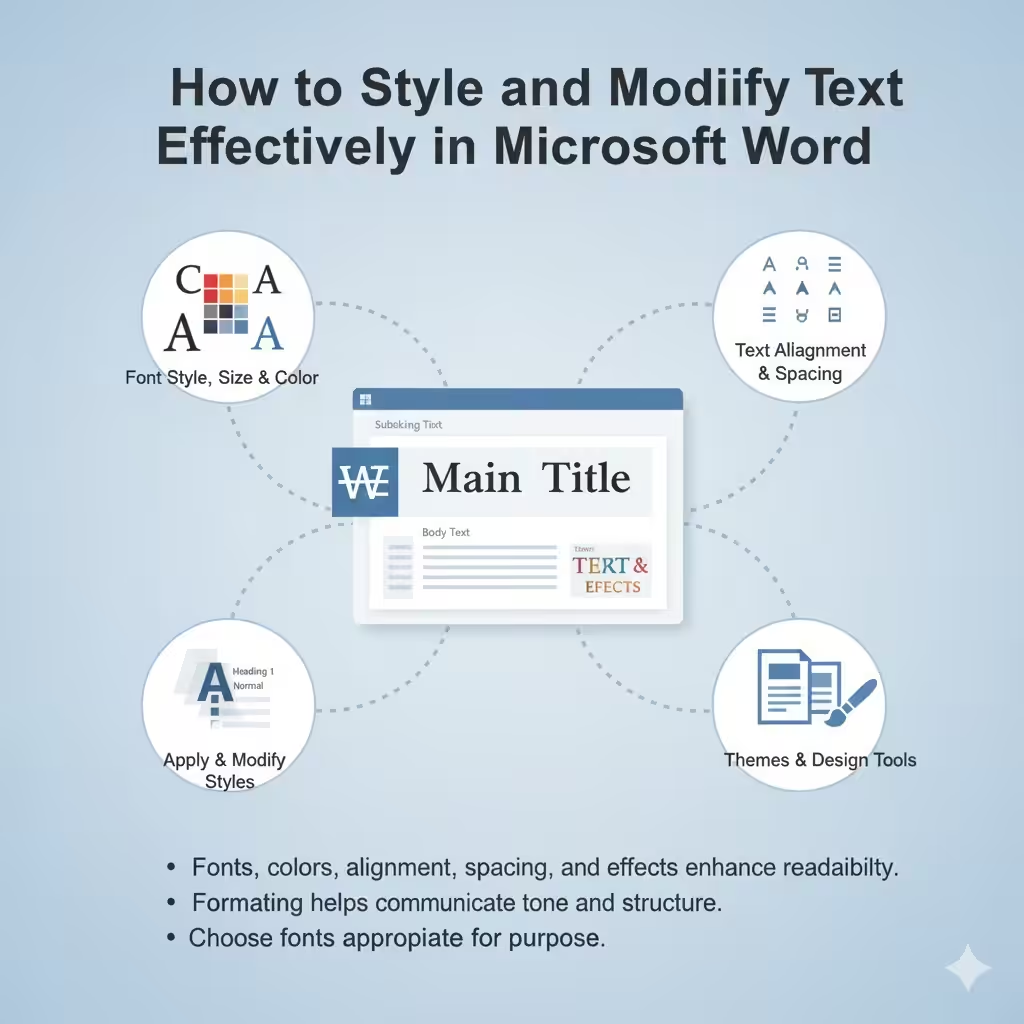
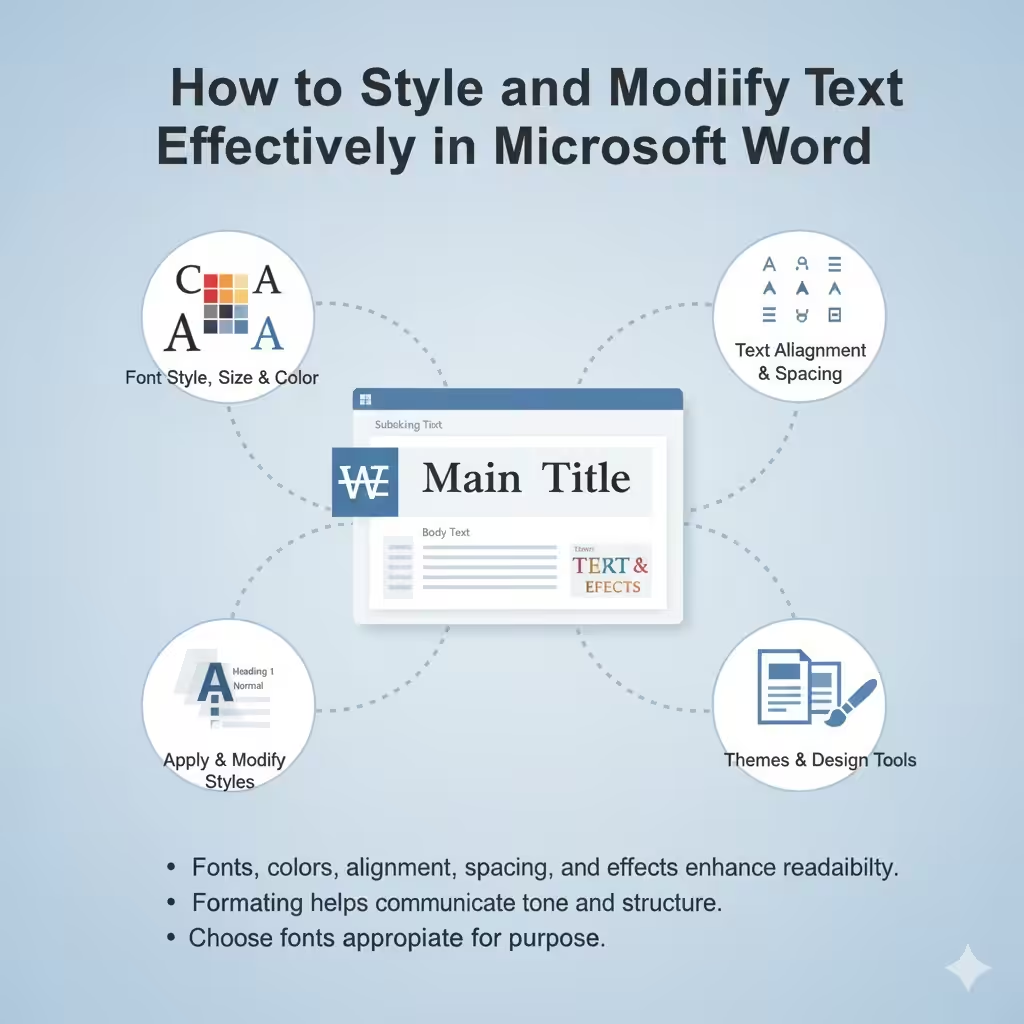
Text design in Microsoft Word involves more than just typing words on a page. It’s about using fonts, colors, alignment, spacing, and effects to enhance readability and create an appealing presentation. Formatting helps communicate tone and structure, guiding readers through your document effortlessly.
For example, a resume might use clean, professional fonts like Calibri or Arial, while a creative project could include colors and artistic text effects. Knowing when and how to use these tools helps you produce documents that look both attractive and appropriate for their purpose.
Changing Font Style, Size, and Color
Adjusting the Font Style
To change the font style in Word:
-
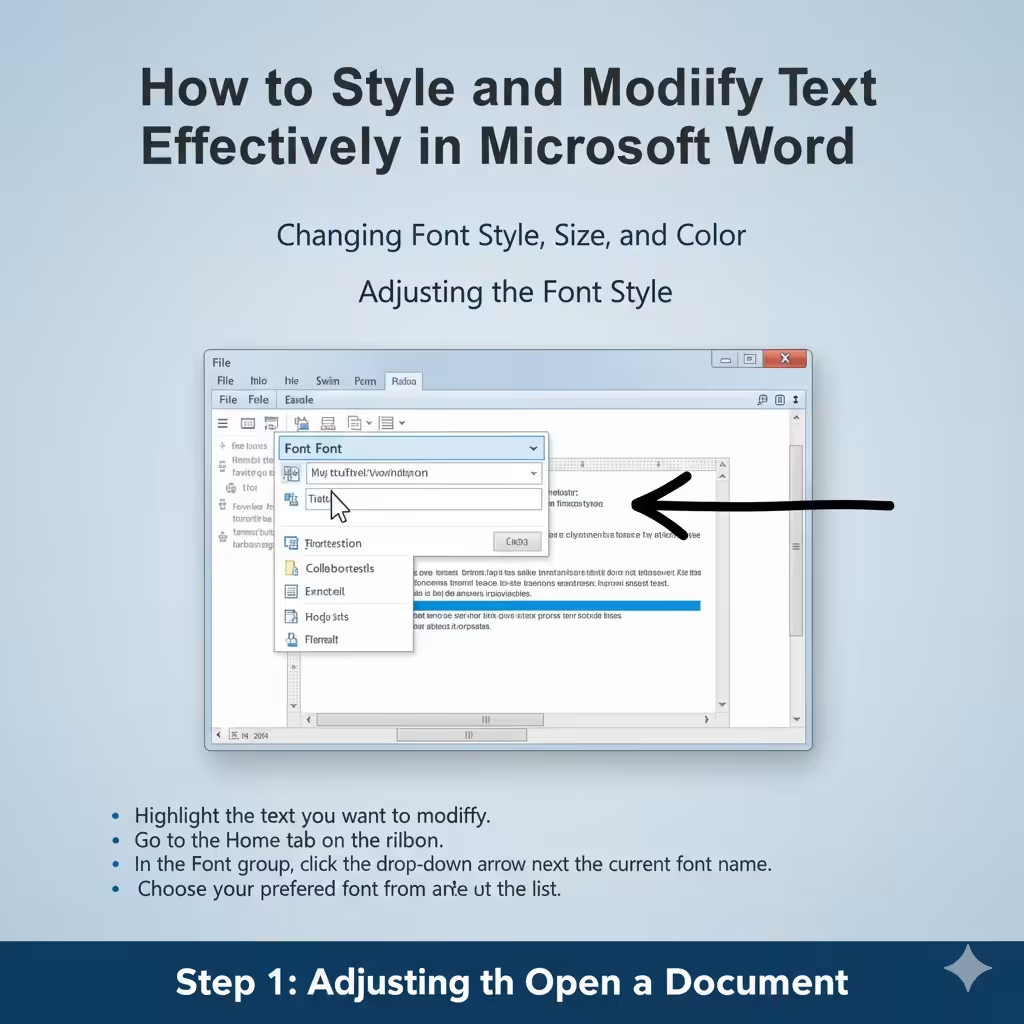
Highlight the text you want to modify.
-
Go to the Home tab on the ribbon.
-
In the Font group, click the drop-down arrow next to the current font name.
-
Choose your preferred font from the list.
Microsoft Word offers a wide range of fonts, from classic options like Times New Roman to more modern choices like Segoe UI or Cambria. Choose a font that fits the tone of your document—formal for business, casual for creative writing.
Changing Font Size
Font size impacts readability.
-
Highlight your text.
-
Click the Font Size drop-down menu on the Home tab.
-
Select a size (for example, 12 pt for body text or 14 pt for subheadings).
You can also use the Increase Font Size or Decrease Font Size buttons (the “A” icons) to make quick adjustments.
Applying Color and Effects
To add color:
-
Select the text.
-
Click the Font Color icon (a letter “A” with a color bar) on the Home tab.
-
Choose a color from the palette or select More Colors for advanced options.
You can also apply text effects such as bold, italic, underline, shadow, and glow to highlight important content. These are accessible in the Font section of the ribbon or under Text Effects and Typography.
Using Text Alignment and Spacing
Proper alignment and spacing make your document more organized and easier to read.
Aligning Text
To change alignment:
-
Select the paragraph or text block.
-
In the Paragraph group on the Home tab, choose one of the alignment options:
-
Align Left (Ctrl + L) – Default for most documents.
-
Center (Ctrl + E) – Great for titles.
-
Align Right (Ctrl + R) – Useful for date or author alignment.
-
Justify (Ctrl + J) – Creates clean, aligned margins on both sides.
-
Adjusting Line and Paragraph Spacing
For better readability, you can modify spacing between lines and paragraphs.
-
Highlight the text.
-
Go to the Home tab → Paragraph section.
-
Click the Line and Paragraph Spacing button.
-
Choose spacing options like 1.0, 1.5, or 2.0.
To add extra space before or after paragraphs, select Line Spacing Options, then customize under Spacing Before or Spacing After.
Applying and Modifying Styles
Styles are pre-designed combinations of formatting options like font, color, and spacing. Using them ensures consistency throughout your document.
Applying a Style
-
Highlight the text you want to format.
-
On the Home tab, open the Styles gallery.
-
Select a style such as Heading 1, Heading 2, or Normal.
These styles help you create a logical hierarchy, especially for long documents. For example:
-
Use Heading 1 for main titles.
-
Use Heading 2 for subsections.
-
Use Normal for body text.
Modifying a Style
If you want to customize a style:
-
Right-click on the style in the gallery.
-
Choose Modify.
-
Change font, size, color, alignment, or spacing.
-
Click OK to apply changes throughout your document.
This is useful when designing professional reports or manuals where formatting consistency is important.
Using Themes and Design Tools
Microsoft Word includes built-in themes that automatically adjust colors, fonts, and effects to give your document a cohesive look.
Applying a Theme
-
Go to the Design tab.
-
Click Themes.
-
Browse through options and choose one that fits your purpose—like Office, Ion, or Slice.
Themes ensure visual harmony across headings, tables, and other elements.
Customizing Colors and Fonts
If you want to personalize the theme:
-
Under the Design tab, choose Colors or Fonts.
-
Pick a color scheme or font combination.
-
Select Customize Colors or Customize Fonts to build your own style set.
These options let you maintain your brand or company identity in official documents.
Using the Format Painter Tool
The Format Painter helps you quickly copy formatting from one part of your text to another.
To use it:
-
Highlight the text with the desired formatting.
-
Click the Format Painter icon (paintbrush) on the Home tab.
-
Highlight the target text to apply the same formatting.
Double-clicking the Format Painter lets you apply the format multiple times until you turn it off.
Editing Text Efficiently
Editing is just as important as designing. Microsoft Word provides several powerful tools for reviewing and refining your text.
Using Find and Replace
To locate or replace specific words or phrases:
-
Press Ctrl + H.
-
Enter the word to find.
-
Enter the replacement word if needed.
-
Click Replace or Replace All.
This is especially useful for updating names, correcting repeated typos, or changing formatting in bulk.
Checking Spelling and Grammar
Word automatically checks for spelling and grammar mistakes. Red or blue underlines appear beneath errors.
You can manually check your document by:
-
Going to the Review tab.
-
Clicking Spelling & Grammar.
Review the suggested corrections and apply or ignore them as needed.
Using Track Changes and Comments
For collaborative editing:
-
Go to the Review tab.
-
Turn on Track Changes.
-
As you make edits, changes will be highlighted for others to review.
-
You can also add Comments to suggest revisions without altering the original text.
This feature is perfect for group projects or when reviewing professional documents.
Adjusting Page Layout for Better Design
A well-designed document also depends on proper page setup.
-
Go to the Layout tab.
-
Adjust Margins, Orientation, and Page Size according to your needs.
-
Use Columns, Line Numbers, or Page Borders to add structure and style.
For example, newsletters may use two columns, while reports usually stick with a single-column layout.
Conclusion
Mastering how to design and edit text in Microsoft Word allows you to create documents that are both beautiful and effective. By learning how to use fonts, spacing, themes, and styles, you can transform plain text into professional, visually appealing content.
Whether you are writing a resume, crafting a proposal, or creating an academic paper, Microsoft Word provides all the tools you need to format, design, and refine your work to perfection.