


Saving a Word Document Directly to OneDrive
Saving your documents to the cloud has become an essential habit for professionals, students, and organizations worldwide. With Microsoft OneDrive integrated directly into Microsoft Word, storing, accessing, and sharing your documents securely from anywhere has never been easier.
This guide will show you how to save your document to OneDrive in Microsoft Word, whether you’re using Word on a desktop, mobile, or the web. You’ll also learn how to manage your saved files, access them from multiple devices, and ensure your work is always backed up safely.
Understanding OneDrive and Its Benefits
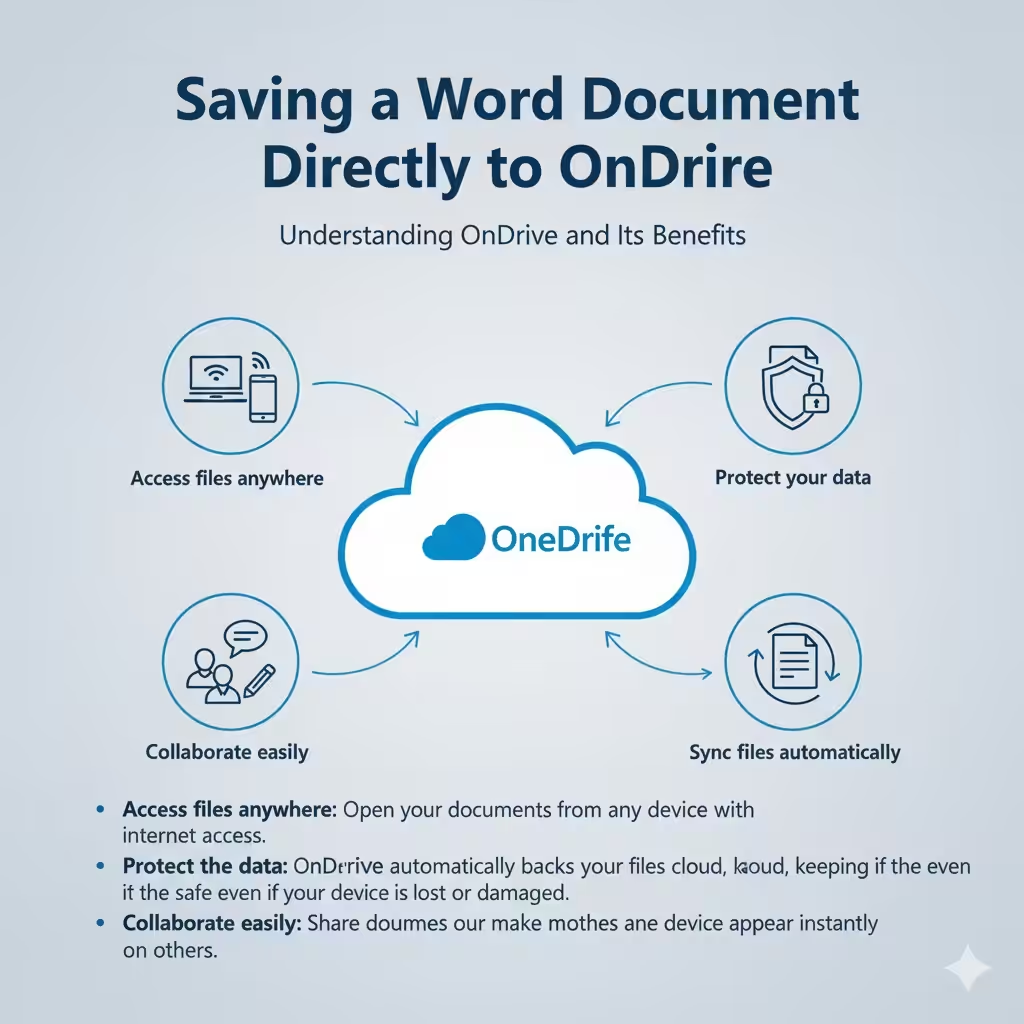
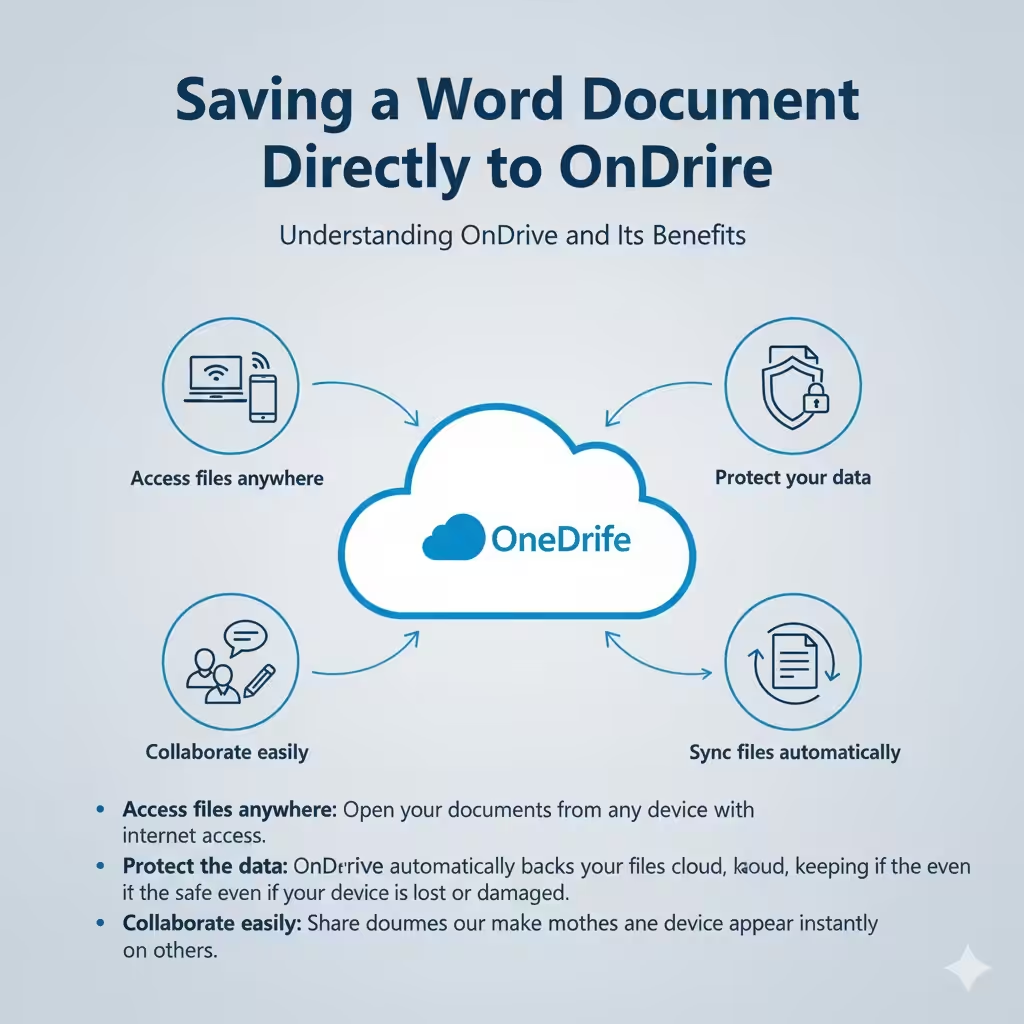
OneDrive is Microsoft’s cloud-based storage platform that comes as part of Microsoft 365. When you save your files to OneDrive, they’re stored online instead of just on your computer’s hard drive. This allows you to:
-
Access files anywhere: Open your documents from any device with internet access.
-
Protect your data: OneDrive automatically backs up your files to the cloud, keeping them safe even if your device is lost or damaged.
-
Collaborate easily: Share documents with others and work together in real time.
-
Sync files automatically: Changes you make on one device appear instantly on others.
By saving your Word documents directly to OneDrive, you never have to worry about losing your work or carrying external drives again.
Saving a New Document to OneDrive in Microsoft Word
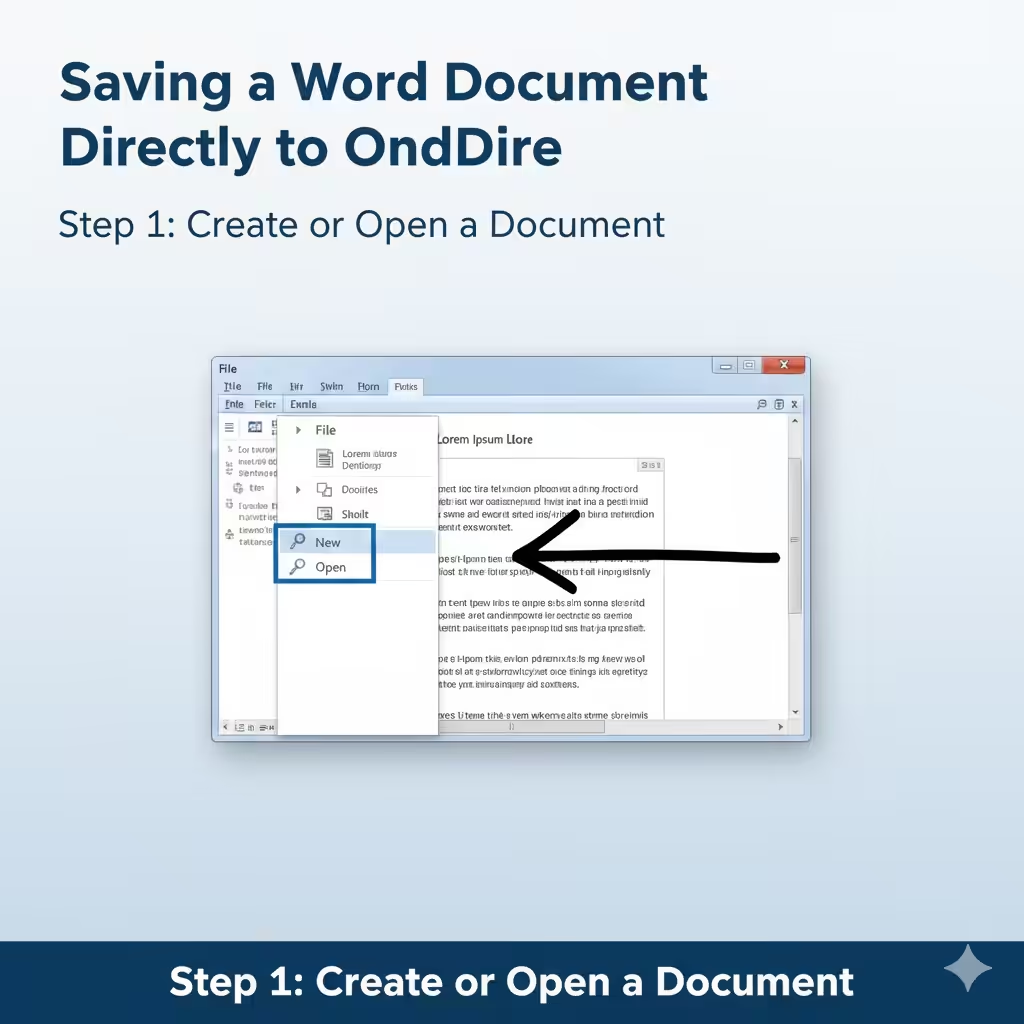
Step 1: Create or Open a Document
Open Microsoft Word on your computer. You can either create a new document or open an existing one that you’d like to save to OneDrive.
Step 2: Sign In to Your Microsoft Account
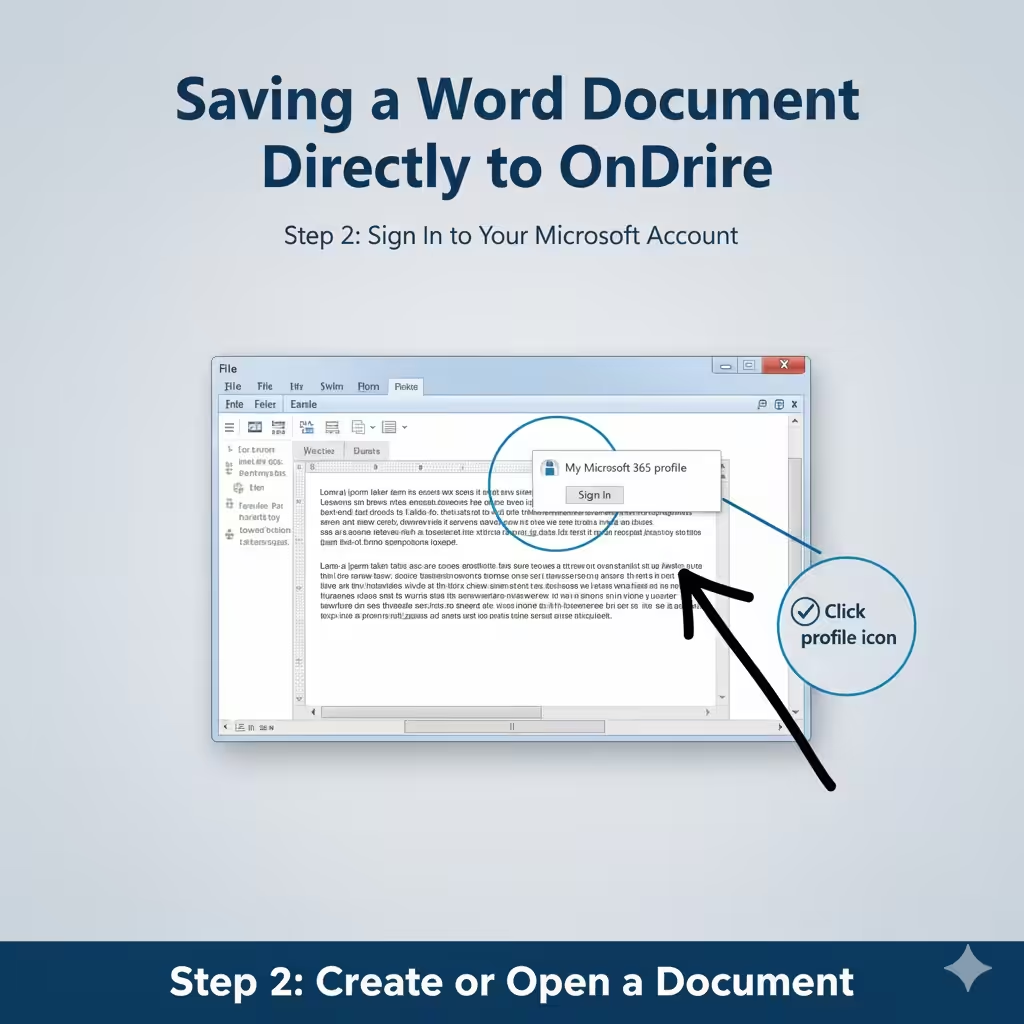
Before you can save files to OneDrive, make sure you are signed in to your Microsoft account.
-
Click on your name or profile icon in the top-right corner of Word.
-
Select Sign in and enter your Microsoft credentials (the same account used for OneDrive or Microsoft 365).
Once signed in, Word will automatically connect to your OneDrive storage.
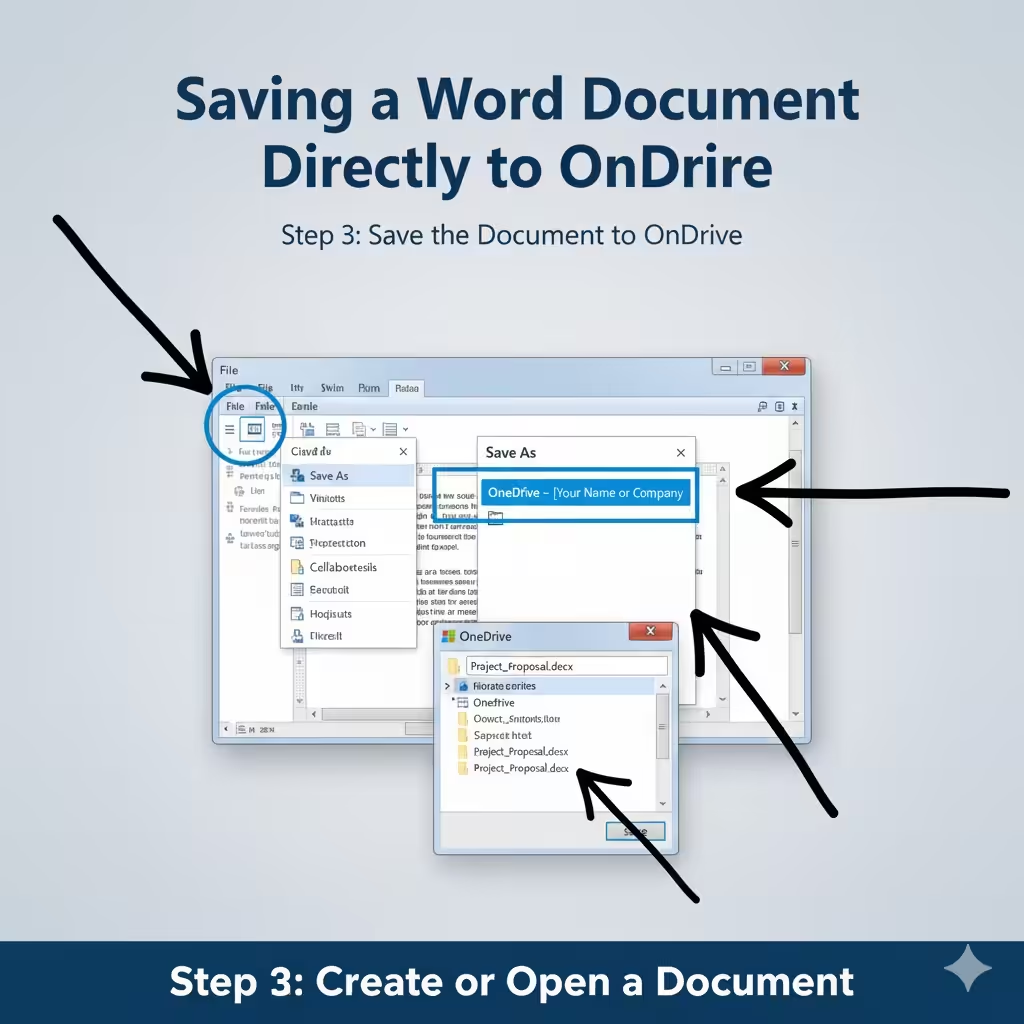
Step 3: Save the Document to OneDrive
-
Click File in the top-left corner of Word.
-
Select Save As.
-
Under Save As, choose OneDrive – [Your Name].
-
Navigate to the folder within OneDrive where you want to store the document.
-
Enter a file name and click Save.
Your document will now be uploaded to your OneDrive cloud storage. You can access it from any device by logging into your OneDrive account.
Saving Existing Documents to OneDrive
If you already have a document saved locally on your computer, you can easily move it to OneDrive.
-
Open the document in Microsoft Word.
-
Click File > Save As.
-
Choose OneDrive from the list of available locations.
-
Pick a folder in your OneDrive account or create a new one.
-
Click Save.
Once the file is uploaded, you’ll see a cloud icon in the title bar of Word, confirming that your document is saved to OneDrive.
Automatically Saving Documents to OneDrive Using AutoSave
One of the most useful features in Microsoft Word is AutoSave, which automatically saves your work to OneDrive every few seconds.
How to Enable AutoSave
-
Open your document in Word.
-
Locate the AutoSave toggle switch in the top-left corner of the toolbar.
-
Turn AutoSave on.
AutoSave only works for documents stored in OneDrive or SharePoint. Once enabled, every change you make is instantly saved, ensuring you never lose progress — even if your computer unexpectedly shuts down.
Why Use AutoSave
-
It prevents data loss from crashes or power outages.
-
It keeps track of changes automatically.
-
It allows real-time collaboration when sharing files.
AutoSave is especially beneficial for team projects or when working on important reports that you cannot afford to lose.
Accessing Your Word Documents from Other Devices
After saving your Word documents to OneDrive, you can open them from any device — whether it’s a laptop, tablet, or smartphone.
Access via Web Browser
-
Go to https://onedrive.live.com.
-
Sign in using your Microsoft account.
-
Browse through your folders to find your Word document.
-
Click the file to open it in Word for the Web.
Access via OneDrive App
-
Install the OneDrive app on your Windows PC, Mac, Android, or iOS device.
-
Sign in with the same Microsoft account.
-
Navigate to the folder where your Word document is stored.
-
Tap or click to open the file in Microsoft Word.
Access via Microsoft Word App
On your phone or tablet:
-
Open the Word app.
-
Tap Open > OneDrive.
-
Locate your saved file and open it for editing.
All changes will automatically sync across your devices.
Sharing a Word Document Saved in OneDrive
Once your document is stored in OneDrive, sharing it with others becomes effortless.
How to Share a File
-
In Microsoft Word, click Share in the upper-right corner.
-
Choose Share with People or Copy Link.
-
Set permissions:
-
Can Edit: The recipient can make changes.
-
Can View: The recipient can only read the document.
-
-
Enter the email addresses of the people you want to share with, or copy the generated link.
-
Click Send.
Now, others can open and collaborate on your document in real time — a key advantage of using OneDrive.
Managing Shared Access
If you want to adjust permissions later:
-
Go to OneDrive online.
-
Right-click your document and select Manage Access.
-
Modify or remove sharing links as needed.
Managing Files and Folders in OneDrive
Saving to OneDrive also helps you organize your documents efficiently.
-
Create folders to group related documents together.
-
Rename files for clarity.
-
Move files between folders using drag-and-drop.
-
Restore deleted files from the OneDrive Recycle Bin within 30 days.
You can also sync OneDrive with File Explorer on Windows. This means your OneDrive folders appear just like local folders, allowing you to open, save, and move Word documents easily.
Troubleshooting Common Saving Issues
Occasionally, users encounter problems when saving documents to OneDrive. Here are some common issues and their solutions:
-
Issue: Not signed in
-
Solution: Check if you’re logged into your Microsoft account.
-
-
Issue: Internet connection problems
-
Solution: Make sure your device is connected to the internet.
-
-
Issue: OneDrive full or sync paused
-
Solution: Free up space or restart OneDrive sync.
-
-
Issue: AutoSave unavailable
-
Solution: Save the document to OneDrive first; AutoSave only works for cloud files.
-
By addressing these issues, you can ensure a seamless saving experience every time.
Advantages of Saving Documents to OneDrive
Saving your Word documents to OneDrive offers numerous benefits, including:
-
Automatic backups prevent data loss.
-
Easy collaboration through shared links.
-
Remote accessibility on any device.
-
Version history, allowing you to revert to earlier versions.
-
Integration with Microsoft 365 apps for smooth workflow management.
These features make OneDrive an essential tool for students, professionals, and teams who value efficiency and security.
Conclusion
Knowing how to save your document to OneDrive in Microsoft Word is a vital skill for modern productivity. By storing your work in the cloud, you ensure it’s accessible, secure, and easy to share.
Whether you’re writing a report, creating a proposal, or drafting an academic paper, OneDrive gives you peace of mind that your work is always safe and available when you need it.