


Sharing Files and Folders Made Simple with Office 365
In today’s connected world, collaboration is key to success. Whether you’re working in an office, from home, or across multiple time zones, sharing files and folders quickly and securely is essential. Microsoft Office 365 makes this easier than ever through integrated tools like OneDrive and SharePoint, which allow you to share documents, spreadsheets, and presentations seamlessly with your colleagues or clients.
In this guide, you’ll learn how to share files and folders using Microsoft Office 365, how to manage permissions, and the best practices to ensure your data remains secure while enabling effective teamwork.
Understanding File Sharing in Microsoft Office 365
Before diving into the steps, it’s important to understand how file sharing works within Office 365.
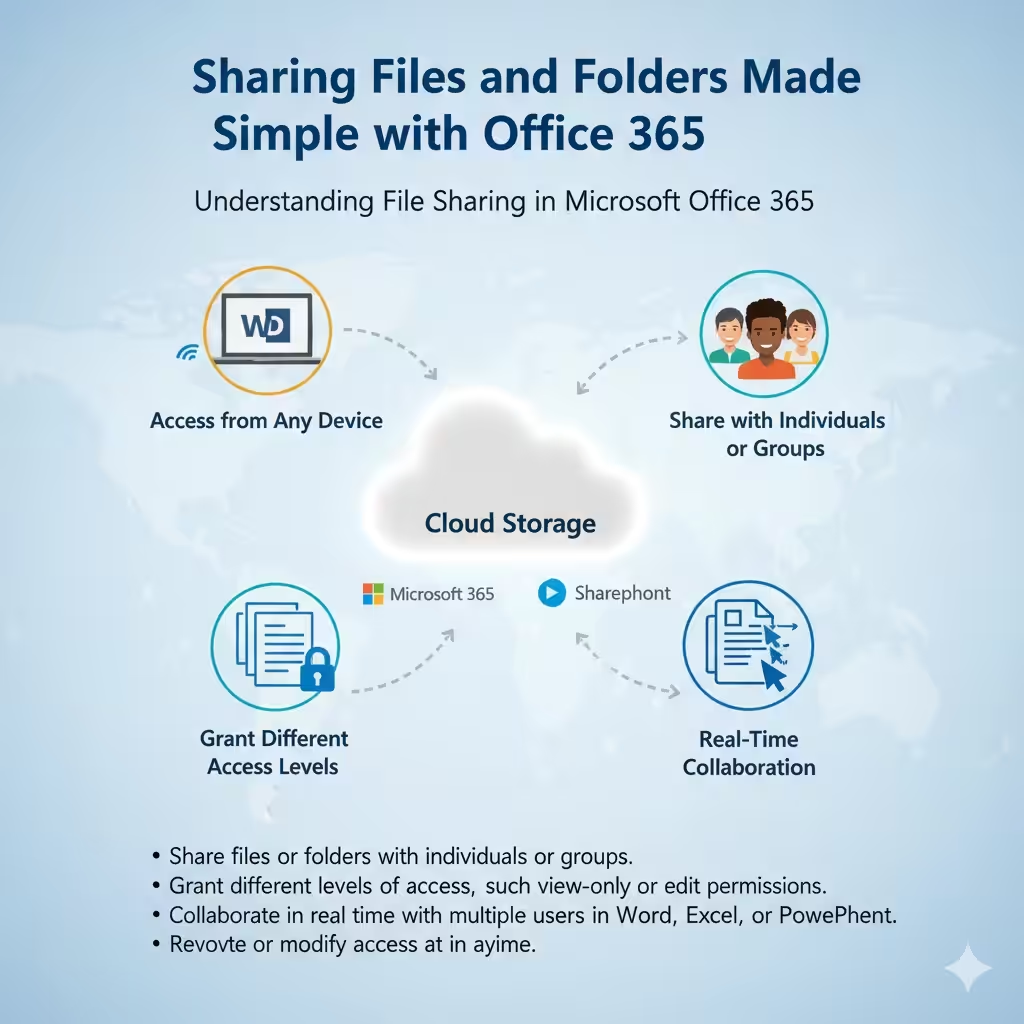
When you save your files in Office 365 — typically using OneDrive for Business or SharePoint Online — your documents are stored in the cloud. This means they are accessible from any device, anywhere, as long as you have an internet connection.
The platform allows you to:
-
Share files or folders with individuals or groups.
-
Grant different levels of access, such as view-only or edit permissions.
-
Collaborate in real time with multiple users in Word, Excel, or PowerPoint.
-
Revoke or modify access at any time.
This flexibility ensures that you maintain control over your content while empowering others to work with you efficiently.
Sharing Files Using OneDrive in Office 365
OneDrive is Microsoft’s cloud storage solution for individuals and businesses. It’s tightly integrated with Office 365, making file sharing fast and intuitive.
Step 1: Upload Your File to OneDrive
-
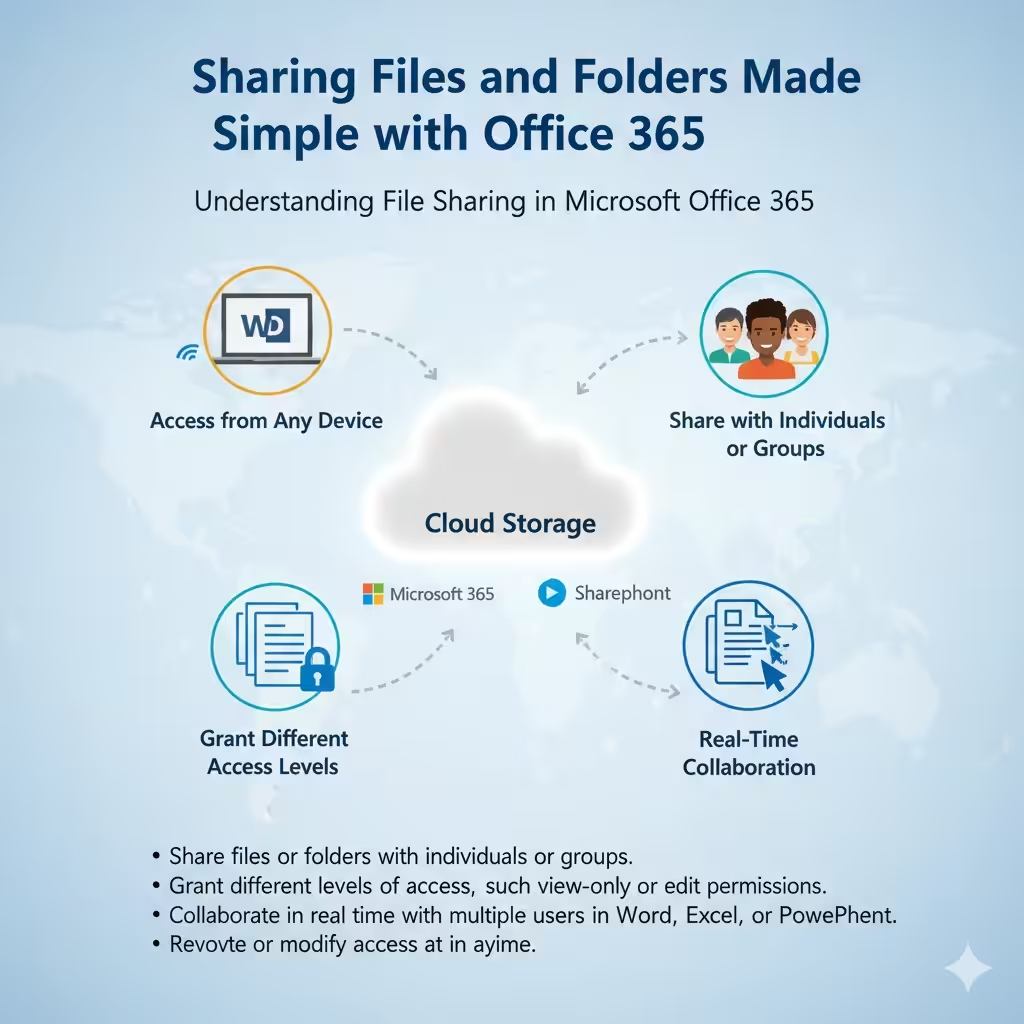
Open OneDrive by signing in to https://onedrive.live.com or through the Office 365 dashboard.
-
Click Upload and select your files or folders.
-
Once uploaded, the files will appear in your OneDrive directory.
You can also create files directly from OneDrive using the New button — for example, a new Word document or Excel workbook.
Step 2: Share the File or Folder
-
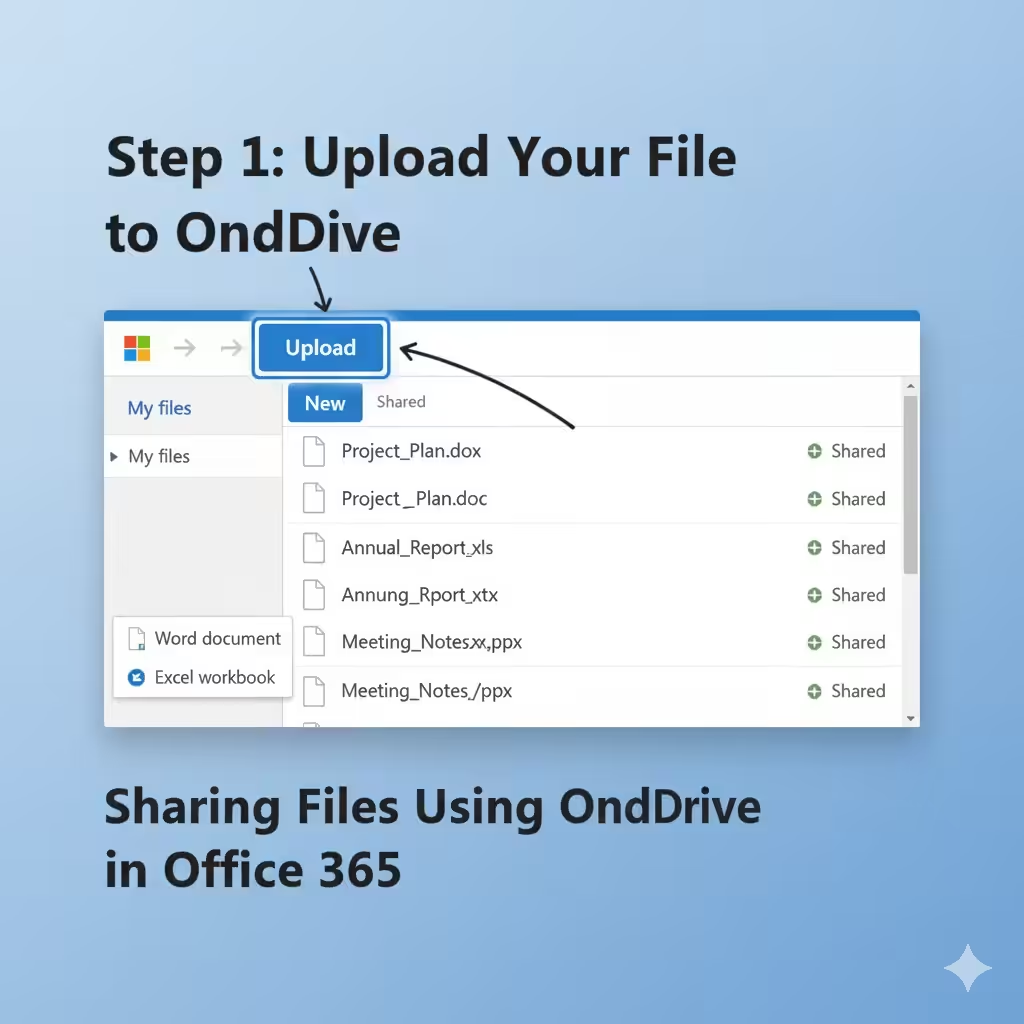
Select the file or folder you want to share.
-
Click the Share icon (a small person with a plus sign).
-
A sharing window will appear with several options:
-
Send Link: Allows you to send a link directly to specific people.
-
Copy Link: Generates a shareable link that you can paste anywhere (e.g., chat, email, or Teams).
-
Outlook Sharing: Sends the link through your Outlook email directly.
-
Step 3: Set Sharing Permissions
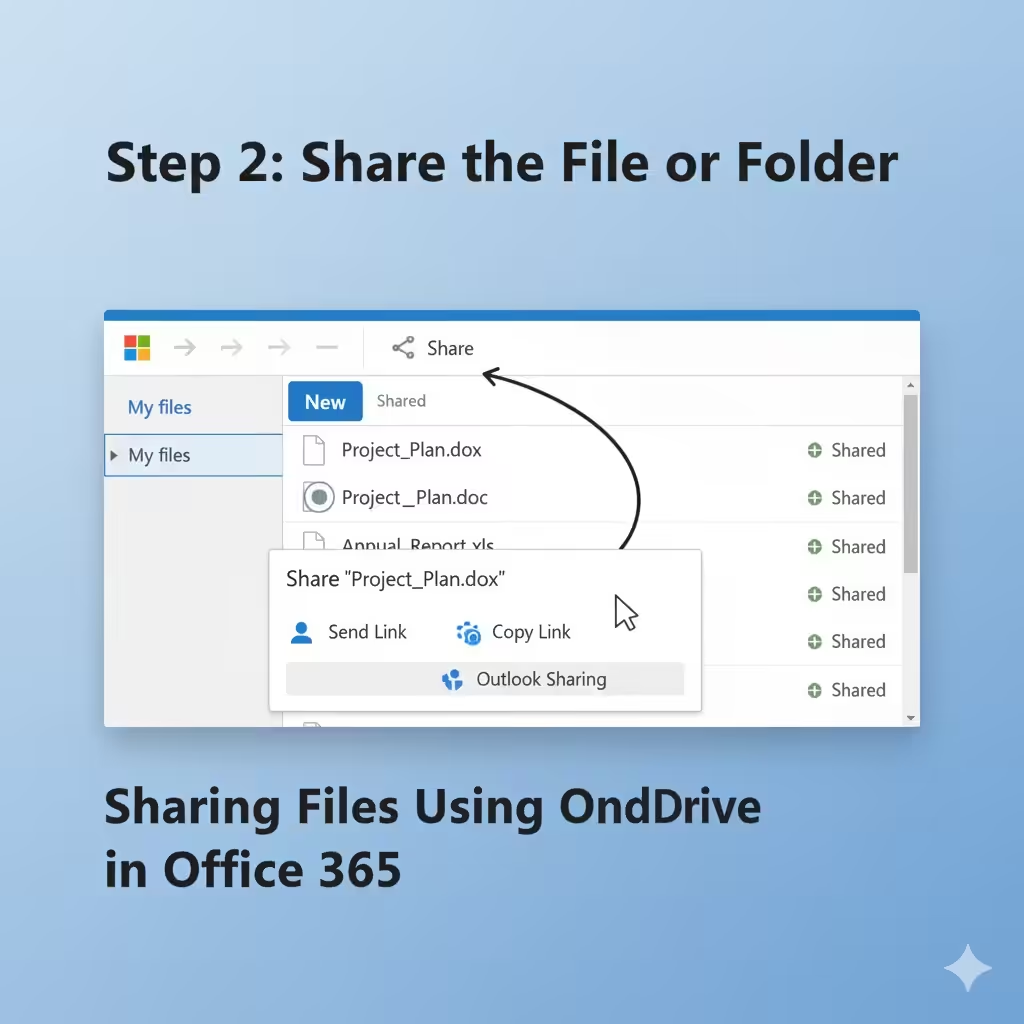
When you share a file, you can decide who can access it and what they can do. Options include:
-
Anyone with the link – Anyone can access the file (no sign-in required).
-
People in your organization – Only coworkers can access it.
-
Specific people – Only chosen individuals can view or edit the file.
You can also choose whether the recipient can edit or view the document. Once configured, click Send or Copy link to share.
Sharing Files from Microsoft Office Applications
You don’t have to leave your Office app to share your work — you can share directly from within Word, Excel, or PowerPoint.
Step 1: Open Your Document
Open the file you want to share in any Microsoft Office 365 app.
Step 2: Click the Share Button
At the top-right corner, click the Share button. A dialog box will open.
Step 3: Choose How to Share
You can:
-
Invite people via email by entering their addresses.
-
Get a sharing link that can be copied and sent manually.
-
Set permissions such as “Can view” or “Can edit.”
Once the invitation is sent, your collaborators can open the file in their browser or Office app and work with you in real time.
Sharing Files and Folders via SharePoint
For organizations using SharePoint Online, file sharing and collaboration go even further. SharePoint allows teams to organize content, manage permissions at a granular level, and integrate with other Microsoft 365 tools.
Step 1: Navigate to Your SharePoint Site
-
Open your SharePoint site from the Office 365 portal.
-
Go to the Document Library where your files are stored.
Step 2: Select the File or Folder
Click the circle icon next to the item you wish to share.
Step 3: Choose the Sharing Option
-
Click Share on the command bar.
-
Select whether you want to share with:
-
People in your organization
-
Specific people
-
Anyone with the link (if allowed by your admin settings)
-
-
Choose whether to allow editing or make it view-only.
-
Click Apply, then send the link or email invitation.
SharePoint also allows you to track who has access and revoke permissions at any time.
Managing Permissions and Access
Proper permission management is vital for secure collaboration. Microsoft 365 gives you full control over who can access your files and what they can do with them.
How to View or Modify Permissions
-
Go to the shared file or folder in OneDrive or SharePoint.
-
Click the three dots (…) next to the file.
-
Choose Manage Access.
Here, you can:
-
See who currently has access.
-
Stop sharing the file.
-
Change access levels (from edit to view only, or vice versa).
-
Remove users who no longer need access.
Tips for Managing Shared Content
-
Avoid using “Anyone with the link” for sensitive data.
-
Regularly review shared files to ensure access remains appropriate.
-
Use password-protected links for confidential documents.
-
Set expiration dates on shared links for temporary access.
Sharing Files Through Microsoft Teams
If your organization uses Microsoft Teams, you can share and collaborate on files directly within the app.
-
Open the Teams app and go to the chat or channel where you want to share a file.
-
Click the Attach (paperclip) icon.
-
Choose OneDrive or Upload from my computer.
-
Once uploaded, the file automatically syncs with SharePoint, and everyone in the chat or channel can access it.
You can also edit the document together in real time without leaving Teams.
Troubleshooting Common Sharing Issues
Sometimes, users face challenges while sharing files in Office 365. Here are a few quick fixes:
-
File size too large – Check your OneDrive or SharePoint storage limits.
-
Permission errors – Ensure the file owner has allowed sharing outside the organization if needed.
-
Syncing issues – Restart OneDrive or check your internet connection.
-
Expired links – Create a new sharing link if the previous one has expired.
If problems persist, contact your IT administrator or check Microsoft’s official support portal for additional guidance.
Best Practices for Secure File Sharing
To maintain data security while collaborating effectively, follow these best practices:
-
Use organization-only links whenever possible.
-
Limit editing permissions to trusted collaborators.
-
Avoid sharing confidential files publicly.
-
Use Microsoft 365 compliance tools such as Data Loss Prevention (DLP) to protect sensitive data.
-
Monitor shared content through OneDrive’s activity feed.
Conclusion
Sharing files and folders using Microsoft Office 365 is fast, flexible, and secure. Whether you’re using OneDrive, SharePoint, or Microsoft Teams, Office 365 offers multiple ways to collaborate effectively with coworkers, clients, or partners.
By understanding how to manage permissions, control access, and use the right sharing method, you can ensure that your files remain safe while still being easily accessible to the people who need them.