


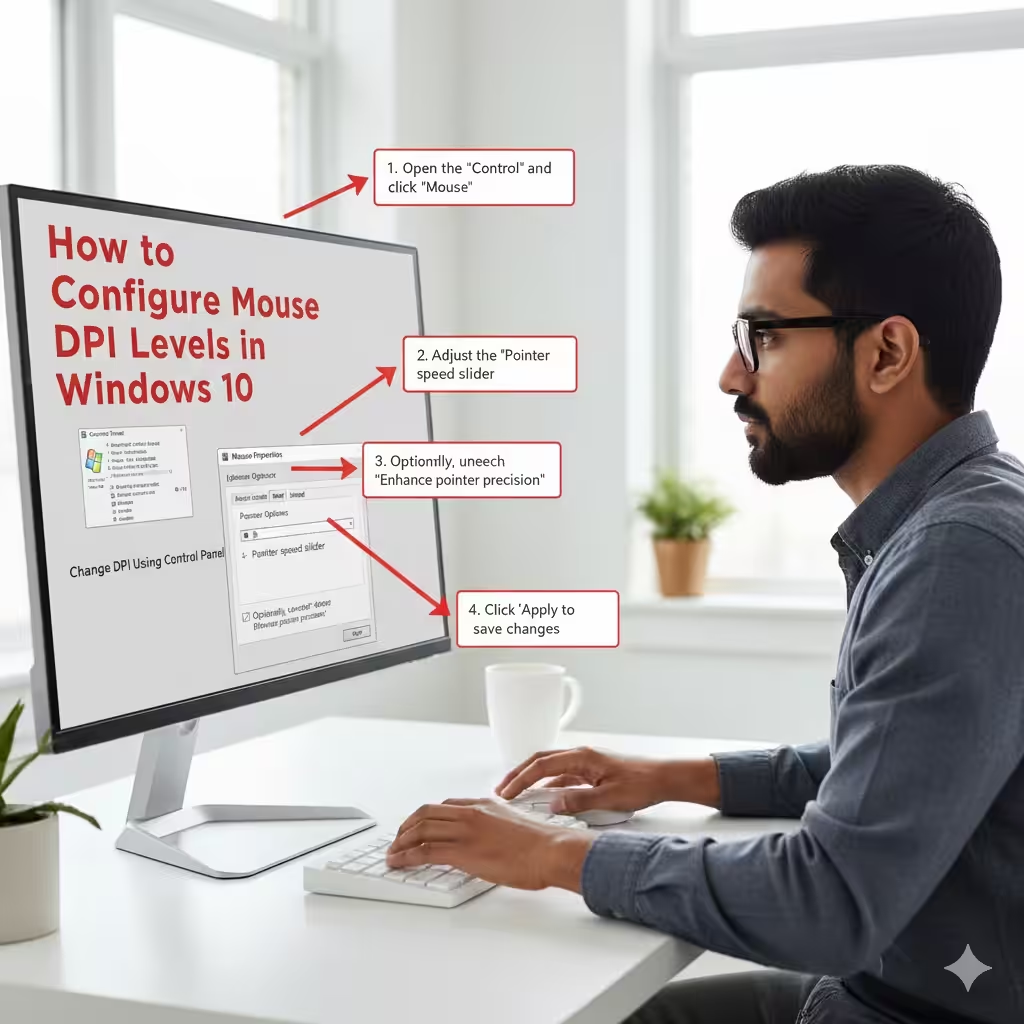
How to Configure Mouse DPI Levels in Windows 10
Your mouse sensitivity plays a significant role in how comfortably and accurately you can navigate your computer. The DPI (Dots Per Inch) determines how far the cursor moves on-screen in relation to your physical mouse movement. High DPI results in faster cursor movement, while lower DPI provides more precision. If you are a gamer, graphic designer, or everyday Windows user, knowing how to adjust your mouse DPI can greatly improve your overall experience.
Windows 10 offers several methods to change or adjust your mouse DPI, whether through mouse settings, software provided by the manufacturer, or physical DPI switches on the mouse itself. This guide explains everything you need to know about changing your DPI on Windows 10, including step-by-step instructions and helpful tips.

What Is Mouse DPI?
DPI, or Dots Per Inch, measures how sensitive a mouse is. A higher DPI means the cursor moves more quickly across the screen with smaller hand movements. Meanwhile, a lower DPI offers greater precision because the cursor moves more slowly and accurately.
Why DPI Matters
-
Gaming: Gamers often adjust DPI depending on the game type. Fast-paced shooters may need high DPI, while strategy or sniper modes may need low DPI.
-
Graphic design: Designers prefer low DPI for high accuracy when working on detailed tasks.
-
Everyday use: The right DPI makes browsing, scrolling, and multitasking more comfortable.
Understanding your DPI needs helps you customize how your mouse behaves during different tasks.
Check If Your Mouse Has a Physical DPI Button
Many modern mice, especially gaming models, come with a dedicated DPI switch. This button allows you to instantly increase or decrease the DPI without opening any software or settings.
How to Use the DPI Button
-
Look for a small button on the top, usually below the scroll wheel.
-
Press the button to cycle through preset DPI levels (e.g., 800 → 1200 → 1600 → 2400).
-
Some mice use LED color indicators to show which DPI level is active.
Why This Method Is Useful
-
Quick and convenient
-
Works independently of software
-
Ideal for in-game DPI switching
If your mouse lacks this feature, Windows provides other methods to adjust sensitivity.
Change Mouse Sensitivity in Windows Settings
Windows 10 includes built-in mouse settings that allow you to adjust pointer speed. While this does not change the hardware DPI, it affects how the cursor behaves on-screen, simulating a DPI adjustment.
How to Adjust Pointer Speed in Settings
-
Open Settings using Win + I.
-
Go to Devices.
-
Select Mouse.
-
Under Cursor speed, drag the slider left or right to change sensitivity.
Advantages of Using Windows Settings
-
Simple and easy to use
-
Adjusts overall sensitivity system-wide
-
No software installation required
This is the quickest method for most users to change mouse responsiveness on Windows 10.
Change DPI Using Control Panel
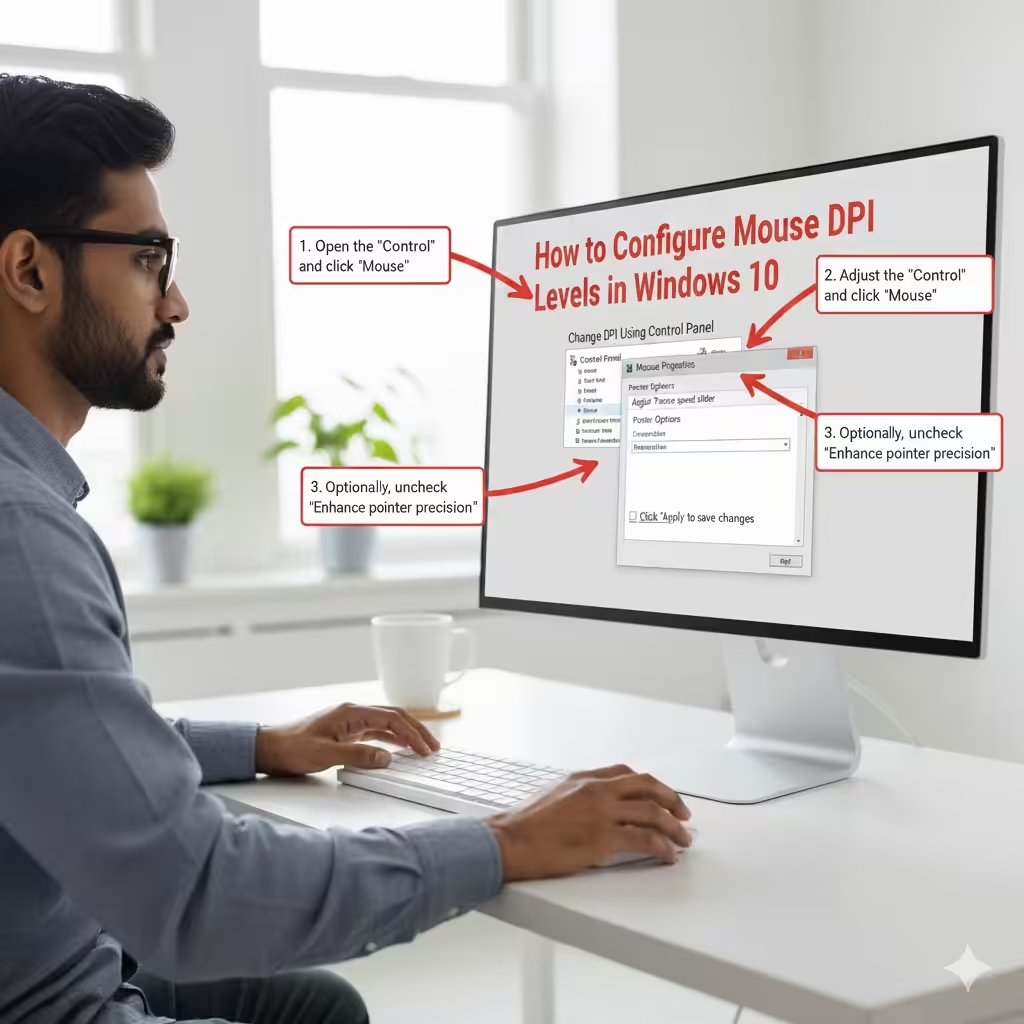
Another way to adjust mouse pointer speed is through the classic Control Panel, which includes more advanced configuration options.
Steps to Adjust Mouse Settings Using Control Panel
-
Open the Control Panel.
-
Click Hardware and Sound.
-
Select Mouse under Devices and Printers.
-
In the Pointer Options tab, adjust the Pointer speed slider.
-
Uncheck or enable Enhance pointer precision depending on your preference.
-
Click Apply and OK.
Should You Disable “Enhance Pointer Precision”?
“Enhance pointer precision” is essentially mouse acceleration. Some users prefer it off because:
-
It provides more consistent movement
-
Particularly preferred by gamers
-
Prevents unpredictable cursor speed changes
Turning it off makes movement more linear and predictable.
Use Manufacturer Software to Change DPI
If your mouse comes from major brands like Logitech, Razer, Corsair, SteelSeries, or Microsoft, chances are it includes dedicated software to configure DPI settings.
Popular Mouse Software Includes:
-
Logitech G HUB / Logitech Options
-
Razer Synapse
-
Corsair iCUE
-
SteelSeries Engine
-
ROCCAT Swarm
-
HyperX NGenuity
These applications allow you to set precise DPI values (e.g., 400, 800, 1600, 3200), create performance profiles, and even change polling rates.
How to Change DPI Using Software (Example: Logitech G HUB)
-
Install and open Logitech G HUB.
-
Select your mouse from the device list.
-
Go to Sensitivity (DPI) settings.
-
Add, remove, or adjust DPI levels.
-
Save your profile.
Why Use Manufacturer Software?
-
Precise DPI adjustment
-
Create customizable presets
-
Assign DPI to specific games
-
Sync settings to cloud profiles
-
Adjust buttons, lighting, and advanced features
This method is the most accurate if your mouse supports custom DPI values.
Check Your Mouse’s Current DPI
If you’re unsure what DPI your mouse is using, Windows offers simple ways to estimate it. While there isn’t a built-in DPI meter, you can use online tools or mouse software for accurate readings.
How to Estimate DPI Manually
-
Open Paint.
-
Set brush to a small size.
-
Place your cursor at the left edge of the window.
-
Move your mouse exactly 1 inch.
-
Note how far the cursor traveled.
This gives an approximation of your DPI.
Using Software to Check DPI
-
Most gaming mice show DPI in their software.
-
Some include on-screen DPI indicators or LED color signals.
Adjust DPI for Specific Games
Games often include their own sensitivity settings, which combine with your mouse DPI for the final effect.
Tips for Gaming DPI Settings
-
FPS games: 400–800 DPI
-
MMOs: 1000–1600 DPI
-
RTS games: 800–1200 DPI
-
Design work: 400–800 DPI
Adjust both in-game sensitivity and mouse DPI until movement feels natural.
Troubleshooting DPI Issues
If your DPI settings are not applying correctly, try the following:
Common Fixes
-
Restart your PC
-
Reinstall mouse drivers
-
Update mouse software
-
Replace USB port
-
Disable “Enhance pointer precision”
-
Reset your mouse to default settings
If your mouse supports DPI switching but doesn’t respond, the DPI button may be faulty.
Final Thoughts
Changing your mouse DPI in Windows 10 can greatly improve your comfort, accuracy, and productivity—whether you’re gaming, designing, or simply browsing. From using the built-in Settings app to adjusting options in the Control Panel or customizing DPI through manufacturer software, Windows offers many ways to personalize how your mouse behaves.
Understanding DPI helps you choose the best level of sensitivity for every task. By following the steps in this guide, you can confidently tweak your mouse settings and create a smoother, more efficient experience on Windows 10.