


How to Install and Use Office Mobile Apps on a Windows Device
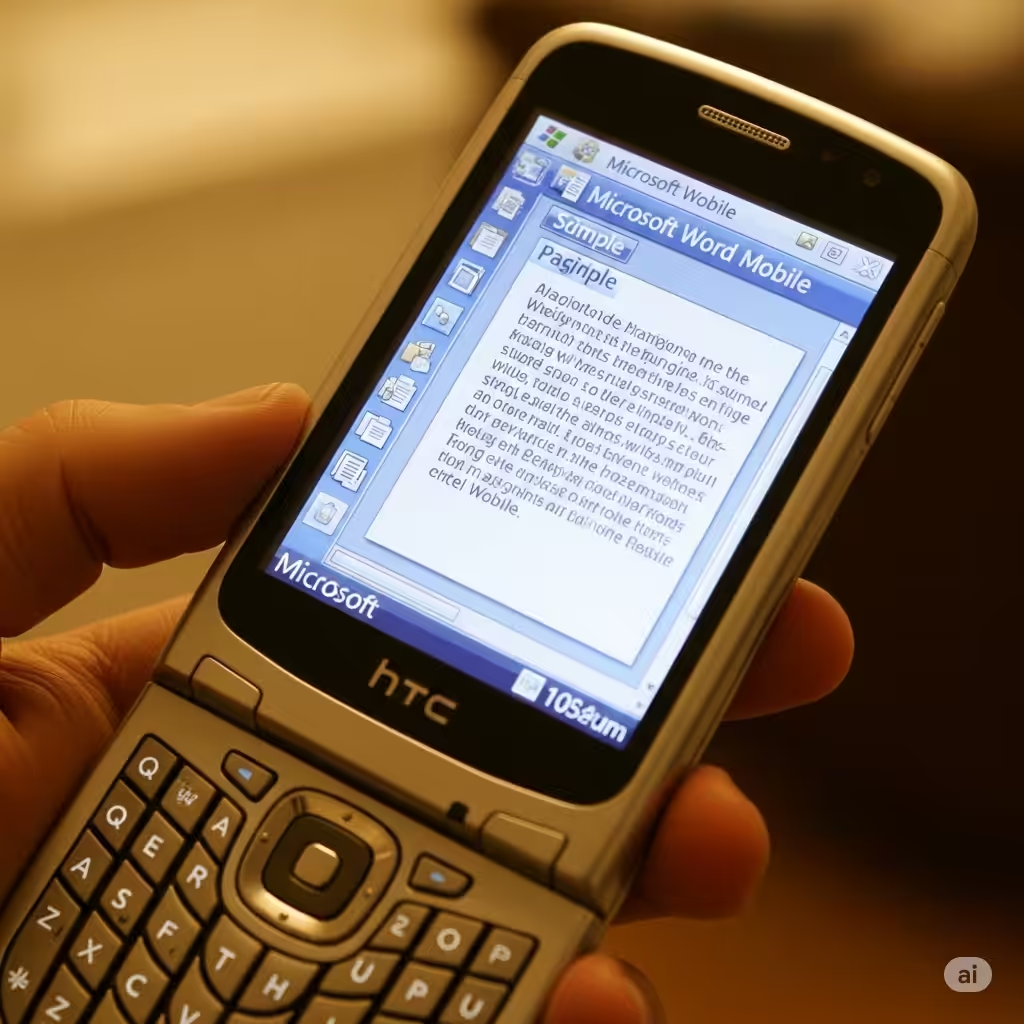
Microsoft Office Mobile apps allow you to view, create, and edit documents on the go, making them perfect for business users, students, and anyone who wants to work productively from their phone. On a Windows Mobile device, these apps integrate seamlessly with the OS and offer cloud access through OneDrive and SharePoint.
In this comprehensive guide, you’ll learn how to install, set up, and begin using Office Mobile apps on your Windows Mobile device effectively.
What Are Office Mobile Apps?
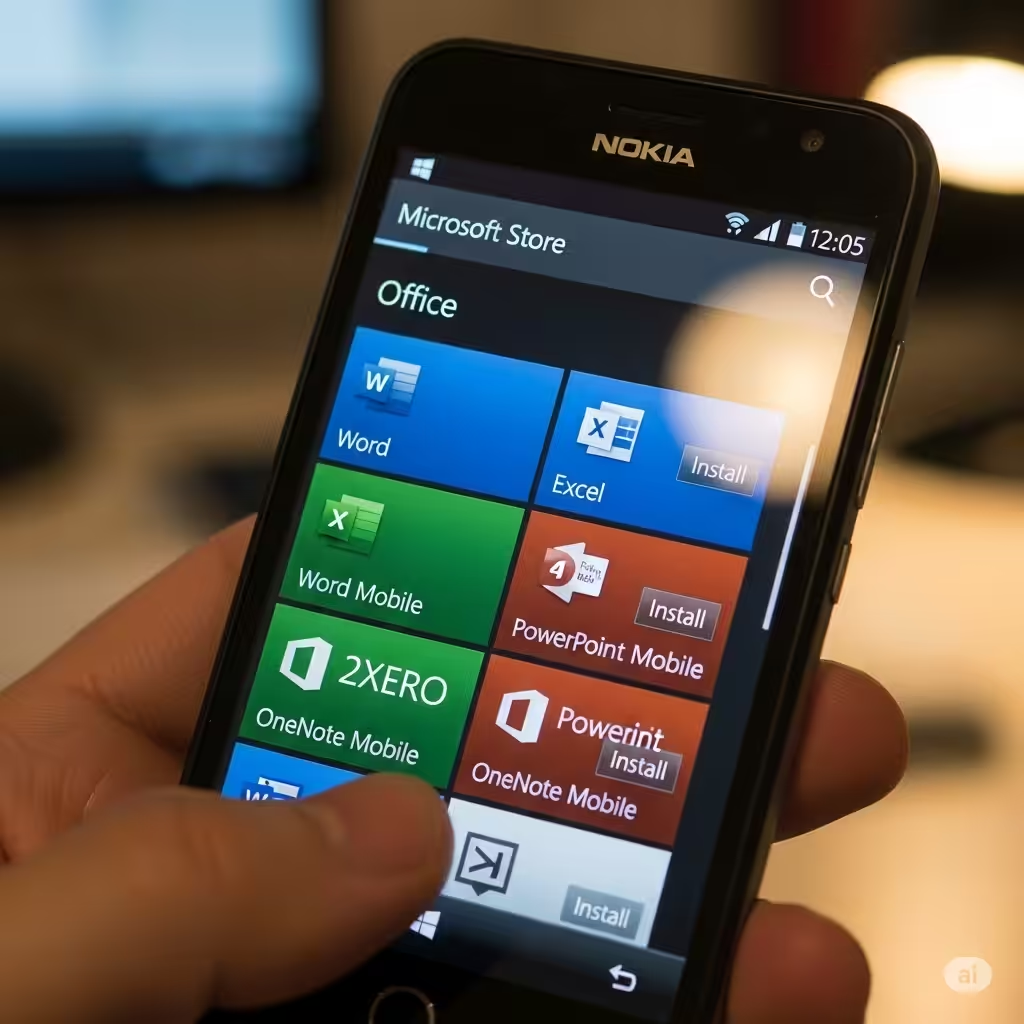
Office Mobile apps are simplified, touch-optimized versions of the Microsoft Office suite designed for use on mobile devices. This includes:
-
Word Mobile for documents
-
Excel Mobile for spreadsheets
-
PowerPoint Mobile for presentations
-
Outlook Mobile for email and calendars
-
OneNote Mobile for digital notes
While these apps are more lightweight than their desktop counterparts, they retain essential features and offer full compatibility with Office file formats.
Prerequisites Before You Begin
Before setting up Office Mobile apps, ensure your Windows Mobile device meets the following requirements:
-
Operating System: Windows 10 Mobile or later
-
Microsoft Account: Required to sign in and access Office 365 features
-
Storage Space: Ensure at least 500MB of available space
-
Internet Connection: For downloading apps and syncing with cloud services
Additionally, if you have a Microsoft 365 subscription, you’ll gain access to premium features such as advanced formatting tools and collaboration features.
Step-by-Step: Installing Office Mobile Apps
Step 1: Open the Microsoft Store
-
From your Start screen, tap on the Microsoft Store tile.
-
If prompted, sign in with your Microsoft account.
-
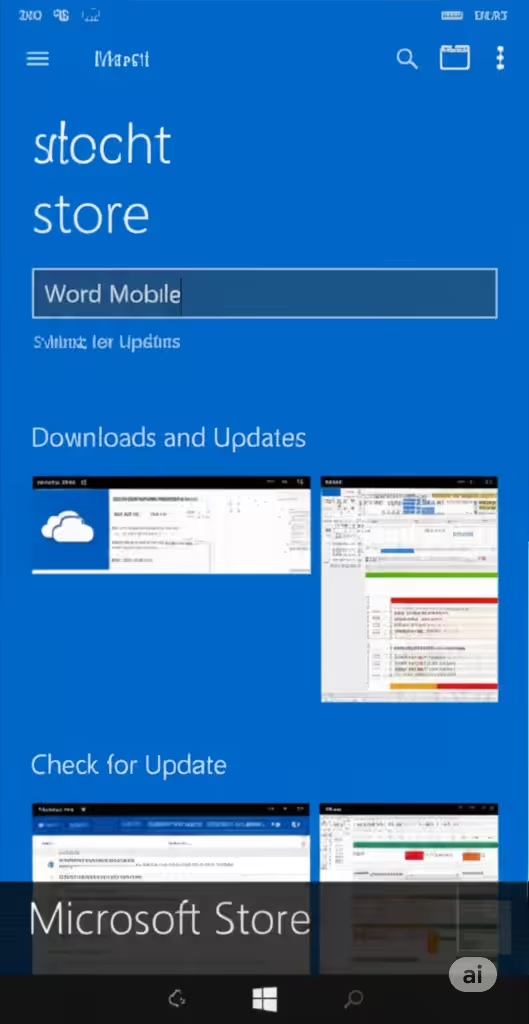
Once the store opens, use the search bar at the top to look for the app you want — for example, type Word Mobile.
Step 2: Download and Install
-
Select the correct app from the search results.
-
Tap Install to begin downloading the app.
-
Wait for the installation to complete. Repeat this process for each Office app you want to use (Word, Excel, PowerPoint, etc.).
Step 3: Launch the App
-
Once installed, open the app from your app list.
-
On first launch, you’ll be asked to sign in with your Microsoft account or Microsoft 365 credentials.
-
If you don’t already have an account, you can create one during this process.
Setting Up Your Microsoft Account
-
After launching the app, tap Sign In.
-
Enter your Microsoft account email and password.
-
If you have two-step verification enabled, complete the authentication process.
-
Once signed in, your account will sync with Office apps, giving you access to OneDrive documents and recently used files.
You can add multiple accounts — such as work and personal accounts — to access documents from different locations.
Exploring the User Interface
Each Office Mobile app has a streamlined interface optimized for touch. Here’s a brief overview:
Word Mobile
-
Home Tab: Basic formatting (bold, italics, underline, alignment)
-
Insert Tab: Add tables, pictures, links, headers
-
Review Tab: Spelling check, comments, word count
-
View Tab: Switch between mobile view and print layout
Excel Mobile
-
Formula Bar: Access built-in functions and formulas
-
Insert Tab: Add charts, tables, and images
-
Data Tab: Sort, filter, and manage ranges
PowerPoint Mobile
-
Slides Pane: Preview and manage slides
-
Insert Tab: Add media, text boxes, and SmartArt
-
Slideshow Tab: Start a presentation with touch gestures
Outlook Mobile
-
Unified inbox, swipe gestures, calendar integration
-
Push notifications for new emails and appointments
OneNote Mobile
-
Section and page organization
-
Draw with your finger or stylus
-
Audio and photo notes supported
Saving and Syncing Documents
One of the key benefits of using Office Mobile is cloud storage integration.
-
All documents created or edited can be saved to OneDrive, Microsoft’s cloud service.
-
To save a file:
-
Tap File > Save As.
-
Choose OneDrive – Personal or OneDrive – Work.
-
Enter a name and choose a folder to save it in.
-
-
You can also save files locally on your device or to an SD card, though cloud storage is recommended for accessibility across devices.
Your files will automatically sync when you’re connected to Wi-Fi or mobile data.
Working Offline
You can still access and edit documents when you don’t have an internet connection.
-
Open documents that were previously synced.
-
Any edits you make offline will automatically upload and sync the next time your device connects to the internet.
This feature is particularly useful when traveling or in areas with limited connectivity.
Collaborating on Documents
Office Mobile apps allow real-time collaboration when connected to the internet.
-
Open a document in Word, Excel, or PowerPoint Mobile.
-
Tap the Share button.
-
Enter the email addresses of your collaborators.
-
Set permissions (edit or view only), and send the invitation.
Collaborators can work simultaneously on the document, and you’ll see their changes live if both of you are online.
Updating Office Mobile Apps
Keeping your Office apps up to date ensures you get the latest features and security patches.
-
Open the Microsoft Store.
-
Tap the Menu icon > Downloads and Updates.
-
Tap Check for Updates to refresh and install available updates.
Set your device to update apps automatically for convenience.
Troubleshooting Common Issues
App Crashes or Freezes
-
Restart the device and try again.
-
Check for updates to the app and the OS.
Sign-In Problems
-
Ensure you have a stable internet connection.
-
Double-check your Microsoft account credentials.
-
Reset your password if needed.
Cannot Save to OneDrive
-
Check your OneDrive storage limit.
-
Reconnect your account in the app settings.
Conclusion
Setting up Office Mobile apps on a Windows Mobile device is simple, fast, and offers powerful tools for productivity on the go. From creating documents to collaborating in real time, these apps bring essential Office functionality to the palm of your hand. With seamless integration with OneDrive and familiar interfaces, you’ll feel right at home working from your mobile device.
Whether you’re a student, professional, or casual user, Office Mobile apps ensure that your workflow doesn’t stop just because you’re away from your desk.