


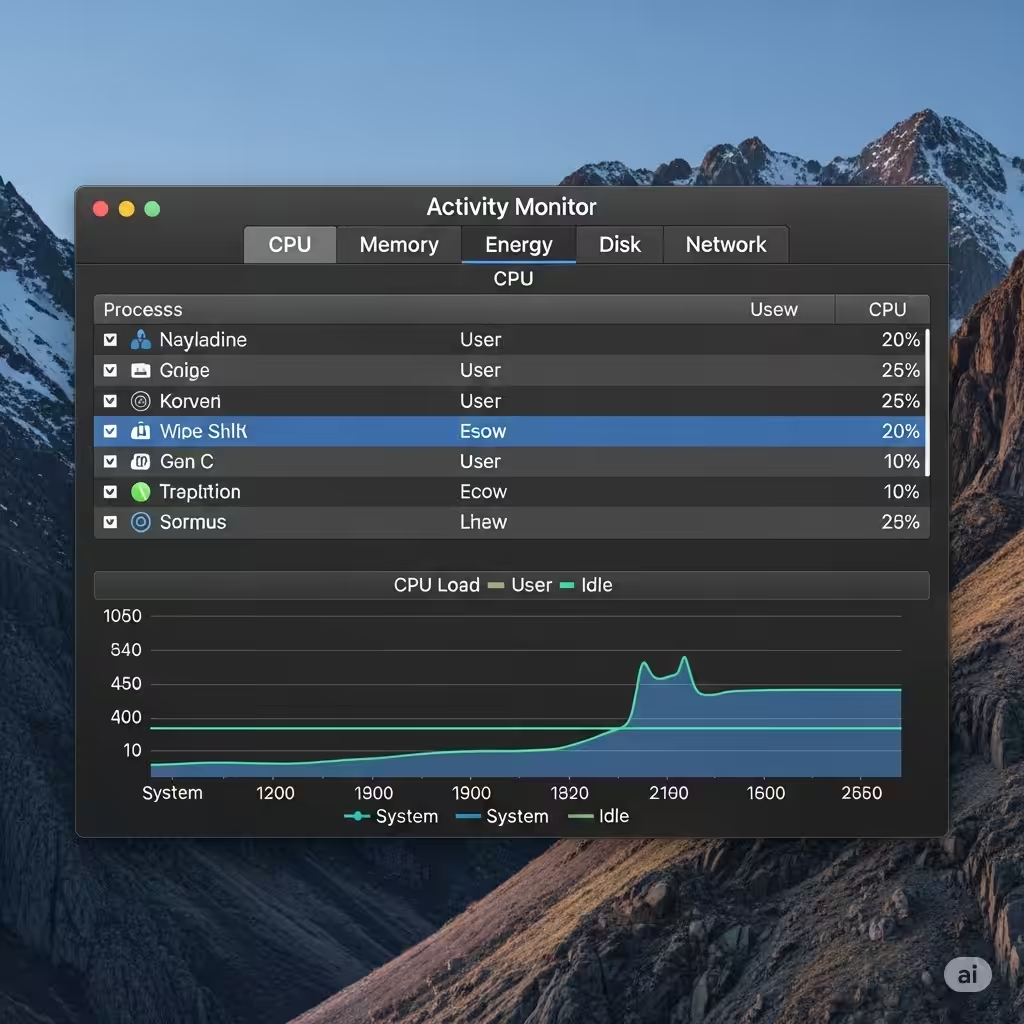
Guide to macOS Task Management with Activity Monitor
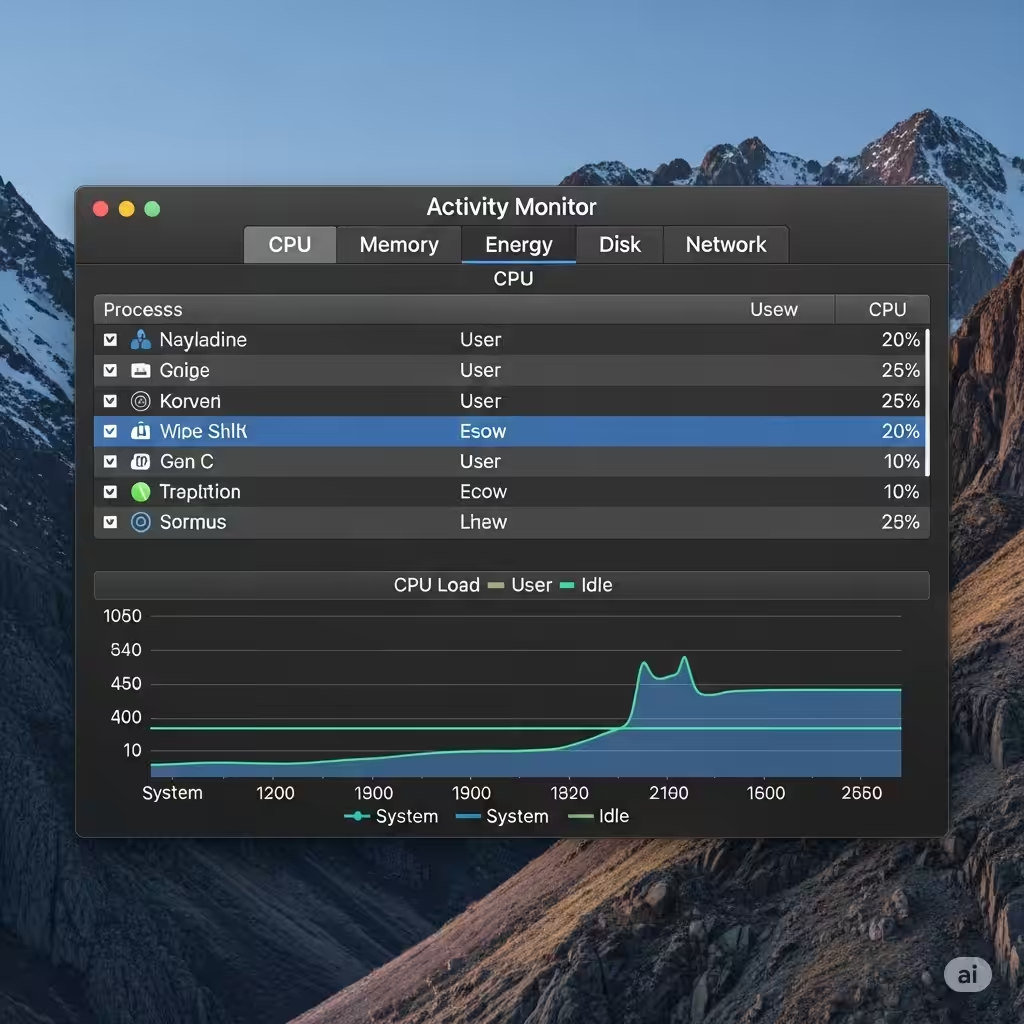
While Windows users are familiar with Task Manager for checking running apps and system performance, macOS has its own powerful tool: Activity Monitor. Often called the “Task Manager for Mac,” Activity Monitor allows users to monitor CPU usage, memory consumption, disk activity, network traffic, and even energy usage in real-time.
Whether you’re troubleshooting performance issues or just want to know what’s consuming system resources, understanding how to use Activity Monitor is essential for any Mac user.
What Is Activity Monitor?
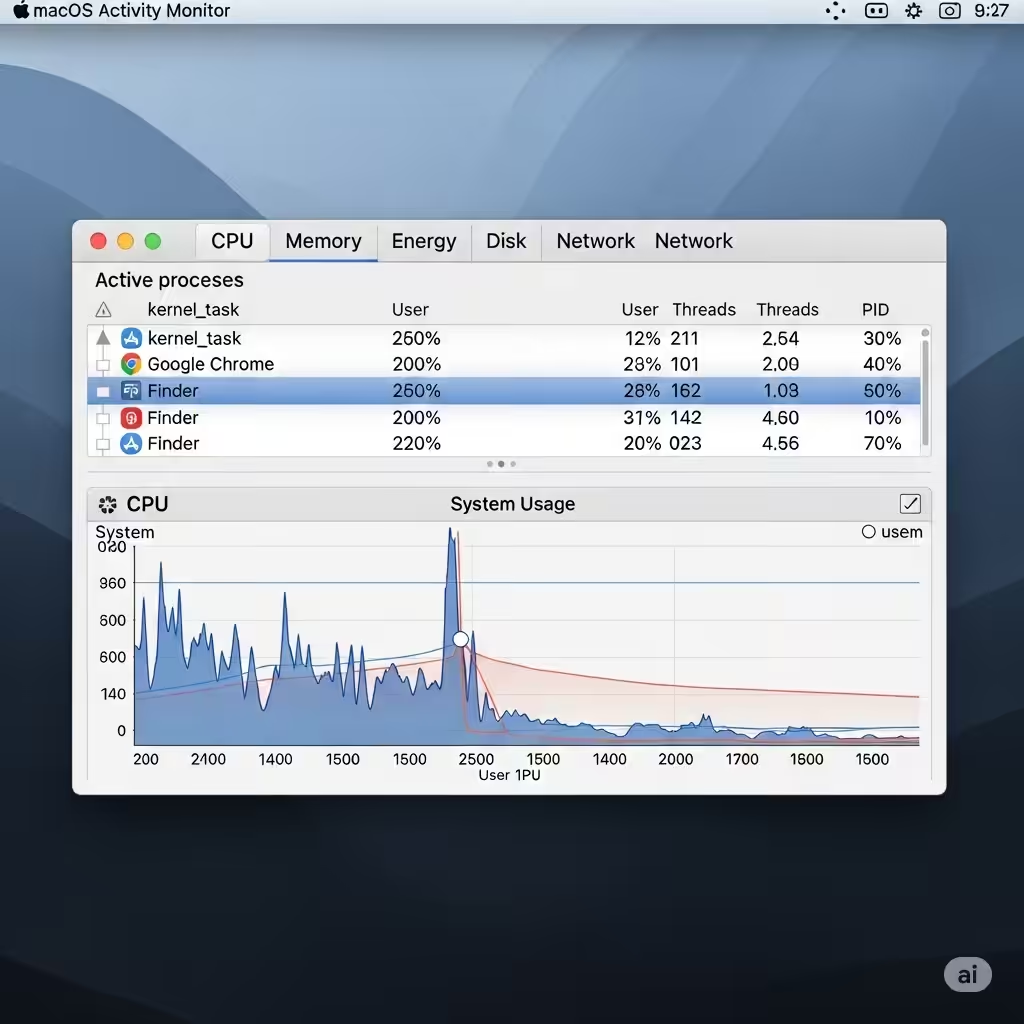
Activity Monitor is a built-in utility in macOS that provides detailed information about your Mac’s processes and system activity. It’s the equivalent of Windows Task Manager and is located in the Utilities folder within Applications.
With Activity Monitor, you can:
-
See which apps and processes are using the most CPU and memory
-
Force quit unresponsive applications
-
Monitor system energy impact and battery usage
-
Track disk and network activity
-
Diagnose and resolve system slowdowns
How to Open Activity Monitor on macOS
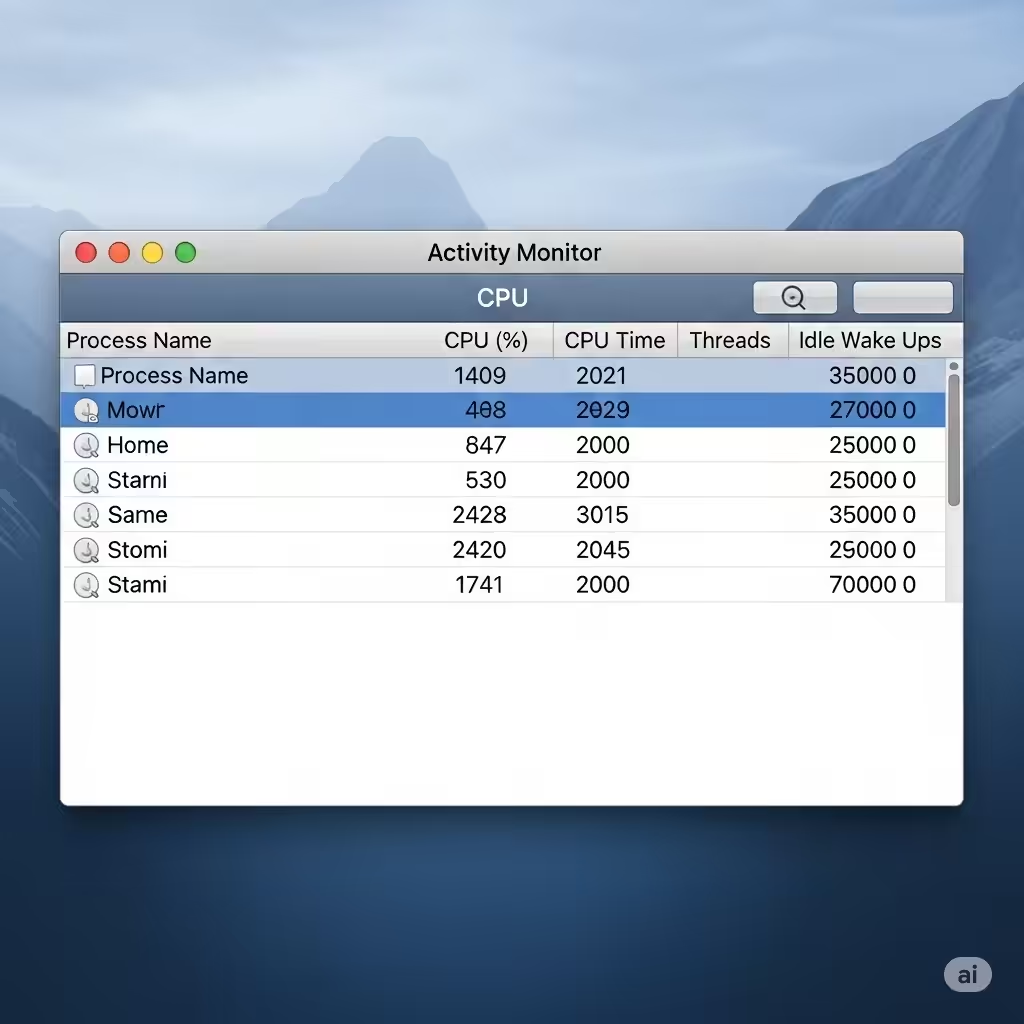
There are multiple ways to launch Activity Monitor, depending on your preferences:
Option 1: Use Spotlight Search
-
Press Command (⌘) + Spacebar to open Spotlight.
-
Type Activity Monitor.
-
Hit Enter when it appears.
Option 2: Via Finder
-
Open Finder.
-
Navigate to Applications > Utilities.
-
Double-click Activity Monitor.
Option 3: With Launchpad
-
Open Launchpad.
-
Click Other.
-
Select Activity Monitor.
Understanding the Activity Monitor Interface
Once opened, Activity Monitor shows a window with multiple tabs and real-time data about your Mac’s performance.
CPU Tab
The CPU tab shows how much processing power each app or process is using. This is useful if your Mac is running slowly or overheating.
-
% CPU: Percentage of total CPU power used by a process.
-
CPU Time: Total time the CPU has spent on a process.
-
Threads: Number of active threads a process is using.
You can click the % CPU column to sort processes by highest CPU usage. This helps you identify apps consuming the most resources.
Memory Tab
If your Mac is lagging or freezing, the Memory tab can help diagnose whether you’re running out of RAM.
-
Memory Used: Total RAM in use.
-
App Memory: Memory used by apps.
-
Wired Memory: Memory that cannot be compressed or swapped to disk.
-
Compressed: Memory that macOS has compressed to save space.
The Memory Pressure graph at the bottom gives a visual indicator of how your RAM is being used. Green means normal usage, while red signals that memory is being maxed out.
Energy Tab
This tab is especially useful for MacBook users trying to maximize battery life.
-
Energy Impact: A numeric representation of energy used by a process.
-
12 hr Power: The average power usage over the past 12 hours.
-
App Nap: Indicates if an app is paused in the background to save power.
Check this tab if your battery drains quickly, and close apps that are using excessive energy.
Disk Tab
The Disk tab tracks how much data is being read from and written to your disk.
-
Reads in/sec: Number of read operations per second.
-
Writes in/sec: Number of write operations per second.
-
Data read/written: Total amount of data being moved.
If your Mac’s storage feels slow or is always active, this section will reveal which apps are responsible.
Network Tab
This tab monitors network usage, helping you see which apps are sending or receiving data.
-
Packets in/out: Number of data packets sent or received.
-
Data received/sent: Amount of data transferred by each process.
Use this tab to detect unusual network activity or high bandwidth usage.
How to Force Quit Apps Using Activity Monitor
If an app freezes or stops responding, you can force it to close using Activity Monitor:
-
Go to the CPU or Memory tab.
-
Select the unresponsive app from the list.
-
Click the X button in the top-left corner.
-
Choose Force Quit from the prompt.
This is particularly helpful when the normal method of quitting an app (right-clicking the Dock icon) doesn’t work.
Customizing Columns and Views
You can customize what information is displayed by:
-
Right-clicking column headers to add or remove columns.
-
Using the View menu to filter by All Processes, My Processes, System Processes, etc.
-
Choosing Update Frequency in the View menu to adjust how often data refreshes.
These options help tailor the interface to your needs, especially if you are monitoring system performance over time.
Activity Monitor vs. Terminal Commands
While Activity Monitor provides a visual interface, advanced users might prefer using Terminal commands like:
-
top– Displays real-time system stats in text format. -
htop– A more interactive version oftop(requires installation). -
ps aux– Lists running processes.
However, for most users, Activity Monitor is more user-friendly and intuitive.
Common Use Cases for Activity Monitor
Diagnosing a Slow Mac
If your Mac feels sluggish, check:
-
CPU tab: Look for processes using high CPU.
-
Memory tab: Check memory pressure and app usage.
-
Disk tab: Identify any app causing heavy disk usage.
Improving Battery Life
Use the Energy tab to find power-hungry apps and close or uninstall them.
Monitoring App Behavior
Developers and power users often use Activity Monitor to track how their software behaves in real time, looking at memory leaks, CPU spikes, or network connections.
Closing Thoughts
While macOS doesn’t have a tool called “Task Manager” like Windows, Activity Monitor serves the same purpose — and often with even more detail. It’s a powerful utility that gives you full visibility into how your Mac is performing and helps you make informed decisions about closing apps, managing energy usage, and freeing up system resources.
Learning how to use Activity Monitor is a must for any Mac user, whether you’re troubleshooting, optimizing performance, or just curious about what’s running behind the scenes.
With just a few clicks, you can regain control over your Mac’s resources and ensure it continues running smoothly and efficiently.