


Converting MP4 to MP3: Best Software Options for 2025
Multimedia files are everywhere — whether you’re watching videos, listening to podcasts, or editing content. But sometimes, all you need is the audio portion of a video file. This is where converting an MP4 video file into an MP3 audio file becomes useful. Whether you’re extracting a song, lecture, or podcast from a video, converting MP4 to MP3 is a common task that’s easy to do with the right tools.
In this guide, you’ll learn how to convert MP4 files to MP3 using both online and offline tools, and we’ll also explore the best converters available in 2025.
Why Convert MP4 to MP3?
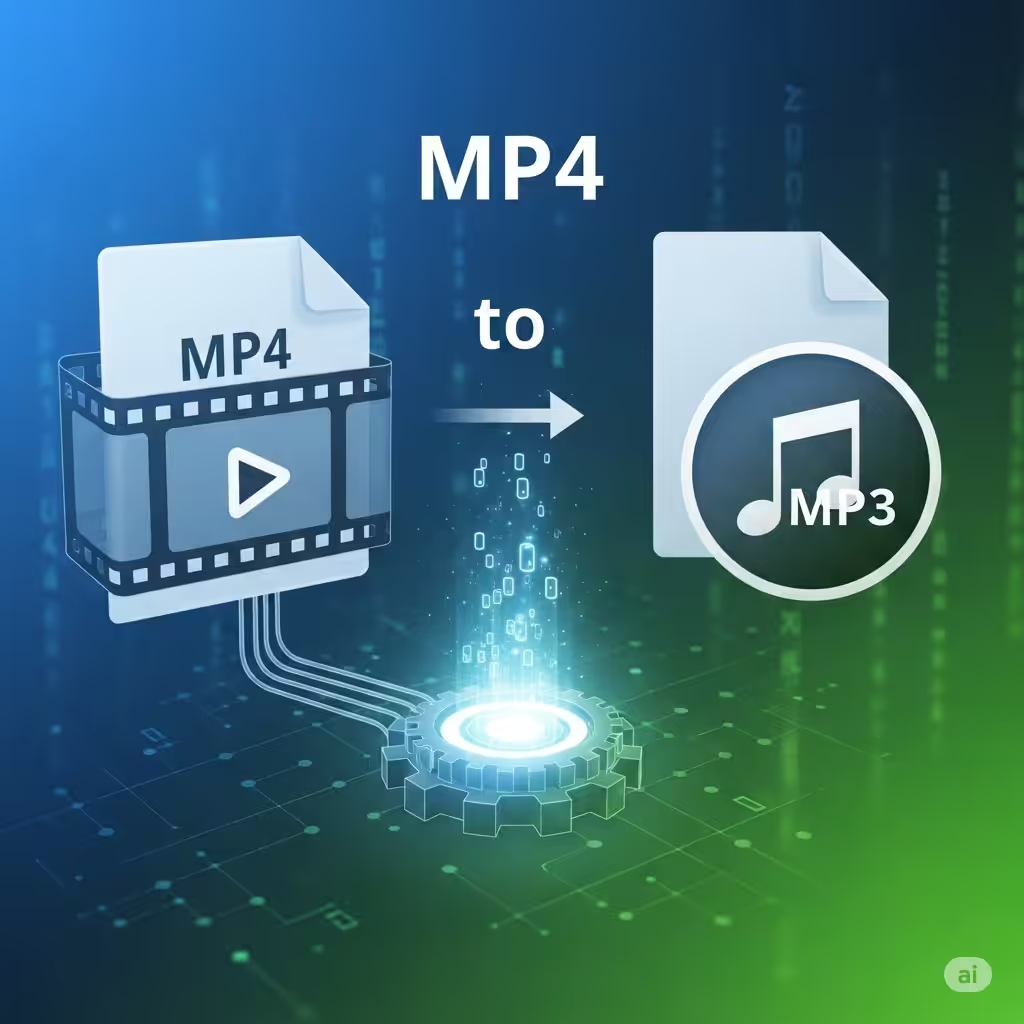
MP4 files contain both video and audio, whereas MP3 files contain audio only. Here are some reasons you may want to convert an MP4 to MP3:
-
You want to save space on your device
-
You only need the audio (e.g., music, speech, podcast)
-
You prefer listening offline while doing other tasks
-
You want to edit or reuse the audio in another project
Best MP4 to MP3 Converters in 2025
Here are the most reliable tools and apps in 2025 for converting MP4 to MP3:
1. VLC Media Player (Free – Offline)
VLC is a popular, open-source media player that does more than just play videos. It can also convert MP4 files into MP3 format.
How to use VLC to convert MP4 to MP3:
-
Open VLC and go to Media > Convert/Save
-
Click Add to upload your MP4 file
-
Click Convert/Save
-
In the Profile section, select Audio – MP3
-
Choose your destination and filename
-
Click Start
Pros:
-
Free and open-source
-
Available on Windows, macOS, and Linux
-
No internet required
Cons:
-
Interface is not the most user-friendly
-
Lacks batch conversion features
2. Audacity with FFmpeg Plugin (Free – Offline)
Audacity is a powerful audio editing tool. When paired with the FFmpeg plugin, it can extract audio from MP4 files and export them as MP3s.
Steps:
-
Download and install Audacity and the FFmpeg plugin
-
Open your MP4 file in Audacity
-
Click File > Export > Export as MP3
-
Choose your audio settings and save
Pros:
-
Great for editing audio after conversion
-
Free and open-source
-
High-quality output
Cons:
-
Requires plugin setup
-
Not as intuitive for beginners
3. OnlineVideoConverter Pro (Online)
In 2025, OnlineVideoConverter Pro remains one of the fastest and easiest tools for quick MP4 to MP3 conversion.
Steps:
-
Visit the website
-
Upload your MP4 file or paste a video URL
-
Choose MP3 as output format
-
Click Start
-
Download the MP3 file once conversion completes
Pros:
-
No installation needed
-
Works on any device with a browser
-
Fast processing
Cons:
-
Requires an internet connection
-
File size limitations may apply
-
Ad-supported unless you use the Pro version
4. Freemake Video Converter (Windows – Offline)
Freemake Video Converter is a user-friendly desktop application known for converting between multiple file formats, including MP4 to MP3.
Steps:
-
Download and install Freemake
-
Add MP4 file to the program
-
Click to MP3
-
Choose the audio quality and save
Pros:
-
Intuitive drag-and-drop interface
-
Supports batch conversion
-
Built-in presets for quality levels
Cons:
-
Free version may add branding or watermarks
-
Windows-only
5. Adobe Media Encoder (Paid – Professional Tool)
If you’re a content creator using Adobe Creative Cloud, Adobe Media Encoder is a powerful tool for handling high-quality conversions.
Steps:
-
Add your MP4 file to the queue
-
Set output format to MP3
-
Choose audio settings
-
Start the encoding process
Pros:
-
High-quality output for professionals
-
Seamless integration with Adobe Premiere and After Effects
-
Supports large files and custom settings
Cons:
-
Subscription-based
-
Overkill for basic users
Mobile Apps for MP4 to MP3 Conversion
If you’re on the go, mobile apps make it convenient to convert MP4 videos to MP3 directly from your phone.
For iPhone:
MP3 Converter – Audio Extractor
-
Available on the App Store
-
Supports video-to-audio extraction
-
Simple interface and fast conversion
For Android:
Video to MP3 Converter by InShot
-
Easy drag-and-drop interface
-
Batch conversion
-
Customizable bit rate and format options
Tips for Getting the Best Audio Quality
To ensure your MP3 file sounds good, consider these tips:
-
Choose a higher bit rate (e.g., 256 kbps or 320 kbps) for better sound
-
Trim unwanted portions using editing software like Audacity
-
Normalize volume levels during export
-
Avoid re-encoding MP3s multiple times to prevent quality loss
Things to Consider Before Converting
File Size
MP3 files are typically smaller than MP4s, but using higher bit rates will increase the audio file size.
Copyright and Legal Issues
Only convert content that you own or have permission to use. Downloading or converting copyrighted material without authorization may violate laws in your country.
Batch Conversion
If you have many files to convert, use software like Freemake or paid tools that support bulk processing to save time.
Conclusion
Converting MP4 files to MP3 has never been easier, especially with the variety of tools available in 2025. Whether you prefer free desktop apps like VLC and Audacity, or speedy online tools like OnlineVideoConverter Pro, there’s a solution for everyone.
Choose the tool that best suits your needs — whether you’re extracting audio for a podcast, creating a playlist from videos, or just saving storage space. With the right converter, your favorite MP4 videos can be transformed into high-quality MP3 audio in just a few clicks.
Thank you for your great share. iDealshare VideoGo also works to convert MP4 to MP3 on Mac and Windows.
I use iDealshare VideoGo to convert MP4 to MP3.