


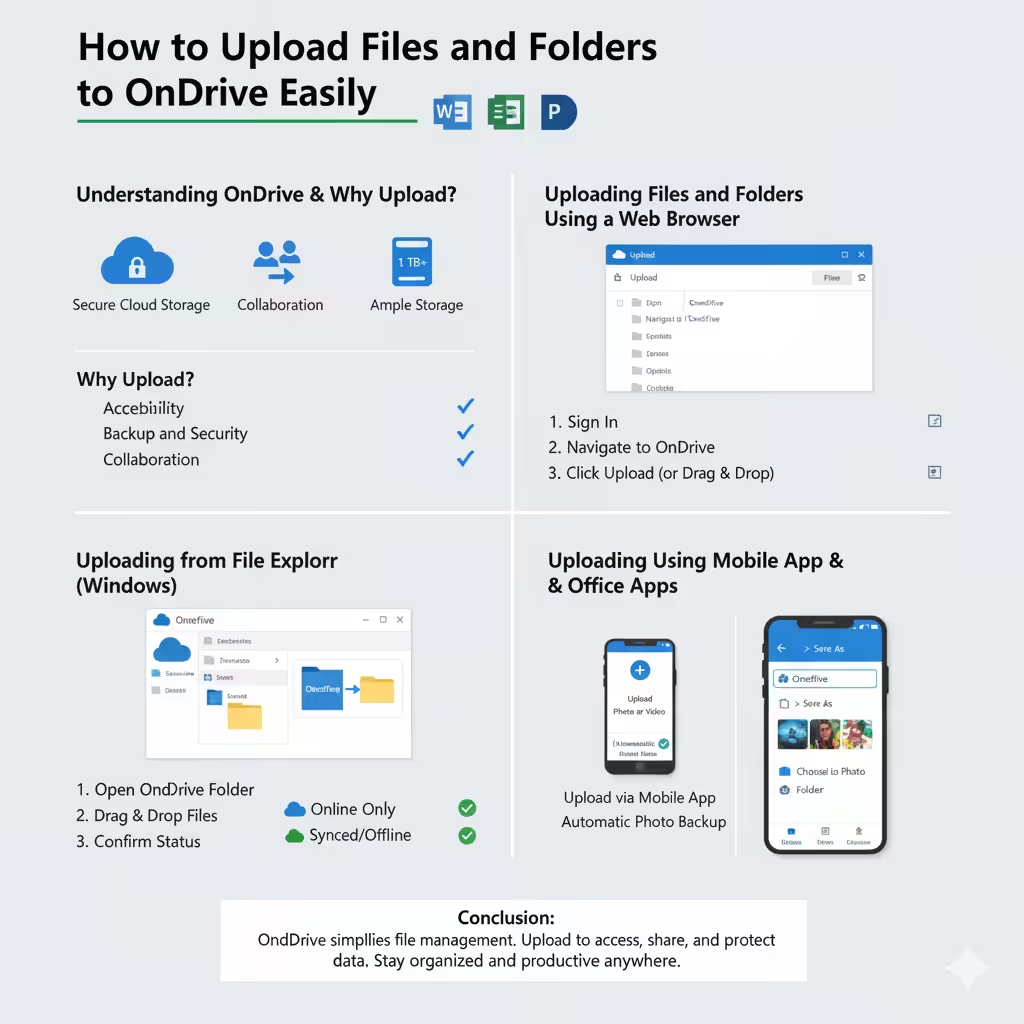
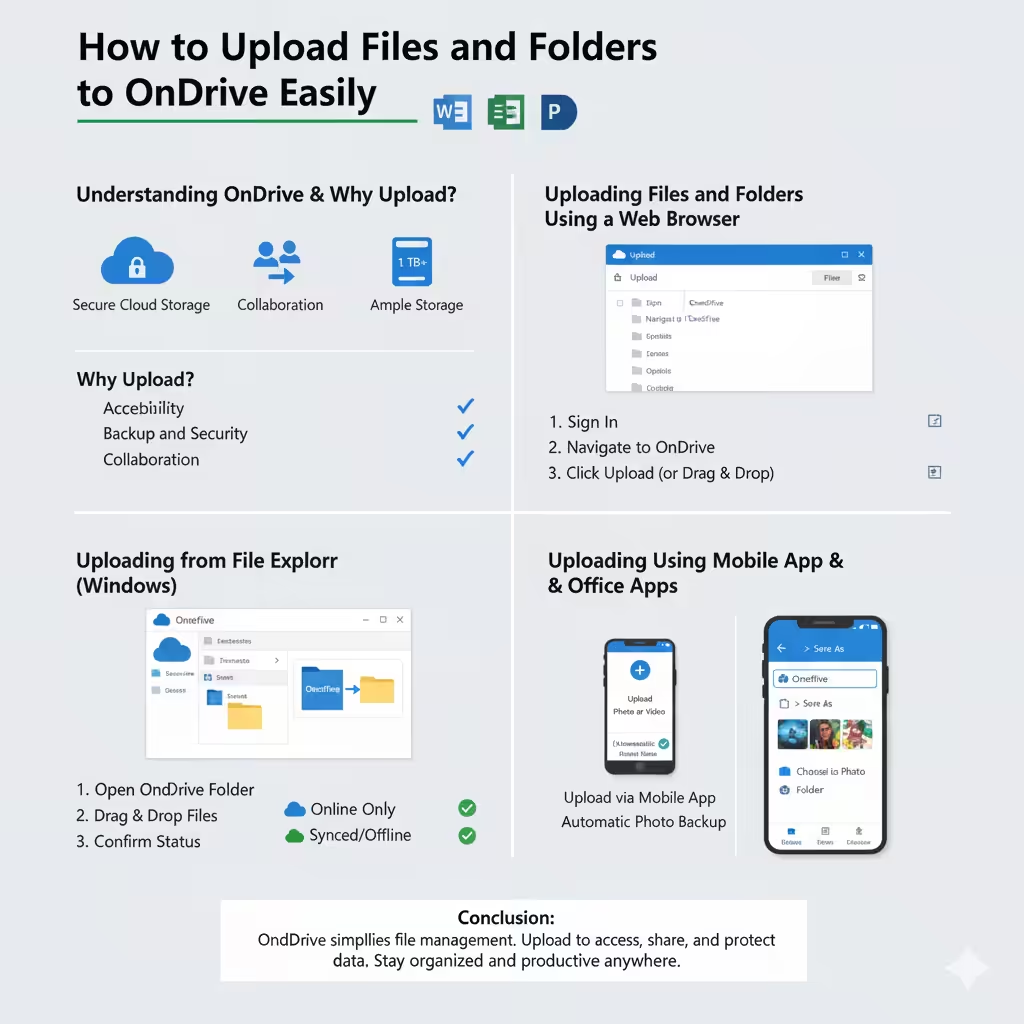
How to Upload Files and Folders to OneDrive Easily
In the modern workplace, cloud storage has become an essential part of managing and sharing information efficiently. Microsoft OneDrive is one of the most powerful and user-friendly cloud services available today, allowing you to store your documents, photos, videos, and other files safely in the cloud. Whether you’re working from your computer, tablet, or smartphone, OneDrive ensures your files are always accessible wherever you go.
In this article, we’ll walk you through how to upload files and folders to OneDrive easily and effectively, so you can organize your work, collaborate with others, and keep your data secure.
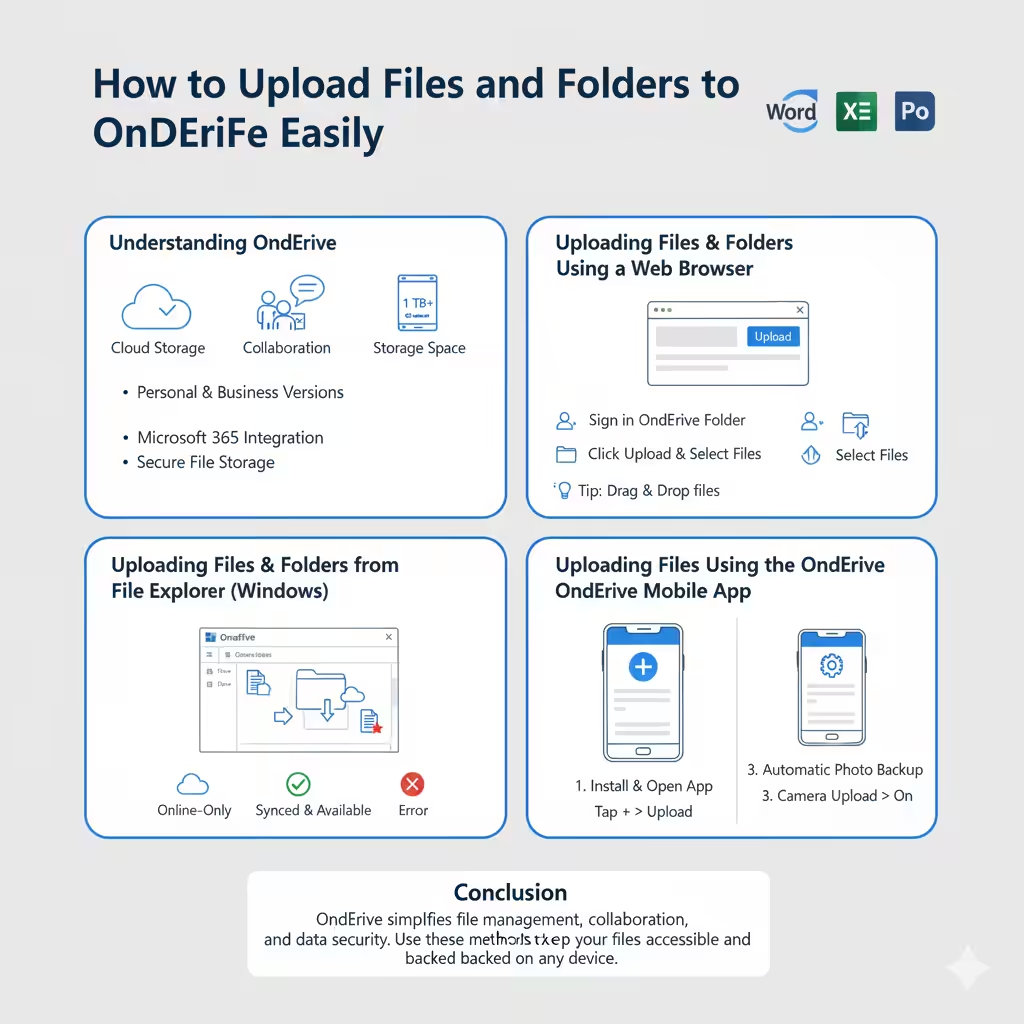
Understanding OneDrive
Microsoft OneDrive is a cloud storage platform that syncs your files across multiple devices. Once you upload files to OneDrive, they are stored online (in the cloud), allowing you to access them from any device with an internet connection.
OneDrive is available in two main versions:
-
OneDrive (Personal) – for individual users who want to store personal files.
-
OneDrive for Business – included with Microsoft 365, designed for teams and organizations to manage and share work documents securely.
By learning how to upload files and folders, you can keep your content organized, share it easily, and ensure it’s backed up safely in the cloud.
Why Upload Files to OneDrive?
Uploading your files and folders to OneDrive offers several benefits:
-
Accessibility: Access your files from anywhere on any device.
-
Backup and Security: Protect your data from hardware failure or accidental deletion.
-
Collaboration: Share and edit documents with colleagues in real-time.
-
Synchronization: Keep files up-to-date automatically across your devices.
-
Version History: Restore older versions of documents when needed.
Whether you’re a student, professional, or business owner, OneDrive simplifies how you manage your digital content.
Uploading Files and Folders Using a Web Browser
One of the easiest ways to upload files to OneDrive is through your web browser.
Step 1: Sign in to OneDrive
-
Go to https://onedrive.live.com (for personal accounts) or your organization’s OneDrive URL (for business accounts).
-
Sign in with your Microsoft account credentials.
Step 2: Open Your OneDrive Folder
After signing in, you’ll be taken to your OneDrive home page. Here, you’ll see all your existing files and folders. You can upload new files or create new folders as needed.
Step 3: Upload Files or Folders
To upload files or folders:
-
Click the Upload button at the top of the page.
-
Choose either Files or Folder.
-
Select the items from your computer that you want to upload.
-
Click Open (for files) or Upload (for folders).
Your files will begin uploading, and progress will be shown at the top of the screen. Once complete, they will appear in your OneDrive directory.
💡 Tip: You can also drag and drop files directly into the browser window to upload them faster.
Uploading Files and Folders from File Explorer (Windows)
If you’re using Windows 10 or Windows 11, OneDrive is already integrated into your system, making uploads even easier.
Step 1: Open the OneDrive Folder
-
Click on the OneDrive icon (cloud symbol) in the taskbar.
-
Choose Open your OneDrive folder.
Alternatively, you can open File Explorer and click on OneDrive from the left-hand panel.
Step 2: Move or Copy Files to OneDrive
You can upload files by simply dragging and dropping them into your OneDrive folder in File Explorer.
-
Drag files or folders from your computer and drop them into the OneDrive directory.
-
You can also copy and paste files here.
Once moved, the files automatically begin uploading to your cloud account.
Step 3: Confirm Upload Status
-
Files with a blue cloud icon are stored online only.
-
Files with a green checkmark are synced and available both online and offline.
Your files will stay synced between your PC and OneDrive automatically.
Uploading Files Using the OneDrive Mobile App
If you work on the go, the OneDrive mobile app for Android and iOS makes uploading files simple and quick.
Step 1: Install and Open the App
-
Download the OneDrive app from the App Store (iOS) or Google Play Store (Android).
-
Sign in using your Microsoft account.
Step 2: Upload Files
-
Tap the + (plus) icon at the top of the screen.
-
Select Upload.
-
Choose the files or folders from your device storage.
You can upload photos, videos, documents, or any other file type directly from your phone or tablet.
Step 3: Automatic Photo and Video Upload
OneDrive can automatically back up your photos and videos from your camera roll.
To enable this:
-
Go to Settings > Camera Upload.
-
Turn on Camera Upload.
Now, every new photo or video you take will be uploaded automatically to OneDrive.
How to Upload Files from Microsoft Office Apps
If you’re working on Word, Excel, or PowerPoint, you can save your files directly to OneDrive.
Step 1: Open the File Menu
-
In your Office app, click File > Save As.
-
Choose OneDrive from the list of locations.
Step 2: Select a Folder
-
Choose the folder where you want to save the file.
-
Enter a name for your file, then click Save.
This automatically uploads your document to OneDrive, ensuring it’s safely stored and accessible from other devices.
Uploading Large Files
OneDrive supports large file uploads, but performance depends on your internet connection. For smoother uploads:
-
Use a wired connection instead of Wi-Fi for faster speeds.
-
Compress large files into a .zip folder before uploading.
-
Upload files in smaller batches if you encounter issues.
💡 Tip: OneDrive allows individual file uploads of up to 250 GB when using the desktop or web version.
Managing and Organizing Uploaded Files
Once your files are uploaded, it’s important to keep them organized.
-
Create folders for different projects or file types.
-
Use Descriptive File Names to make searching easier.
-
Take advantage of Search and Filter tools to locate files quickly.
-
Share files or folders directly by right-clicking and selecting Share.
Good organization ensures you can find your content easily and work more efficiently.
Troubleshooting Upload Issues
If your upload fails or gets stuck, try these quick fixes:
-
Check Internet Connection – Ensure you’re online.
-
Restart the OneDrive App – Close and reopen it.
-
Check File Size Limits – Files over 250 GB may not upload.
-
Free Up Space – Make sure your OneDrive storage isn’t full.
-
Update the App – Ensure you’re using the latest version of OneDrive.
If the issue persists, visit the OneDrive Help Center for further guidance.
Conclusion
Uploading files and folders to OneDrive is a simple yet powerful way to store, access, and share your data securely in the cloud. Whether you’re using your web browser, desktop app, or mobile device, OneDrive provides multiple methods to ensure your content is always accessible.
By mastering these upload techniques, you’ll be able to work efficiently, collaborate effortlessly, and protect your valuable files — all while maintaining flexibility and mobility.
No matter where you are, OneDrive ensures your files travel with you — safe, synced, and ready when you need them.