


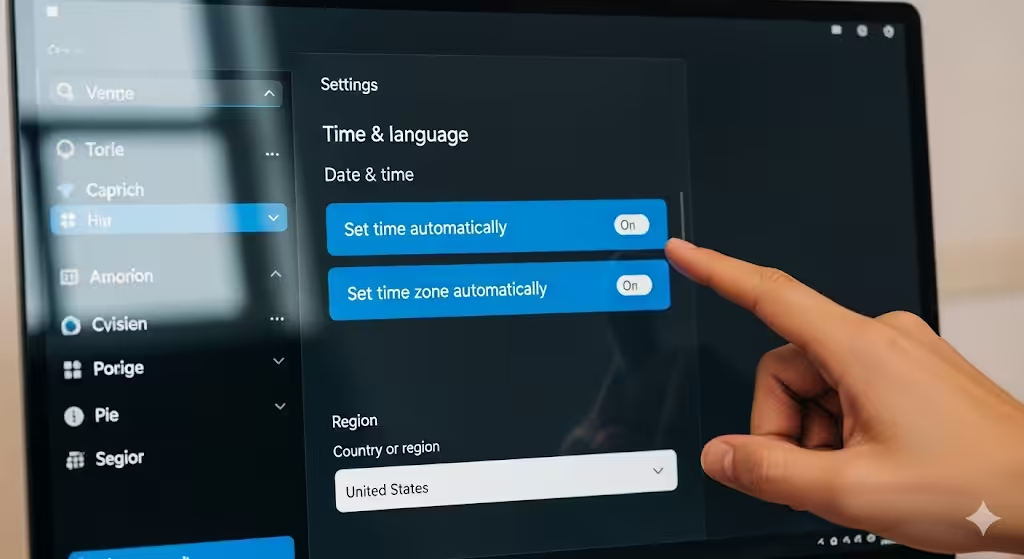
Troubleshooting Guide: Fixing the Microsoft Store “PUR-AuthenticationFailure” Error
The Microsoft Store is the central hub for downloading apps, games, and updates in Windows. However, some users encounter the “PUR-AuthenticationFailure” error when attempting to sign in, make purchases, or download apps. This error usually indicates a problem with account authentication, network settings, or system configuration.
If you are facing this issue, don’t worry. This guide will explain the causes behind the error and provide practical solutions to fix it on Windows 10 and Windows 11.
What Causes the “PUR-AuthenticationFailure” Error?
The error appears when Microsoft Store cannot properly verify your account credentials. Some common reasons include:
-
Incorrect or outdated Microsoft account login information.
-
Network connectivity issues preventing authentication.
-
Corrupted Microsoft Store cache or temporary files.
-
Disabled or malfunctioning Windows services related to authentication.
-
Problems with date, time, or region settings on your PC.
-
Pending system or Store updates.
Understanding these causes helps you target the right solution.
Method 1: Check Your Internet Connection
A weak or unstable internet connection may prevent the Store from authenticating your account.
-
Test your connection by opening a browser and visiting any website.
-
If it’s slow or unstable, try restarting your router.
-
Switch to a wired connection if possible, or use a different Wi-Fi network.
Once your internet is stable, try logging into the Microsoft Store again.
Method 2: Verify Your Microsoft Account Credentials
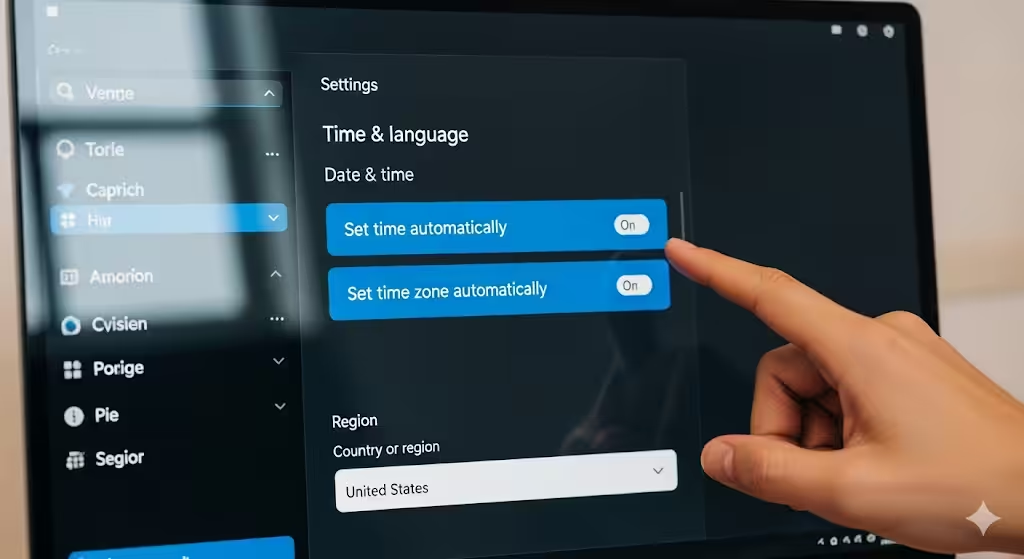
Sometimes, the error occurs because of incorrect login details.
-
Open Settings > Accounts > Your info.
-
Ensure that you are signed in with the correct Microsoft account.
-
If necessary, sign out and log back in.
-
Check your credentials by logging into the Microsoft Account website in a browser.
If you can sign in on the web but not in the Store, the issue lies within the Windows system settings.
Method 3: Sync Date, Time, and Region Settings
Incorrect date, time, or region settings can cause authentication problems.
-
Open Settings > Time & language.
-
Enable Set time automatically and Set time zone automatically.
-
Under Region, select your correct country.
-
Restart your computer and try again.
Method 4: Clear Microsoft Store Cache
Corrupted cache files may prevent the Store from functioning correctly.
-
Press Windows + R to open the Run dialog.
-
Type:
-
Press Enter. A blank Command Prompt window will open and close automatically.
-
Afterward, the Microsoft Store should launch automatically with a cleared cache.
Method 5: Re-wp-signup.php the Microsoft Store
If the Store is corrupted, re-wp-signup.phping it can help.
-
Right-click the Start menu and select Windows Terminal (Admin) or PowerShell (Admin).
-
Enter the following command:
-
Press Enter and wait for the process to complete.
-
Restart your computer and try again.
Method 6: Reset Microsoft Store App
Resetting the Store can remove corrupted data and restore default settings.
-
Open Settings > Apps > Installed apps (or Apps & features).
-
Locate Microsoft Store and click Advanced options.
-
Scroll down and click Reset.
-
Confirm your choice and relaunch the Store.
Method 7: Update Windows and Microsoft Store
Updates often fix bugs that cause authentication errors.
-
Open Settings > Windows Update.
-
Click Check for updates and install any available updates.
-
Open the Microsoft Store, click your profile picture, and select App settings.
-
Make sure App updates is enabled and check for Store updates.
Method 8: Restart Essential Windows Services
The Microsoft Store relies on certain background services for authentication.
-
Press Windows + R, type
services.msc, and hit Enter. -
Locate and ensure the following services are running:
-
Windows Update
-
Microsoft Account Sign-in Assistant
-
Background Intelligent Transfer Service (BITS)
-
-
If any are stopped, right-click and select Start.
-
Set their Startup type to Automatic.
Method 9: Sign Out and Back Into the Store
Refreshing your account session can sometimes fix the error.
-
Open Microsoft Store.
-
Click on your profile picture in the top-right corner.
-
Select your account and click Sign out.
-
Close the Store, reopen it, and sign back in with your Microsoft account.
Method 10: Reset Network Settings
If network misconfigurations cause the issue, resetting them may help.
-
Open Settings > Network & Internet > Advanced network settings.
-
Select Network reset.
-
Click Reset now and restart your PC.
After the reset, reconnect to Wi-Fi or Ethernet and try again.
Method 11: Use the Windows Store Apps Troubleshooter
Windows includes a built-in troubleshooter for Store apps.
-
Open Settings > System > Troubleshoot > Other troubleshooters.
-
Scroll down and select Windows Store Apps.
-
Click Run and follow the prompts.
Method 12: Create a New User Profile
If your account is corrupted, creating a new Windows user may resolve the issue.
-
Go to Settings > Accounts > Family & other users.
-
Click Add account and create a new user profile.
-
Sign in with your Microsoft account in the new profile.
-
Test if the Store works without the error.
Preventing Future PUR-AuthenticationFailure Errors
To avoid running into this problem again:
-
Keep Windows and Microsoft Store updated.
-
Regularly clear cache with
wsreset.exe. -
Ensure correct date, time, and region settings.
-
Maintain a stable internet connection.
-
Avoid disabling essential background services.
Conclusion
The “PUR-AuthenticationFailure” error in Microsoft Store can disrupt app downloads, purchases, and updates. Fortunately, most fixes are simple, such as checking internet settings, verifying your Microsoft account, syncing date and time, or resetting the Store. More advanced methods like re-wp-signup.phping the Store, restarting services, or creating a new user account can also help.
By following the solutions in this guide, you should be able to resolve the error and restore full functionality to Microsoft Store on Windows 10 or Windows 11.