


Troubleshooting Black Screen with Cursor Error on Windows
A black screen with cursor issue in Windows can be frustrating because it prevents you from accessing your desktop, applications, or even system settings. In many cases, you might boot your PC only to be stuck with a black screen where only the mouse pointer is visible and functional.
This issue can appear on Windows 10 or Windows 11 due to driver conflicts, system corruption, malware, or startup configuration errors. Fortunately, there are several methods you can use to bring your computer back to normal.
Common Causes of the Black Screen with Cursor Problem
Before diving into fixes, it’s helpful to understand the most common reasons behind this error:
-
Corrupted or outdated graphics drivers.
-
Problems during Windows startup caused by misconfigured files or services.
-
Corrupted system files interfering with the boot process.
-
Third-party software conflicts.
-
Malware or viruses that affect system processes.
-
Hardware issues with the graphics card or hard drive.
Once you identify the likely cause, you can try the relevant solutions below.
Method 1: Restart Windows Explorer
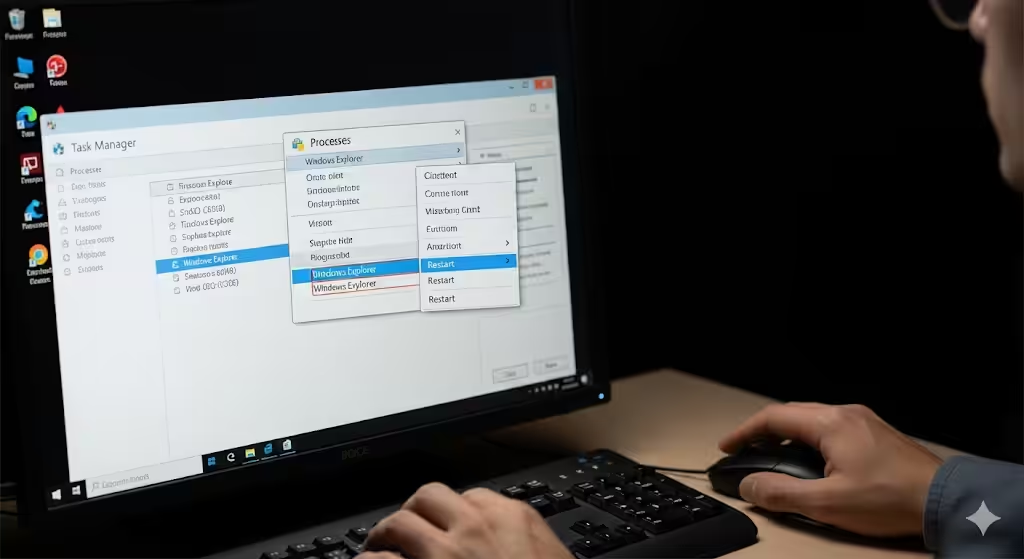
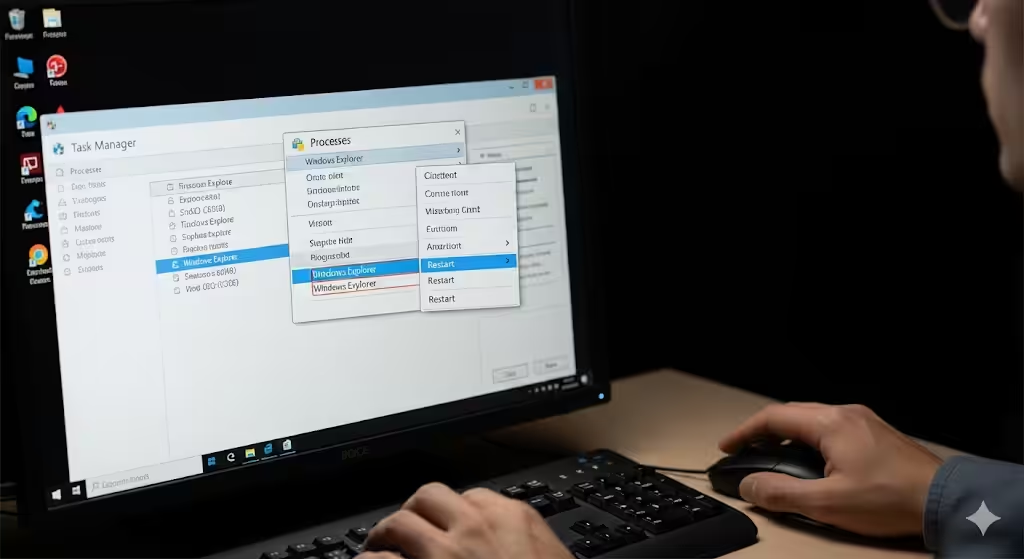
Windows Explorer is responsible for displaying your desktop, taskbar, and file manager. If it fails to launch, you may only see a black screen with your cursor.
-
Press Ctrl + Shift + Esc to open Task Manager.
-
Under the Processes tab, locate Windows Explorer.
-
Right-click it and select Restart.
If Windows Explorer was stuck, your desktop should now reappear.
Method 2: Boot into Safe Mode
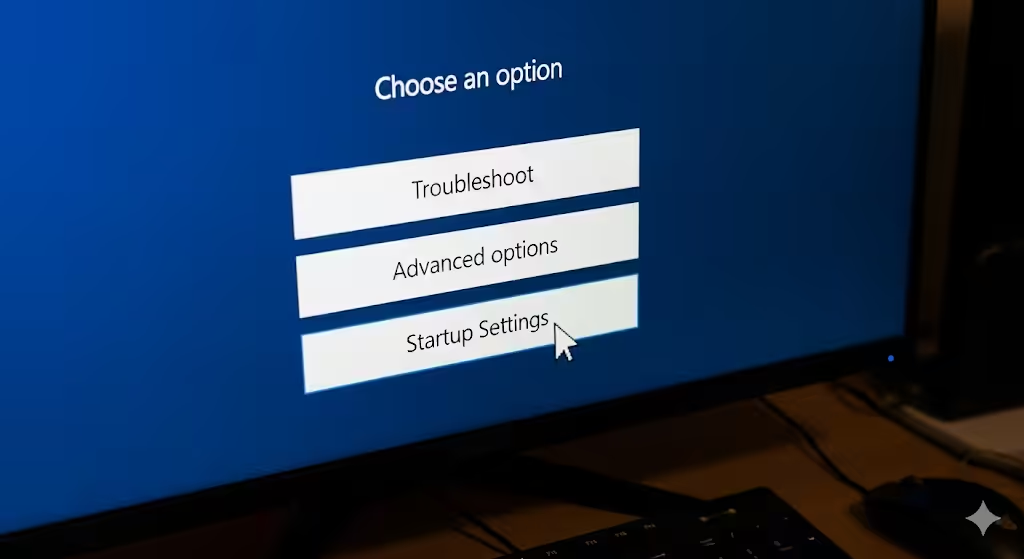
Safe Mode starts Windows with minimal drivers and services, which helps troubleshoot startup issues.
-
Restart your PC and hold the Power button to force shutdown three times.
-
On the fourth restart, Windows will boot into Automatic Repair mode.
-
Select Advanced options > Troubleshoot > Advanced options > Startup Settings.
-
Choose Restart, then press 4 or F4 for Safe Mode.
If the system boots properly in Safe Mode, the problem is likely caused by drivers or third-party applications.
Method 3: Update or Roll Back Graphics Drivers
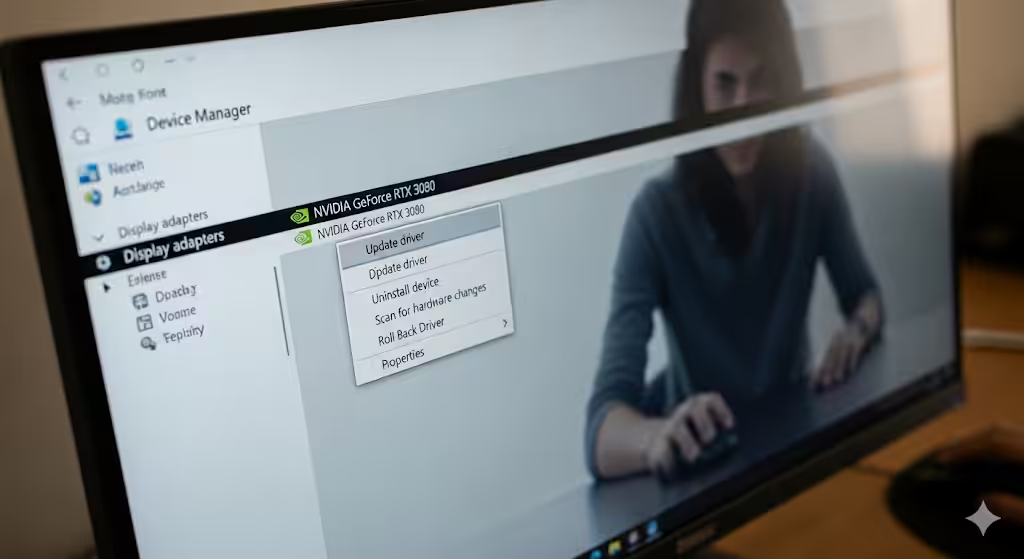
Since display drivers often cause black screen issues, updating or rolling them back can help.
-
Boot into Safe Mode.
-
Press Windows + X and select Device Manager.
-
Expand Display adapters.
-
Right-click your graphics driver and choose Update driver.
-
If the problem started after a recent update, choose Properties > Driver > Roll Back Driver.
Restart your computer normally to see if the black screen is resolved.
Method 4: Disable Fast Startup
Fast Startup can sometimes create conflicts during boot.
-
Boot into Safe Mode or access the desktop if possible.
-
Open Control Panel > Hardware and Sound > Power Options.
-
Select Choose what the power buttons do.
-
Click Change settings that are currently unavailable.
-
Uncheck Turn on fast startup.
-
Save changes and restart your PC.
Method 5: Run System File Checker (SFC) and DISM
Corrupted system files may prevent Windows from loading properly. Use SFC and DISM to repair them.
-
Boot into Safe Mode with Command Prompt.
-
Type the following command and press Enter:
-
After completion, run:
-
Restart your PC after both scans.
Method 6: Disable or Uninstall Problematic Software
Certain third-party applications, such as antivirus software, may conflict with system processes.
-
Boot into Safe Mode.
-
Open Control Panel > Programs > Uninstall a program.
-
Remove recently installed or suspicious applications.
-
Restart your system normally.
Method 7: Check for Malware
Malware infections may cause black screen problems by disabling critical services.
-
Boot into Safe Mode with Networking.
-
Download and install a trusted antivirus or anti-malware tool.
-
Run a full system scan and remove any detected threats.
-
Restart your PC.
Method 8: Perform a System Restore
If the problem began recently, rolling back to a restore point can fix it.
-
Boot into Advanced Startup Options.
-
Go to Troubleshoot > Advanced options > System Restore.
-
Select a restore point created before the issue occurred.
-
Follow the on-screen instructions to restore your system.
Method 9: Repair Startup
Windows includes a startup repair feature that fixes boot-related problems.
-
Boot into Advanced Startup Options.
-
Choose Troubleshoot > Advanced options > Startup Repair.
-
Let Windows diagnose and fix any issues.
Method 10: Check Hardware Components
If none of the software fixes work, the issue may be hardware-related.
-
Graphics Card: Reseat your graphics card or test it on another system.
-
RAM: Remove and reseat memory sticks. Run the Windows Memory Diagnostic tool.
-
Hard Drive: Run
chkdsk /f /rfrom Command Prompt to check for disk errors.
If hardware is faulty, replacement may be necessary.
Preventing Black Screen Issues in Windows
To avoid encountering this error in the future:
-
Keep your graphics drivers updated.
-
Avoid installing unnecessary third-party software.
-
Run regular system scans for malware.
-
Create restore points before major updates.
-
Maintain your hardware by cleaning dust and ensuring proper cooling.
Conclusion
A black screen with cursor on Windows can be alarming, but it is often caused by corrupted drivers, misconfigured startup settings, or system file errors. By restarting Windows Explorer, using Safe Mode, updating drivers, disabling Fast Startup, or repairing system files, you can usually resolve the issue.
For more stubborn cases, System Restore, Startup Repair, or even hardware checks may be necessary. Following the preventive measures will help keep your PC stable and reduce the risk of similar issues in the future.