


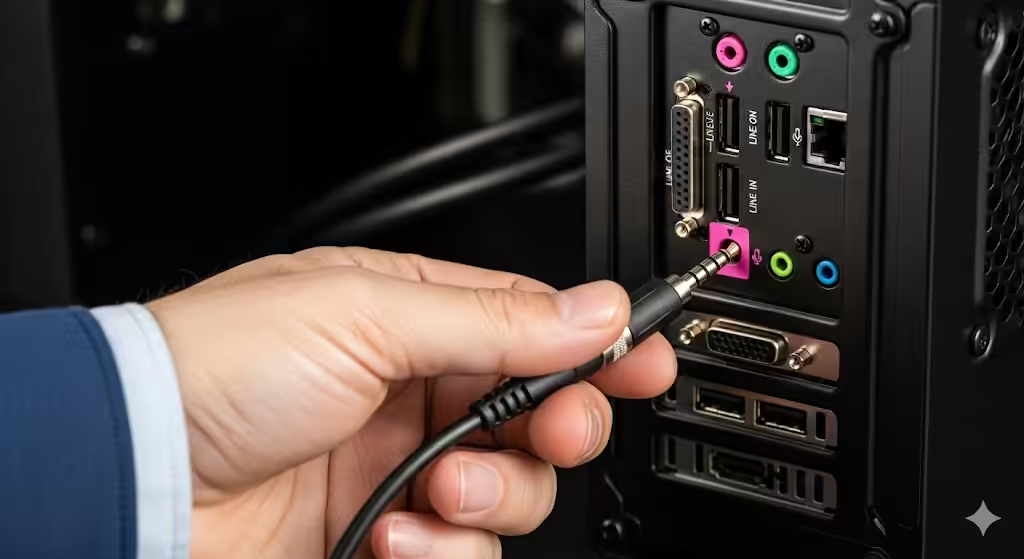
How to Resolve Microphone Problems on Windows 7
A microphone is an essential tool for communication, whether you are using it for video calls, gaming, or voice recording. However, many users on Windows 7 face the frustrating issue of their microphone not working properly. You might notice that the microphone is not picking up sound, is muted, or applications fail to detect it.
Fortunately, there are several ways to fix this problem. This guide will walk you through the common causes and step-by-step solutions to restore your microphone’s functionality on Windows 7.
Common Causes of Microphone Problems on Windows 7
Before applying fixes, it’s important to understand what might be causing the issue:
-
Disabled microphone device in sound settings.
-
Incorrect default recording device chosen.
-
Outdated or missing audio drivers.
-
Muted or low microphone volume in settings.
-
Third-party application conflicts.
-
Physical hardware issues with the microphone or port.
Identifying the root cause will help you apply the right fix more effectively.
Method 1: Check Physical Connections
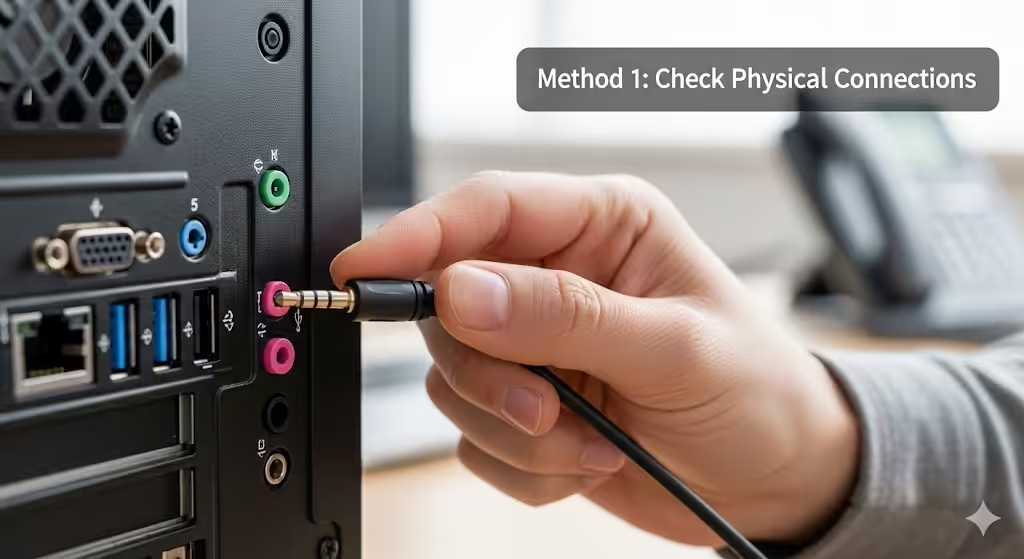
Start with the simplest checks:
-
Make sure your microphone is properly plugged into the correct audio port (usually the pink jack for external mics).
-
If you are using a USB microphone, try another USB port.
-
Test your microphone on another device to confirm it works.
-
Ensure the mute switch on your microphone or headset is turned off.
Method 2: Enable and Set the Microphone as Default
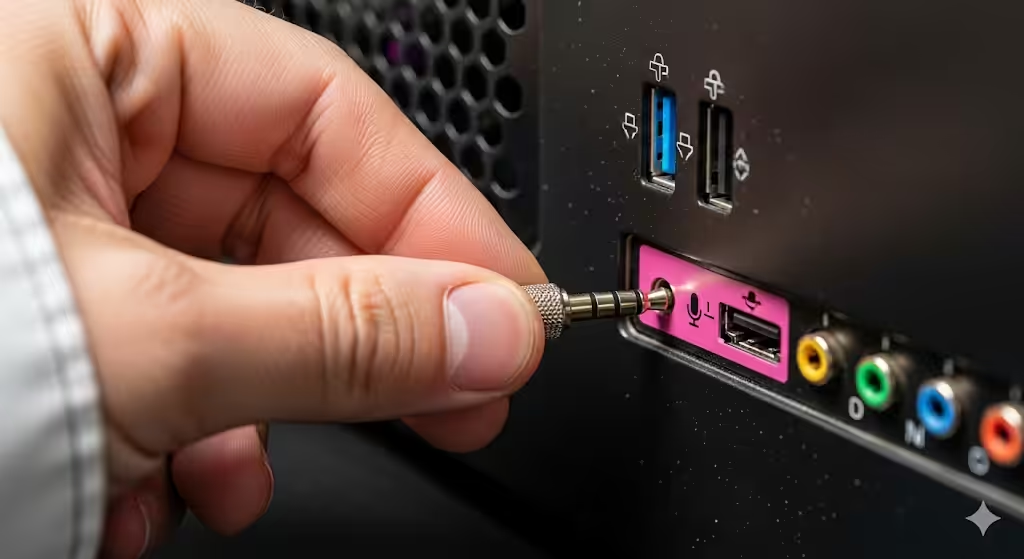
Windows 7 sometimes disables unused audio devices by default.
-
Right-click the speaker icon in the taskbar and select Recording devices.
-
In the Sound window, right-click inside the blank area and enable Show Disabled Devices.
-
Locate your microphone in the list, right-click it, and select Enable.
-
Highlight your microphone and click Set Default.
-
Speak into the mic and check if the green bars respond under Recording tab.
Method 3: Adjust Microphone Levels
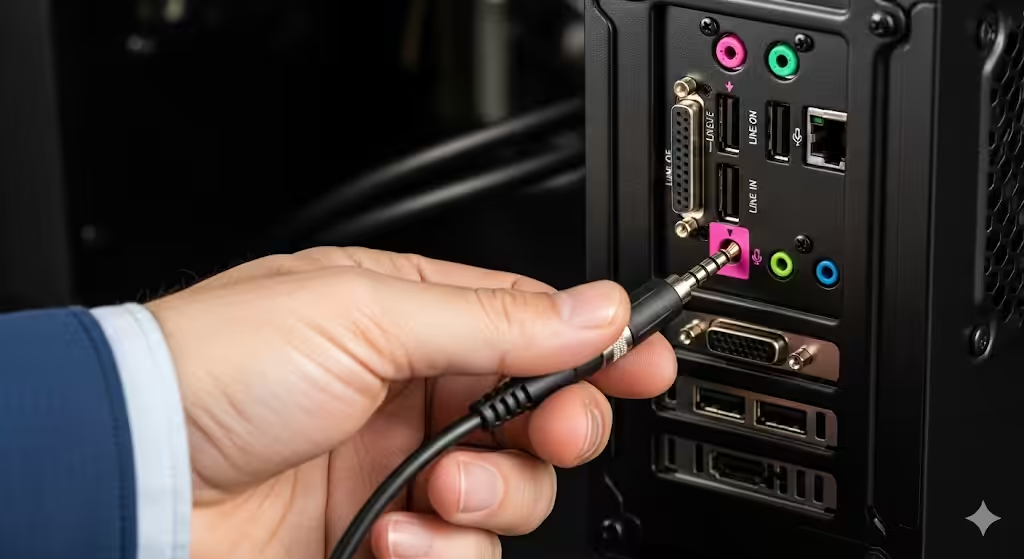
Even if the microphone is enabled, low volume settings can make it seem like it isn’t working.
-
In the Sound window, select your microphone and click Properties.
-
Go to the Levels tab.
-
Increase the Microphone volume slider.
-
Also, adjust the Microphone Boost option if available.
-
Click Apply and test your microphone again.
Method 4: Update or Reinstall Audio Drivers
Outdated or missing drivers are one of the most common reasons for microphone issues.
-
Press Windows + R, type
devmgmt.msc, and press Enter to open Device Manager. -
Expand Sound, video and game controllers.
-
Right-click your audio device and choose Update Driver Software.
-
Select Search automatically for updated driver software.
-
If no updates are found, visit your computer manufacturer’s website to download the latest drivers manually.
If updating does not work, you can also uninstall the driver:
-
Right-click your audio device in Device Manager.
-
Select Uninstall.
-
Restart your computer, and Windows will reinstall the drivers automatically.
Method 5: Run Windows Troubleshooter
Windows 7 includes built-in troubleshooters that can automatically detect and fix sound problems.
-
Click the Start button and open the Control Panel.
-
Go to Troubleshooting.
-
Under Hardware and Sound, select Troubleshoot audio recording.
-
Follow the on-screen steps to identify and resolve issues.
Method 6: Check Application Permissions
Some applications may block or fail to detect your microphone if settings are misconfigured.
-
Ensure that your chosen application (Skype, Zoom, Teamspeak, etc.) is set to use the correct input device.
-
Open the application’s Audio or Settings menu and confirm that your microphone is selected.
-
If possible, run the application as an administrator to avoid permission conflicts.
Method 7: Disable Exclusive Mode
Exclusive mode allows certain applications to take full control of your microphone, which may prevent others from using it.
-
Open the Sound settings from the taskbar.
-
Select your microphone and click Properties.
-
Go to the Advanced tab.
-
Uncheck Allow applications to take exclusive control of this device.
-
Click Apply and test your microphone.
Method 8: Scan for Malware or Viruses
Malware can sometimes interfere with system audio services.
-
Install and run a trusted antivirus or anti-malware program.
-
Perform a full system scan.
-
Remove any threats found and restart your PC.
Method 9: Perform a System Restore
If your microphone was working earlier but suddenly stopped, you can restore your system to a previous state.
-
Open the Start menu and type System Restore in the search box.
-
Select System Restore from the results.
-
Choose a restore point created before the microphone stopped working.
-
Follow the prompts to complete the process.
Method 10: Test with a Different Microphone
If none of the above methods work, the problem may be hardware-related.
-
Test a different microphone on your PC.
-
If the new microphone works, your old one may be defective.
-
If neither works, the issue could be with your computer’s sound card or audio ports.
Preventing Microphone Issues in Windows 7
To reduce the chances of microphone problems in the future, follow these tips:
-
Keep your audio drivers up to date.
-
Regularly check microphone levels and default settings.
-
Avoid installing unnecessary third-party audio utilities that may cause conflicts.
-
Perform regular malware scans to keep your system clean.
-
Use System Restore points before making major changes.
Conclusion
A microphone not working on Windows 7 can result from simple misconfigurations, outdated drivers, or deeper system problems. Thankfully, most issues can be resolved by enabling the microphone, setting it as default, updating drivers, or adjusting volume levels.
If these solutions don’t help, running troubleshooters, disabling exclusive mode, or even testing with another microphone may point you toward the real cause. In rare cases, hardware failure may require replacing your microphone or repairing the sound card.
By following the step-by-step methods in this guide, you should be able to get your microphone working again and ensure smooth communication on your Windows 7 PC.