


Guide to Sending and Receiving File Attachments in Outlook
Sending and receiving attachments in Microsoft Outlook is an essential part of modern communication, whether you’re sharing reports, images, or presentations. Knowing how to properly attach files — and handle incoming ones — helps you work efficiently and securely. In this comprehensive guide, we’ll explain how to send, receive, preview, and manage attachments in Outlook, along with some useful tips for avoiding common issues.
Understanding Attachments in Microsoft Outlook
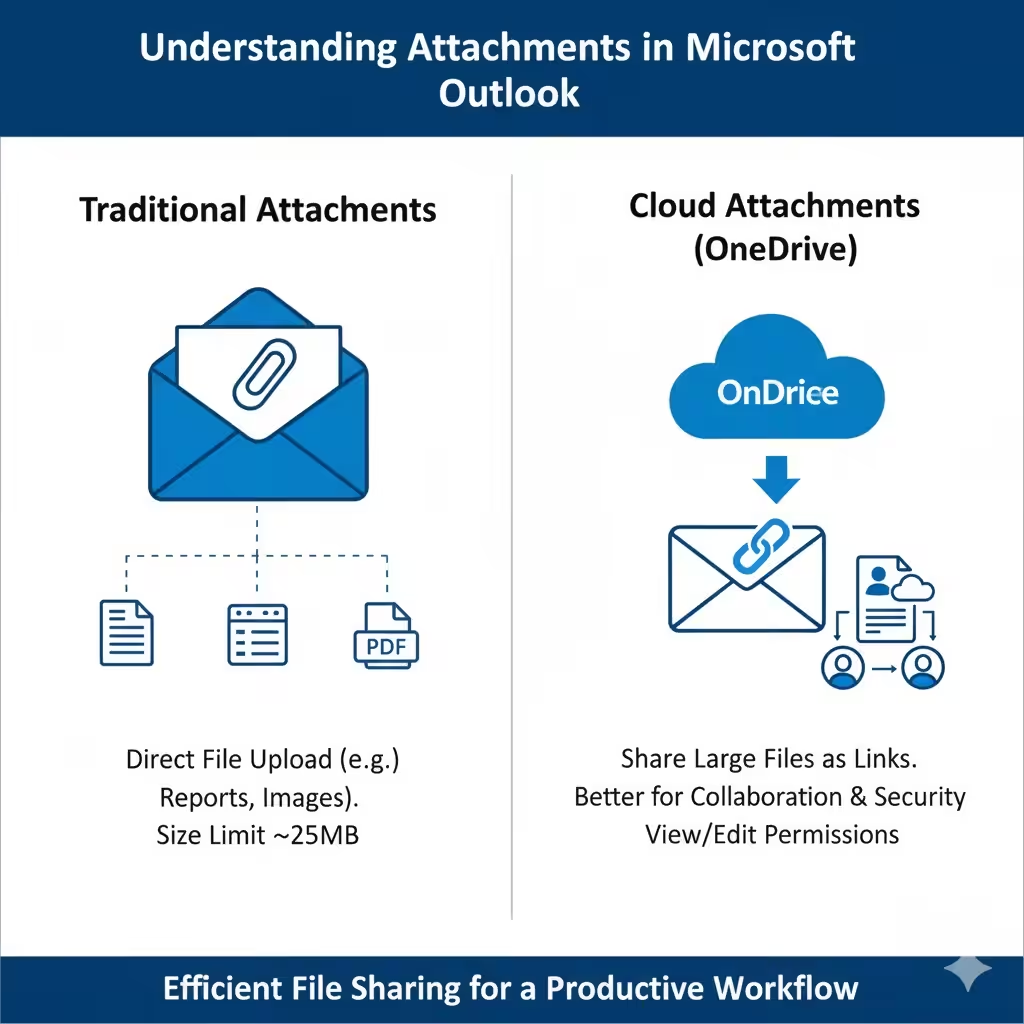
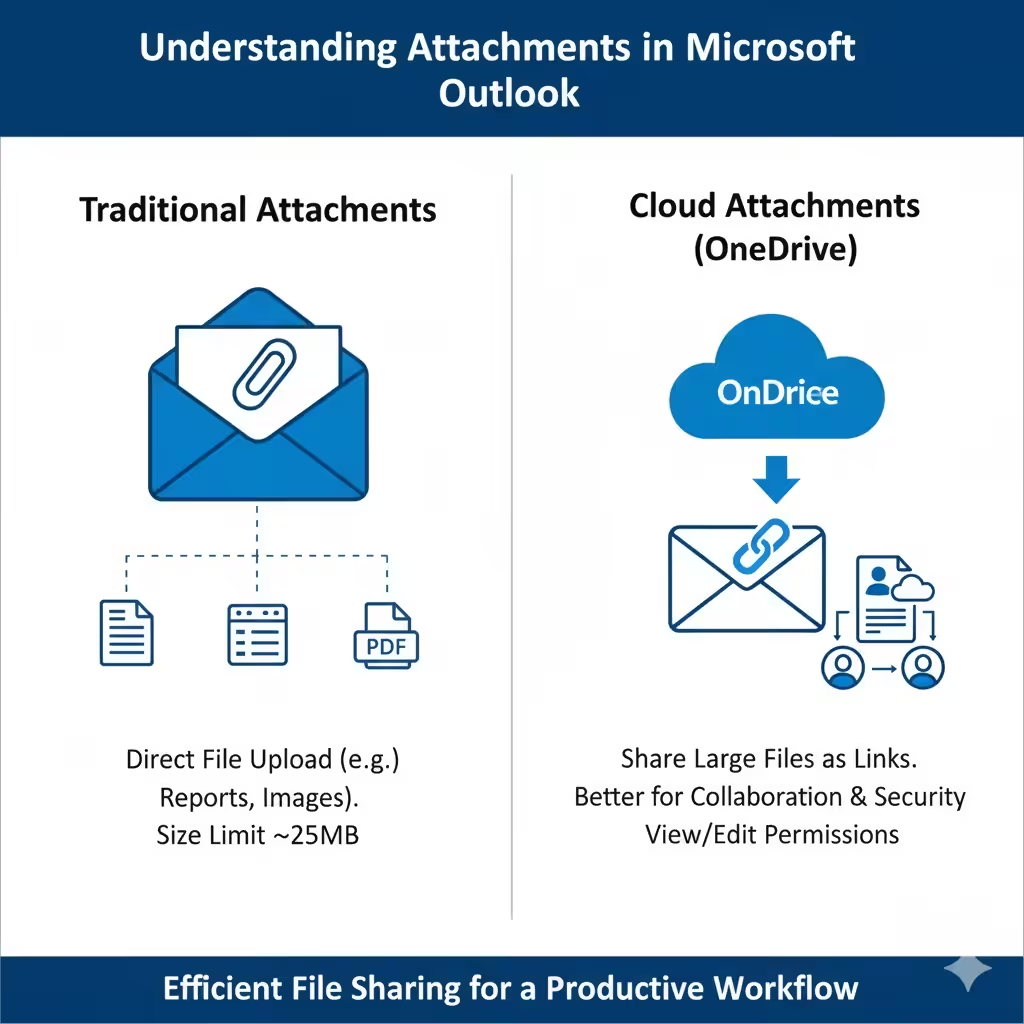
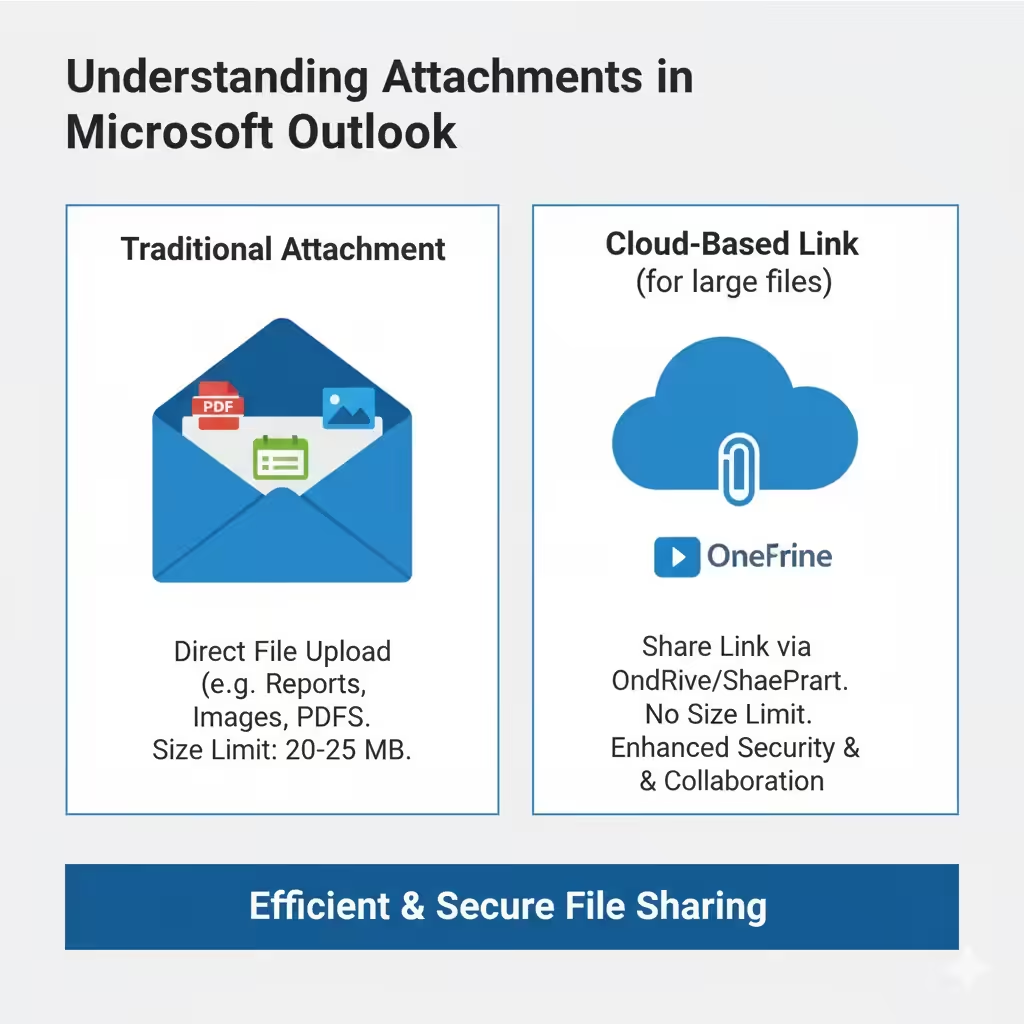
Attachments are files that you include with an email message. They can be documents, spreadsheets, PDFs, images, or even compressed folders. Microsoft Outlook supports attachments up to a certain size limit (usually around 20–25 MB per email), although this can vary depending on your organization’s mail settings.
Outlook also integrates with OneDrive and other cloud storage services, allowing you to share large files as links rather than traditional attachments — making collaboration smoother and more secure.
How to Send an Attachment in Outlook
Attaching files to an email in Outlook is a simple process. Here’s how to do it on both the desktop app and web version.
Sending Attachments in Outlook Desktop
-
Open Outlook on your computer.
-
Click New Email to create a new message.
-
In the message window, go to the Message tab.
-
Select Attach File in the toolbar.
-
Choose one of the following options:
-
Browse This PC: Select a file from your computer.
-
Recent Items: Quickly attach a recently opened file.
-
Browse Web Locations: Attach a file stored in OneDrive or SharePoint.
-
-
Once selected, the file will appear below the subject line of your message.
-
Add recipients, a subject, and your message body, then click Send.
Sending Attachments in Outlook Web (Outlook.com or Outlook 365)
-
Open your Outlook Web App in a browser.
-
Click New Message to start a new email.
-
Select the paperclip icon (Attach) at the bottom of the message window.
-
Choose whether to upload a file from your computer or cloud storage (OneDrive).
-
Select the file and wait for it to upload.
-
Click Send once your message is ready.
Using Drag and Drop to Attach Files
For even faster file sharing, simply drag and drop a file from your computer directly into the message body or the area under the subject line. Outlook will automatically attach the file to the email.
How to Send Large Files Using OneDrive
Sometimes, your attachment may exceed Outlook’s size limit. Instead of compressing files, you can share them via OneDrive.
Here’s how:
-
Save your file to OneDrive.
-
In Outlook, click Attach File → Browse Web Locations → OneDrive.
-
Select the file you want to share.
-
Outlook will automatically include a cloud-based link to the file.
-
You can set permissions to allow recipients to view or edit the file.
Using OneDrive ensures that recipients can access the most recent version of your document without clogging up inboxes with large attachments.
How to Receive Attachments in Outlook
When someone sends you an attachment, Outlook displays it within the email message — usually below the subject line or in the message header.
Viewing Attachments in Outlook Desktop
-
Open the email containing the attachment.
-
You’ll see the file listed below the subject line.
-
To open the attachment, double-click it.
-
To download it, right-click the file and select Save As or Save All Attachments to store them on your computer.
Viewing Attachments in Outlook Web
-
Open the email in your browser.
-
Hover over the attached file at the bottom of the message.
-
Choose one of the following:
-
View: Opens the file in your browser.
-
Download: Saves the file to your computer.
-
Save to OneDrive: Stores the file directly in your OneDrive account for easy access later.
-
Previewing Attachments
Outlook allows you to preview common file types (like Word documents, PDFs, and images) directly in the reading pane — no need to download them first.
Simply click the attachment once, and Outlook will open a preview window so you can check the contents quickly and safely.
How to Manage Attachments Securely
Attachments can sometimes carry malware or viruses. To stay safe, follow these best practices:
-
Never open attachments from unknown senders.
Always verify the sender’s identity before opening any files. -
Use antivirus protection.
Keep your system’s antivirus software active and updated. -
Be cautious with executable files.
Files with extensions like.exe,.bat, or.zipcan contain harmful code. -
Use OneDrive or SharePoint for file sharing.
These cloud platforms are more secure and help prevent sending infected files.
Organizing and Cleaning Up Attachments
If your mailbox is filling up quickly due to large attachments, Outlook provides several tools to help you manage storage efficiently.
Remove Attachments from Old Emails
-
Open the email containing the attachment.
-
Right-click the attachment and select Remove Attachment.
-
Save the message without the attachment to reduce mailbox size.
Save Attachments in Bulk
-
Go to your Inbox or another folder.
-
Select the emails containing attachments.
-
From the File tab, click Save Attachments → All Attachments.
-
Choose a folder location on your PC or OneDrive.
This is a great way to back up files while keeping your Outlook mailbox lean and organized.
Troubleshooting Common Attachment Issues
1. Attachment Size Limit Errors
If you get a message like “The attachment size exceeds the allowable limit,” try these fixes:
-
Compress the file using ZIP format.
-
Upload the file to OneDrive and share a link instead.
-
Split large files into smaller parts.
2. Can’t Open Attachments
If Outlook won’t open a file, it might be blocked by your system for security reasons. Try saving it first, then opening it from your computer. Also, check if your antivirus software or company policies are preventing access.
3. Attachments Missing or Not Downloading
If attachments aren’t visible, try these steps:
-
Refresh your Outlook folder (press F9).
-
Disable add-ins that may interfere with attachments.
-
If you’re using Outlook Web, clear browser cache and cookies.
Best Practices for Sending Attachments
To ensure your emails are well-received and easy to access, follow these practical tips:
-
Keep file sizes small. Compress large files or use OneDrive links.
-
Use clear filenames. Descriptive names make it easier for recipients to identify files.
-
Avoid sending too many attachments. Combine related files into a single ZIP folder.
-
Double-check recipients. Always verify that you’re sending the right files to the correct people.
-
Add context in your message. Briefly explain what the attachments contain and any necessary instructions.
Conclusion
Sending and receiving attachments in Microsoft Outlook is a key feature that helps streamline collaboration and communication. Whether you’re attaching a simple document or sharing large project files through OneDrive, Outlook provides versatile options to make file sharing secure and convenient.
By learning how to manage, preview, and organize attachments — and following best practices for safety and efficiency — you can make your Outlook experience more productive and professional.