


Steps to Restore and Reinstall Microsoft Store
Microsoft Store is an essential part of Windows that allows users to download apps, games, and system components safely from Microsoft’s official ecosystem. When the Microsoft Store is missing, not opening, or malfunctioning, it can severely limit what you can do on your device. Many users encounter this issue after system updates, registry changes, or accidental removal of system apps.
This guide explains how to reinstall Microsoft Store on your device, why it may disappear or stop working, and the safest methods to restore it on Windows systems.
What Is Microsoft Store and Why It Matters
Microsoft Store is more than just an app marketplace.
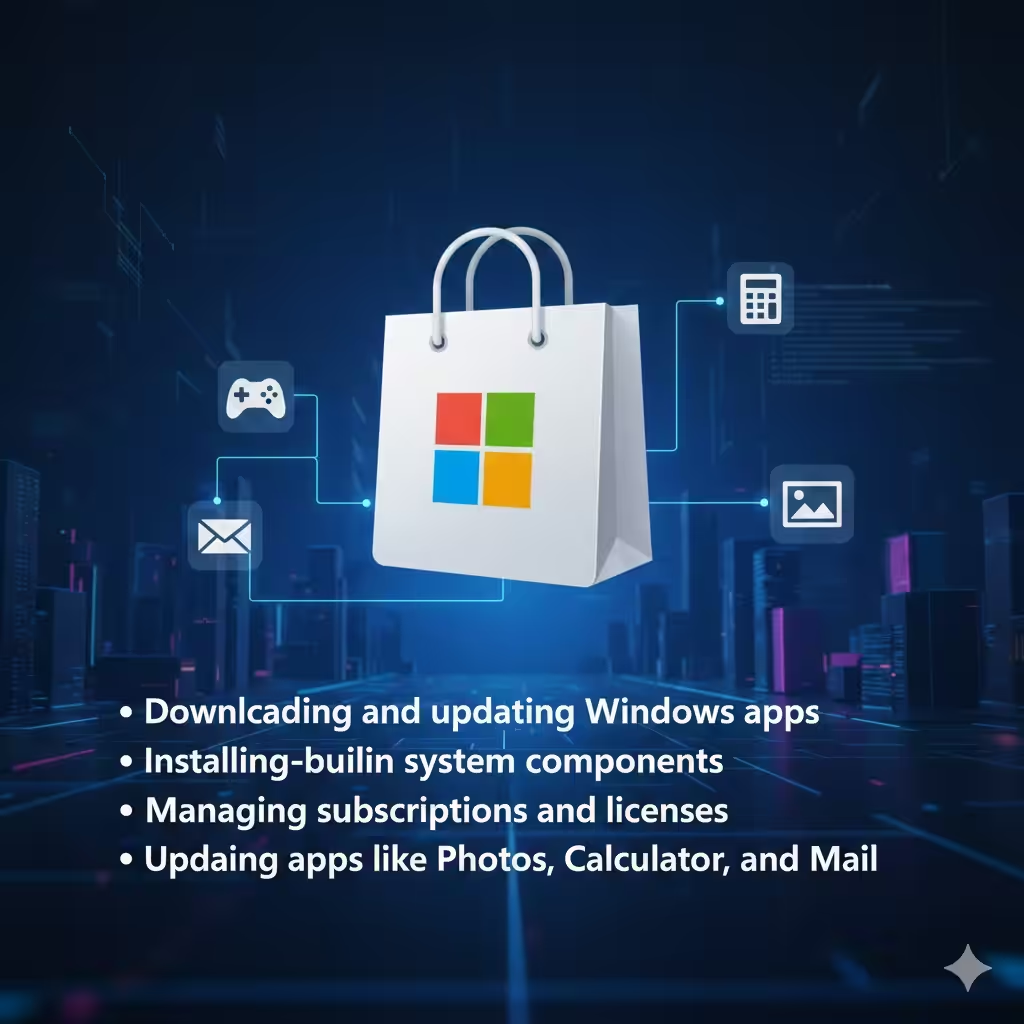
It plays a key role in:
-
Downloading and updating Windows apps
-
Installing built-in system components
-
Managing subscriptions and licenses
-
Updating apps like Photos, Calculator, and Mail
Without Microsoft Store, app updates may fail or stop entirely.
Why Microsoft Store Is Missing or Not Working
Before reinstalling, it helps to understand why the Store is gone.
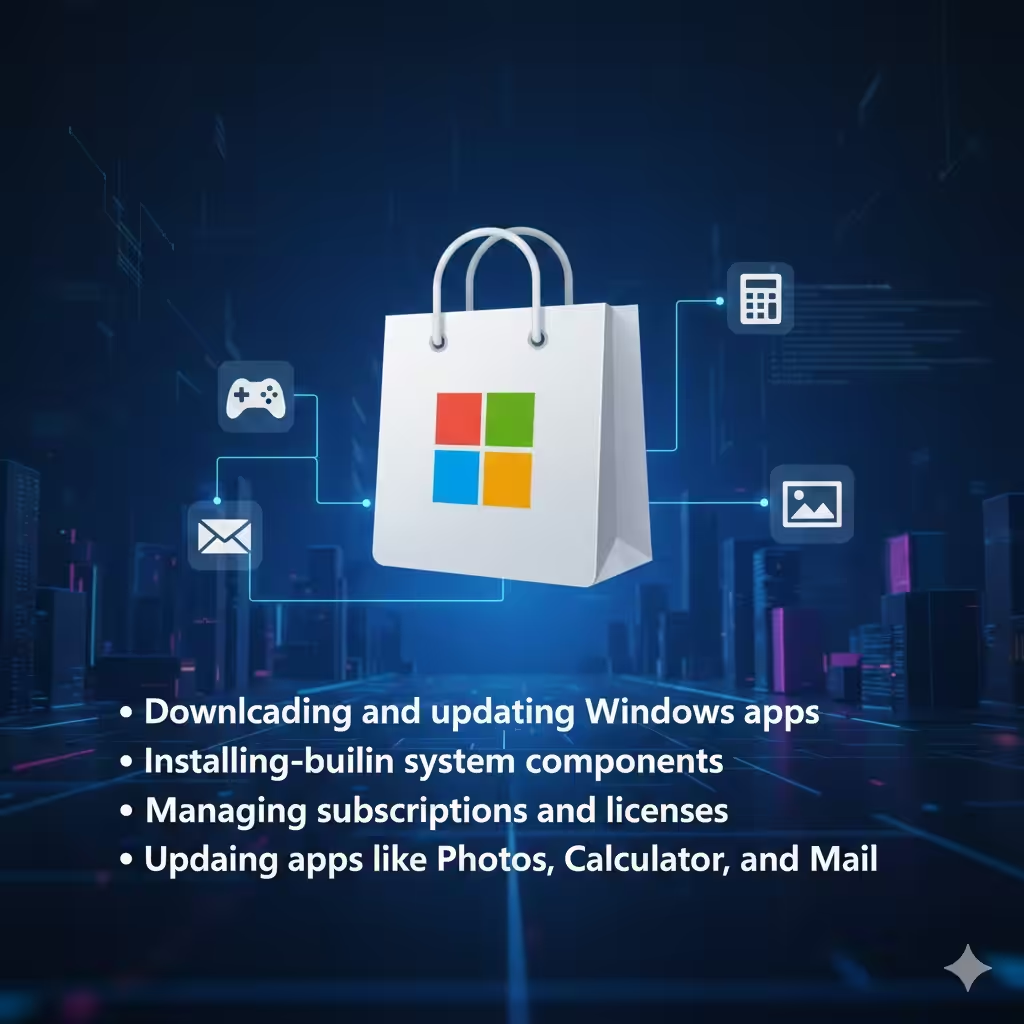
Common causes include:
-
Corrupted system files
-
Failed Windows updates
-
Accidental removal via PowerShell
-
Third-party system cleanup tools
-
Registry changes or tweaks
-
Damaged user profiles
Knowing the cause helps prevent the problem from happening again.
Check If Microsoft Store Is Truly Uninstalled
Sometimes the Store is installed but hidden or disabled.
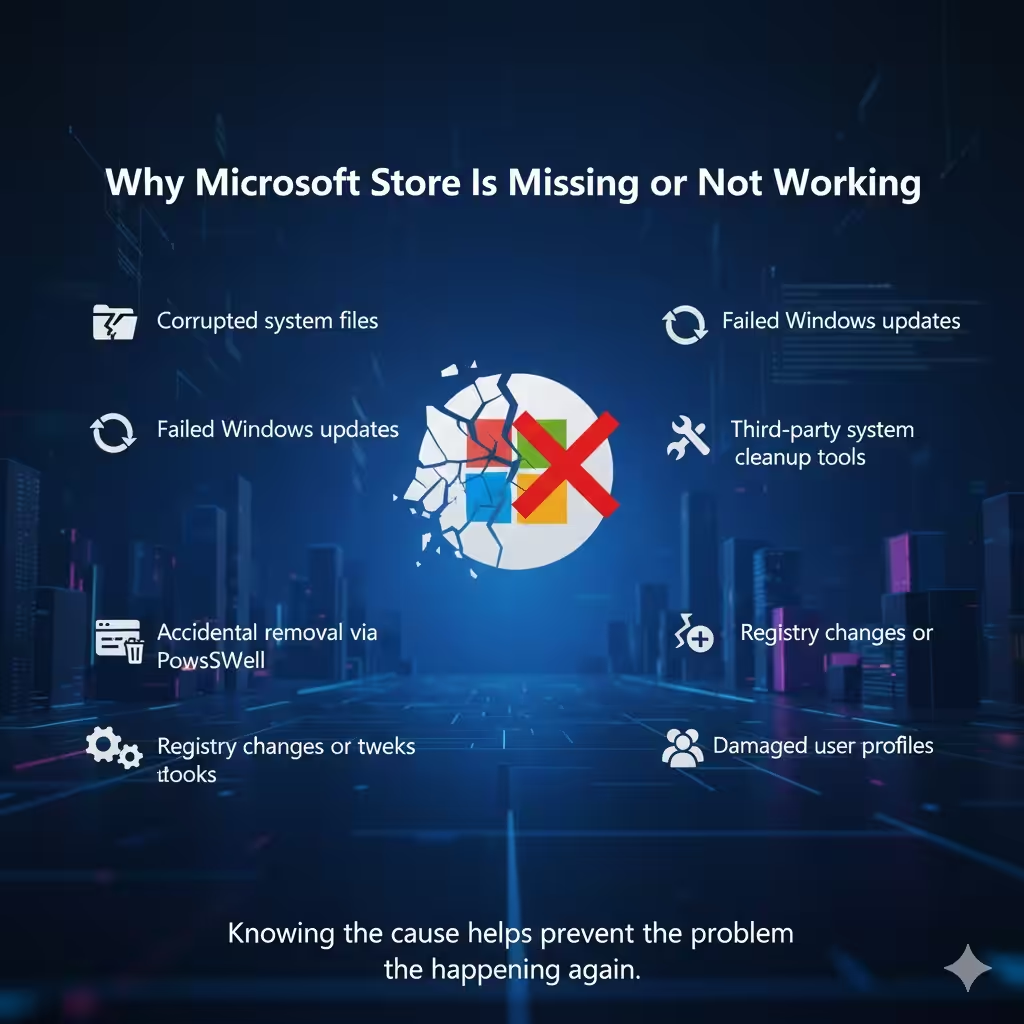
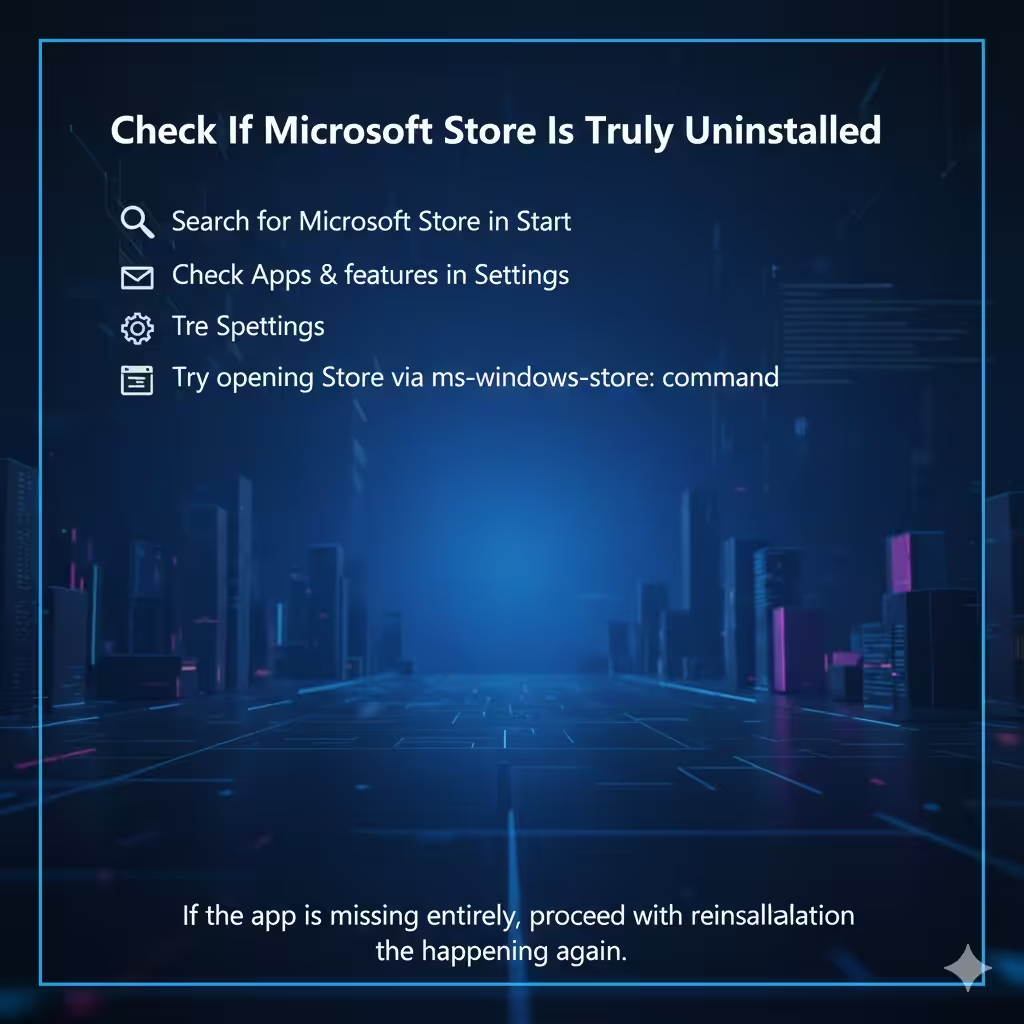
What to Check First
-
Search for Microsoft Store in Start
-
Check Apps & features in Settings
-
Try opening Store via
ms-windows-store:command
If the app is missing entirely, proceed with reinstallation methods.
Restart Your Computer Before Reinstalling
A simple restart can restore missing system components.
Why Restarting Helps
-
Reloads Windows services
-
Fixes temporary glitches
-
Completes pending updates
If the Store is still missing after restart, move on.
Method 1: Reinstall Microsoft Store Using PowerShell
PowerShell is the most reliable method to reinstall Microsoft Store.
Why PowerShell Works
Microsoft Store is a built-in system app. PowerShell can re-wp-signup.php it even if it was removed.
What This Method Does
-
Reinstalls Store package
-
Restores default app registration
-
Fixes permission issues
This method is safe when used correctly.
Method 2: Re-wp-signup.php All Windows Apps
If the issue affects multiple built-in apps, re-wp-signup.phping all apps can help.
When to Use This Method
-
Multiple system apps missing
-
Store reinstall fails
-
App permissions corrupted
Re-wp-signup.phping restores app functionality without deleting personal data.
Method 3: Use WSReset to Restore Microsoft Store
WSReset is a built-in Windows tool designed for Store issues.
What WSReset Does
-
Clears Store cache
-
Resets Store settings
-
Reopens Microsoft Store automatically
While it does not reinstall a removed Store, it can fix cases where the app appears missing due to corruption.
Method 4: Install Microsoft Store via Windows Update
In some cases, Windows Update reinstalls missing system apps.
Why This Works
-
Restores default Windows components
-
Fixes compatibility issues
-
Updates system packages
Check for updates and install everything available.
Method 5: Create a New User Account

A corrupted user profile can prevent the Store from appearing.
When This Helps
-
Store works on other accounts
-
Profile-specific errors
-
Persistent Store issues
Creating a new account helps determine whether the issue is profile-related.
Method 6: Run System File Checker
System file corruption can remove or break the Store.
Why This Matters
System File Checker repairs corrupted or missing Windows files that Microsoft Store depends on.
Running this tool can restore Store functionality without reinstalling Windows.
Method 7: Use DISM to Repair Windows Image
If System File Checker does not fix the issue, DISM can repair the Windows image.
Why DISM Helps
-
Repairs deeper system corruption
-
Fixes broken app packages
-
Restores system integrity
After DISM completes, restart your device.
Method 8: Perform an In-Place Windows Repair
As a last resort, an in-place repair installs Windows over itself.
Why Choose This Option
-
Keeps personal files
-
Restores all built-in apps
-
Fixes severe system damage
This method should be used only when all others fail.
Common Mistakes to Avoid
Avoid these mistakes when reinstalling Microsoft Store:
-
Downloading Store installers from third-party websites
-
Deleting system folders manually
-
Running random PowerShell scripts
-
Disabling Windows Update permanently
Always use built-in Windows tools.
How to Confirm Microsoft Store Is Reinstalled
After reinstalling:
-
Search for Microsoft Store in Start
-
Open the app successfully
-
Check app updates inside the Store
If the Store opens and updates apps, reinstallation was successful.
Preventing Microsoft Store Issues in the Future
To reduce future problems:
-
Avoid removing built-in apps
-
Keep Windows updated
-
Use trusted system cleanup tools
-
Avoid registry tweaks unless necessary
Regular maintenance keeps system apps healthy.
Frequently Asked Questions
Can I Download Microsoft Store Separately
No. Microsoft Store is a built-in Windows app and cannot be downloaded as a standalone installer.
Will Reinstalling Store Delete My Apps
No. Installed apps remain intact.
Is Microsoft Store Required for Windows
Yes. Many Windows apps depend on it.
Conclusion
Reinstalling Microsoft Store on your device is possible and safe when done using built-in Windows tools such as PowerShell, WSReset, System File Checker, and Windows Update. While the Store may disappear due to system corruption or user actions, it is rarely gone permanently.