



Steps to Retrieve Permanently Removed Emails from Gmail
Losing important emails can be stressful, especially if they contain valuable documents, personal information, or communication you need to reference later. Gmail is designed with built-in layers of protection to help prevent accidental deletion, but mistakes still happen. The good news is that in many cases, permanently deleted emails can still be recovered—depending on when they were deleted, how your Gmail account is configured, and whether recovery tools are still available.
This guide explains every method you can use to recover deleted emails in Gmail, including restoring messages from the Trash folder, using Google Workspace admin tools, and submitting a recovery request to Google Support. You’ll also learn how Gmail deletion works and find tips to prevent losing important messages in the future.

Understanding Gmail’s Email Deletion System
Before attempting recovery, it helps to understand how Gmail treats deleted messages. Gmail uses a two-step deletion system:
1. Deleting an Email Moves It to the Trash Folder
When you delete a message, it goes to the Trash folder.
It stays there for 30 days, unless you empty the folder manually.
2. Emails in the Trash Are Automatically Deleted After 30 Days
After the 30-day period, Gmail permanently removes the message from Trash.
However, in some special cases, recovery may still be possible using Google’s recovery tools.
3. Archived Emails Are Not Deleted
Sometimes users confuse the archive feature with the delete function.
Archived emails move out of the inbox but remain in All Mail.
Understanding this system can save you time and help you avoid unnecessary panic.
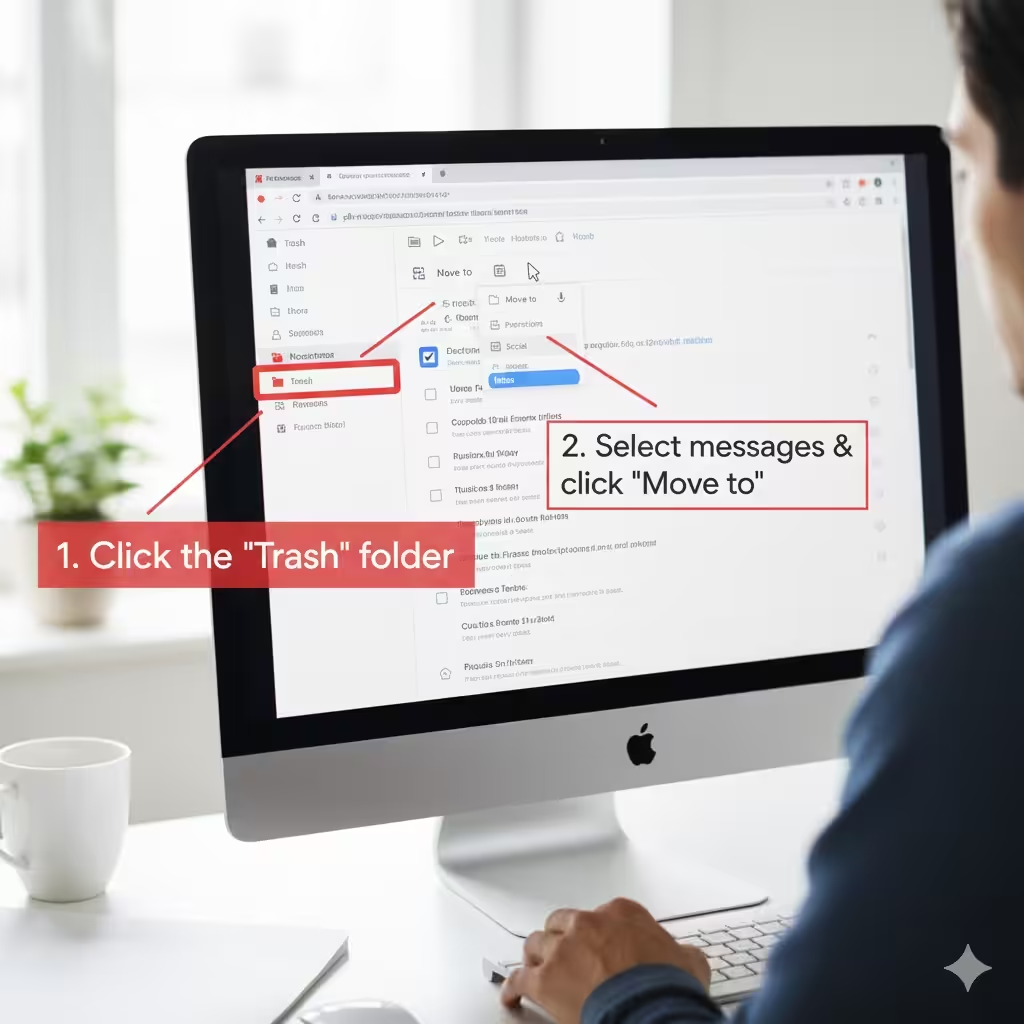
Method 1: Recover Emails from the Trash Folder
The most common way to restore deleted emails is through the Trash folder. This only works within 30 days of deletion.
Steps
-
Open Gmail on your computer or phone.
-
Look at the left sidebar and click More to expand the full menu.
-
Click Trash (sometimes labeled Bin in certain regions).
-
Browse or search for your deleted email.
-
Select the message(s) you want to restore.
-
Click Move to and choose Inbox or another folder.
If the email is still in the Trash, recovery is easy and immediate.
Method 2: Search for Archived or Filtered Emails
Sometimes emails appear “missing” even when they were never deleted. Gmail’s powerful search tools help locate hidden messages.
Search for Archived Emails
Type the following into the search bar:
Check for Filters
-
Go to Settings (gear icon).
-
Click See all settings.
-
Open the Filters and Blocked Addresses tab.
-
Look for filters that automatically archive, label, or skip the inbox.
Search by Keywords
Gmail allows you to search by:
-
sender
-
subject
-
date ranges
-
keywords
-
attachments
Missing messages are often hidden, not deleted.
Method 3: Recover Permanently Deleted Emails Using Gmail’s “Mail Restore” Tool
If your emails were permanently deleted within the last 25–30 days, you may be able to recover them using Google’s support tools. This works even if they are no longer in the Trash.
Steps
-
Go to the Gmail Message Recovery Tool:
https://support.google.com/mail/contact/missingemails -
Sign in to your Gmail account if required.
-
Fill out the form detailing when you noticed emails missing.
-
Submit the request.
Google will attempt to restore lost messages to your inbox within a few hours to several days.
When This Works
-
Your account was hacked.
-
Emails disappeared unexpectedly.
-
You didn’t manually delete the messages.
-
The deletion happened recently (within 30 days).
When It May Not Work
-
You intentionally deleted the email more than 30 days ago.
-
You emptied the Trash manually a long time ago.
-
Your account storage was full and messages were purged months earlier.
Still, many users successfully recover emails using this tool.
Method 4: Recover Emails in Google Workspace (Business) Accounts
If your Gmail account is provided by a workplace, school, or organization, your Google Workspace administrator has more powerful recovery options.
Admin Console Recovery (Up to 25 Days After Deletion)
Admins can restore deleted emails from the Admin Console.
Steps (Admin Only)
-
Log into the Google Admin Console: admin.google.com
-
Go to Users.
-
Choose the affected user account.
-
Click Restore Data.
-
Select the date range for recovery (up to 25 days).
-
Click Restore.
Vault Recovery
If your organization uses Google Vault, messages may be retained even after deletion.
Admins can search and export emails from Vault even after the user deletes them.
Why Workspace Users Have Better Recovery Chances
-
Retention rules may keep emails longer.
-
Admins can override user-level deletion.
-
Vault can preserve emails indefinitely.
If you use a business or school email, contact your administrator immediately.
Method 5: Check Email Clients or Backups
If you use third-party email apps like Outlook, Thunderbird, or Apple Mail, they may have local copies of deleted messages.
Where to Look
-
Local cache on your computer
-
Archived PST/OST files in Outlook
-
Phone backups (iPhone or Android)
-
Cloud backups (if your device syncs email locally)
These sources sometimes contain messages long after deletion in Gmail.
Method 6: Recover Emails from Hacked or Compromised Accounts
If your account was hacked, attackers may delete your emails. Google can often restore these.
Steps
-
Secure your account by changing your password.
-
Enable 2-Step Verification.
-
Check the Trash for recently deleted emails.
-
If missing, use the Message Recovery Tool.
Google prioritizes recovery in suspected hacking cases.
Why You May Not Be Able to Recover Certain Emails
While Gmail provides several recovery options, some emails may be unrecoverable.
Common Reasons
-
The email was deleted more than 30 days ago.
-
You manually emptied the Trash long ago.
-
Google already purged the data from servers.
-
Your account storage was full, causing automatic cleanup.
-
Retention policies (for Workspace accounts) permanently deleted old emails.
Gmail stores deleted content only for a limited time.
How to Prevent Losing Emails in the Future
Taking a few precautions can ensure this problem doesn’t happen again.
1. Use Archiving Instead of Deleting
Archive keeps mail out of the inbox but safely stored.
2. Create Backup Labels
Move important messages into a label called “Backup” or “Important.”
3. Use Google Takeout
Download a backup of your emails periodically.
4. Turn On 2-Step Verification
This prevents unauthorized access and tampering.
5. Use a Desktop Email Client for Local Backups
Outlook or Thunderbird can store messages offline.
6. Maintain Enough Storage
When Gmail is full, emails may be rejected or deleted.
Conclusion
Recovering permanently deleted emails in Gmail is possible—depending on how long ago they were deleted, whether you use a personal or Workspace account, and what tools are available. Although Gmail permanently removes deleted messages after 30 days, additional options like the Message Recovery Tool, Google Workspace Admin Console, local backups, and third-party applications may still be able to help.
By using the methods in this guide and adopting smarter email-management habits, you can greatly reduce the chance of losing important emails in the future.