


Step-by-Step Instructions for Building a Sales Forecast Using Excel
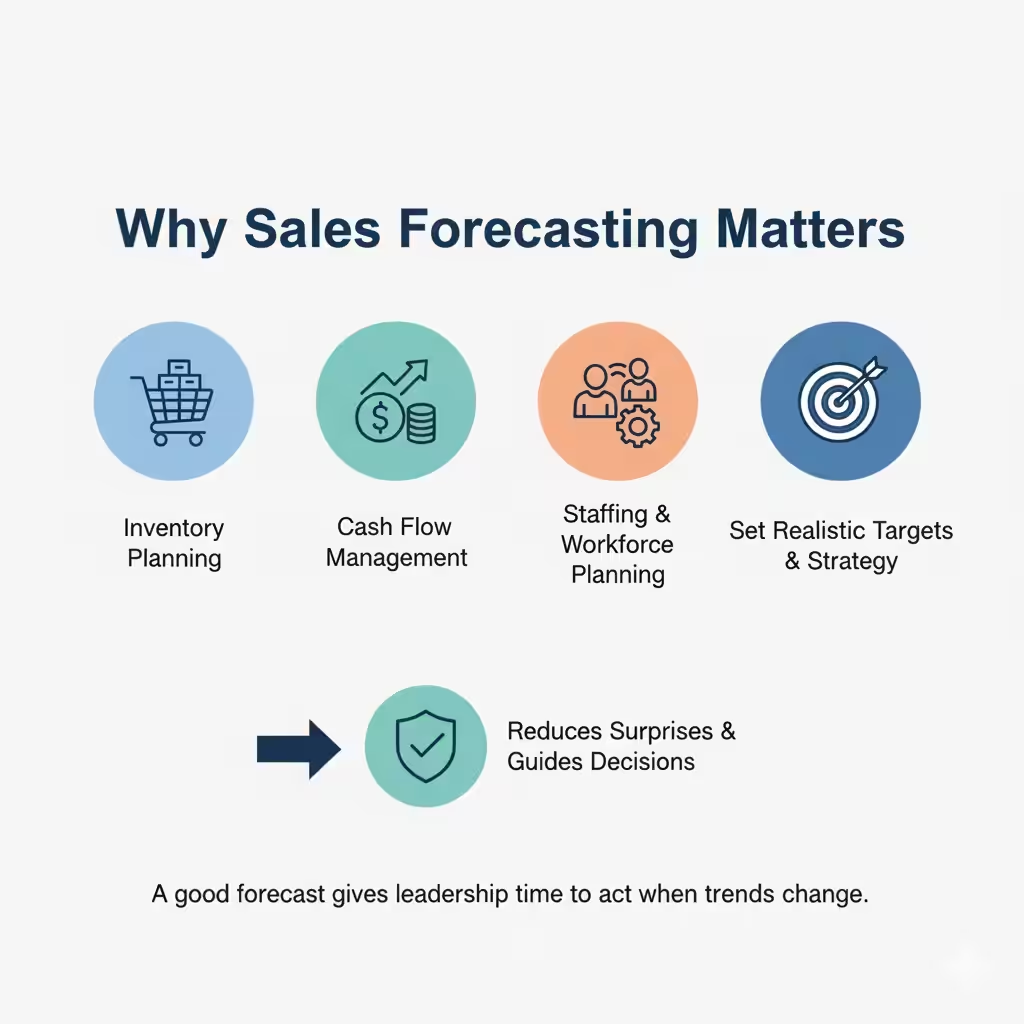
Accurate sales forecasting is essential for inventory planning, cash flow management, staffing, and strategic decision making. Microsoft Excel remains one of the most accessible and flexible tools for creating reliable sales forecasts. Whether you are building a simple short-term forecast or a more sophisticated model that feeds into your business planning, this step-by-step guide will show you how to forecast sales in Excel, interpret results, and improve the model over time.
Why Sales Forecasting Matters
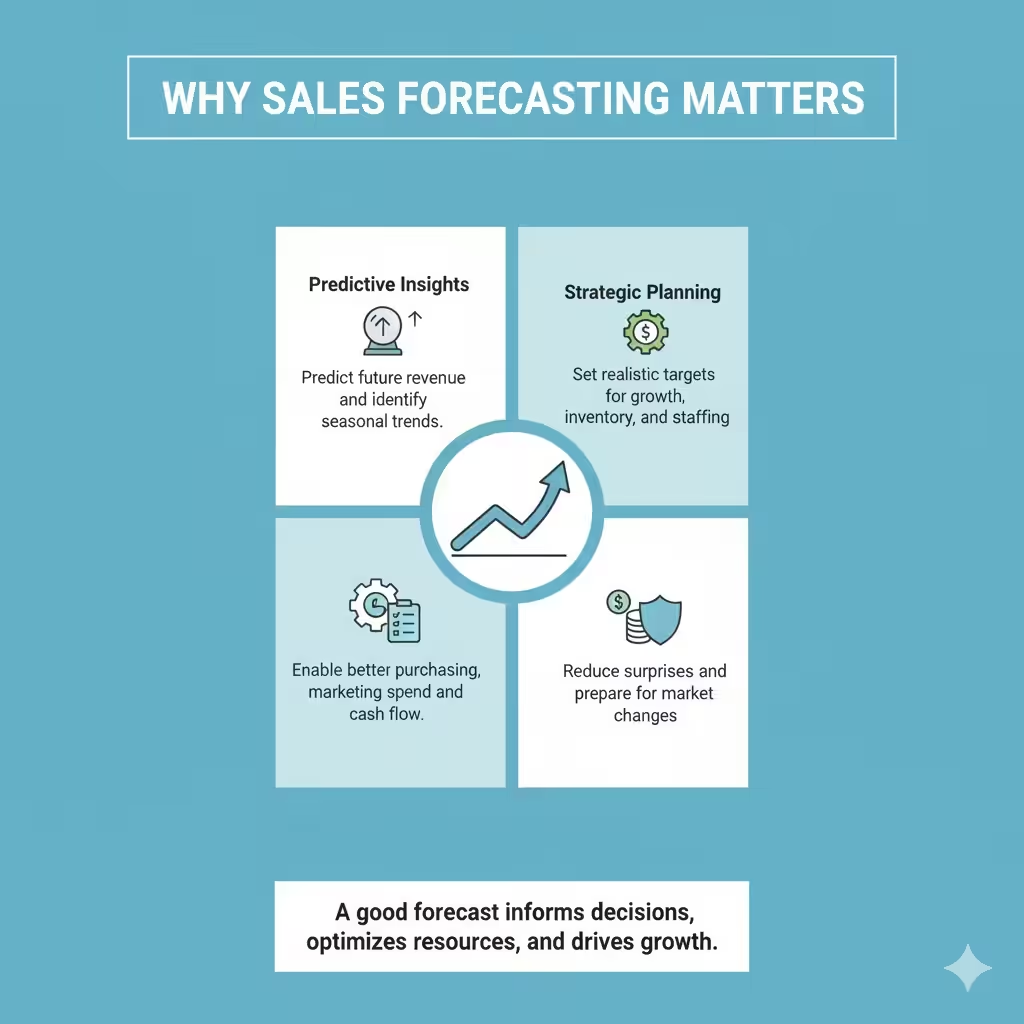
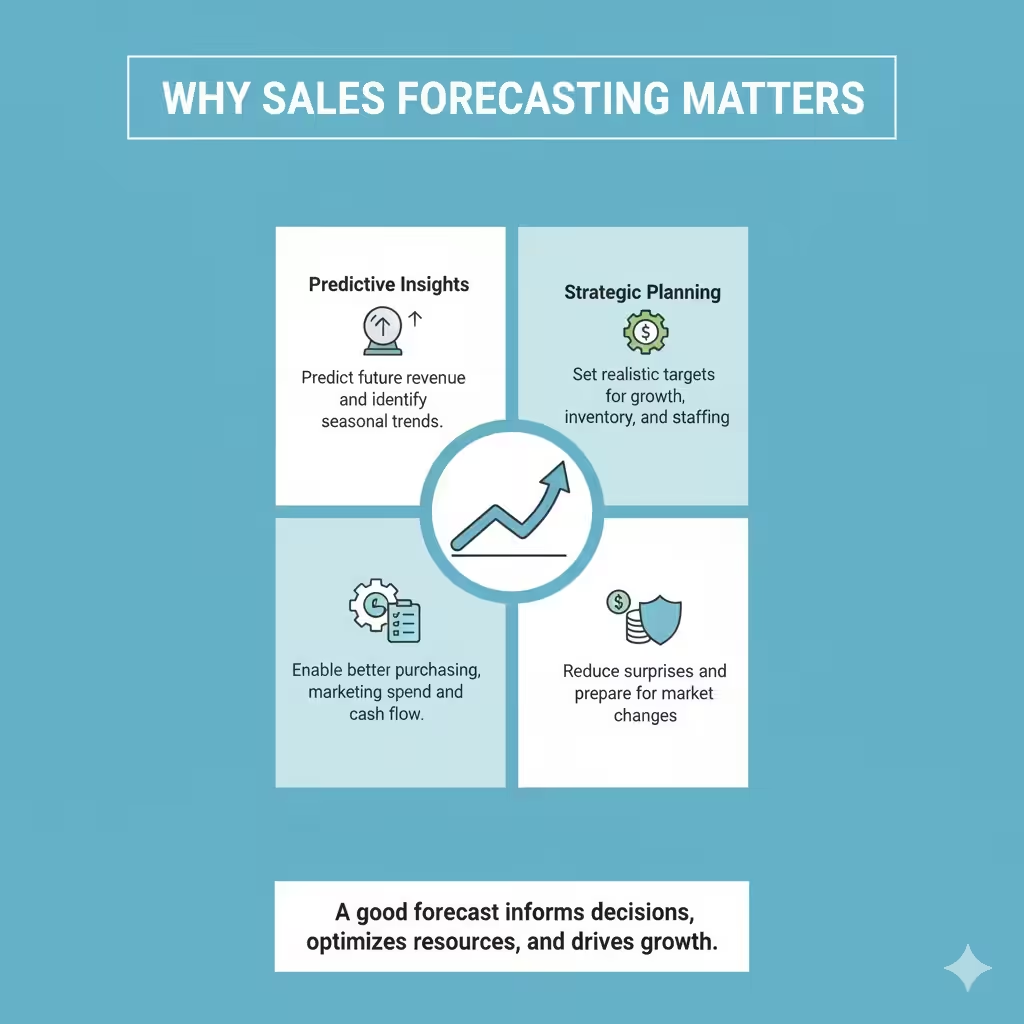
Sales forecasts help companies predict future revenue, identify seasonal patterns, and set realistic targets. They enable better purchasing decisions, marketing allocations, and workforce planning. A good forecast reduces surprises and gives leadership time to act when trends change.
Prepare Your Data
The quality of any forecast depends on the quality of your data. Before you build models in Excel, make sure your dataset is clean and well structured.
-
Gather historical sales data by consistent time period such as daily, weekly, monthly, or quarterly.
-
Include relevant fields such as date, sales amount, units sold, product or SKU, channel, region, and any promotional flags.
-
Sort by date with no gaps in the timeline. If there are missing periods, decide whether to fill them with zeros, averages, or to exclude them.
-
Remove obvious data entry errors and outliers or document why an outlier exists. Outliers can skew simple trend models if not handled properly.
Store your data in an Excel table. Select your range and press Ctrl + T to convert it to a table. Tables make formulas and charts easier to manage.
Visualize the Sales History
Visualizing the data helps you see seasonality and trends before modeling.
-
Create a line chart of sales over time. Select the date and sales columns then Insert Chart and choose Line.
-
Add a moving average trendline to the chart via Chart Elements or use Excel’s built-in Trendline options.
-
If you track product categories or regions, build small multiple charts or use a pivot chart to compare patterns.
Visualization informs which forecasting method is most appropriate. A steadily upward line suggests a trend model. Regular peaks and troughs indicate seasonality. Random noise may require smoothing.
Simple Forecasting: Excel’s FORECAST and FORECAST.ETS
Excel provides built-in functions for quick forecasts.
FORECAST.LINEAR works for simple linear relationships. The formula looks like:
Use this to predict a future point based on a linear trend.
For time-based forecasts that include seasonality, use Excel’s exponential smoothing function FORECAST.ETS:
FORECAST.ETS automatically detects seasonality and is often the fastest path to a usable forecast.
Build a Basic Forecast Model
Follow these steps to build a straightforward monthly forecast.
-
Create a summary table with two columns: Period (month) and Sales.
-
Add a column for a moving average. For a three-month moving average, use:
Copy down the column.
3. Add a trend forecast using FORECAST.LINEAR. If your date axis is serial numbers, pass them as known_x’s.
4. Add a seasonal index if you identify seasonality. Calculate average sales per month divided by the overall monthly average to form a seasonal multiplier. Multiply your trend forecast by the seasonal index for each month.
This combination gives a trend-plus-seasonality approach that is easy to explain and adjust.
Advanced Forecasting Techniques
For greater accuracy, especially with complex datasets, consider these techniques.
Use Excel’s Data Analysis Add-In
-
Enable Analysis ToolPak via File > Options > Add-ins.
-
Use the Regression tool to test relationships between sales and drivers such as ad spend, price, or promotions.
Create a Decomposition Model
-
Decompose time series into trend, seasonal, and residual components using smoothing or moving averages.
-
Model the trend (linear or nonlinear), measure seasonal indices, and recombine to forecast.
Leverage Power Query and Power Pivot
-
Use Power Query to prepare and transform large datasets.
-
Use Power Pivot and DAX to build measures that account for filters like product, region, or channel, enabling dynamic forecasting in pivot tables.
Use Scenario Analysis and What-If
-
Create best case, base case, and worst case scenarios by applying different growth rates or conversion assumptions.
-
Use Data > What-If Analysis > Scenario Manager or Data Table to see how changes affect revenue and margins.
Evaluate Forecast Accuracy
Always measure how well your forecast is doing relative to actuals.
Common accuracy metrics:
-
Mean Absolute Error (MAE): average absolute difference between forecast and actual.
-
Mean Absolute Percentage Error (MAPE): mean of absolute percentage errors. Use carefully when actuals are near zero.
-
Root Mean Squared Error (RMSE): penalizes larger errors more heavily.
Compute accuracy using formulas: for example MAPE:
Track these metrics over time and use them to refine model selection.
Automate and Scale with Excel Tools
To make the process repeatable:
-
Use named ranges, structured tables, and formulas so new data overlaps seamlessly.
-
Create templates with input cells for assumptions like growth rate, seasonality multiplier, and promotion lift.
-
Use Power Query to refresh data from CSVs or databases automatically.
-
Protect formula cells and add clear input areas so stakeholders can try scenarios without breaking the model.
Communicate the Forecast
A forecast is only useful when understood. Present results in a clear format.
-
Dashboard: Build a one-page dashboard with total forecast by period, variance to target, and key charts.
-
Highlight assumptions: list growth drivers, seasonality assumptions, and promotional impacts.
-
Use pivot tables to provide slice-and-dice views by product, channel, or territory.
-
Provide confidence ranges: show optimistic and conservative bands to indicate uncertainty.
Continuous Improvement
Forecasts improve with feedback loops.
-
Compare forecast to actuals monthly and log the errors.
-
Investigate large deviations. Were promotions or supply constraints the cause? Adjust your model inputs or structure.
-
Incorporate new predictors like web traffic, lead volume, or economic indicators as you validate their correlation to sales.
Final Tips for Success
-
Keep the model as simple as possible for the required accuracy. Complexity does not always equal better results.
-
Document assumptions and version changes.
-
Regularly refresh historical data and retrain seasonal indices.
-
Balance automated tools with human judgment. Sales forecasts are both art and science.
Conclusion
Sales forecasting in Excel is an essential capability for businesses of every size. By preparing clean data, visualizing patterns, choosing appropriate forecasting functions, and evaluating performance, you can build forecasts that guide decisions and reduce risk. Start with simple trend and seasonal models, measure accuracy metrics, and progressively adopt more advanced techniques like regression, Power Query, and scenario analysis. With an organized Excel workflow and ongoing refinement, your sales forecasts will become a trusted input for planning and growth.