


Easy Steps to Add Strikethrough Text Effect in Excel
When working in Microsoft Excel, formatting plays a vital role in keeping your spreadsheets organized and easy to read. One of the lesser-known yet useful formatting features is the strikethrough option. It allows you to cross out text in a cell—perfect for marking completed tasks, canceled items, or outdated data.
In this comprehensive guide, you’ll learn how to use strikethrough text in Excel using various methods, including keyboard shortcuts, ribbon commands, and conditional formatting. Whether you’re using Excel on Windows, Mac, or the web, these steps will help you apply strikethrough quickly and efficiently.
Understanding the Strikethrough Formatting in Excel
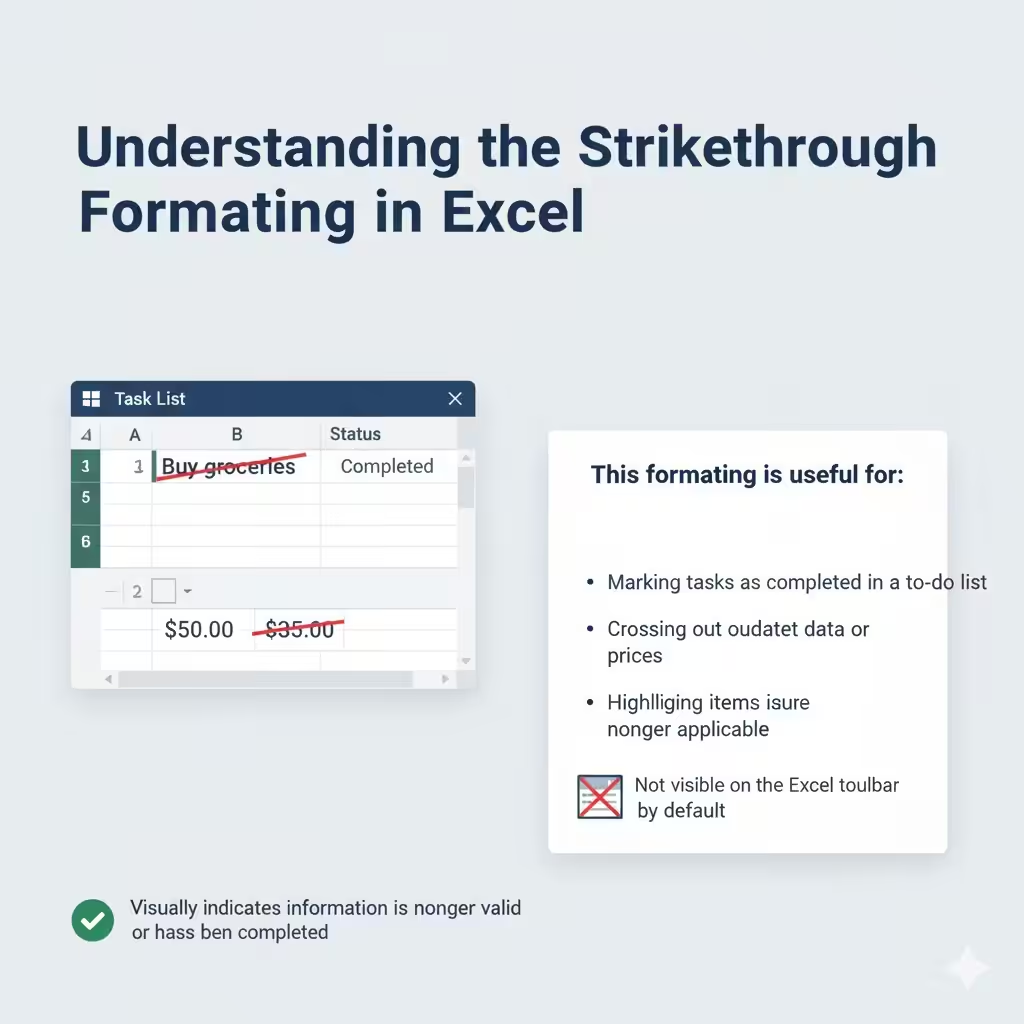
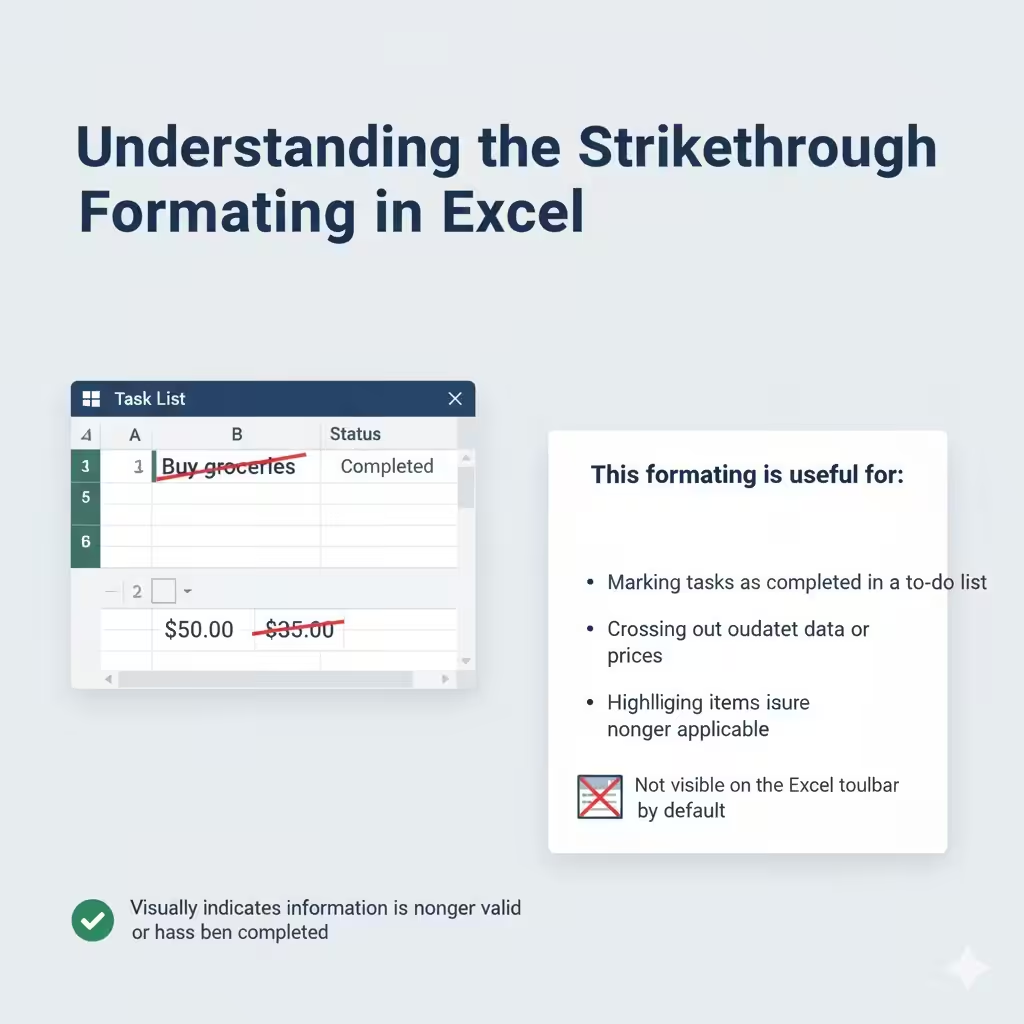
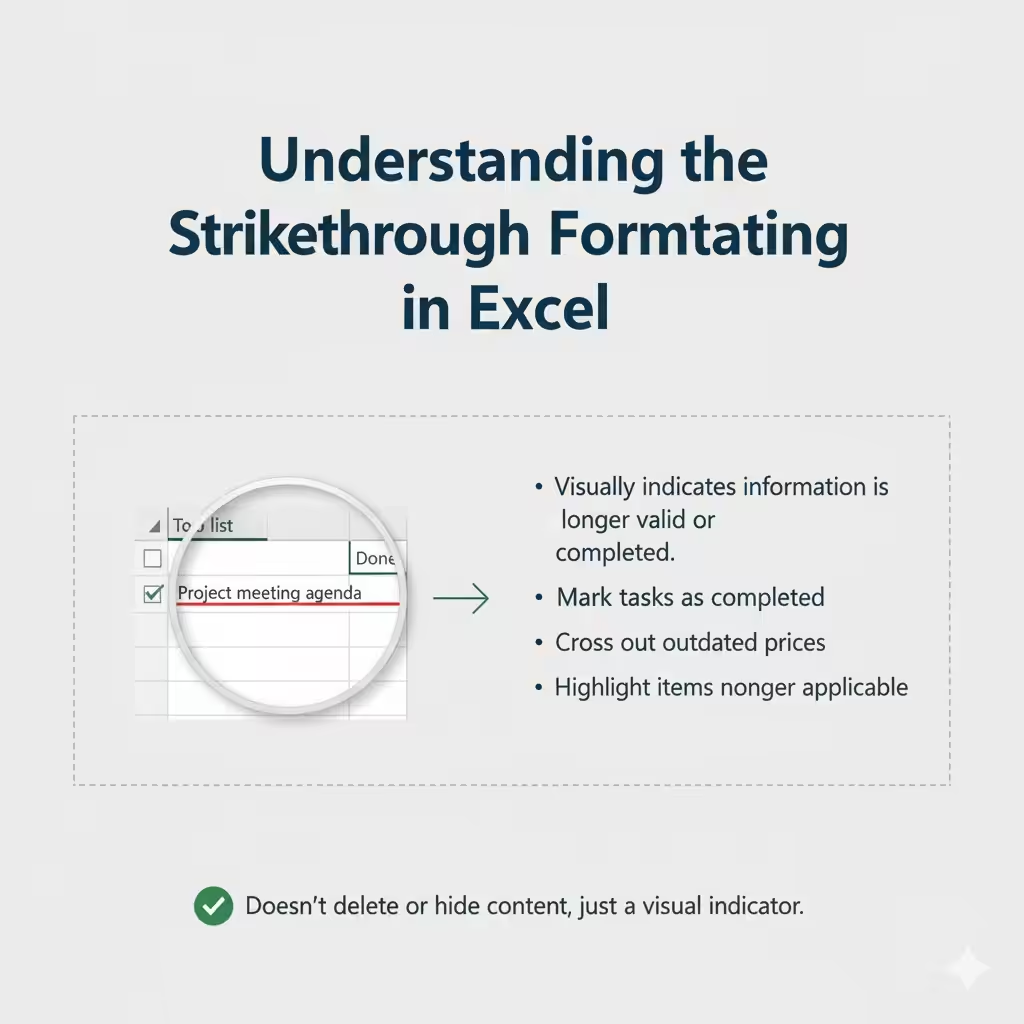
The strikethrough format places a horizontal line through the middle of the text in a cell. It doesn’t delete or hide the content but visually indicates that the information is no longer valid or has been completed.
This formatting is especially useful in situations like:
-
Marking tasks as completed in a to-do list.
-
Crossing out outdated data or prices in a comparison sheet.
-
Highlighting items that are no longer applicable in project tracking or budget sheets.
Unlike other text effects such as bold or italic, strikethrough isn’t visible on the Excel toolbar by default, which is why many users don’t know how to apply it.
1. Apply Strikethrough Using Keyboard Shortcuts (Windows and Mac)
The quickest and easiest way to apply strikethrough in Excel is through a keyboard shortcut.
For Windows Users:
-
Select the cell or part of the text inside a cell.
-
Press Ctrl + 5 on your keyboard.
This will instantly apply or remove strikethrough formatting.
For Mac Users:
-
Select the cell or text.
-
Press Command + Shift + X.
This shortcut toggles strikethrough on or off, just like the Windows version.
Tip: You can also apply this to multiple cells at once by selecting the entire range before pressing the shortcut keys.
2. Apply Strikethrough Using the Format Cells Dialog Box
If you prefer using menus or don’t remember shortcuts, you can use the Format Cells dialog box.
Steps:
-
Select the cell or range where you want to apply strikethrough.
-
Right-click and choose Format Cells from the context menu.
-
In the Format Cells window, go to the Font tab.
-
Under Effects, check the box next to Strikethrough.
-
Click OK.
The selected text will now appear crossed out.
This method gives you more control because you can combine strikethrough with other text styles such as bold, italic, or underline.
3. Add a Strikethrough Button to the Excel Ribbon or Quick Access Toolbar
If you frequently use strikethrough, you can make it more accessible by adding it to the Ribbon or Quick Access Toolbar.
Steps to Add Strikethrough to the Quick Access Toolbar:
-
Click the small arrow at the top of the Excel window (next to the Quick Access Toolbar).
-
Choose More Commands.
-
In the “Choose commands from” dropdown, select All Commands.
-
Scroll down and find Strikethrough.
-
Click Add >>, then select OK.
You’ll now see a strikethrough icon at the top of Excel, which you can click anytime to apply or remove the effect.
To Add It to the Ribbon:
-
Right-click anywhere on the Ribbon and select Customize the Ribbon.
-
Choose the tab where you want to add strikethrough (like Home).
-
Create a new group if needed by clicking New Group.
-
From the left list, find Strikethrough, click Add, and then OK.
You’ll now have a visible strikethrough button within your preferred tab for quick formatting.
4. Use Conditional Formatting to Apply Strikethrough Automatically
If you want Excel to apply strikethrough formatting automatically based on a condition—such as marking completed tasks—you can use Conditional Formatting.
Example Scenario:
You have a task list in Excel, and you want completed tasks (marked as “Done”) to appear with strikethrough formatting.
Steps:
-
Select the range of cells you want to apply the rule to.
-
Go to the Home tab.
-
Click Conditional Formatting > New Rule.
-
Choose Use a formula to determine which cells to format.
-
Enter a formula such as:
(assuming column B contains the status of each task).
-
Click Format, go to the Font tab, and check Strikethrough.
-
Click OK twice.
Now, any time you mark a cell as “Done,” Excel will automatically cross out the corresponding text.
This technique is powerful for automating repetitive formatting tasks.
5. Apply Strikethrough to Part of a Cell’s Text
Sometimes, you may want to strike through only a portion of the text within a single cell rather than the entire cell.
Steps:
-
Double-click the cell (or press F2) to enter edit mode.
-
Select the specific text portion you want to cross out.
-
Press Ctrl + 5 (Windows) or Command + Shift + X (Mac).
Only the highlighted text will be affected, leaving the rest unchanged.
This is particularly useful for notes, comments, or mixed data entries within one cell.
6. Remove Strikethrough Formatting
If you’ve applied strikethrough and want to remove it, simply follow the same methods again—strikethrough works as a toggle.
You can:
-
Press Ctrl + 5 (Windows) or Command + Shift + X (Mac).
-
Or open the Format Cells dialog and uncheck Strikethrough.
The text will return to its normal appearance instantly.
7. Bonus Tip: Combine Strikethrough with Other Formatting
Excel allows you to combine strikethrough with other text effects for better readability. For example, you can:
-
Use Bold + Strikethrough for canceled tasks.
-
Use Italic + Strikethrough for outdated comments.
-
Use Font color changes (like gray) with strikethrough for subtle emphasis.
To do this, open the Format Cells dialog and apply multiple effects under the Font tab.
Common Reasons Strikethrough May Not Work
If you can’t apply strikethrough in Excel, check the following:
-
The cell is locked or protected. You may need to unprotect the worksheet first.
-
Conditional formatting conflicts. If a conditional format overwrites your manual formatting, edit or delete that rule.
-
View mode limitations. Some Excel web versions or mobile apps may not fully display text effects.
Conclusion
The strikethrough text feature in Excel is a simple yet powerful tool that enhances your spreadsheet organization and productivity. Whether you’re tracking projects, managing to-do lists, or cleaning up old data, strikethrough helps you visualize progress clearly and neatly.
You can apply it quickly using keyboard shortcuts, through the Format Cells dialog, or even automate it using Conditional Formatting. And if you use it often, adding a Strikethrough button to your Ribbon or Toolbar will save you time every day.