


How to Install and Set Up Microsoft Teams Properly
Microsoft Teams is a powerful collaboration platform designed to bring conversations, meetings, files, and apps together in one place. Whether you are setting it up for work, school, or personal use, a proper setup ensures smoother communication and better productivity from the start.
This complete guide walks you through how to set up Microsoft Teams step by step, from creating an account to configuring teams, channels, meetings, and essential settings. It is suitable for beginners as well as users who want a structured setup.
What You Need Before Setting Up Microsoft Teams
Before installing and using Microsoft Teams, make sure you have the basics ready.
You will need a stable internet connection, a supported device such as a Windows PC, Mac, smartphone, or tablet, and a Microsoft account. For work or school use, your organization may provide you with a Teams-enabled account.
Microsoft Teams works best with a microphone, speakers or headphones, and a webcam if you plan to join meetings.
Create a Microsoft Account for Teams
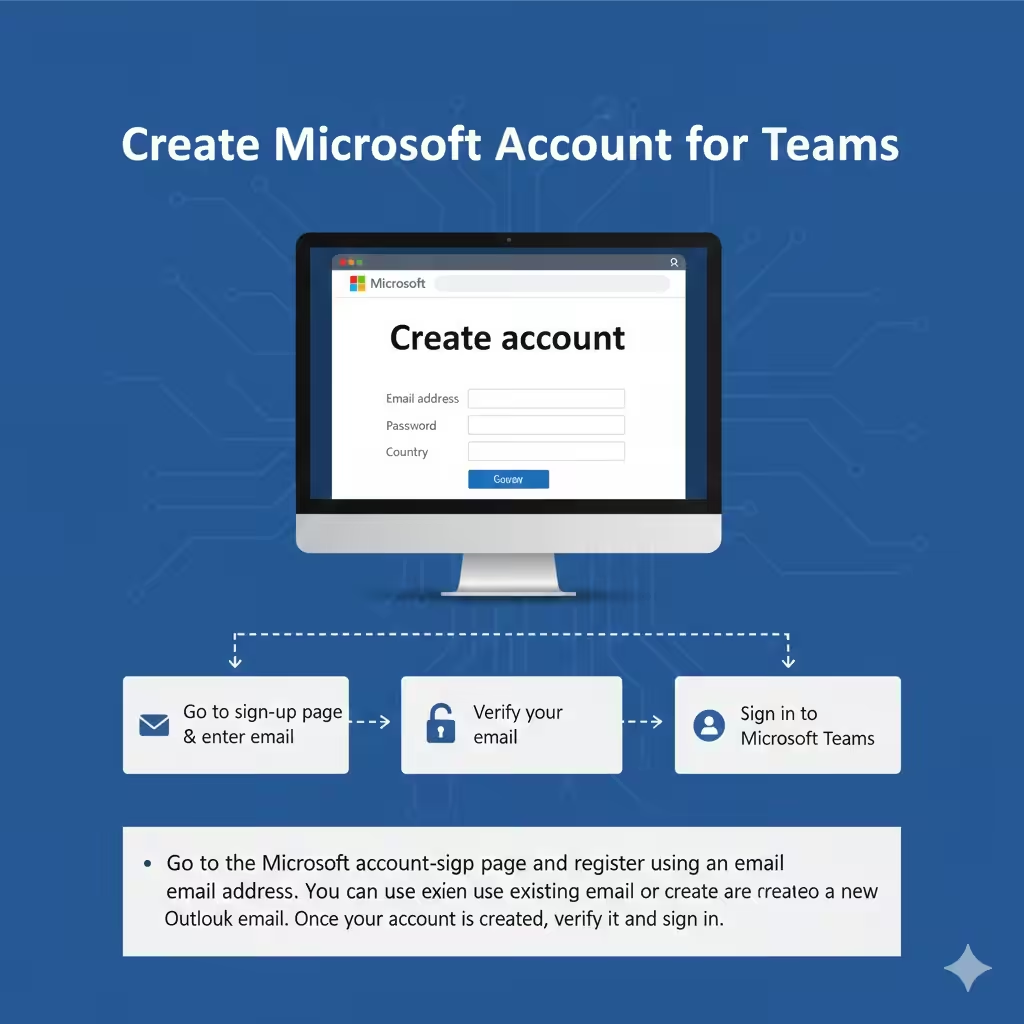
If you do not already have a Microsoft account, you must create one to use Teams.
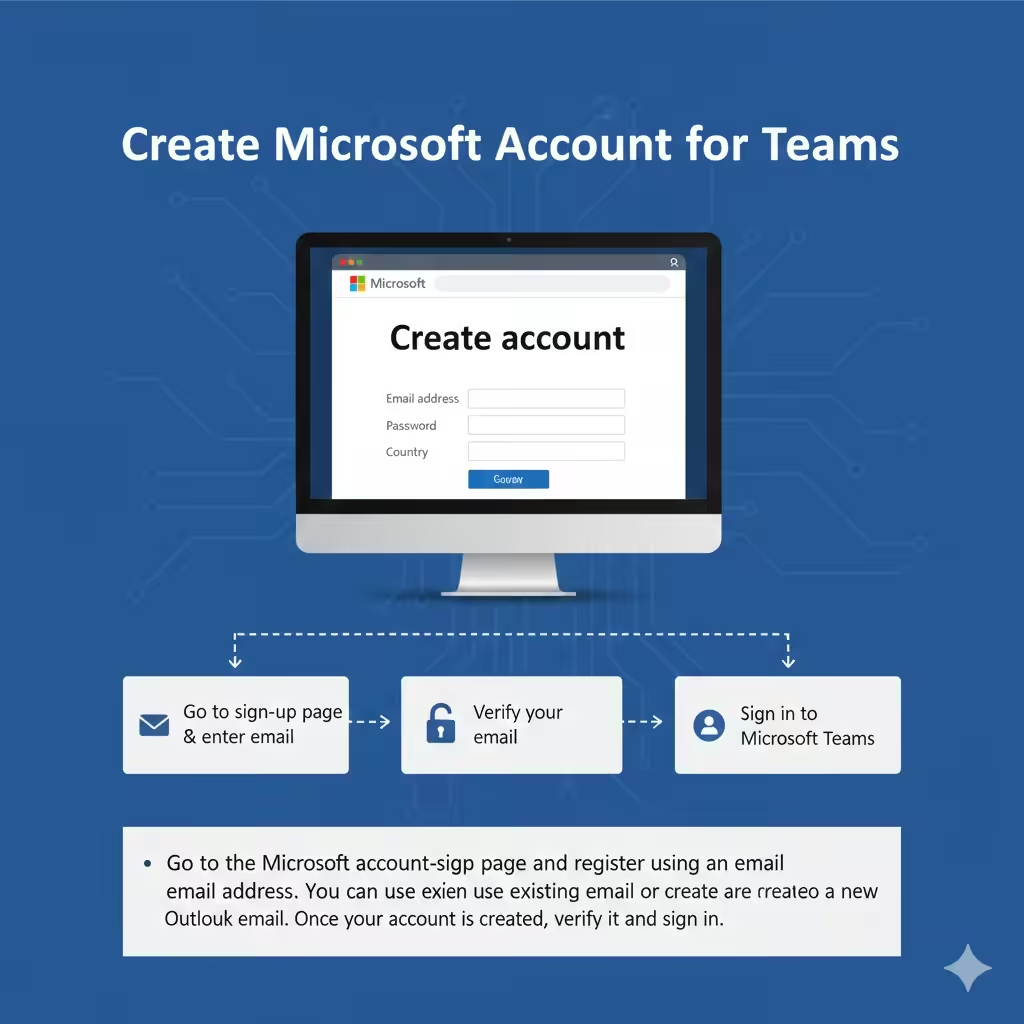
Go to the Microsoft account sign-up page and wp-signup.php using an email address. You can use an existing email or create a new Outlook email. Once your account is created, verify it and sign in.
For work or school, use the account provided by your organization instead of creating a personal one.
Download and Install Microsoft Teams
Microsoft Teams is available on multiple platforms.
Install Microsoft Teams on Windows or Mac
Visit the official Microsoft Teams website and download the desktop app for your operating system. Open the installer and follow the on-screen instructions to complete installation.
Once installed, launch Teams and sign in with your Microsoft account.
Install Microsoft Teams on Mobile Devices
Open the App Store or Google Play Store on your phone or tablet. Search for Microsoft Teams and install the app. Sign in using your Microsoft account after installation.
Use Microsoft Teams on the Web
If you do not want to install the app, you can use Teams directly in a web browser by visiting the Teams web interface. The web version supports most core features.
Sign In and Choose Your Teams Version
After signing in, Microsoft Teams may ask you whether you are using it for work, school, or personal use.
Choose the option that matches your situation. This helps Teams configure the interface and available features correctly.
Create Your First Team
Teams are the main workspaces where collaboration happens.
To create a team, click on the Teams section and choose the option to create a new team. You can create a team from scratch or use an existing template, depending on your needs.
Give your team a clear name and description. Choose whether the team is private or public. A private team requires approval to join, while a public team is open to everyone in the organization.
Add Members to Your Team
Once your team is created, you can invite members.
Add members by entering their email addresses. You can assign roles such as owner or member. Owners manage team settings, while members participate in conversations and collaboration.
For work or school accounts, you may also add entire groups or departments.
Set Up Channels for Better Organization
Channels help organize conversations and content within a team.
Each team includes a General channel by default. You can create additional channels for specific topics, projects, or departments.
Name channels clearly and use descriptions so members understand their purpose. Channels can be standard, private, or shared, depending on who should have access.
Customize Your Microsoft Teams Settings
Customizing settings improves usability and comfort.
Adjust Profile and Status
Click on your profile picture to update your display name, profile photo, and status message. Setting your status helps colleagues know when you are available.
Configure Notifications
Open Teams settings and customize notifications for chats, mentions, meetings, and channel activity. Proper notification settings help you stay informed without being overwhelmed.
Set Language and Time Zone
Choose the correct language and time zone to ensure accurate meeting times and interface display.
Set Up Meetings in Microsoft Teams
Meetings are one of the most important features of Teams.
You can schedule meetings through the Calendar section. Choose the date, time, participants, and meeting details. Teams meetings can be joined from the app, browser, or mobile device.
You can also start instant meetings directly from a chat or channel.
Test Audio and Video Settings
Before joining your first meeting, test your audio and video.
Go to Teams settings and select Devices. Choose your microphone, speakers, and camera. Use the test call feature to ensure everything works correctly.
This step prevents technical issues during important meetings.
Share Files and Collaborate in Teams
Microsoft Teams integrates with OneDrive and SharePoint for file sharing.
You can upload files directly to channels or chats. Team members can view, edit, and collaborate on documents in real time using Office apps.
Organizing files within channels helps keep information easy to find.
Install and Manage Apps in Microsoft Teams
Teams supports apps that extend functionality.
You can add apps such as Planner, OneNote, Forms, or third-party tools. Apps can be added to teams, channels, or personal use.
Choose apps that match your workflow to improve productivity.
Security and Privacy Settings in Microsoft Teams
Microsoft Teams includes built-in security features.
You can control who can contact you, who can add you to teams, and how files are shared. For organizations, administrators manage advanced security settings such as access policies and data protection.
Understanding these settings helps protect sensitive information.
Common Setup Issues and How to Fix Them
Some users experience problems during setup.
Sign-in errors are often caused by incorrect credentials or network restrictions. Installation issues may require administrative permissions. Audio or video problems usually result from incorrect device selection or outdated drivers.
Most issues can be resolved by updating the app, checking system permissions, or restarting the device.
Best Practices for Using Microsoft Teams Effectively
To get the most out of Teams, keep teams and channels well organized, use clear naming conventions, and avoid creating unnecessary channels. Encourage members to use mentions responsibly and keep conversations relevant.
Regularly review settings and installed apps to maintain a clean workspace.
Frequently Asked Questions
Microsoft Teams can be used for free with a personal Microsoft account, though some features are limited. Teams works on most modern devices and browsers. You can use Teams without a webcam, but audio is recommended for meetings.
Teams data is stored securely in Microsoft’s cloud services.
Conclusion
Setting up Microsoft Teams properly is the foundation for effective collaboration. By creating an account, installing the app, organizing teams and channels, and configuring settings, you can create a productive and efficient workspace for communication and teamwork.