


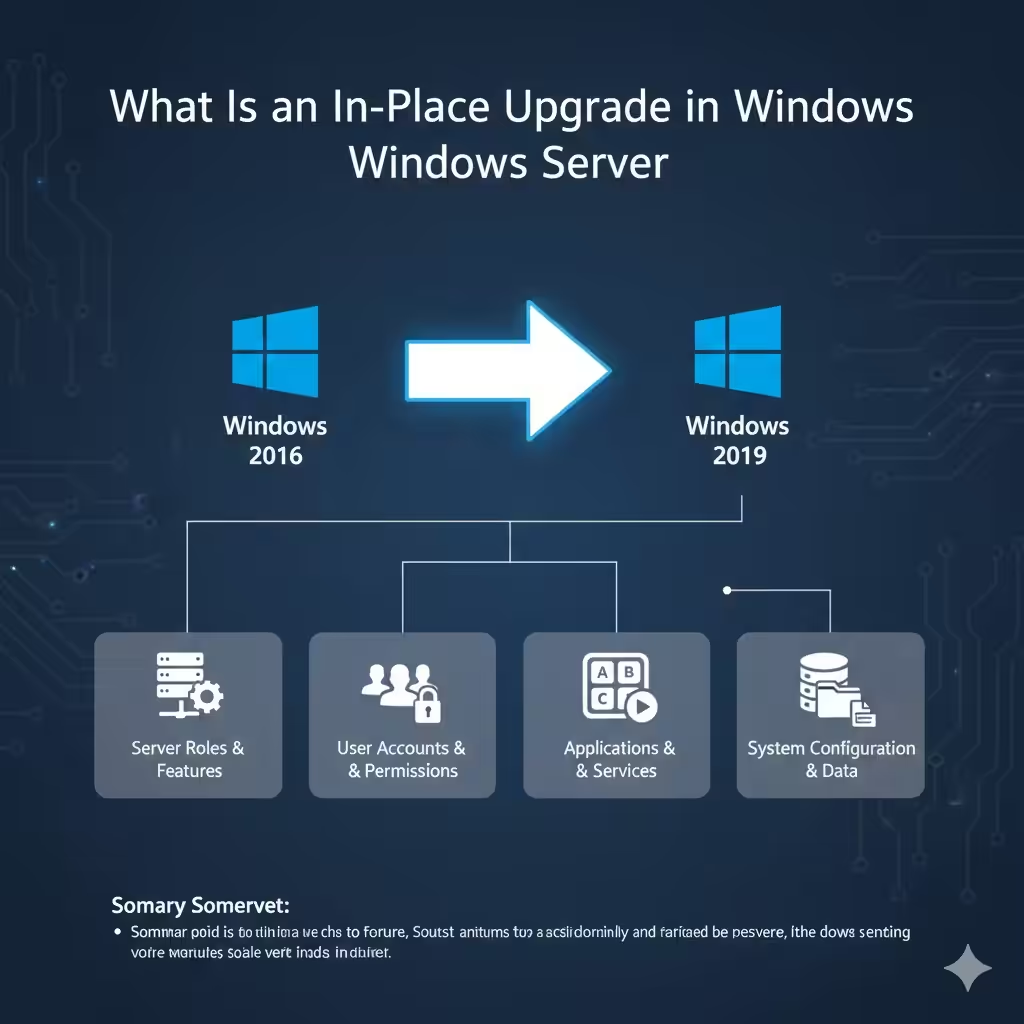
Windows Server 2019 In-Place Upgrade: Step-by-Step Professional Guide
Upgrading a server operating system is a critical task that requires careful planning and execution. An in-place upgrade to Windows Server 2019 allows administrators to move from an older Windows Server version to Server 2019 while keeping existing roles, settings, applications, and data intact. When done correctly, this approach minimizes downtime and reduces the need for full server reconfiguration.
This expert guide explains what an in-place upgrade is, when to use it, how to prepare, and how to perform a successful Windows Server 2019 in-place upgrade step by step.
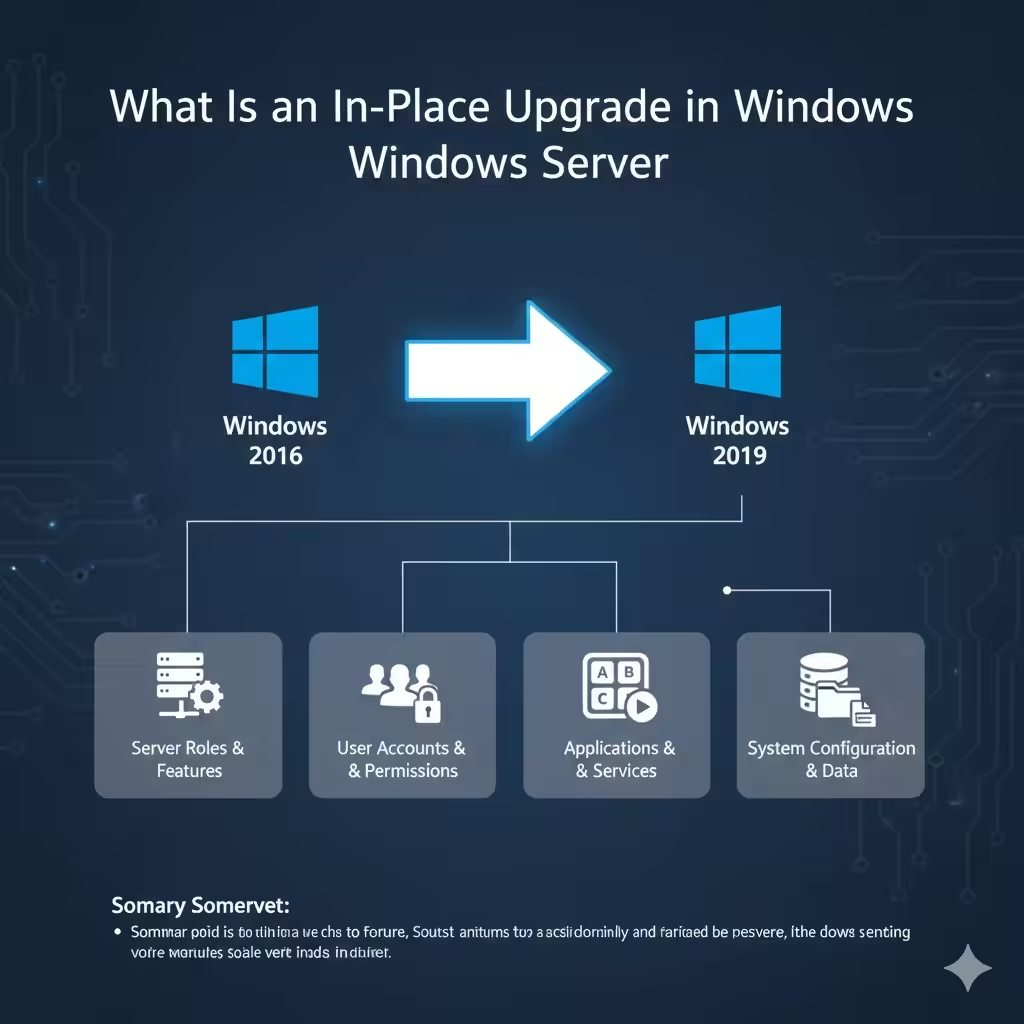
What Is an In-Place Upgrade in Windows Server
An in-place upgrade replaces the existing Windows Server operating system with a newer version while preserving:
-
Installed server roles and features
-
User accounts and permissions
-
Applications and services
-
System configuration and data
Unlike a clean installation, an in-place upgrade allows the server to continue functioning with minimal post-upgrade changes.
Why Choose Windows Server 2019
Windows Server 2019 offers improvements in security, performance, and hybrid cloud integration.
Key benefits include enhanced security features such as Windows Defender Advanced Threat Protection, improved virtualization capabilities with Hyper-V, better support for containers, and tighter integration with Azure services. These enhancements make Windows Server 2019 a stable and secure upgrade path for many environments.
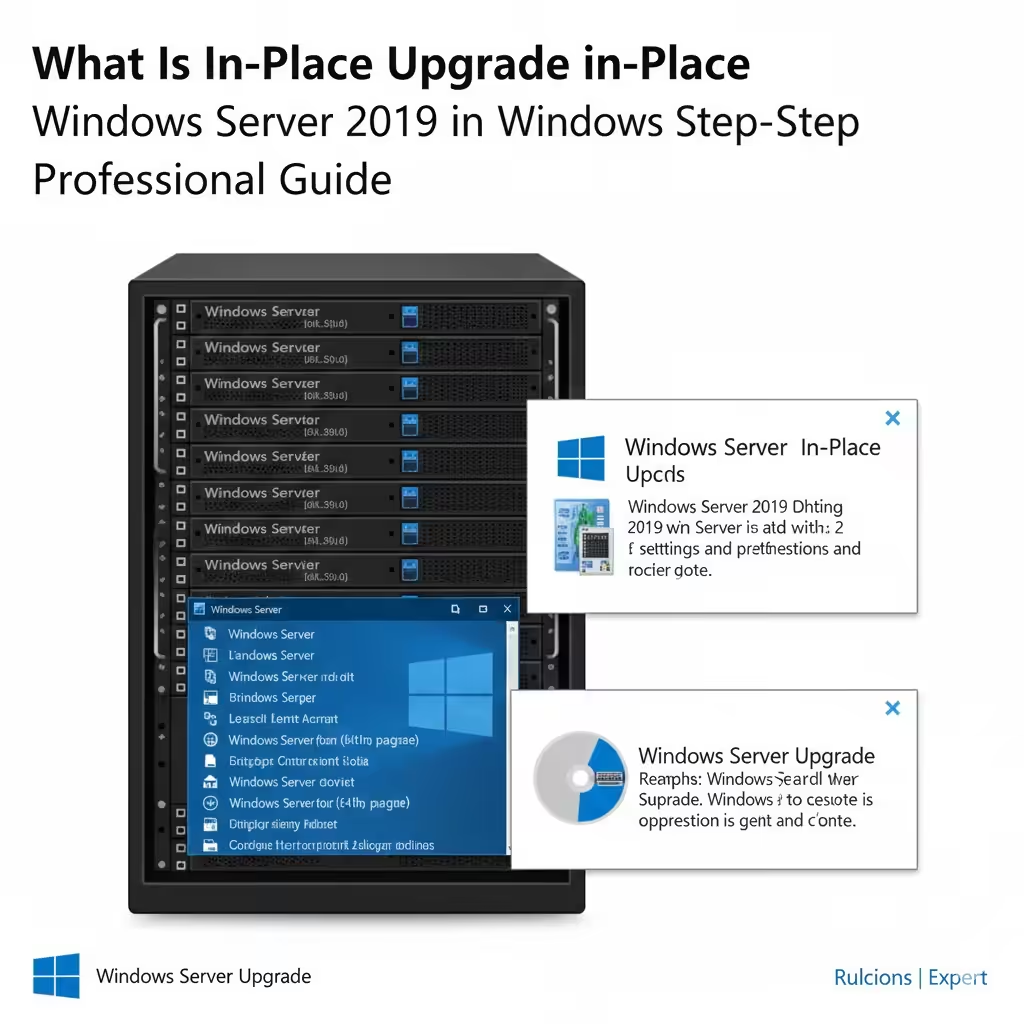
Supported Upgrade Paths to Windows Server 2019
Not all Windows Server versions support an in-place upgrade to Server 2019.
Supported upgrade paths typically include:
-
Windows Server 2012 R2 to Windows Server 2019
-
Windows Server 2016 to Windows Server 2019
Upgrading directly from Windows Server 2008 or 2008 R2 is not supported. In such cases, a clean installation or a multi-step upgrade is required.
When an In-Place Upgrade Is the Right Choice
An in-place upgrade is ideal when:
-
You want to keep existing roles and configurations
-
Applications are difficult to reinstall
-
Downtime must be minimized
-
Hardware meets Windows Server 2019 requirements
However, it may not be suitable for heavily customized systems or servers with legacy applications.
When You Should Avoid an In-Place Upgrade
You should consider a clean installation instead if:
-
The server has unresolved performance issues
-
System files are corrupted
-
The environment is cluttered with unused roles and applications
-
You want a fresh and optimized configuration
A clean installation provides better long-term stability but requires more setup work.
Pre-Upgrade Planning and Preparation
Preparation is the most important step in a successful in-place upgrade.
Check Hardware Compatibility
Ensure the server meets minimum hardware requirements for Windows Server 2019, including CPU architecture, RAM, disk space, and firmware compatibility.
Verify Application Compatibility
Confirm that all installed applications support Windows Server 2019. Contact software vendors if necessary.
Review Server Roles and Features
Document all server roles and features currently installed. This helps verify that everything functions correctly after the upgrade.
Update the Existing Server
Install all pending Windows updates before upgrading. A fully patched system reduces the risk of upgrade failures.
Back Up the Server Before Upgrading
A full backup is essential.
Create a system image backup and verify that it can be restored. Back up all critical data, including system state, application data, and configuration files.
This step ensures that you can recover quickly if the upgrade fails.
Prepare Installation Media for Windows Server 2019
Download the official Windows Server 2019 ISO file from Microsoft. Verify the checksum to ensure the file is not corrupted.
Mount the ISO or create bootable installation media. Since this is an in-place upgrade, you will run the setup from within the existing Windows environment.
How to Perform a Windows Server 2019 In-Place Upgrade
Start the upgrade by logging in as an administrator on the server. Mount the Windows Server 2019 ISO and run the setup file.
Choose the option to download updates during setup if internet access is available. Select the edition of Windows Server 2019 that matches your current edition, such as Standard or Datacenter.
When prompted, choose the option to keep personal files and apps. This ensures roles, settings, and data are preserved.
Follow the on-screen instructions and allow the upgrade to complete. The server will restart multiple times during the process.
Post-Upgrade Tasks and Verification
After the upgrade completes, log in and verify system functionality.
Check that all server roles and features are installed and running. Test applications and services to ensure they work correctly. Review Event Viewer for any errors or warnings related to the upgrade.
Install the latest Windows Server 2019 updates and update device drivers if necessary.
Common Issues During In-Place Upgrades
Some common issues include incompatible applications, insufficient disk space, and outdated drivers.
If the upgrade fails, review setup logs to identify the cause. In many cases, removing incompatible software and retrying the upgrade resolves the issue.
Performance and Security Considerations After Upgrade
After upgrading, review security settings and policies. Windows Server 2019 includes new security features that may require configuration.
Monitor server performance to ensure CPU, memory, and disk usage are within acceptable ranges. Adjust settings as needed to optimize performance.
Testing and Validation
Perform functional testing to confirm that business-critical services are operating normally. Test user access, network connectivity, backups, and disaster recovery procedures.
Validation ensures the server is ready for production use.
Best Practices for Long-Term Stability
Keep Windows Server 2019 updated with security patches and feature updates. Regularly review installed roles and remove unused components. Maintain regular backups and document configuration changes.
These practices help ensure long-term reliability and security.
Frequently Asked Questions
An in-place upgrade retains most configurations, but some settings may revert to defaults. Downtime depends on server performance and installed components but is usually manageable. It is possible to roll back if a backup is available.
Conclusion
A Windows Server 2019 in-place upgrade is a practical and efficient way to modernize your server infrastructure while preserving existing configurations and applications. With proper planning, thorough backups, and careful execution, the upgrade process can be smooth and reliable.