


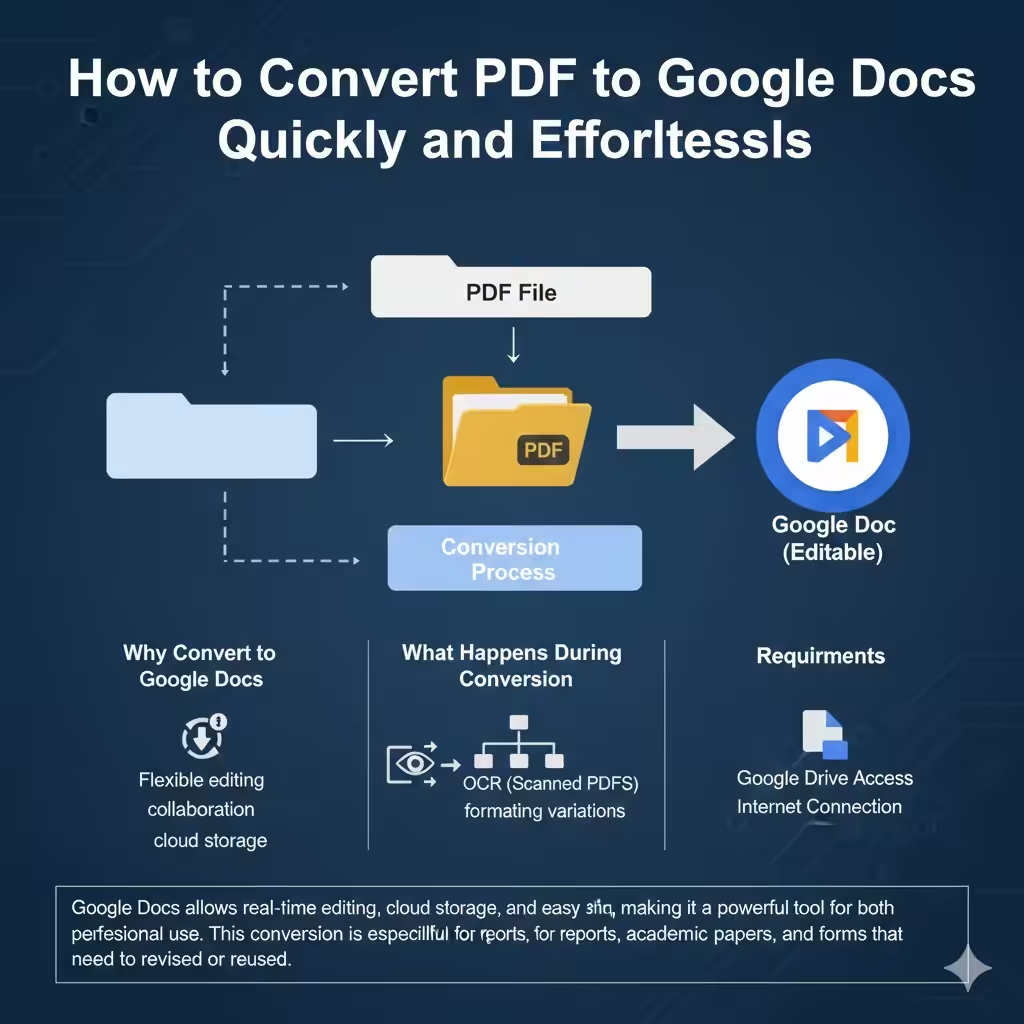
How to Convert PDF to Google Docs Quickly and Effortlessly
PDF files are excellent for sharing documents in a fixed format, but they are not always easy to edit. When you need to make changes, collaborate with others, or reuse content, converting a PDF into a Google Doc is often the most practical solution. Google Docs allows real-time editing, cloud storage, and easy sharing, making it a powerful tool for both personal and professional use.
This in-depth guide explains how to convert PDF to Google Doc easily, what to expect during the conversion process, common challenges, and tips to achieve the best results.
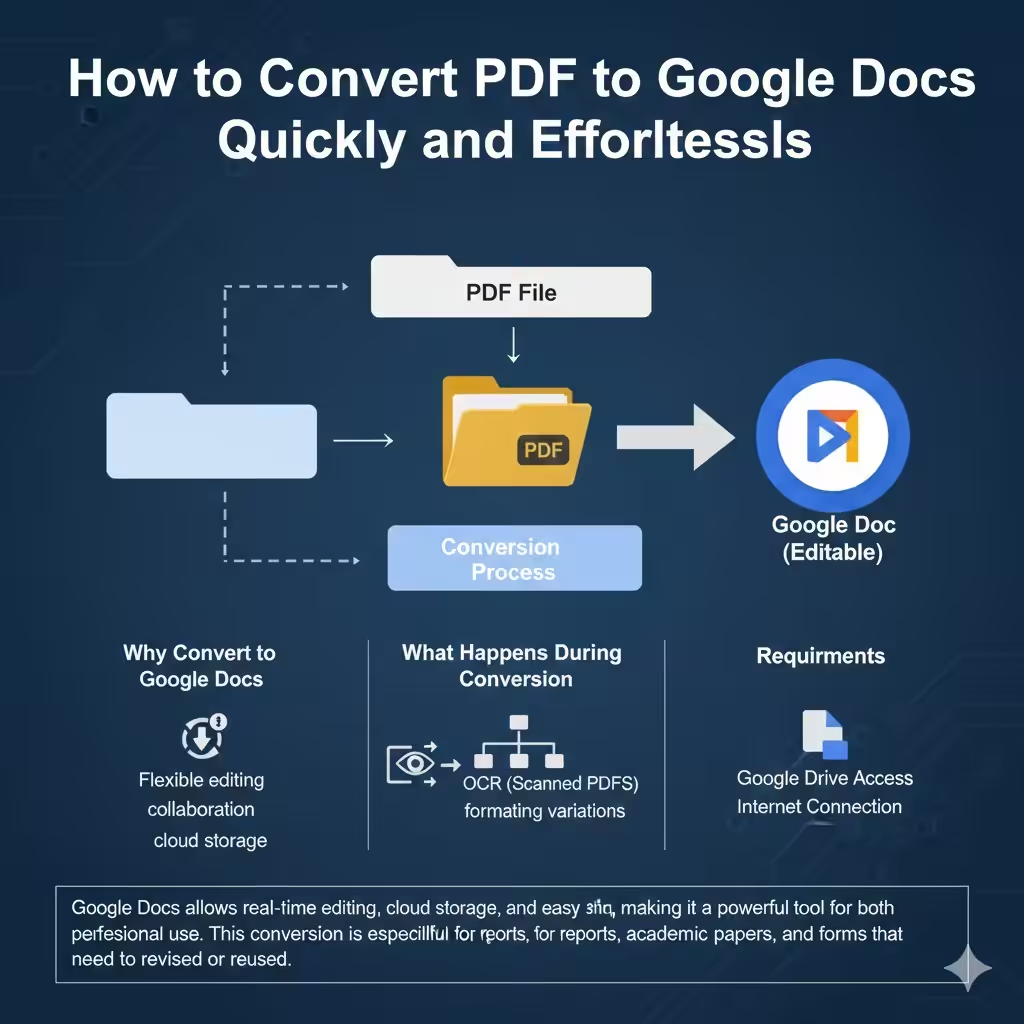
Why Convert a PDF to Google Docs
There are several reasons why converting PDFs to Google Docs is useful.
PDFs are designed to preserve layout and formatting, which makes them difficult to edit. Google Docs, on the other hand, offers flexible editing, commenting, and collaboration features. Converting a PDF to a Google Doc allows you to update text, add notes, share documents with others, and work across multiple devices without needing specialized software.
This conversion is especially helpful for contracts, reports, academic papers, scanned notes, and forms that need to be revised or reused.
What Happens When You Convert a PDF to Google Docs
When a PDF is converted to Google Docs, the text becomes editable, while images and basic formatting are preserved as much as possible. However, complex layouts, columns, tables, and fonts may not always transfer perfectly.
Scanned PDFs require optical character recognition, or OCR, to extract text. Google Docs supports OCR automatically when opening scanned PDFs, but accuracy depends on image quality.
Understanding these limitations helps set realistic expectations.
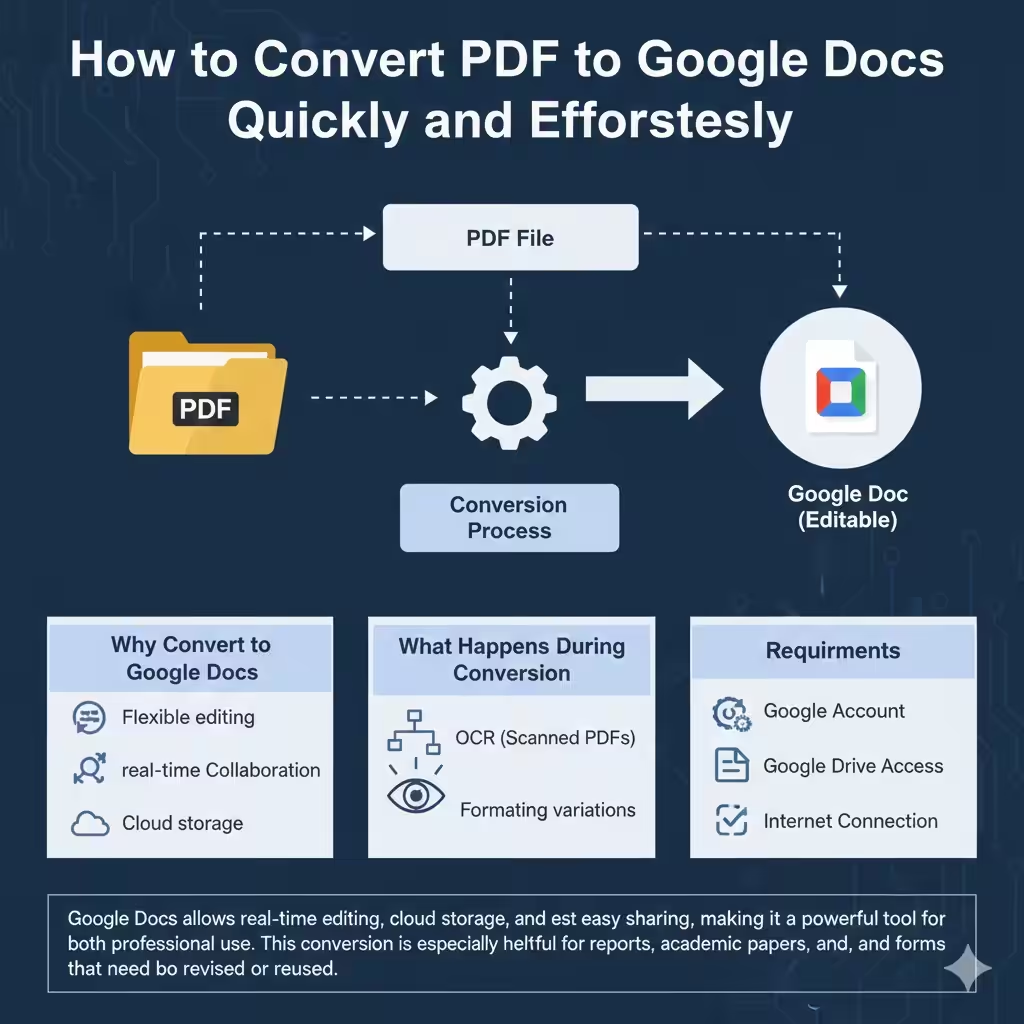
Requirements for Converting PDF to Google Doc
Before starting, ensure you have:
-
A Google account
-
Access to Google Drive
-
A stable internet connection
-
A PDF file saved on your device
No additional software or paid tools are required.
Method 1: Convert PDF to Google Doc Using Google Drive
This is the easiest and most widely used method.
Upload your PDF to Google Drive. Once uploaded, right-click the file and choose the option to open it with Google Docs. Google Drive will automatically convert the PDF into a Google Doc.
After conversion, the document opens in Google Docs and can be edited, shared, and saved like any other document.
This method works best for text-based PDFs with simple formatting.
Method 2: Convert Scanned PDF to Google Doc Using OCR
Scanned PDFs contain images of text rather than actual text data.
When you open a scanned PDF with Google Docs, Google automatically applies OCR to recognize the text. The extracted text appears as editable content in the document, while the original image may also be included.
For best OCR results, ensure the scanned document is clear, properly aligned, and high resolution.
Method 3: Convert PDF to Google Doc Using Online Tools
Some users prefer third-party online conversion tools for advanced formatting.
These tools can convert PDFs into editable documents compatible with Google Docs. After conversion, the file can be uploaded to Google Drive and opened in Google Docs.
While these tools may preserve formatting better, it is important to use trusted services to protect sensitive data.
How to Improve Formatting After Conversion
Formatting issues are common after converting PDFs.
You may need to adjust:
-
Headings and font sizes
-
Paragraph spacing
-
Tables and lists
-
Page breaks
Using Google Docs’ built-in formatting tools can quickly clean up the document. Applying consistent styles helps restore structure and readability.
Handling Images and Graphics
Images embedded in PDFs usually appear in the converted Google Doc. However, their placement may change.
You can resize, move, or replace images as needed. For complex graphics, it may be easier to reinsert them manually from the original PDF.
Editing and Collaborating in Google Docs
Once converted, Google Docs offers powerful collaboration features.
You can share the document with others, control editing permissions, leave comments, and track changes in real time. This makes it ideal for teamwork, peer reviews, and remote collaboration.
Changes are saved automatically, reducing the risk of data loss.
Common Issues During PDF to Google Doc Conversion
Some common problems include misaligned text, missing fonts, broken tables, and OCR errors.
These issues are more likely with complex layouts, scanned documents, or low-quality PDFs. Manually reviewing the document after conversion is always recommended.
Tips for Best Conversion Results
To achieve the best results:
-
Use high-quality PDFs
-
Avoid heavily formatted or multi-column layouts
-
Scan documents clearly and straight
-
Review and edit the document after conversion
Simple preparation can significantly improve accuracy.
Security and Privacy Considerations
When converting PDFs online, data security is important.
Google Drive uses encryption to protect uploaded files. If using third-party tools, ensure they have clear privacy policies and delete files after conversion.
Avoid uploading sensitive or confidential documents to unknown services.
Advantages of Using Google Docs After Conversion
Google Docs offers cloud-based storage, version history, cross-device access, and easy sharing. You can access your converted documents from anywhere and collaborate without sending multiple file versions.
These advantages make Google Docs a practical destination for converted PDFs.
Frequently Asked Questions
Converting a PDF to Google Docs does not change the original file. You can download the Google Doc as a PDF again after editing. Large or complex PDFs may take longer to convert and may require additional formatting.
Google Docs supports multiple languages for OCR, but accuracy varies depending on text clarity.
Conclusion
Converting a PDF to a Google Doc is an easy and efficient way to make documents editable and collaborative. Whether you are working with text-based PDFs or scanned documents, Google Drive and Google Docs provide a simple solution without requiring extra software.