


A Complete Guide to Teamwork and Sharing in Outlook
Microsoft Outlook is not just an email client — it’s a powerful productivity tool designed to enhance teamwork, organization, and communication. With features that let you share calendars, assign tasks, schedule meetings, and collaborate on emails, Outlook simplifies how teams work together in both personal and professional environments.
This guide will walk you through how to collaborate effectively in Microsoft Outlook, covering its main tools and techniques to improve communication and teamwork.
Understanding Collaboration in Outlook
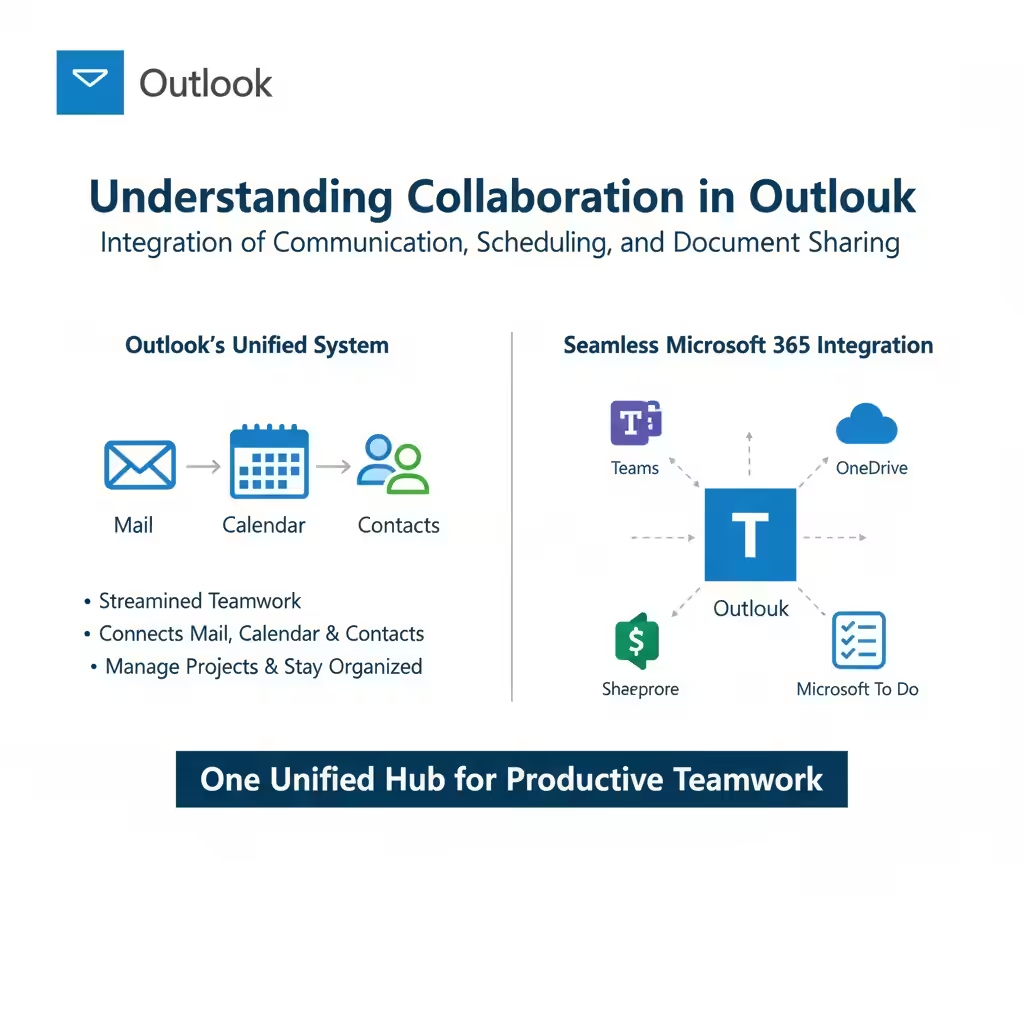
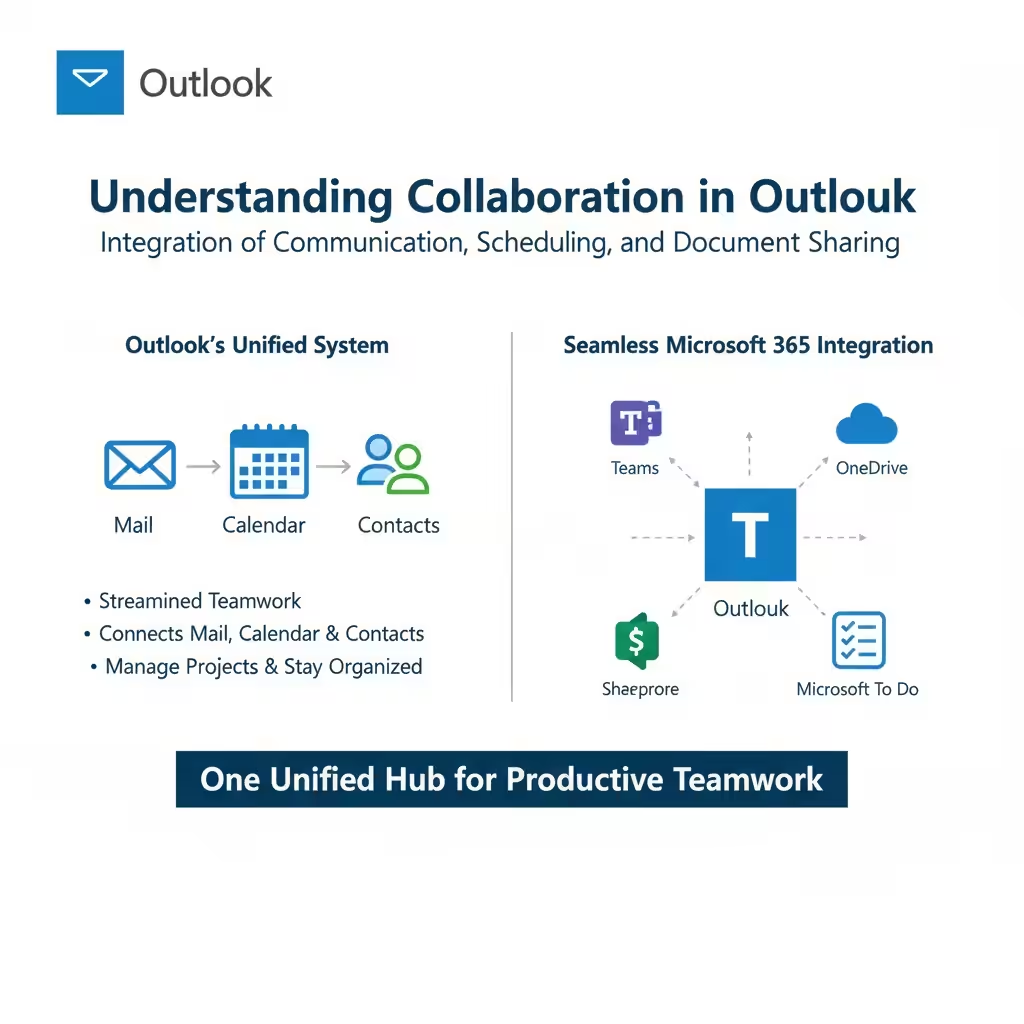
Collaboration in Outlook means more than just exchanging emails. It’s about integrating communication, scheduling, and document sharing into one unified system. Whether you’re working with coworkers on an Office 365 account or coordinating with external partners, Outlook helps streamline teamwork by connecting your mail, calendar, and contacts seamlessly.
By combining Outlook with other Microsoft 365 apps — like Teams, OneDrive, and SharePoint — you can manage projects, share files, and stay organized across all your devices.

Sharing Calendars for Better Scheduling
One of Outlook’s most valuable collaboration tools is the shared calendar. It lets you see your colleagues’ availability, schedule meetings at convenient times, and ensure everyone stays on the same page.
How to Share Your Calendar
-
Open Outlook and go to the Calendar view.
-
Select the Home tab and click Share Calendar.
-
Choose the calendar you want to share.
-
Enter the email addresses of the people you want to share with.
-
Set the permissions (e.g., “Can view when I’m busy,” “Can view all details,” or “Can edit”).
-
Click Send.
Your recipients will receive an invitation to view or manage your calendar based on the permissions you selected.
Viewing Shared Calendars
To view a shared calendar, simply accept the sharing invitation or go to Add Calendar → From Address Book, then select the person’s name.
This makes it easy to coordinate meetings and avoid scheduling conflicts.
Scheduling and Managing Meetings
Outlook’s integrated calendar allows you to schedule and manage meetings with colleagues, clients, or partners efficiently.
How to Create a Meeting Invitation
-
In Outlook, click New Meeting under the Home tab.
-
Add the required attendees by entering their email addresses.
-
Choose the meeting date and time.
-
Add a subject, location, and meeting details.
-
Click Send to distribute the invitation.
Once attendees accept, Outlook automatically updates everyone’s calendar and sends reminders as the meeting approaches.
Using the Scheduling Assistant
The Scheduling Assistant helps find the best time for all participants by displaying their availability. You can see when others are free or busy and choose the most convenient slot for everyone.
Adding Online Meetings
If your organization uses Microsoft Teams or Skype for Business, you can add an online meeting link directly in Outlook.
Simply click Teams Meeting or Skype Meeting in the meeting window to include the join link.
This integration makes remote collaboration smooth and eliminates the need for separate scheduling tools.
Sharing Files and Attachments
Collaboration often involves sharing documents, presentations, or spreadsheets. Outlook makes this easy with integrated OneDrive and SharePoint support.
How to Attach and Share Files
-
Click New Email to compose a message.
-
Select Attach File → Browse Web Locations → OneDrive or SharePoint.
-
Choose the document you want to share.
-
Decide whether to share it as a link (recommended for collaboration) or as a copy.
When you share files using a OneDrive link, multiple people can view or edit the same file simultaneously. Any changes are automatically updated and synced, preventing version conflicts.
Managing File Permissions
Before sending a shared file, you can control who can access it:
-
Can edit: Allows recipients to modify the file.
-
Can view: Restricts recipients to read-only access.
This control helps maintain data security and proper file management during collaboration.
Creating and Assigning Tasks
Outlook’s Tasks feature is perfect for managing assignments and tracking progress on team projects.
How to Create a Task
-
Go to the Tasks tab (or To-Do in newer versions).
-
Click New Task.
-
Enter a subject, start date, due date, and details.
-
Click Save & Close.
How to Assign Tasks to Others
-
Open a task and click Assign Task.
-
Enter the recipient’s email address.
-
Set due dates and instructions.
-
Click Send.
When the person accepts the task, Outlook tracks progress and updates you once it’s marked as complete.
This feature is especially useful for project managers and teams coordinating multiple deliverables.
Using Shared Mailboxes
Shared mailboxes allow multiple users to send and receive emails from a single address — for example, [email protected] or [email protected].
How to Access a Shared Mailbox
-
In Outlook, click File → Account Settings → Account Settings.
-
Under the Email tab, select your account and click Change.
-
Choose More Settings → Advanced → Add.
-
Type the shared mailbox name and click OK.
Once added, you’ll see the shared mailbox appear in your folder list.
Benefits of Shared Mailboxes
-
Centralized communication for teams.
-
Allows multiple members to respond to customer inquiries.
-
Maintains transparency and consistency in responses.
Shared mailboxes are ideal for support, sales, or administrative departments that handle common inboxes.
Collaborating with Microsoft 365 Integration
Outlook integrates seamlessly with other Microsoft 365 applications, offering more advanced collaboration options:
-
Microsoft Teams: Chat, video call, or share files directly from Outlook.
-
OneDrive: Access and share files without leaving your inbox.
-
SharePoint: Collaborate on documents and manage shared workspaces.
-
Planner and To-Do: Sync tasks and manage projects.
This ecosystem ensures your team stays connected across tools and platforms.
Managing Permissions and Access
Collaboration requires trust and access control. Outlook provides flexibility in managing what others can do with your data.
-
Delegate Access: Allow someone to manage your emails or calendar on your behalf.
-
Folder Permissions: Share specific mail folders with selected users.
-
Calendar Permissions: Decide who can view, edit, or schedule on your calendar.
To modify permissions:
-
Right-click the folder or calendar.
-
Choose Properties → Permissions.
-
Add users and define their access level.
Best Practices for Collaboration in Outlook
To make the most out of Outlook’s collaboration features, follow these tips:
-
Keep your calendar updated to improve meeting coordination.
-
Use task assignments to clarify responsibilities.
-
Share files via OneDrive instead of sending attachments.
-
Enable notifications to stay on top of shared updates.
-
Clean up your inbox regularly to maintain productivity.
Conclusion
Microsoft Outlook offers a comprehensive suite of tools to help you collaborate effectively — from managing emails and scheduling meetings to sharing files and assigning tasks.
By learning how to use features like shared calendars, OneDrive integration, and Teams meetings, you can improve team communication, reduce duplication of effort, and keep everyone aligned toward shared goals.