


How to Set Up Skype for Business on a Windows PC
Skype for Business, part of the Microsoft 365 suite, is a powerful communication tool used by organizations worldwide. It combines instant messaging, video conferencing, online meetings, and file sharing—all within one secure platform. While Microsoft Teams is now the primary focus for Microsoft, many businesses still rely on Skype for Business for internal and client communication.
If you’re using a Windows PC and need to install Skype for Business, this guide will walk you through every step—from checking your system requirements to launching the application for the first time.
What Is Skype for Business?

Skype for Business is an enterprise version of Skype, built specifically for workplace communication. It offers the familiar Skype interface but with enhanced features like:
-
Integration with Microsoft Outlook
-
Meeting scheduling
-
Group conferencing
-
Enterprise-level security
-
Screen sharing
-
Integration with SharePoint and Microsoft Teams
There are two main versions of Skype for Business:
-
Skype for Business Online: A cloud-based version included with Microsoft 365 (now discontinued but still active for some legacy users)
-
Skype for Business Server: A self-hosted version used by organizations with internal infrastructure
For individual use, you’ll typically install Skype for Business as part of a Microsoft 365 subscription.
System Requirements
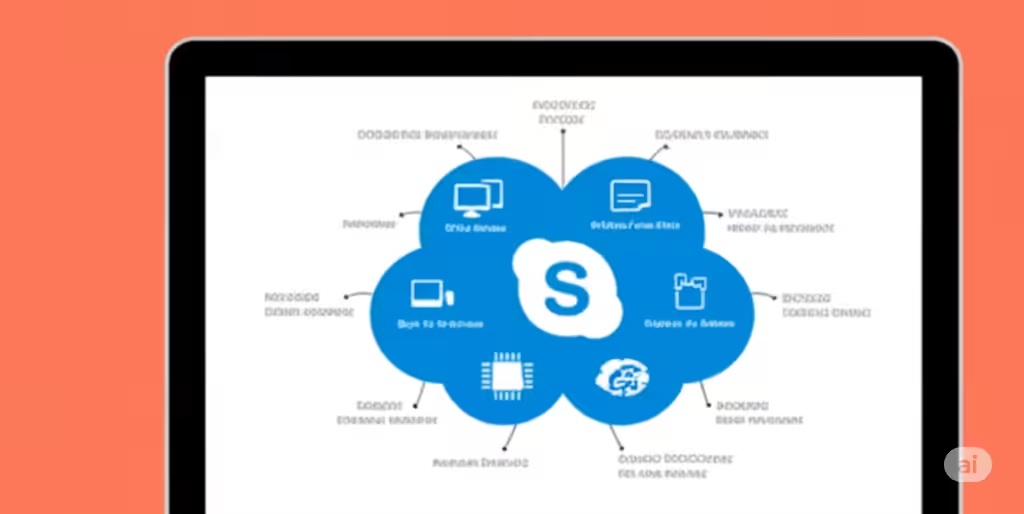
Before installing, ensure your PC meets these basic system requirements:
-
Operating System: Windows 10 or Windows 11
-
Processor: 1.6 GHz or faster, 2-core processor
-
RAM: 4 GB minimum
-
Hard Disk Space: At least 3 GB of available space
-
Display: 1280 x 768 resolution
-
.NET Version: .NET 4.5 or later
-
Browser: The latest version of Microsoft Edge, Chrome, or Firefox
Also, you’ll need a valid Microsoft 365 subscription if Skype for Business isn’t provided by your organization.
Step-by-Step Guide to Installing Skype for Business on Windows
Step 1: Sign in to Microsoft 365
-
Open your browser and go to https://www.office.com.
-
Sign in using your Microsoft 365 account credentials.
-
Click on the Install Office button, typically found in the top-right corner.
Step 2: Download Skype for Business
In some Microsoft 365 plans, Skype for Business is not included in the standard Office installation. Follow these steps:
-
Once you’re logged in, go to the My Account page.
-
Click Install Skype for Business (if listed separately).
-
If Skype is bundled with your Office suite, download the entire Office setup package.
Note: If your subscription doesn’t include Skype for Business, you won’t see this option.
Step 3: Run the Installer
-
Once downloaded, double-click the
.exeor.msifile. -
Follow the on-screen instructions to begin the installation.
-
Accept the license agreement and continue.
Skype for Business will install alongside other Office apps (like Word and Excel) if you’re installing from the full Microsoft 365 package.
Step 4: Launch Skype for Business
-
Click the Start menu.
-
Search for Skype for Business.
-
Launch the app and sign in using your Microsoft 365 or work account credentials.
The interface will resemble traditional Skype but with added corporate tools such as meeting scheduling and contacts syncing from Outlook.
Optional: Skype for Business Standalone Installer
If you don’t have Microsoft 365, you can still install Skype for Business with a standalone setup. However, Microsoft no longer actively distributes standalone versions publicly.
Organizations can:
-
Use Volume Licensing options
-
Install Skype for Business from their internal deployment tools
-
Contact their IT department for installation support
If you’re part of an enterprise environment, your IT team may push the installer remotely.
How to Configure Skype for Business
After the installation, follow these steps to configure Skype for Business for first-time use:
-
Sign in using your email (usually in the format
[email protected]). -
Allow the app to connect with Outlook to sync contacts and meetings.
-
Set your status (Available, Busy, Do Not Disturb, etc.).
-
Add colleagues manually or import from Outlook.
For organizations using Active Directory, your contacts and permissions may already be pre-configured.
Common Installation Issues and Fixes
Problem: Skype for Business not showing after Office installation
Solution: Not all Office installations include Skype for Business. Double-check your Microsoft 365 plan (e.g., E3, E5 plans include Skype, but Business Basic may not).
Problem: Can’t sign in to Skype for Business
Solution:
-
Double-check your username and password.
-
Ensure your account is licensed to use Skype for Business.
-
Contact IT support if you’re using Single Sign-On (SSO) or multi-factor authentication.
Problem: Installation fails with error messages
Solution:
-
Ensure Windows is up to date.
-
Uninstall any older versions of Office or Skype for Business.
-
Use the Microsoft Support and Recovery Assistant (SaRA) tool to diagnose issues.
Alternatives to Skype for Business
While Skype for Business still works in many enterprise environments, Microsoft is actively encouraging users to transition to Microsoft Teams. Teams includes all of Skype’s communication features, plus:
-
Persistent chat
-
Integrated document collaboration
-
Better video conferencing tools
-
Cross-platform mobile and web support
However, if your organization is still using Skype for Business, installation and setup remain straightforward.
Final Thoughts
Skype for Business remains a valuable tool for companies that need secure, enterprise-grade communication. Installing it on a Windows PC is simple if you follow the correct steps—either through Microsoft 365 or with standalone options for enterprise users.
Just make sure your system is compatible, your subscription supports it, and that you’re following your organization’s IT policies. With Skype for Business up and running, you’ll be ready to communicate, collaborate, and manage meetings with efficiency.
If you experience persistent issues, don’t hesitate to reach out to your IT team or use Microsoft’s support tools to resolve them quickly.