



How to Locate the Startup Programs Folder in Windows 10
When you start your Windows 10 computer, certain programs may open automatically in the background or appear on your screen right away. This behavior is controlled by startup settings, including a special location known as the Startup folder. Knowing how to find and manage the Startup folder can help you speed up boot times, control which apps launch automatically, and customize your Windows experience.
This article provides a complete guide on how to find the Startup folder in Windows 10, explains what it does, and shows how to use it effectively and safely.

What Is the Startup Folder in Windows 10
The Startup folder is a special system folder that contains shortcuts to programs that run automatically when Windows starts. Any shortcut placed in this folder will launch after you log in.
Important points about the Startup folder:
-
It runs programs at user sign-in, not at system boot
-
It uses shortcuts, not full program files
-
It affects startup behavior without changing system settings
This makes it a simple and powerful tool for controlling startup apps.

Why the Startup Folder Matters
Managing the Startup folder can significantly improve your Windows experience.
Benefits include:
-
Faster startup times
-
Fewer background apps
-
Better system performance
-
More control over what runs automatically
Unnecessary startup programs can slow down your system, especially on older hardware.
Types of Startup Folders in Windows 10
Windows 10 has two different Startup folders.
User Startup Folder
-
Affects only the currently logged-in user
-
Most commonly used
All Users Startup Folder
-
Affects every user account on the computer
-
Requires administrator access
Understanding the difference helps avoid unwanted changes for other users.
Method 1: Find the Startup Folder Using the Run Dialog

This is the fastest and easiest method.
Open the User Startup Folder
-
Press Windows + R
-
Type
shell:startup -
Press Enter
The Startup folder for your user account will open instantly.
Open the All Users Startup Folder
-
Press Windows + R
-
Type
shell:common startup -
Press Enter
This opens the Startup folder that applies to all users.
Method 2: Find the Startup Folder Using File Explorer

You can also access the Startup folder manually through File Explorer.
User Startup Folder Path
All Users Startup Folder Path
Replace YourUsername with your actual Windows username.
Important Note
The AppData and ProgramData folders are hidden by default. You may need to enable hidden files in File Explorer.
Method 3: Create a Shortcut to the Startup Folder
If you access the Startup folder often, creating a shortcut saves time.
How to Create a Shortcut
-
Right-click on your desktop
-
Select New → Shortcut
-
Enter
shell:startupas the location -
Name the shortcut and finish
Now you can open the Startup folder with a single click.
What Happens When You Add Programs to the Startup Folder
When you place a shortcut in the Startup folder:
-
The program launches after login
-
The startup process may slow slightly
-
The app runs every time unless removed
This method is best for lightweight apps or scripts.
How to Add Programs to the Startup Folder
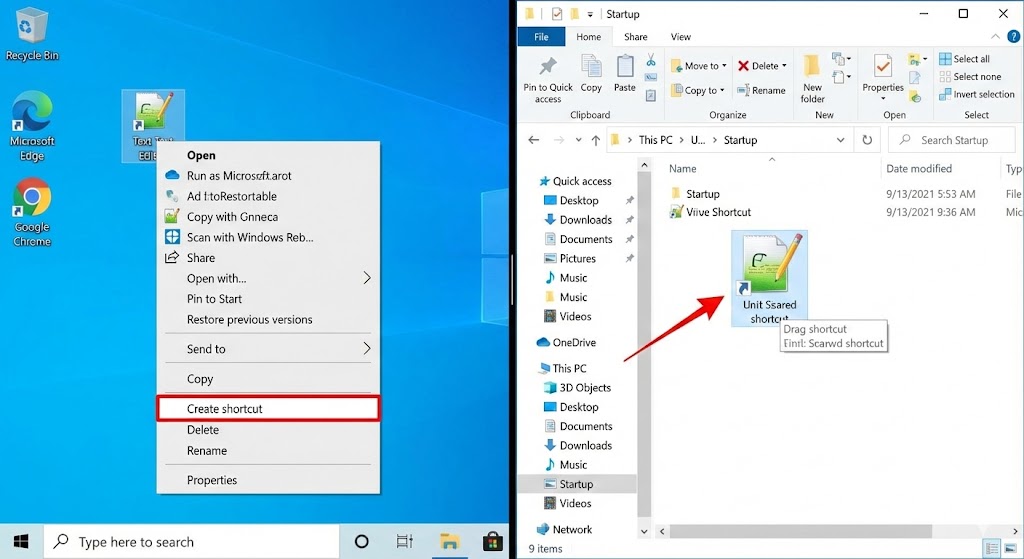
Follow these steps to add a program:
-
Locate the program’s executable file or shortcut
-
Right-click it and choose Create shortcut
-
Copy the shortcut
-
Paste it into the Startup folder
Avoid placing full executable files directly into the folder.
How to Remove Programs from the Startup Folder
Removing startup items is just as easy.
Steps to Remove a Program
-
Open the Startup folder
-
Right-click the shortcut you no longer want
-
Select Delete
This stops the program from launching at startup but does not uninstall it.
Startup Folder vs Task Manager Startup Apps
Windows 10 also allows startup control through Task Manager.
Key Differences
Startup folder:
-
Uses shortcuts
-
Runs after login
-
Easy to customize
Task Manager startup:
-
Controls system-level startup apps
-
Affects performance directly
-
Includes apps that do not appear in the Startup folder
Both methods work together to manage startup behavior.
Common Programs That Use the Startup Folder
Typical items include:
-
Cloud storage apps
-
Background utilities
-
Custom scripts
-
Productivity tools
Be cautious when adding resource-heavy programs.
Troubleshooting Startup Folder Issues
Programs Not Starting
Possible causes:
-
Shortcut is broken
-
Program requires administrator privileges
-
Antivirus is blocking it
Check the shortcut and program permissions.
Startup Folder Is Empty
This is normal if no apps are configured to start using this method. Many apps now use Task Manager instead.
Security Considerations
Malware sometimes hides in startup locations.
To stay safe:
-
Review Startup folder contents regularly
-
Remove unknown shortcuts
-
Use reputable antivirus software
Monitoring startup items helps protect your system.
Best Practices for Using the Startup Folder
Follow these tips:
-
Keep startup programs minimal
-
Avoid heavy applications
-
Test startup changes one at a time
-
Restart after making changes
This ensures a smooth startup experience.
When Not to Use the Startup Folder
Avoid using the Startup folder when:
-
The app requires system-level startup
-
The program needs elevated permissions
-
The software already manages startup internally
In such cases, Task Manager or app settings are better options.
Frequently Asked Questions
Does the Startup Folder Work in Safe Mode
No. Startup items are generally disabled in Safe Mode.
Can Scripts Run from the Startup Folder
Yes, scripts such as batch files can run if properly configured.
Does Removing a Shortcut Uninstall the App
No. It only prevents the app from starting automatically.
Conclusion
The Startup folder in Windows 10 is a simple yet powerful way to control which programs launch when you sign in. Whether you want faster boot times, fewer background apps, or more control over your system, understanding how to find and use the Startup folder is essential.