


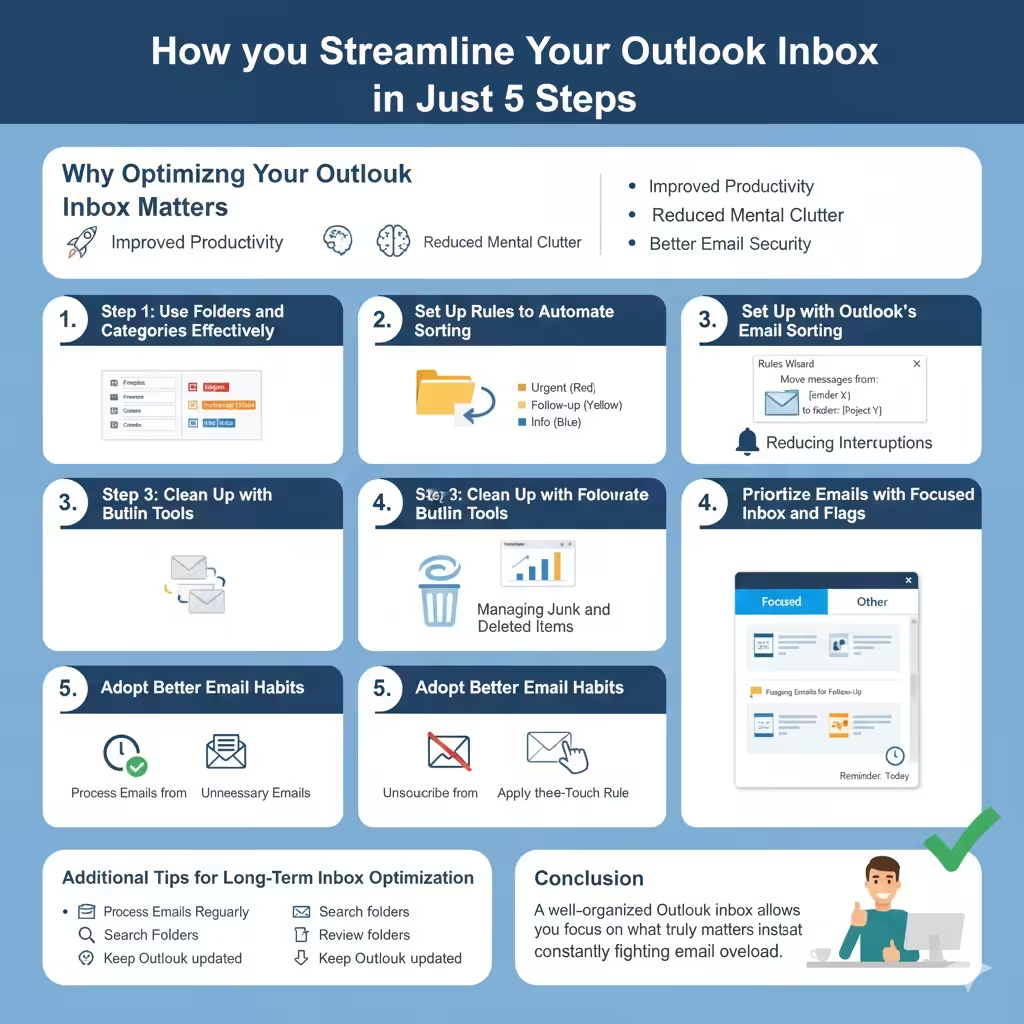
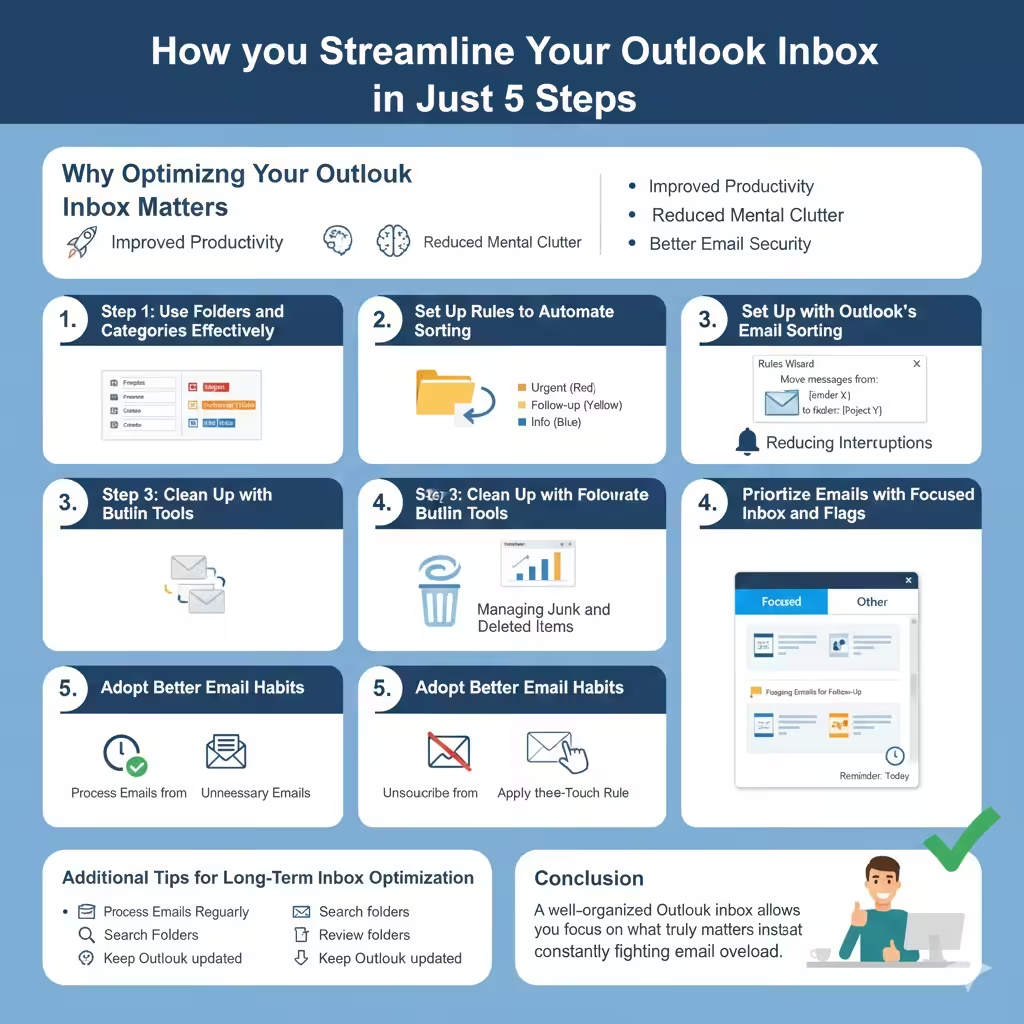
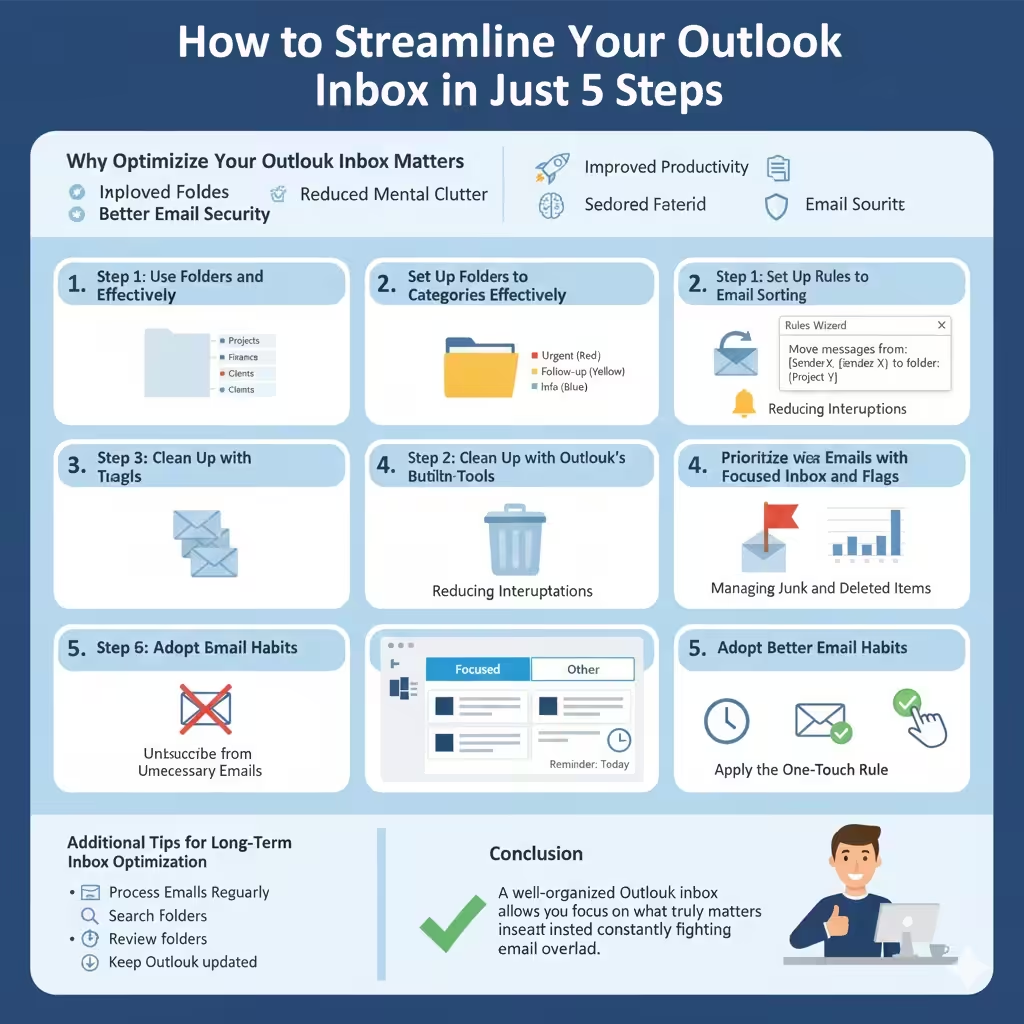
How to Streamline Your Outlook Inbox in Just 5 Steps
A cluttered Outlook inbox can quickly become overwhelming. Important emails get buried, productivity drops, and you may spend more time searching for messages than actually responding to them. Fortunately, Microsoft Outlook provides powerful built‑in tools that allow you to organize, clean, and optimize your inbox without relying on third‑party software.
This guide walks you through five easy and practical steps to optimize your Outlook inbox. Whether you use Outlook for work, school, or personal communication, these strategies will help you regain control, reduce stress, and work more efficiently.
Why Optimizing Your Outlook Inbox Matters
Inbox optimization is not just about keeping things tidy. It directly affects how effectively you manage communication.
Improved Productivity
An organized inbox allows you to find important emails faster, respond promptly, and avoid missing deadlines or critical messages.
Reduced Mental Clutter
Seeing hundreds or thousands of unread emails can be stressful. A clean inbox creates clarity and helps you focus on tasks that truly matter.
Better Email Security
By regularly reviewing and organizing emails, you are more likely to notice suspicious messages and reduce the risk of phishing or scams.
Step 1: Use Folders and Categories Effectively
Folders and categories are the foundation of inbox organization.
Creating Logical Folder Structures
Create folders based on purpose, such as Projects, Finance, Travel, or Clients. Avoid creating too many folders, as this can make navigation confusing.
Using Categories for Visual Organization
Categories allow you to color‑code emails without moving them from the inbox. This is useful for marking urgency, status, or type of action required.
Combining folders and categories gives you both structure and flexibility.
Step 2: Set Up Rules to Automate Email Sorting
Email rules are one of Outlook’s most powerful features.
Automatically Moving Incoming Emails
Rules can move messages from specific senders or with certain keywords directly into designated folders. This keeps your inbox focused on high‑priority emails.
Reducing Interruptions
By filtering newsletters, notifications, and automated messages, you reduce constant inbox alerts and distractions throughout the day.
Automation saves time and ensures consistency in inbox management.
Step 3: Clean Up with Outlook’s Built‑In Tools
Outlook includes tools designed to remove unnecessary clutter.
Using the Clean Up Feature
The Clean Up tool removes redundant messages in email threads, keeping only the most recent replies. This significantly reduces inbox size without losing important information.
Managing Junk and Deleted Items
Regularly review the Junk Email and Deleted Items folders. Emptying them helps improve performance and keeps your mailbox size under control.
Consistent cleanup prevents inbox overload over time.
Step 4: Prioritize Emails with Focused Inbox and Flags
Outlook offers smart prioritization features.
Using Focused Inbox
Focused Inbox separates important emails from less relevant ones. This allows you to concentrate on critical communication while still keeping everything accessible.
Flagging Emails for Follow‑Up
Flags help turn emails into actionable tasks. You can set reminders to ensure that important messages are addressed on time.
This step transforms your inbox into a task management tool.
Step 5: Adopt Better Email Habits
Tools alone are not enough without good habits.
Process Emails Regularly
Set aside specific times during the day to check and process emails. Avoid leaving messages unattended for long periods.
Unsubscribe from Unnecessary Emails
Reduce inbox volume by unsubscribing from newsletters and notifications you no longer read. This has a long‑term impact on inbox cleanliness.
Apply the One‑Touch Rule
When opening an email, decide immediately whether to reply, archive, flag, or delete it. This prevents messages from lingering indefinitely.
Additional Tips for Long‑Term Inbox Optimization
- Archive emails instead of keeping everything in the inbox
- Use search folders for dynamic views of important emails
- Review folder structures periodically
- Keep Outlook updated for improved performance and features
These habits help maintain inbox organization over time.
Conclusion
Optimizing your Outlook inbox does not require drastic changes or complex tools. By organizing with folders and categories, automating sorting with rules, cleaning up clutter, prioritizing important messages, and adopting healthier email habits, you can transform your inbox into an efficient communication hub.
With these five easy steps, managing email becomes faster, less stressful, and far more productive. A well‑organized Outlook inbox allows you to focus on what truly matters instead of constantly fighting email overload.