


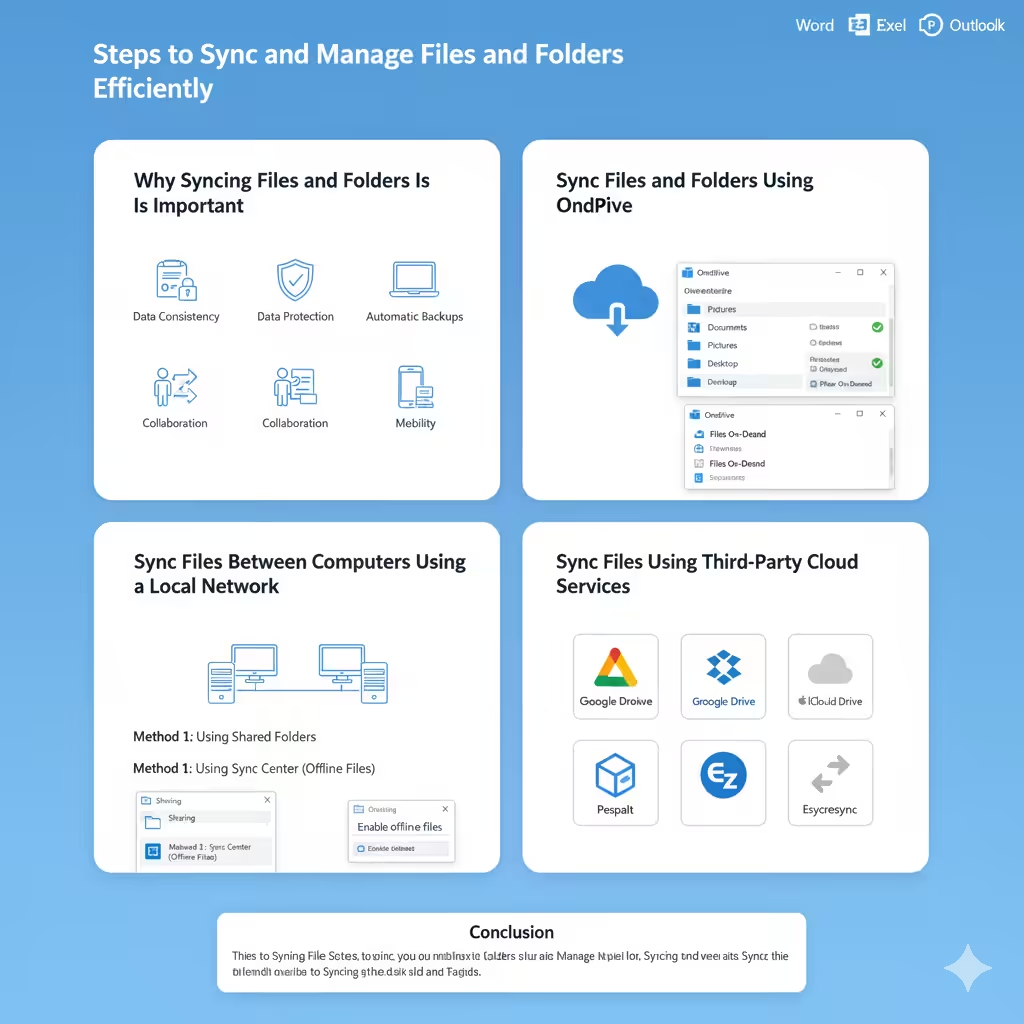
Steps to Sync and Manage Files and Folders Efficiently
Keeping your files synchronized across multiple devices is essential in today’s connected world. Whether you’re working from home, collaborating with teammates, or simply trying to keep your data backed up, syncing ensures that the latest version of your files is always available wherever you go.
In this guide, you’ll learn how to sync files and folders in Windows using built-in tools like OneDrive and File History, as well as other third-party options that can help streamline your workflow and protect your data.
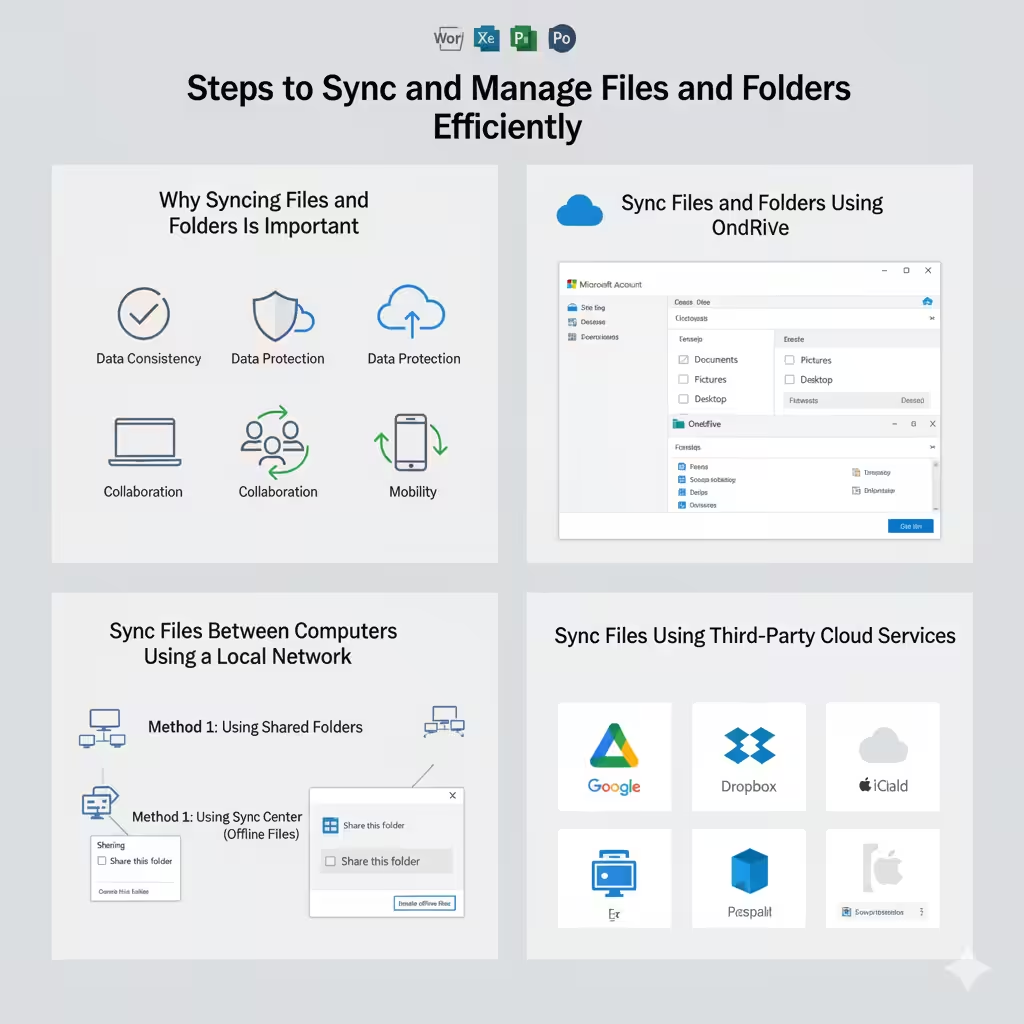
Why Syncing Files and Folders Is Important
File syncing helps ensure that your data remains consistent across all your devices. When you make a change to a file on one device, that change is automatically updated everywhere else.
Key Benefits of File Syncing
-
Data Consistency: Always access the most recent version of your files.
-
Data Protection: Syncing with cloud storage creates automatic backups.
-
Collaboration: Makes teamwork easier by keeping shared files updated in real time.
-
Mobility: Access your important documents from any computer or mobile device.
Now, let’s look at how you can start syncing your files and folders in Windows efficiently.
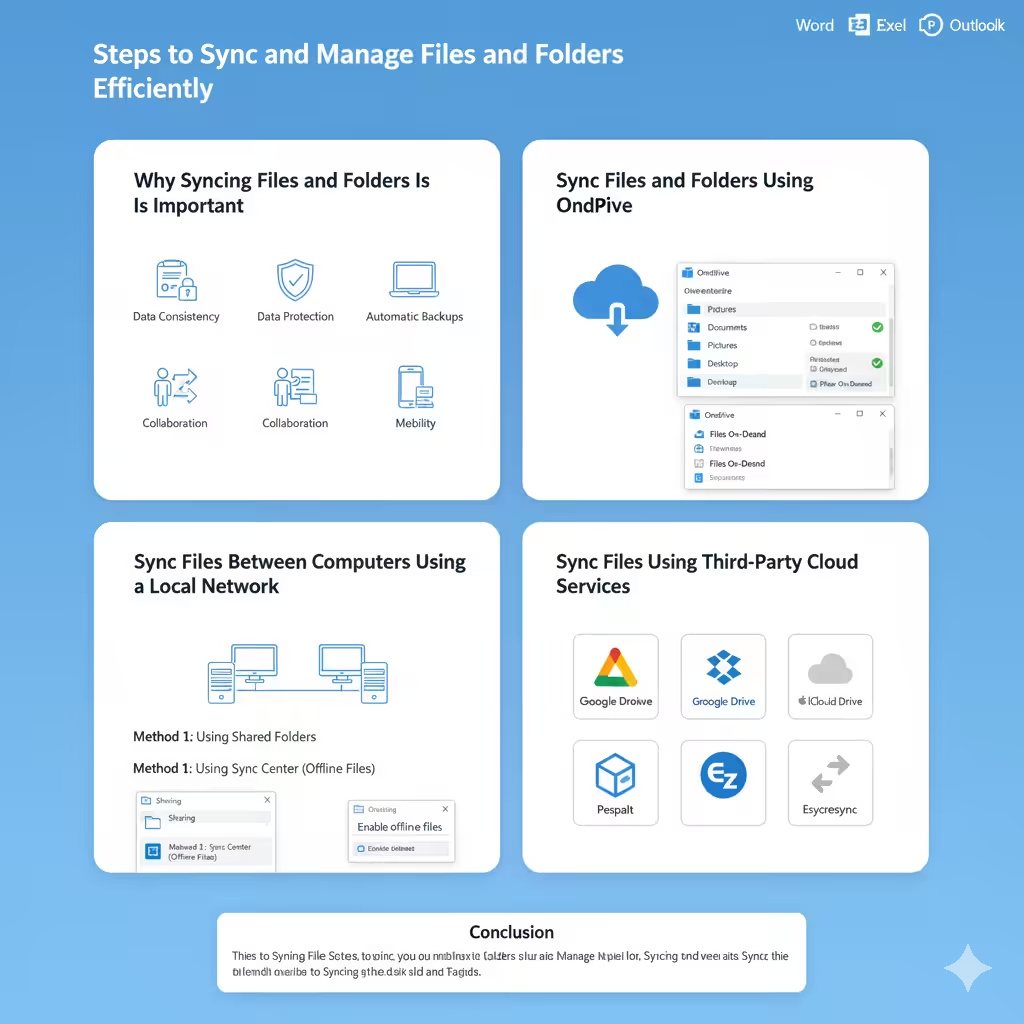
Sync Files and Folders Using OneDrive
OneDrive is Microsoft’s cloud storage service built directly into Windows. It allows you to store files in the cloud and sync them automatically across all your connected devices.
Setting Up OneDrive
-
Sign In to OneDrive
-
Click the OneDrive icon on the taskbar.
-
Sign in with your Microsoft account.
-
-
Choose Folders to Sync
-
In the setup window, select which folders you want to sync between your computer and the cloud.
-
Common folders include Documents, Pictures, and Desktop.
-
-
Access Synced Files
-
Once setup is complete, you’ll see your OneDrive folder in File Explorer.
-
Any file placed inside this folder will automatically sync with the cloud and other devices using the same Microsoft account.
-
Managing OneDrive Sync Settings
You can customize your sync settings by right-clicking the OneDrive icon in the system tray and selecting Settings. From there, you can:
-
Pause syncing temporarily.
-
Choose folders to exclude from syncing.
-
Enable or disable Files On-Demand (to save storage space by keeping files online-only).
Sync Files Between Computers Using a Local Network
If you want to sync files between two computers on the same network without using cloud storage, you can use shared folders or Windows Sync Center.
Method 1: Using Shared Folders
-
Right-click the folder you want to share.
-
Select Properties > Sharing tab.
-
Click Advanced Sharing and check Share this folder.
-
Choose Permissions to control who can access or modify files.
-
On another computer in the same network, open File Explorer and type
\\YourComputerNameto access the shared folder.
This method is useful for local file sharing, especially in an office or home network.
Method 2: Using Sync Center (Offline Files)
Sync Center is a Windows feature that lets you access network files even when you’re offline.
-
Open Control Panel.
-
Go to Sync Center > Manage offline files.
-
Click Enable offline files and restart your computer.
-
Right-click the network folder and select Always available offline.
Now, Windows will sync that folder automatically whenever you reconnect to the network.
Sync Files Using Third-Party Cloud Services
Apart from OneDrive, there are several reliable third-party services that can sync files and folders seamlessly across devices.
1. Google Drive
-
Install Google Drive for Desktop from Google’s website.
-
Sign in with your Google account.
-
Select folders to sync between your PC and Google Drive.
Google Drive offers 15 GB of free storage and integrates easily with Google Docs, Sheets, and other productivity tools.
2. Dropbox
-
Download and install Dropbox.
-
Log in or create an account.
-
Place your files in the Dropbox folder — they’ll be automatically uploaded and synced across devices.
Dropbox is known for its speed and reliability, making it ideal for personal and professional file syncing.
3. iCloud Drive
For Apple users, iCloud Drive is an excellent way to keep files synced between Windows PCs and Apple devices.
-
Install iCloud for Windows from the Microsoft Store.
-
Sign in with your Apple ID.
-
Select iCloud Drive and other options to sync.
All synced files will appear in your File Explorer under iCloud Drive.
Sync Folders Automatically Using File Synchronization Software
If you prefer a more flexible approach, you can use synchronization software that allows you to schedule syncs, compare folders, and control exactly how syncing happens.
Popular tools include:
-
FreeFileSync – Open-source and highly customizable.
-
SyncBack – Offers advanced scheduling and version control.
-
GoodSync – Great for business users who need encryption and automation.
Example: Using FreeFileSync
-
Download and install FreeFileSync.
-
Select your source folder (where your files are stored).
-
Select your destination folder (where files will be synced).
-
Choose a sync mode (two-way or mirror).
-
Click Synchronize to start the process.
You can also automate syncing by creating batch jobs that run at specific times.
Sync Files with External Drives
Another way to keep your data safe is by syncing it with an external hard drive or USB drive.
How to Sync with an External Drive
-
Connect your external drive to your PC.
-
Use File History (found under Control Panel > File History).
-
Turn on File History and choose your external drive as the backup location.
File History automatically keeps your files updated and creates backups you can restore later.
Troubleshooting File Sync Issues
Sometimes, syncing doesn’t go as planned. Here are a few common problems and solutions:
-
File not updating: Ensure you have an active internet connection or that File History is turned on.
-
Duplicate files: Set sync rules properly in software to avoid overwriting.
-
Storage full: Use cloud storage optimization features like OneDrive’s Files On-Demand.
-
Sync paused: Check your OneDrive or Dropbox settings — syncing may have been paused manually.
Best Practices for File Syncing
-
Always verify which folders are included in your sync list.
-
Keep at least one local backup separate from your cloud storage.
-
Avoid syncing system files or large temporary folders.
-
Use strong passwords and enable two-factor authentication for your cloud accounts.
Conclusion
Syncing files and folders is an essential part of digital organization and data safety. With tools like OneDrive, Google Drive, Dropbox, and Windows File History, keeping your data consistent across multiple devices has never been easier.
Whether you prefer cloud-based syncing or local solutions, regularly updating and backing up your files ensures that your data remains safe, accessible, and up to date — no matter where you are.
By implementing a smart syncing strategy today, you’ll save time, reduce stress, and protect your most valuable digital assets.