


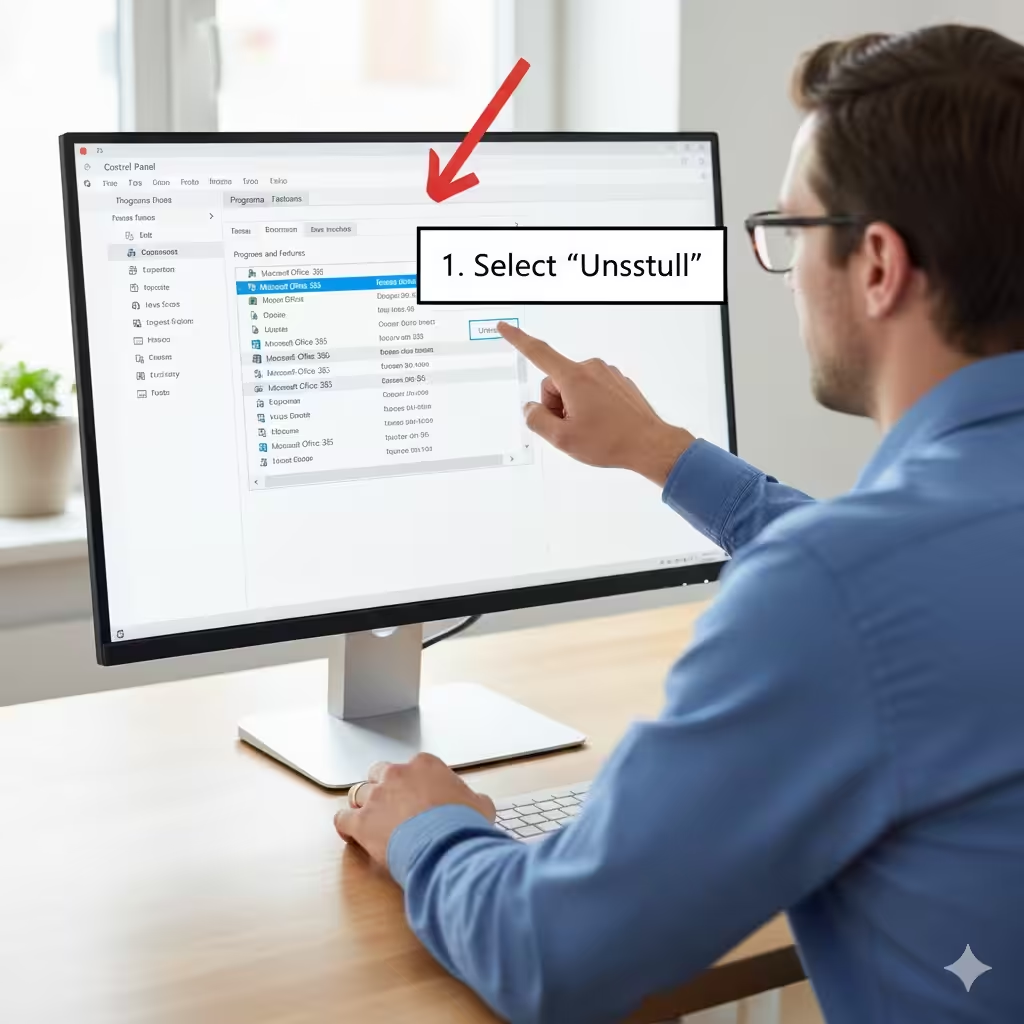
Guide to Uninstalling Microsoft Office Through Windows Settings
Removing Microsoft Office from your Windows computer can help free up storage, resolve installation conflicts, or allow you to install a newer version. One of the most reliable methods to uninstall Office—whether it’s Office 2010, 2013, 2016, 2019, or Microsoft 365—is by using the Windows Control Panel. Although modern versions of Windows have the Settings app, the Control Panel remains one of the most effective ways to completely remove Office components.
This guide explains how to uninstall Office through the Control Panel, what to do if Office doesn’t appear in the list, additional cleanup steps, and solutions to common uninstall errors.
Why Uninstall Office Using the Control Panel?
While there are other ways to remove Office, the Control Panel method is preferred because:
-
It works for nearly all legacy and modern Office versions
-
It performs a clean removal of core files and registry entries
-
It avoids manual file deletion
-
It helps fix activation or installation issues
-
It is recommended by Microsoft for most troubleshooting cases
Uninstalling Office through the Control Panel is especially useful when you encounter errors while installing or upgrading Office.
How to Open the Control Panel in Windows
Before uninstalling Office, you need to open the Control Panel. The steps vary slightly depending on your Windows version.
Windows 10 and Windows 11
-
Click the Start menu.
-
Type Control Panel in the search bar.
-
Choose Control Panel from the search results.
Windows 8 or Windows 8.1
-
Open the Charms Bar by moving your mouse to the upper-right corner.
-
Select Search.
-
Type Control Panel.
-
Click the Control Panel icon.
Windows 7
-
Click the Start button.
-
Choose Control Panel directly from the right-hand menu.
After opening the Control Panel, ensure it is set to Category view for easier navigation.
How to Uninstall Microsoft Office via Control Panel
The exact steps depend on the layout of your Control Panel.
Step 1: Navigate to Programs and Features
-
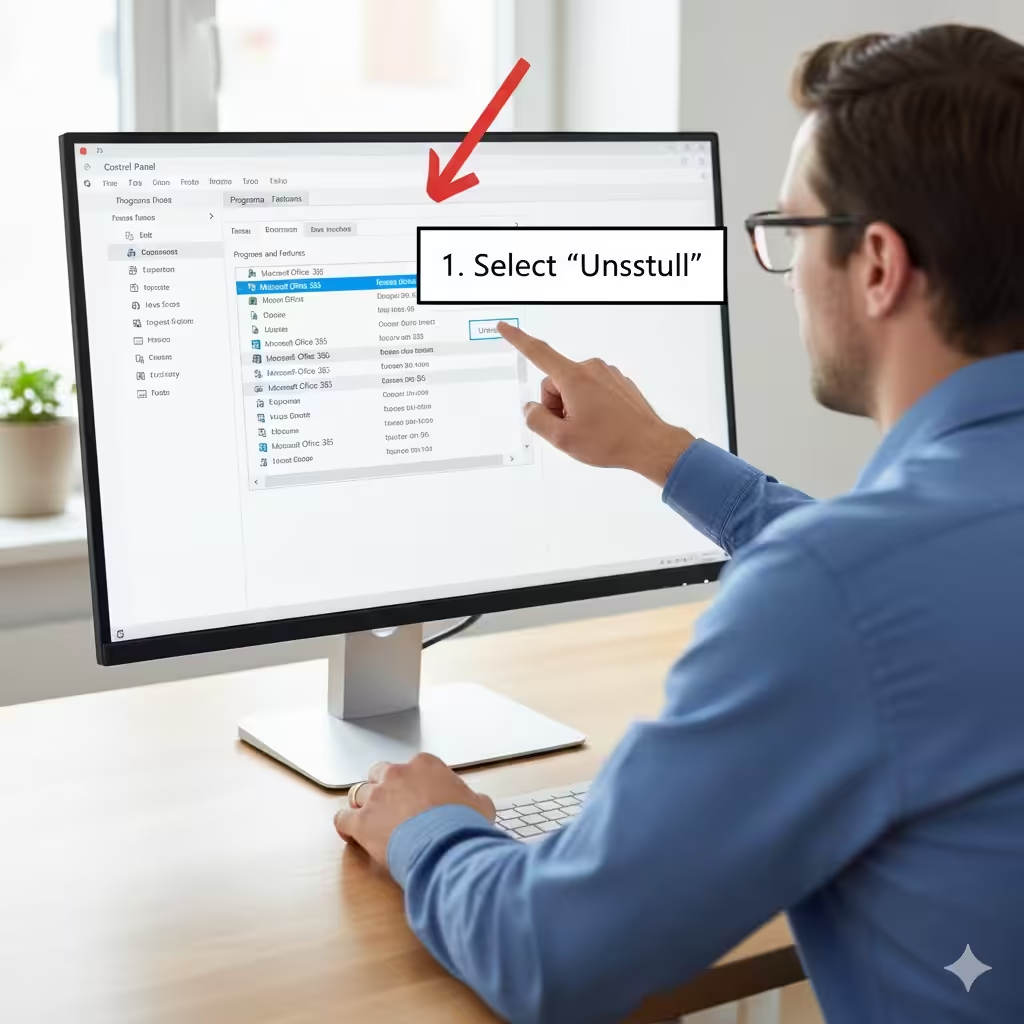
Inside the Control Panel, click Programs.
-
Choose Programs and Features.
This will open the list of all programs installed on your PC.
Step 2: Locate Microsoft Office
Scroll through the list until you find one of the following entries:
-
Microsoft Office 365
-
Microsoft Office 2019
-
Microsoft Office 2016
-
Microsoft Office 2013
-
Microsoft Office 2010
-
Microsoft 365 Apps for enterprise
-
Microsoft Office Professional Plus (volume license)
Make sure you select the correct version you want to remove.
Step 3: Start the Uninstall Process
-
Right-click the Office entry.
-
Select Uninstall.
Alternatively, you can highlight the entry and click the Uninstall button at the top of the window.
Step 4: Follow the Uninstaller Instructions
The Office uninstaller will appear and guide you through the removal process. You may be asked to confirm that you want to delete the program. Click Yes or Continue to proceed.
Step 5: Restart Your Computer
Once the uninstall is complete, restart your PC to ensure all components are fully removed.
What Happens After Uninstalling Office?
Removing Office through the Control Panel deletes:
-
Office desktop applications (Word, Excel, PowerPoint, Outlook, Access, etc.)
-
Related registry keys
-
Office shortcuts
-
Shared components used by older versions
Your personal files, such as Word documents or Excel sheets, remain untouched. They simply cannot be opened until you reinstall Office or use another compatible application.
Office Not Showing Up in Control Panel?
Sometimes Microsoft Office does not appear in the list of installed programs. This may happen when:
-
The installation is corrupted
-
Components were partially removed
-
You are using Microsoft Store–based Office
-
System files are damaged
Here are the solutions.
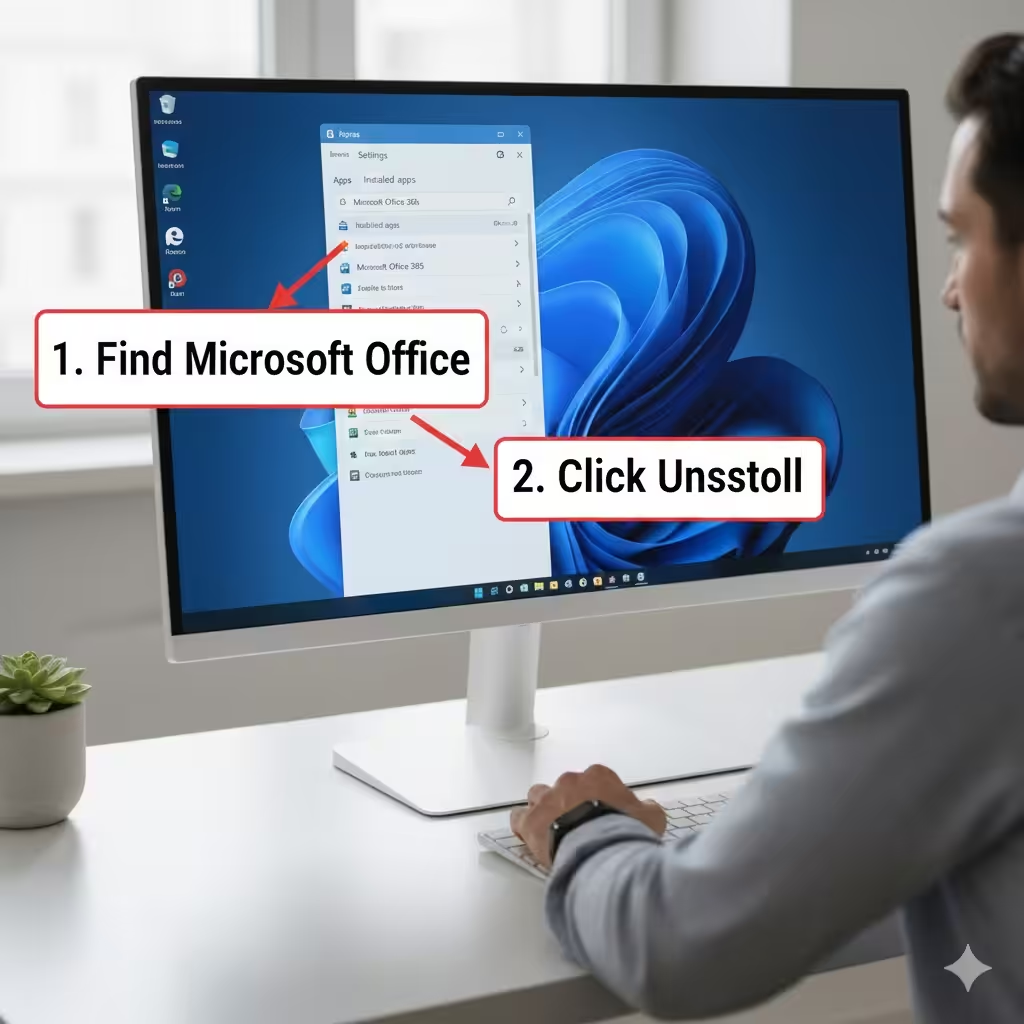
1. Check the Settings App (Windows 10/11)
Sometimes Office appears only under Settings → Apps:
-
Open Settings.
-
Click Apps.
-
Search for Office.
-
Click it and choose Uninstall.
2. Use the Office Uninstall Support Tool
Microsoft provides a dedicated tool for stubborn or corrupted installations.
Steps:
-
Download the tool from Microsoft’s support page.
-
Run it and select the Office version you want to remove.
-
Follow the instructions.
-
Restart your PC after completion.
This tool is extremely effective for situations when Office refuses to uninstall normally.
3. Confirm You Don’t Have Multiple Office Versions Installed
Older versions may be hidden under different names such as:
-
Office 2010 Home and Student
-
Office 2013 Click-to-Run
-
Microsoft 365 – en-us
Make sure you check all entries carefully.
4. Repair Office Instead of Uninstalling
If Office is installed but not working properly, choosing Repair may fix the issue without uninstalling.
How to Remove Office Store Apps (Windows 10/11)
If you installed Office from the Microsoft Store, use this method:
-
Press Windows + I to open Settings.
-
Select Apps → Installed Apps.
-
Find Microsoft Office or Microsoft 365.
-
Click the three-dot menu.
-
Choose Uninstall.
Store apps must be removed through Settings, not Control Panel.
Cleaning Up Leftover Office Files (Optional)
Even after uninstalling Office, some leftover files may remain. Removing them can help if you plan to reinstall Office.
1. Delete Office Installation Folders
Check:
-
C:\Program Files\Microsoft Office
-
C:\Program Files (x86)\Microsoft Office
-
C:\ProgramData\Microsoft\Office
If these folders exist, delete them.
2. Clear Temporary Files
-
Press Windows + R.
-
Type
%temp%and press Enter. -
Delete temporary files.
3. Restart the Computer
This ensures all processes are fully cleared.
Common Uninstall Problems and How to Fix Them
Office Installer Keeps Running
Close:
-
Setup.exe
-
OfficeClickToRun.exe
Then restart the uninstall process.
Uninstall Button Is Greyed Out
This may occur if you’re using a work or school account with restrictions. Contact your admin.
Error Code 30010-4
This typically means Office files are damaged. Use the Office uninstall support tool.
Windows Installer Service Issues
Restart the service:
-
Press Windows + R
-
Type services.msc
-
Restart Windows Installer
When Should You Use Other Uninstall Methods?
While the Control Panel is the recommended method, other methods may be better in certain cases:
-
When the installation is corrupted → Use the Support Tool
-
When using Office from the Microsoft Store → Use Settings
-
When installing a new version and conflicts arise → Use cleanup tools
Conclusion
Uninstalling Microsoft Office through the Windows Control Panel is a reliable and straightforward method for removing all Office applications from your computer. Whether you’re troubleshooting errors, upgrading to a newer version, or freeing up disk space, the Control Panel provides a simple way to delete Office and its components. If Office doesn’t appear in the programs list or fails to uninstall, there are several alternative solutions, such as using the Settings app or the Office uninstall support tool.