



How to Update the Default Font Settings in Microsoft Word
Microsoft Word automatically uses a preset default font each time you create a new document. While this works for most users, you may prefer a different font that better suits your writing style, business needs, academic formatting, or personal preferences. Instead of manually changing the font every time you start typing, Word allows you to modify the default font settings so your preferred font loads automatically in every new document.
This guide explains how to change the default font in Microsoft Word across different versions, how to customize additional text settings, and how to troubleshoot common issues that may prevent the default font from updating.
Why Change the Default Font in Word?
There are many reasons to update the default font:
-
To match corporate or branding guidelines
-
To improve accessibility and readability
-
To speed up your workflow by eliminating repetitive formatting
-
To comply with academic or professional writing standards
-
To achieve a cleaner or more personalized appearance in documents
Changing the default font ensures that every new document automatically reflects your chosen style.
How to Change the Default Font in Word for Windows
Changing the default font in Word on a Windows PC is straightforward and takes only a few steps.

Step 1: Open a Blank Document
Launch Word and open a new blank file. You can do this by selecting Blank Document from the start screen.
Step 2: Open the Font Dialog Box
To access the full font settings:
-
Go to the Home tab.
-
Click the small arrow in the bottom-right corner of the Font group.
This opens the classic Font dialog box where you can customize text settings.
Step 3: Choose Your Preferred Font
In the Font dialog box:
-
Select the font family you want (e.g., Calibri, Times New Roman, Arial, Garamond).
-
Choose a font style (Regular, Bold, Italic).
-
Select a font size.
-
Adjust additional settings such as underline, color, or all caps if needed.
You will see a preview of the font at the bottom of the dialog box.
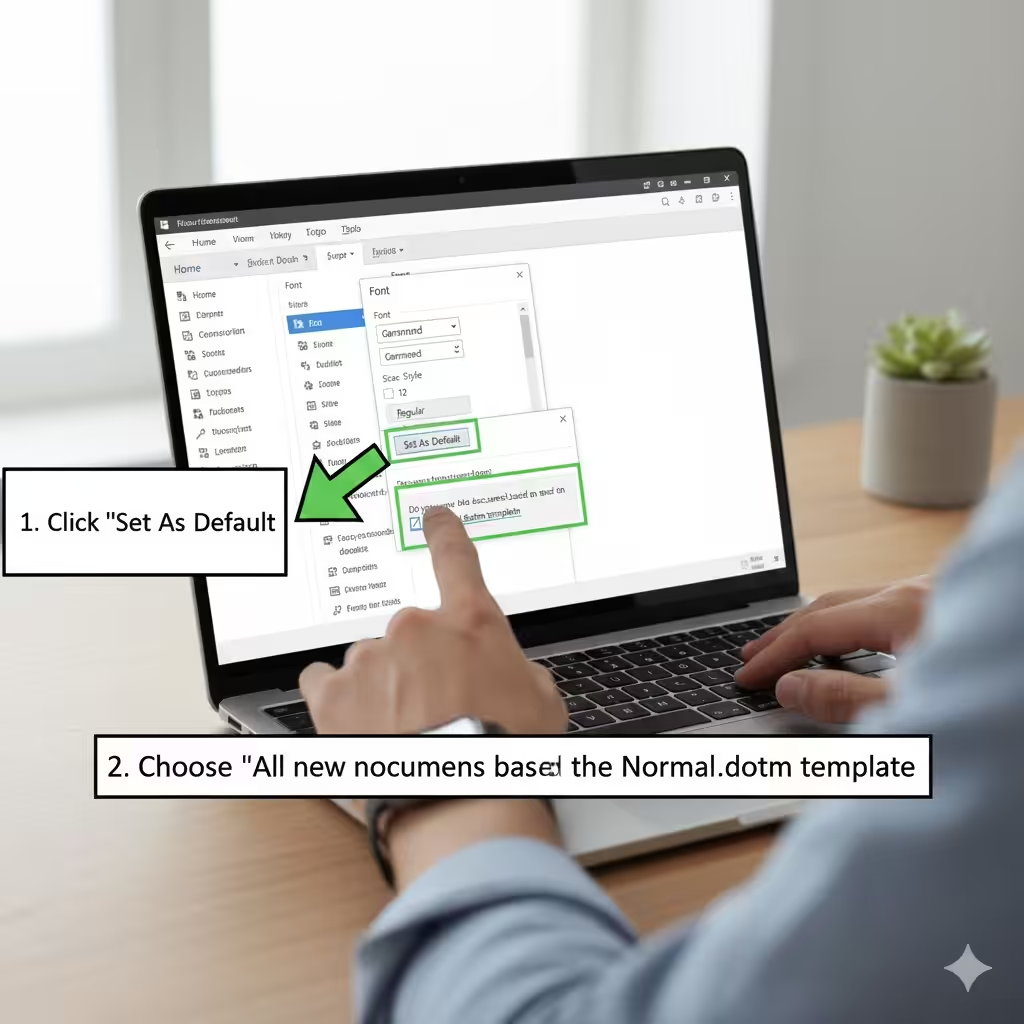
Step 4: Set as Default
After selecting your preferred font:
-
Click the Set As Default button in the lower-left corner.
-
Choose whether you want the change to apply to:
-
This document only
-
All new documents based on the Normal.dotm template
-
Select the second option if you want Word to always use your new default font.
Step 5: Save and Test
Close Word and reopen it.
Create a new blank document to confirm that your changes have been applied.
How to Change the Default Font in Word for Mac
Changing the default font on a Mac is similar but uses a slightly different layout.
Step 1: Open a New Document
Launch Word and open a blank document.
Step 2: Access the Font Settings
Do the following:
-
Go to the Home tab.
-
Click the arrow icon next to the Font group.
-
The Font dialog box will appear.
Step 3: Select Your New Font Preferences
Choose your desired:
-
Font family
-
Font size
-
Font style
-
Effects and character spacing
Once you’re satisfied with your choices, click Default.
Step 4: Confirm the Change
A message will appear asking if you want to:
-
Change the default font for this document only, or
-
Apply it to all documents based on the Normal template
Choose the second option and click OK.
Restart Word and create a new document to verify that the change was successful.
How to Change the Default Font in Word Online
Word Online is more limited compared to desktop versions, and currently does not support setting a custom default font permanently. However, you can create a template to replicate the effect.
Method: Using a Custom Template
-
Create a new blank document in Word Online.
-
Set your preferred font and formatting manually.
-
Go to File > Save As and save the document as a reusable template.
Whenever you want to use your preferred font, open the template instead of starting a new blank document.
How to Change the Default Font Using Styles
The Normal style controls the main font settings in Word. Adjusting this style changes the default font across all new documents.
Step 1: Open the Styles Panel
-
Go to the Home tab.
-
Click the small arrow in the Styles group.
Step 2: Modify the Normal Style
-
Right-click Normal.
-
Select Modify.
Step 3: Choose Your Preferred Font
In the Modify Style window:
-
Select the font
-
Set the size
-
Adjust formatting options
At the bottom of the window, choose:
-
New documents based on this template
Click OK to save your changes.
This method also updates other related styles automatically.
Troubleshooting: Default Font Not Changing
Sometimes Word may not apply your new default font correctly. Here are common issues and solutions.
The Normal.dotm Template Is Locked or Corrupted
Word stores default settings in a file called Normal.dotm. If it is locked, damaged, or replaced by another program, Word may ignore your changes.
Solution:
-
Close Word.
-
Navigate to the Word template folder.
-
Rename Normal.dotm to Normal_old.dotm.
-
Reopen Word—this forces it to create a fresh template.
Administrator Restrictions
If you are using a work or school computer, default settings may be controlled by IT.
Solution: Contact your administrator or use a personal device.
Add-ins Overriding Settings
Some third-party add-ins can reset font settings.
Solution: Temporarily disable add-ins and try again.
Document-Specific Styles Overwriting Defaults
If you open a document with different styles, Word may apply its own formatting instead of your new default.
Solution: Ensure you create brand-new documents when testing.
Tips for Choosing the Best Default Font
Selecting the right default font improves readability and creates a more professional appearance in your documents.
Consider the following:
-
Calibri, Arial, and Times New Roman are widely accepted.
-
Cambria and Garamond offer a more formal look.
-
Segoe UI and Helvetica provide a clean, modern feel.
-
Choose a size between 10 and 12 for most documents.
-
Ensure your font choice is easy to read across platforms and devices.
Conclusion
Changing the default font in Microsoft Word is an excellent way to personalize your writing environment, improve consistency, and speed up your workflow. Whether you’re using Word on Windows, Mac, or Word Online, the process is simple and highly customizable. By updating your default font or modifying the Normal style, you ensure every new document reflects your preferred design without repetitive formatting.