


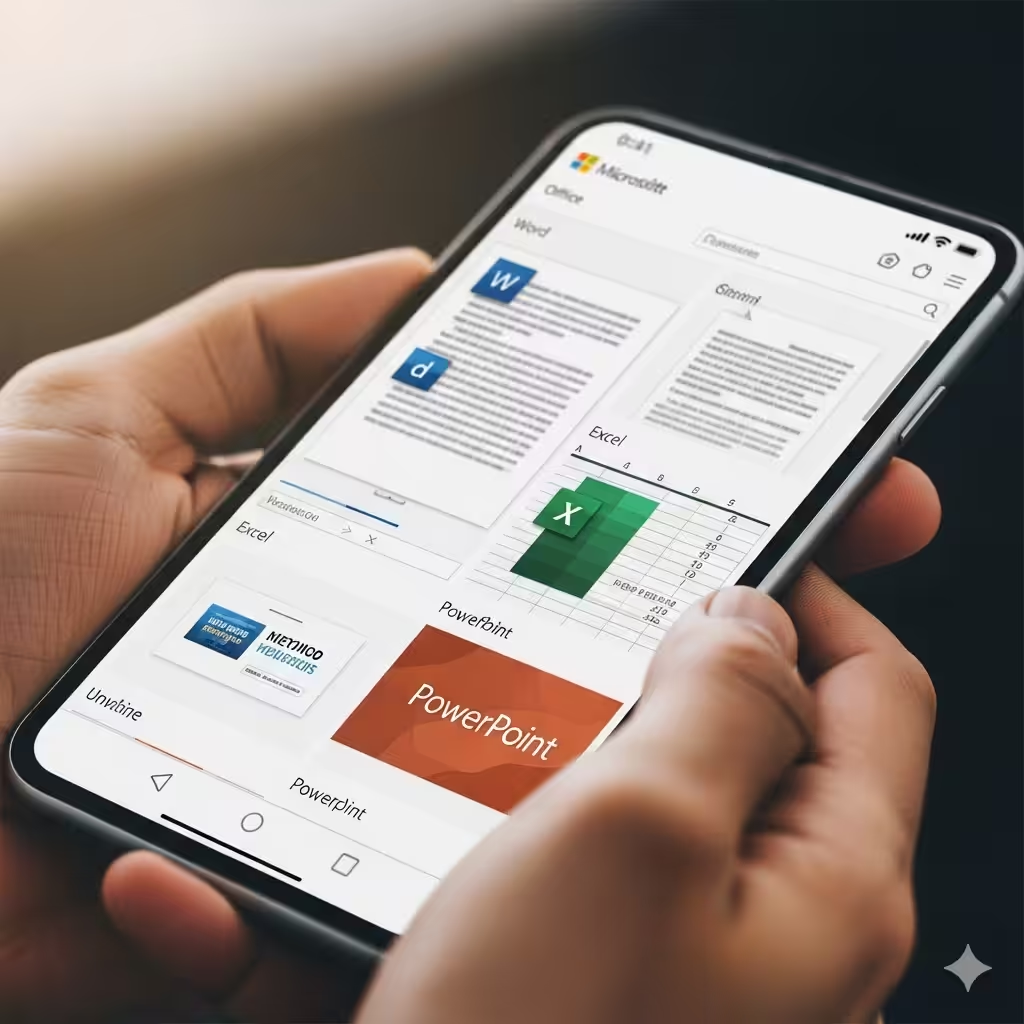
How to Access and Use Office Apps on Mobile with an Office 365 Plan

Microsoft Office has evolved significantly over the years. Today, you are no longer tied to your desktop or laptop when working on Word, Excel, PowerPoint, or Outlook. With an Office 365 subscription (now called Microsoft 365), you can install Office apps directly on your mobile device and enjoy full access to the same productivity tools you rely on.
This article explains how to set up, use, and maximize Office apps on your mobile device, whether you are using an Android phone, iPhone, or tablet.
Benefits of Using Office Apps on Mobile Devices
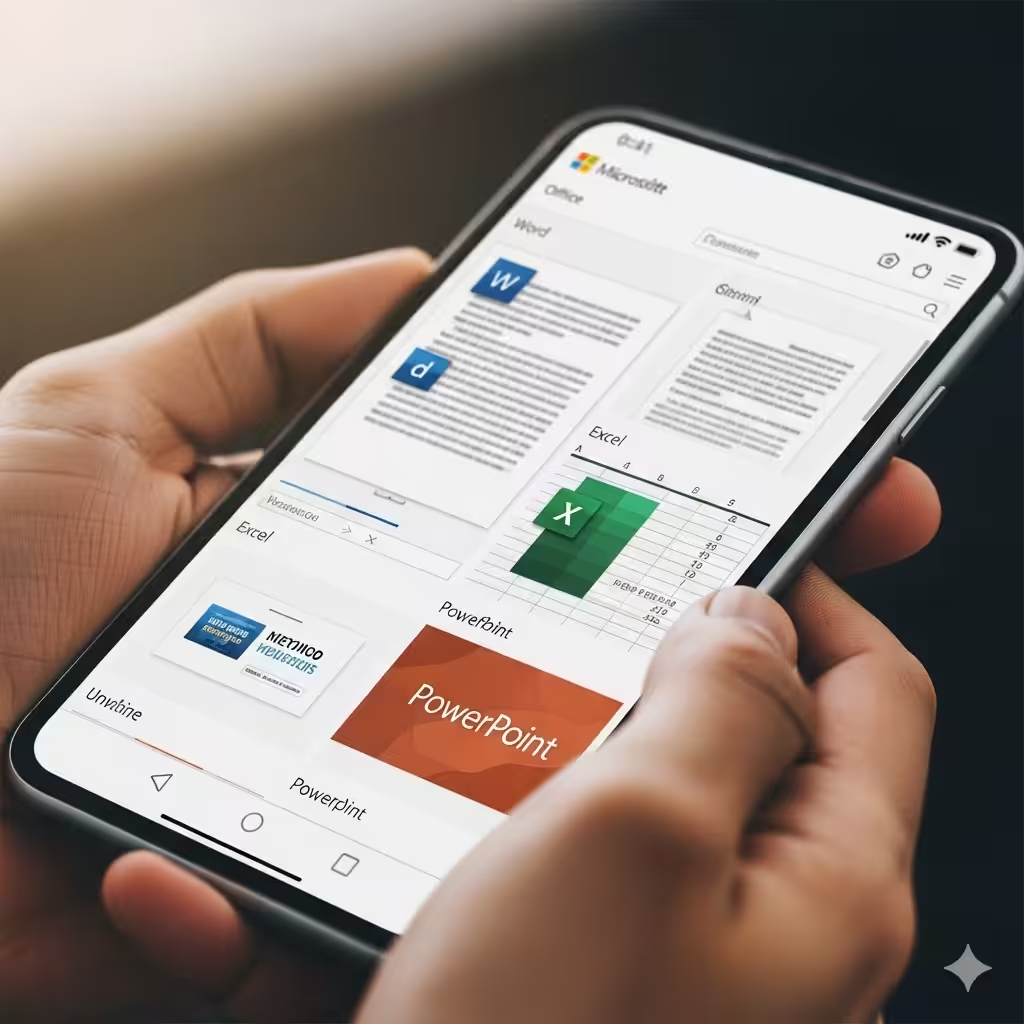
Using Office apps on a mobile device offers many advantages for both personal and professional users:
-
Portability: Work from anywhere without needing a laptop.
-
Synchronization: Your documents sync automatically via OneDrive, so you can access them on any device.
-
Collaboration: Share files and collaborate in real time with colleagues or classmates.
-
Full-featured tools: Access familiar apps like Word, Excel, and PowerPoint with many of the same capabilities as the desktop versions.
-
Integrated ecosystem: Office apps work seamlessly with Teams, Outlook, and OneDrive.
Downloading and Installing Office Apps

To start using Office apps on your mobile device, you first need to download them from your app store.
For Android Devices
-
Open the Google Play Store.
-
Search for Microsoft Office or the individual apps such as Word, Excel, or PowerPoint.
-
Tap Install to download and install the app.
For iOS Devices
-
Open the App Store on your iPhone or iPad.
-
Search for Microsoft Office or the specific app you need.
-
Tap Get and complete the installation process.
You can install either the all-in-one Office app (which combines Word, Excel, and PowerPoint in a single app) or individual apps, depending on your preference.
Signing In With Your Office 365 Subscription
Once installed, you need to sign in with your Microsoft account associated with your Office 365 subscription.
-
Open the Office app.
-
Tap Sign In.
-
Enter the email address and password linked to your Office 365 subscription.
-
If prompted, verify your account with two-factor authentication.
After signing in, you will unlock all the premium features available with your subscription. Without signing in, you may still access limited free features, but they are not as powerful as the subscription-based options.
Using Word, Excel, and PowerPoint on Mobile
Let’s explore how the main Office apps work on mobile devices.
Word
-
Create new documents or edit existing ones from OneDrive, SharePoint, or your device storage.
-
Use formatting tools like bold, italics, and headings just like on the desktop version.
-
Save documents automatically to OneDrive for easy access across devices.
Excel
-
Manage spreadsheets on the go.
-
Insert formulas, charts, and tables with simplified mobile-friendly controls.
-
Collaborate with team members in real time by sharing links.
PowerPoint
-
View and present slides directly from your phone or tablet.
-
Edit text, insert images, or rearrange slides.
-
Use Presenter View for smooth presentations without needing a laptop.
Accessing Files With OneDrive
One of the biggest advantages of using Office apps on mobile is integration with OneDrive.
-
All your files save automatically to the cloud.
-
You can access documents from any device, including PCs, tablets, or smartphones.
-
Real-time syncing ensures you always work on the latest version of your file.
-
Offline access allows you to download documents and continue working without an internet connection.
Collaborating With Others
With Office apps on mobile, collaboration is straightforward:
-
Open the file you want to share.
-
Tap the Share button.
-
Choose to share via a link or invite specific people with their email addresses.
-
Set permissions (view or edit).
This makes it easy to work on projects with classmates, colleagues, or clients even when you are away from your desk.
Using Outlook and Teams
An Office 365 subscription also includes Outlook and Teams, which integrate seamlessly with the Office apps.
-
Outlook: Manage your email, calendar, and contacts on the go. You can quickly attach documents from OneDrive or Office apps directly into your emails.
-
Teams: Stay connected with colleagues through chat, video meetings, and file sharing. You can open Word, Excel, or PowerPoint files shared in Teams directly within the corresponding Office app.
Tips for Maximizing Office Apps on Mobile
-
Use cloud storage: Always save files to OneDrive for easy access and backup.
-
Enable offline mode: Download important documents before traveling or working in areas with poor internet.
-
Customize your app: Pin your most-used documents or folders for quick access.
-
Use stylus support: If you have a tablet with a stylus, such as the Surface or iPad with Apple Pencil, you can annotate documents directly.
-
Stay updated: Keep your apps updated for the latest features and security improvements.
Troubleshooting Common Issues
-
Can’t sign in: Ensure your Office 365 subscription is active and check your internet connection.
-
Files not syncing: Verify that OneDrive is enabled and running on your device.
-
Limited features: Some advanced features are only available with an active Office 365 subscription, so confirm you are signed in with the correct account.
-
App crashes: Update the app or reinstall it from the app store if issues persist.
Conclusion
With an Office 365 subscription, you can bring the power of Microsoft Office to your mobile device. Whether you are editing a Word document, managing an Excel spreadsheet, preparing a PowerPoint presentation, or checking emails in Outlook, Office apps give you flexibility and convenience anywhere.
By taking advantage of cloud storage, collaboration tools, and mobile-optimized features, you can remain productive no matter where you are. For students, professionals, and businesses, using Office apps on mobile devices is an essential way to stay connected and efficient in today’s fast-paced world.