


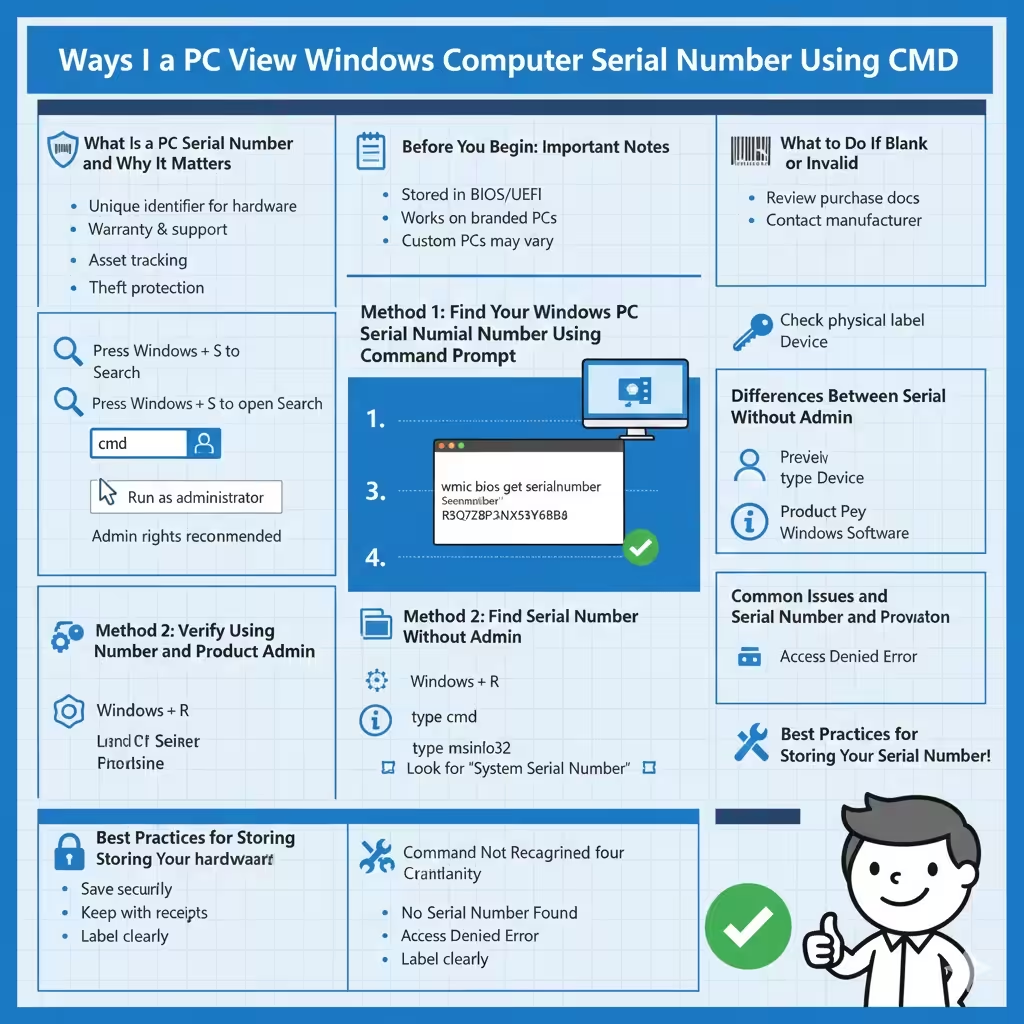
Ways to View a Windows Computer Serial Number Using CMD
Knowing your Windows PC serial number can be extremely useful in many situations. You may need it for warranty claims, technical support, device registration, inventory management, or system administration tasks. While the serial number is sometimes printed on a sticker attached to your device, that label can fade, fall off, or be difficult to access—especially on laptops or compact desktops.
Fortunately, Windows provides a quick and reliable way to find your PC’s serial number using Command Prompt, without installing any third-party software. This guide explains how to do it step by step, along with additional tips, common issues, and alternative methods for different situations.
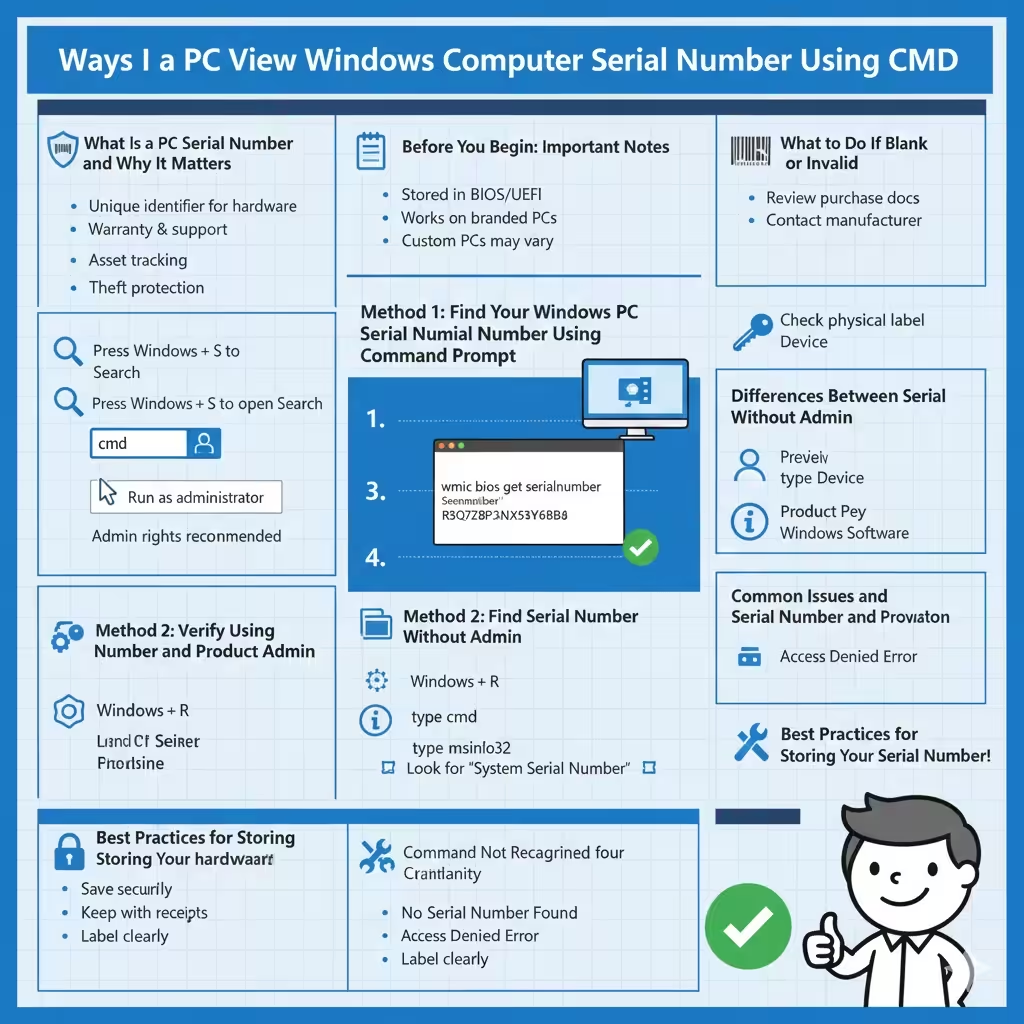
What Is a PC Serial Number and Why It Matters
A serial number is a unique identifier assigned by the manufacturer to a specific computer. It helps distinguish your device from others of the same model and configuration.
You may need your serial number for:
-
Warranty checks and repairs
-
Customer support with the manufacturer
-
Device registration
-
Asset tracking in schools or businesses
-
Insurance documentation
-
System inventory and audits
Because it is tied to the hardware, the serial number usually does not change over the lifetime of the device.
Before You Begin: Important Notes
Before using Command Prompt to find your serial number, keep the following points in mind:
-
The serial number is stored in the system BIOS or UEFI firmware
-
The method works on most branded PCs and laptops
-
Some custom-built PCs may not have a serial number set
-
Administrator privileges are not always required, but recommended
With these points understood, let’s move on to the main method.
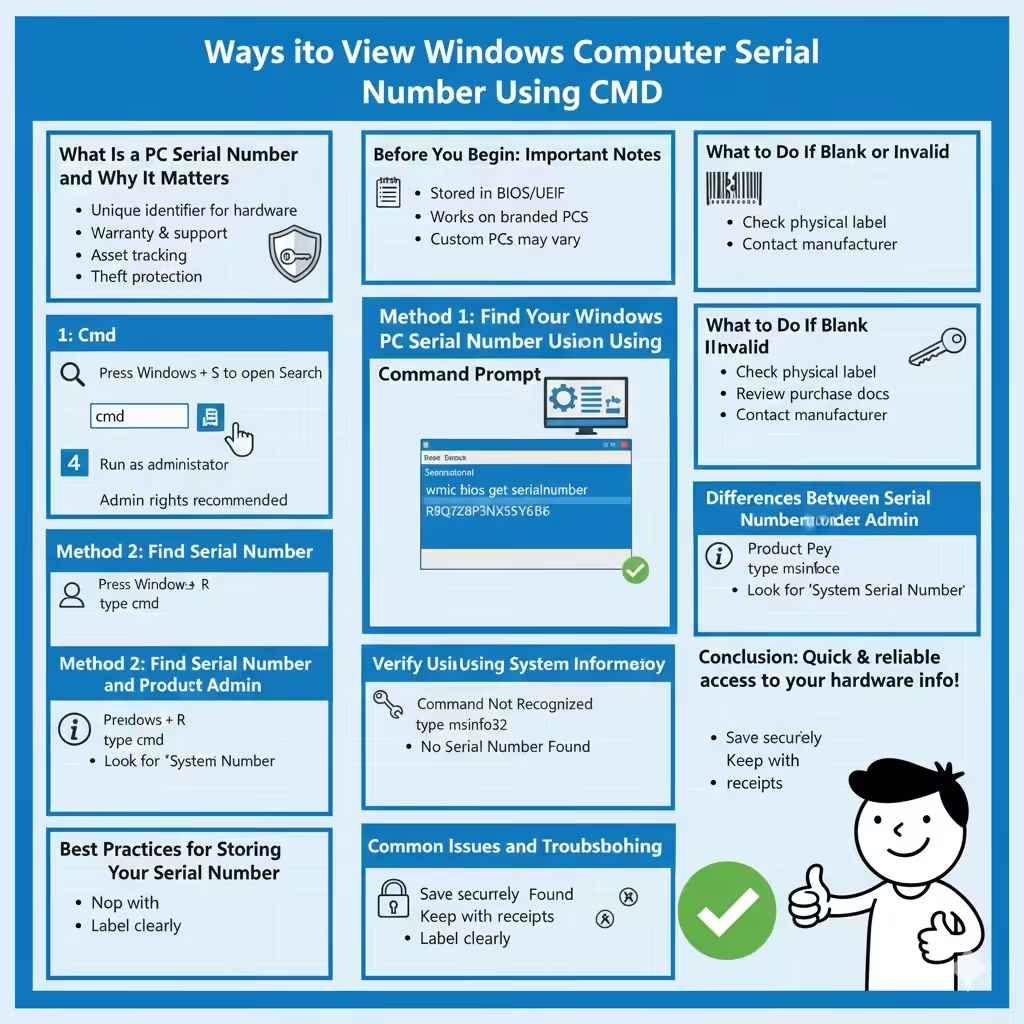
Method 1: Find Your Windows PC Serial Number Using Command Prompt
This is the fastest and most commonly used method.
Step-by-Step Instructions
-
Press Windows + S to open Search
-
Type cmd
-
Right-click Command Prompt
-
Select Run as administrator
-
In the Command Prompt window, type the following command:
-
Press Enter
After a moment, your PC’s serial number will appear under the “SerialNumber” label.
Why This Command Works
The command retrieves serial number information directly from the system BIOS using Windows Management Instrumentation (WMI). This makes it accurate and reliable on most systems.
What to Do If the Serial Number Appears as Blank or Invalid
In some cases, the output may show:
-
A blank value
-
“To Be Filled By O.E.M.”
-
“Default String”
This usually means the manufacturer did not properly store the serial number in the BIOS, which is common with custom-built or white-box PCs.
If this happens, you may need to:
-
Check the physical label on the device
-
Review original purchase documents
-
Contact the manufacturer or system builder
Method 2: Find the Serial Number Using Command Prompt Without Admin Rights
In many cases, administrator privileges are not required.
Steps
-
Press Windows + R
-
Type cmd
-
Press Enter
-
Run the same command:
If permissions allow, the serial number will still appear.
Method 3: Verify Serial Number Using System Information
While this guide focuses on Command Prompt, it is useful to confirm the serial number using built-in Windows tools.
Using System Information
-
Press Windows + R
-
Type msinfo32
-
Press Enter
-
Look for System Serial Number
This value should match the one shown in Command Prompt.
Differences Between Serial Number and Product Key
Many users confuse the PC serial number with the Windows product key. They are not the same.
-
Serial Number: Identifies the physical device
-
Product Key: Activates Windows software
Command Prompt methods for serial numbers will not reveal your Windows activation key.
Using Command Prompt for Multiple PCs (IT and Admin Use)
For IT professionals and system administrators, Command Prompt is especially useful when managing multiple devices.
Why This Method Is Ideal for IT Environments
-
Fast and scriptable
-
Works locally or remotely (with permissions)
-
No additional software required
-
Compatible with most Windows versions
This makes it ideal for inventory tracking and audits.
Supported Windows Versions
The Command Prompt method works on:
-
Windows 11
-
Windows 10
-
Windows 8.1
-
Windows 8
-
Windows 7
As long as WMI is available and functioning, the command should work.
Common Issues and Troubleshooting
Command Not Recognized
If you see an error indicating that the command is not recognized:
-
Make sure you typed it correctly
-
Confirm that WMI is enabled
-
Try running Command Prompt as administrator
No Serial Number Found
If no serial number is returned:
-
Your device may not store it in BIOS
-
This is common with custom-built PCs
-
Contact the system manufacturer if needed
Access Denied Error
If access is denied:
-
Run Command Prompt as administrator
-
Check system policies restricting WMI access
When You Should Use Command Prompt Instead of Other Methods
Command Prompt is especially useful when:
-
The device label is missing or unreadable
-
You cannot boot into Windows fully
-
You need fast access without navigating menus
-
You are managing multiple computers
It provides a clean and efficient way to retrieve hardware information.
Security and Privacy Considerations
Your serial number is sensitive device information. Avoid:
-
Sharing it publicly
-
Posting it on forums or screenshots
-
Sending it through unsecured channels
Only share your serial number with trusted support representatives or manufacturers.
Best Practices for Storing Your Serial Number
Once you find your serial number:
-
Save it in a secure document
-
Add it to your password manager notes
-
Keep it with purchase receipts
-
Label it clearly for future reference
This saves time if you need it later.
When Command Prompt Is Not Enough
In rare cases where Command Prompt does not provide the serial number, alternative options include:
-
Checking BIOS or UEFI settings
-
Reviewing original packaging
-
Contacting the device manufacturer
-
Using official vendor support tools
These options help fill in the gaps when system data is incomplete.
Conclusion
Finding your Windows PC serial number using Command Prompt is one of the quickest and most reliable methods available. With a single command, you can retrieve essential device information directly from the system BIOS—no extra tools required.