


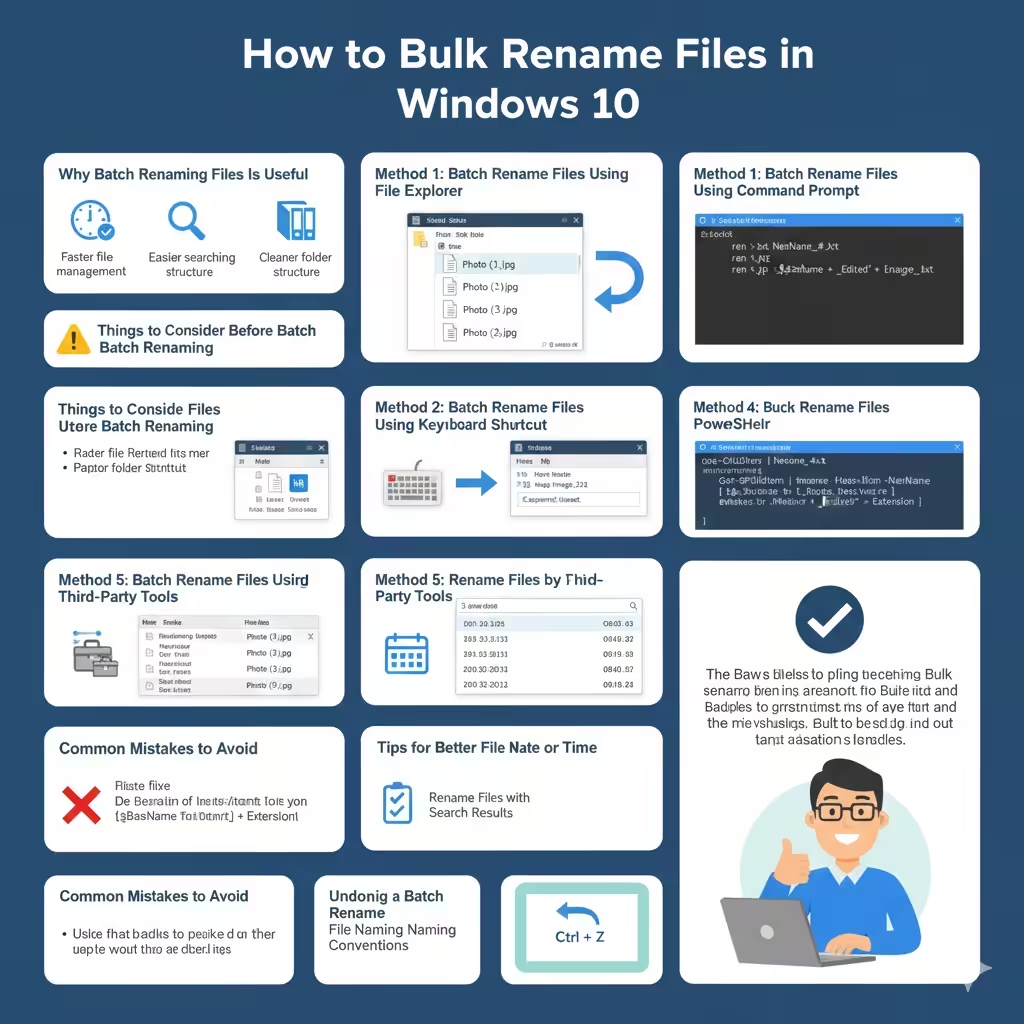
Ways to Bulk Rename Files in Windows 10
Managing large numbers of files can quickly become messy if filenames are inconsistent or unclear. Whether you are organizing photos, documents, music, or work-related files, batch renaming can save you a huge amount of time. Instead of renaming files one by one, Windows 10 offers several built-in ways to rename multiple files at once, along with more advanced options for users who need greater control.
This guide explains how to batch rename files on Windows 10, from simple File Explorer methods to more advanced tools like Command Prompt and PowerShell. Each method is explained clearly so you can choose the one that fits your needs.
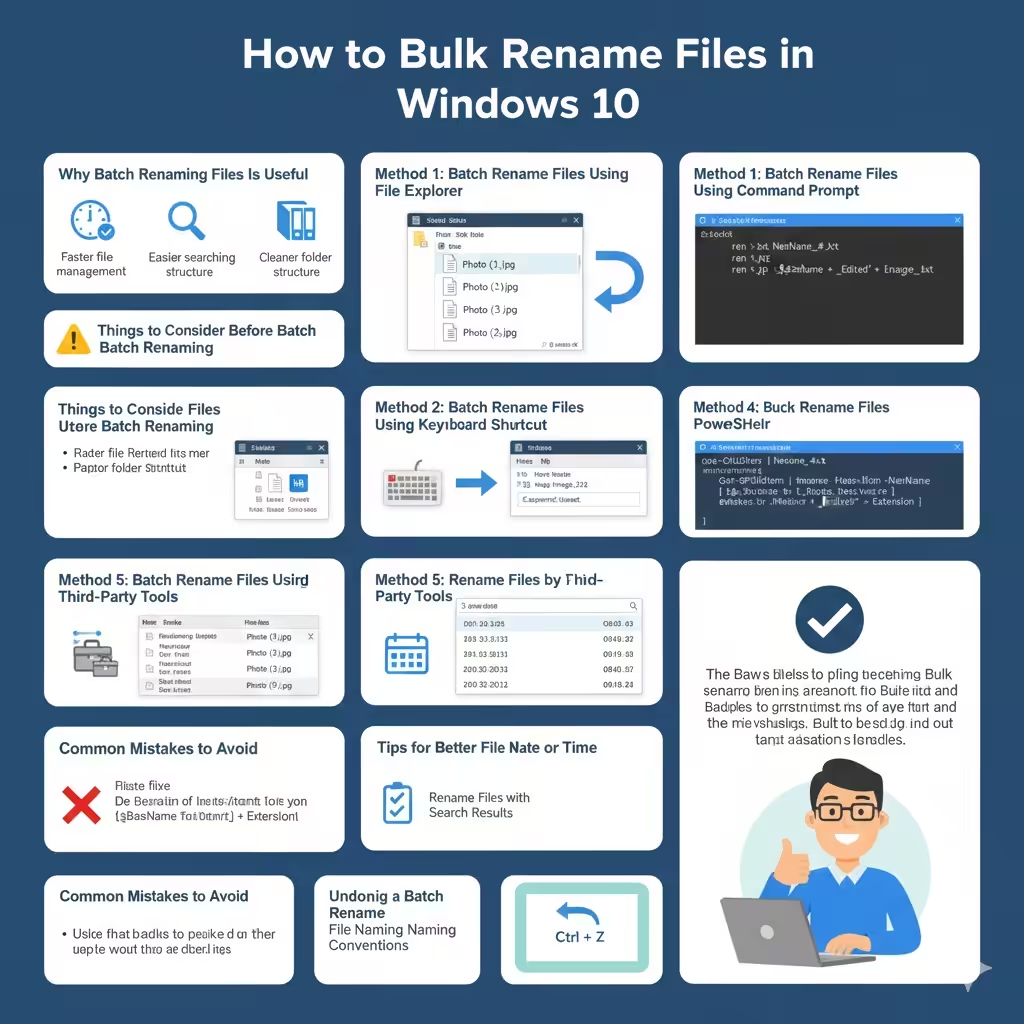
Why Batch Renaming Files Is Useful
Batch renaming is more than just a convenience. It improves organization and reduces confusion.
Common benefits include:
-
Faster file management
-
Consistent naming conventions
-
Easier searching and sorting
-
Cleaner folder structure
-
Better workflow efficiency
Batch renaming is especially helpful for photos, videos, downloads, and project folders.
Things to Consider Before Batch Renaming
Before renaming multiple files, keep these points in mind:
-
File extensions should not be changed unless you know what you are doing
-
Renaming cannot always be undone
-
Make a backup if filenames are critical
-
Test with a small group of files first
Being careful avoids accidental data loss or confusion.
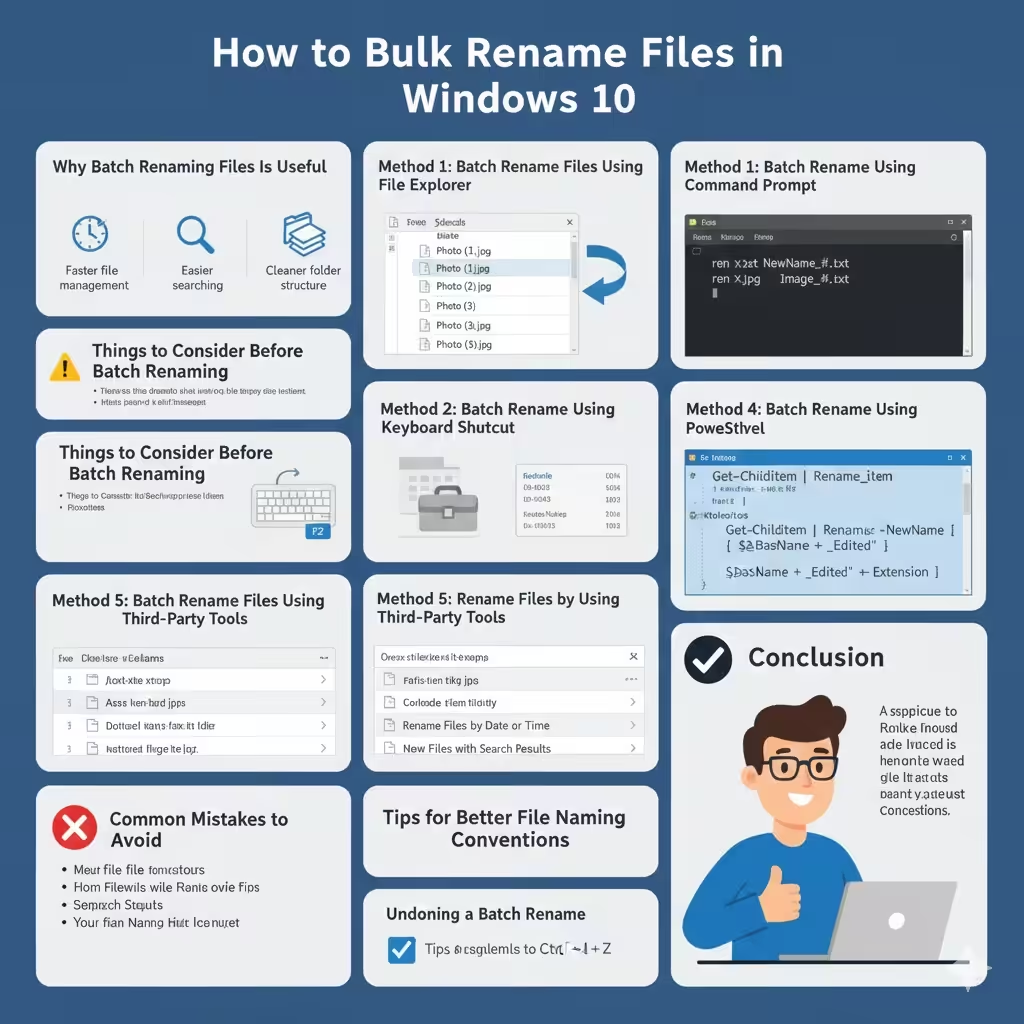
Method 1: Batch Rename Files Using File Explorer
This is the simplest and most common method.
Steps to Batch Rename in File Explorer
-
Open File Explorer
-
Navigate to the folder containing the files
-
Select all files you want to rename
-
Use Ctrl + A to select all
-
Hold Ctrl to select specific files
-
-
Right-click one of the selected files
-
Click Rename
-
Type a new base name
-
Press Enter
Windows will rename the files automatically using the format:
When to Use This Method
-
Quick renaming tasks
-
Files that only need a common name
-
Users who prefer simplicity
This method requires no technical knowledge.
Method 2: Batch Rename Files Using Keyboard Shortcut
You can also rename files using a shortcut.
Steps
-
Select multiple files
-
Press F2
-
Type the new name
-
Press Enter
The result is the same as using the right-click method, but it is faster for experienced users.
Method 3: Batch Rename Files Using Command Prompt
For more control over filenames, Command Prompt is a powerful option.
How to Open Command Prompt
-
Navigate to the target folder
-
Hold Shift and right-click inside the folder
-
Select Open command window here
Basic Rename Command
To rename all text files:
To rename image files:
Why Use Command Prompt
-
Greater flexibility
-
Supports file patterns
-
Works well for repetitive tasks
This method is ideal for advanced users.
Method 4: Batch Rename Files Using PowerShell
PowerShell offers even more advanced renaming capabilities.
Opening PowerShell
-
Open the folder
-
Hold Shift and right-click
-
Select Open PowerShell window here
Example PowerShell Command
To add a prefix to filenames:
To add a suffix:
Benefits of PowerShell
-
Extremely powerful
-
Supports automation
-
Ideal for large datasets
This method is best for experienced users or IT professionals.
Method 5: Batch Rename Files Using Third-Party Tools
If built-in tools are not enough, third-party software offers advanced features.
Common Features of Batch Renaming Tools
-
Replace text in filenames
-
Add numbers, dates, or metadata
-
Preview changes before applying
-
Rename files and folders together
Third-party tools are useful for complex renaming tasks but should be downloaded from trusted sources.
Method 6: Rename Files by Date or Time
For photos and videos, naming files by date is very helpful.
Using File Explorer
-
Select files
-
Sort by Date Created or Date Taken
-
Rename using File Explorer batch method
This ensures files are renamed in chronological order.
Method 7: Rename Files with Search Results
You can batch rename files across folders using File Explorer search.
Steps
-
Open File Explorer
-
Search for the file type (for example,
.docx) -
Select the results
-
Rename them using F2
This is useful for organizing files across multiple locations.
Common Mistakes to Avoid
When batch renaming files, avoid:
-
Removing file extensions accidentally
-
Renaming system or program files
-
Applying commands without testing
-
Overwriting existing filenames
Always double-check before confirming changes.
Tips for Better File Naming Conventions
Good naming habits make files easier to manage.
Helpful tips:
-
Use descriptive names
-
Avoid special characters
-
Use underscores instead of spaces
-
Include dates in a consistent format
Consistent naming saves time in the long run.
Undoing a Batch Rename
If you make a mistake:
-
Press Ctrl + Z immediately after renaming
-
Undo may not work after closing File Explorer
For critical files, backups are essential.
When to Choose Each Method
-
File Explorer: Quick and simple tasks
-
Command Prompt: Pattern-based renaming
-
PowerShell: Advanced automation
-
Third-party tools: Complex requirements
Choosing the right method depends on your comfort level and needs.
Conclusion
Batch renaming files on Windows 10 is a powerful way to stay organized and save time. From simple File Explorer methods to advanced PowerShell commands, Windows offers tools for users at every skill level.