


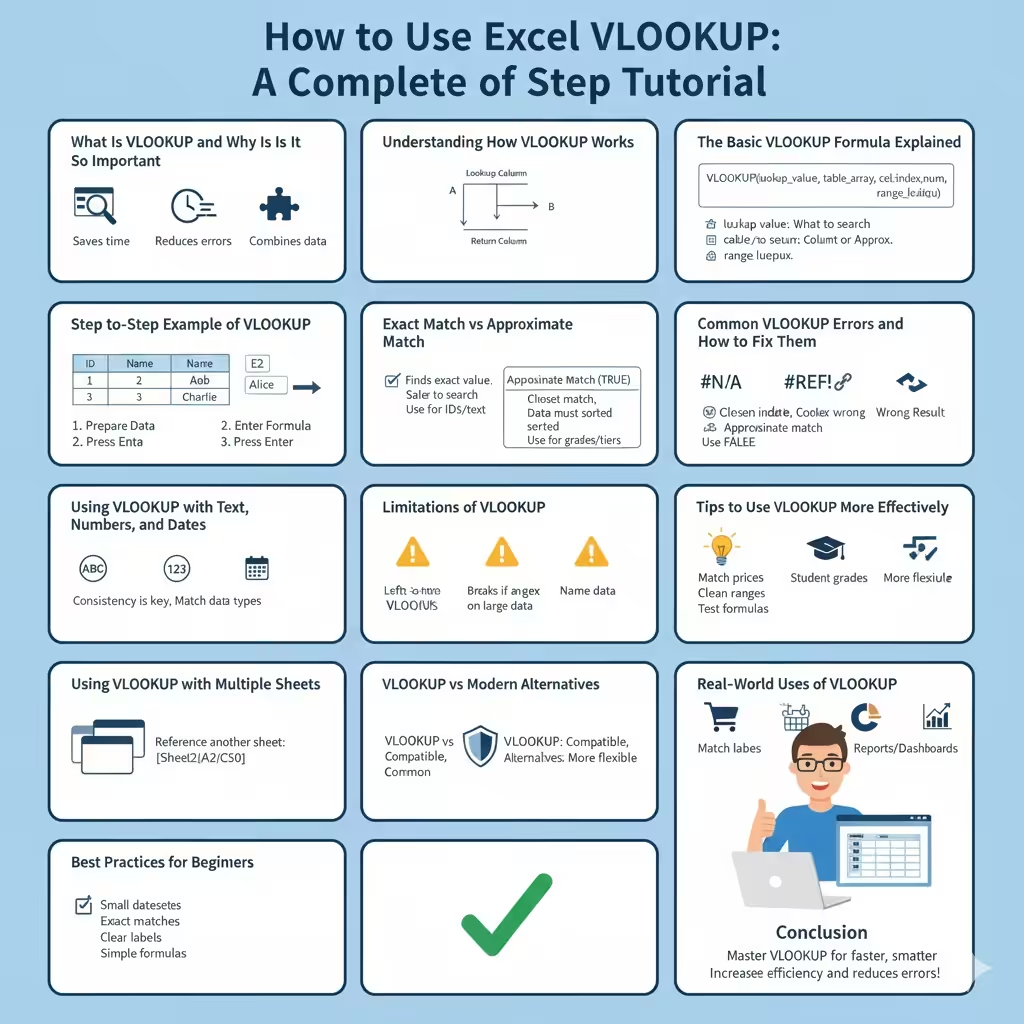
How to Use Excel VLOOKUP: A Complete Step-by-Step Tutorial
Microsoft Excel is packed with powerful functions, but few are as widely used and essential as VLOOKUP. Whether you are working with sales reports, employee databases, student records, or inventory lists, VLOOKUP helps you quickly find and retrieve data from large tables. For beginners, it may look confusing at first, but once you understand how it works, it becomes one of the most valuable tools in Excel.
This guide will walk you step by step through how to use VLOOKUP in Excel, explain how it works, cover common mistakes, and show practical examples so you can use it confidently in real-world scenarios.
What Is VLOOKUP and Why Is It So Important
VLOOKUP stands for Vertical Lookup. It is used to search for a value in the first column of a table and return a corresponding value from another column in the same row.
VLOOKUP is important because it:
-
Saves time when working with large datasets
-
Reduces manual searching and errors
-
Helps combine data from different tables
-
Is widely used in offices, schools, and businesses
If you work with Excel regularly, learning VLOOKUP is a must.
Understanding How VLOOKUP Works
VLOOKUP works vertically, meaning it looks down the first column of a table to find a match.
Once it finds the value, it moves across the row to return data from another column.
In simple terms:
-
You look for a value in column A
-
Excel finds it
-
Excel returns related data from column B, C, or beyond
The Basic VLOOKUP Formula Explained
The VLOOKUP formula looks like this:
VLOOKUP(lookup_value, table_array, col_index_num, range_lookup)
Let’s break it down:
-
lookup_value: The value you want to search for
-
table_array: The range of cells containing the data
-
col_index_num: The column number containing the value to return
-
range_lookup: Determines exact or approximate match
Understanding these four arguments is the key to mastering VLOOKUP.
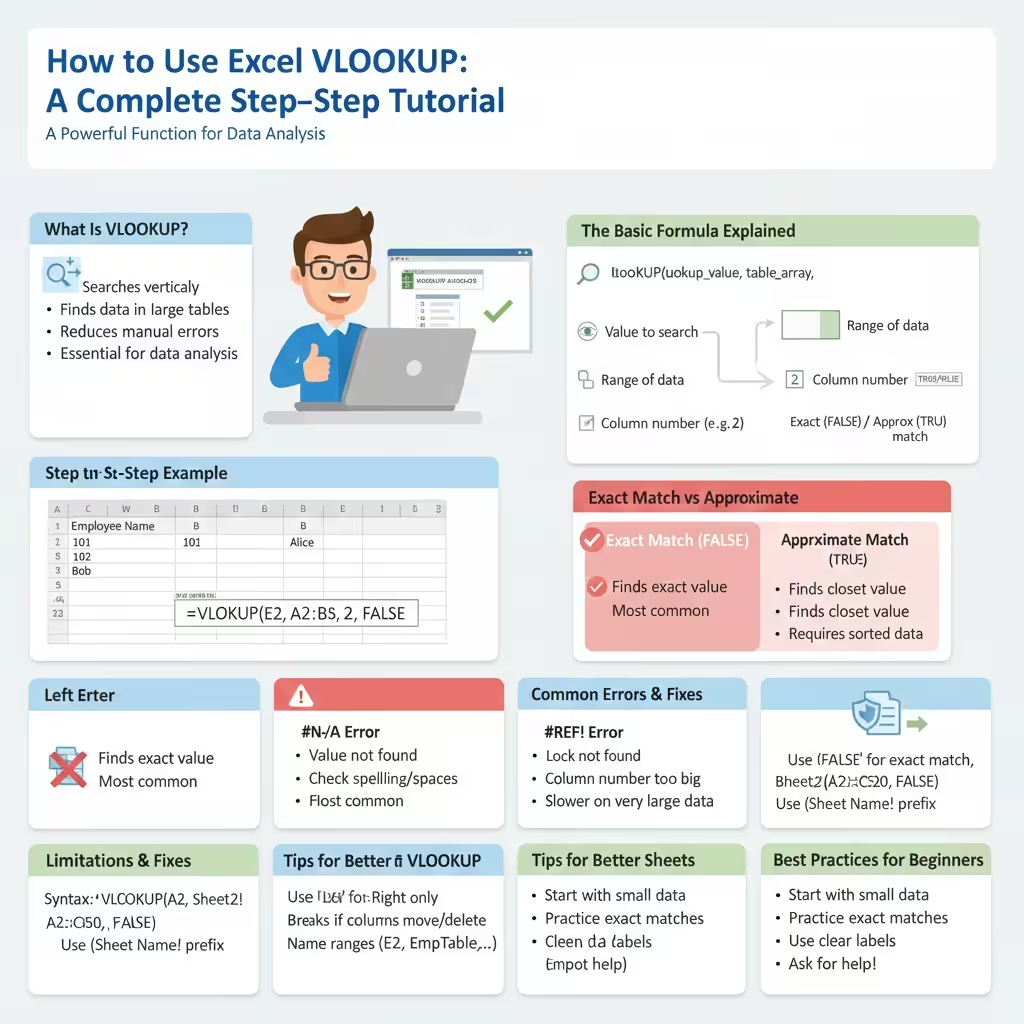
Step-by-Step Example of VLOOKUP
Imagine you have a table with employee IDs and names.
-
Column A: Employee ID
-
Column B: Employee Name
You want Excel to return the employee name when you enter an ID.
Step 1: Prepare Your Data
Make sure:
-
The lookup column is the first column
-
There are no extra spaces
-
Data is consistent
Step 2: Enter the Formula
If the employee ID is in cell E2, the formula would look like:
VLOOKUP(E2, A2:B20, 2, FALSE)
Step 3: Press Enter
Excel will display the employee name that matches the ID.
Exact Match vs Approximate Match
The fourth argument in VLOOKUP is very important.
Exact Match (FALSE)
-
Looks for an exact value
-
Most commonly used
-
Safer and more accurate
Always use FALSE unless you specifically need an approximate match.
Approximate Match (TRUE)
-
Finds the closest match
-
Requires sorted data
-
Often used for grading systems or tax tables
For beginners, exact match is the recommended choice.
Common VLOOKUP Errors and How to Fix Them
Even experienced users encounter VLOOKUP errors. Understanding them helps you troubleshoot quickly.
#N/A Error
This means Excel cannot find the lookup value.
Possible causes:
-
Value does not exist
-
Extra spaces in cells
-
Incorrect lookup range
Solution: Check spelling and use the TRIM function if needed.
#REF! Error
This happens when:
-
The column index number is greater than the number of columns
Solution: Make sure the column number exists in the selected range.
Wrong Result Returned
Common reasons:
-
Using approximate match by mistake
-
Lookup column is not the first column
Solution: Use FALSE and adjust the table layout.
Using VLOOKUP with Text, Numbers, and Dates
VLOOKUP works with different data types, but consistency is critical.
-
Text must match exactly
-
Numbers should not be stored as text
-
Dates must be in a valid Excel date format
Mixing formats often leads to unexpected results.
Limitations of VLOOKUP
Although powerful, VLOOKUP has some limitations you should be aware of.
Key Limitations
-
Can only look from left to right
-
Breaks if columns are deleted or moved
-
Slower with very large datasets
-
Not flexible for complex lookups
Understanding these limits helps you know when to use alternative functions.
Tips to Use VLOOKUP More Effectively
To get the best results from VLOOKUP, follow these tips:
-
Always use exact match unless needed
-
Lock table ranges using absolute references
-
Keep data clean and consistent
-
Name your ranges for clarity
-
Test formulas with sample values
Good habits make your formulas reliable and easier to maintain.
Using VLOOKUP with Multiple Sheets
VLOOKUP can also retrieve data from another worksheet.
How It Works
You simply include the sheet name in the table array.
Example:
VLOOKUP(A2, Sheet2!A2:C50, 3, FALSE)
This is useful for keeping data organized across different sheets.
VLOOKUP vs Modern Alternatives
While VLOOKUP is still widely used, Excel now offers newer functions that are more flexible.
However, VLOOKUP remains important because:
-
Many existing spreadsheets rely on it
-
It is supported in all Excel versions
-
It is easy to understand once learned
Learning VLOOKUP builds a strong foundation for advanced Excel skills.
Real-World Uses of VLOOKUP
VLOOKUP is used in many real-life scenarios, such as:
-
Matching product prices
-
Finding student grades
-
Linking customer information
-
Creating reports and dashboards
-
Managing inventory
Once mastered, it becomes an everyday tool.
Best Practices for Beginners
If you are new to VLOOKUP:
-
Start with small datasets
-
Practice exact matches first
-
Use clear column labels
-
Avoid unnecessary complexity
Confidence comes with practice.
Conclusion
VLOOKUP is one of Excel’s most useful and widely used functions for a reason. It allows you to quickly search, match, and retrieve data from large tables with just a single formula. While it has some limitations, understanding how VLOOKUP works gives you a powerful tool for organizing and analyzing information.