


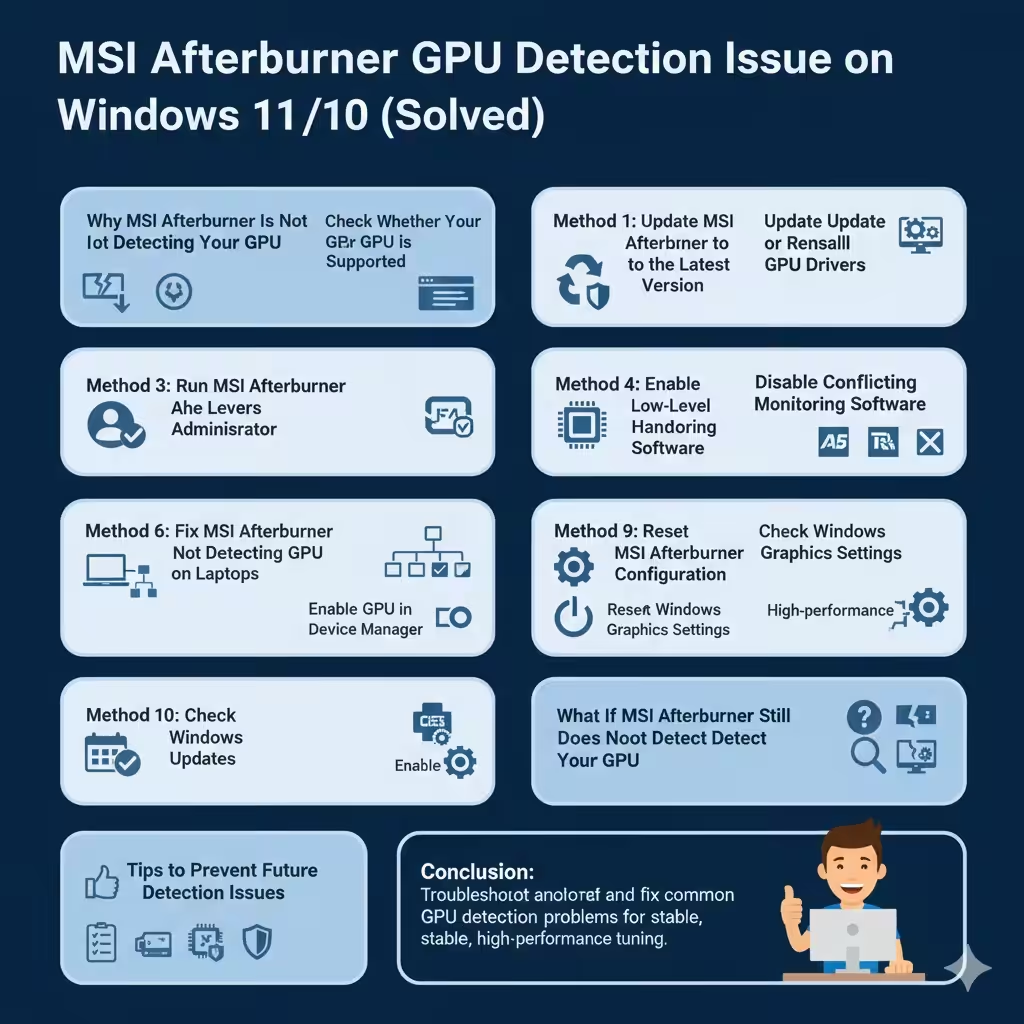
MSI Afterburner GPU Detection Issue on Windows 11/10 (Solved)
MSI Afterburner is one of the most popular tools for monitoring GPU performance, adjusting fan speed, and overclocking graphics cards. However, many users encounter a frustrating issue where MSI Afterburner does not detect the GPU on Windows 11 or Windows 10. When this happens, the software may show no GPU information, disabled controls, or missing monitoring data.
This guide explains why MSI Afterburner may fail to detect your GPU and provides clear, step-by-step solutions to fix the problem. Whether you are using NVIDIA, AMD, or an integrated GPU, the methods below will help restore proper detection and functionality.
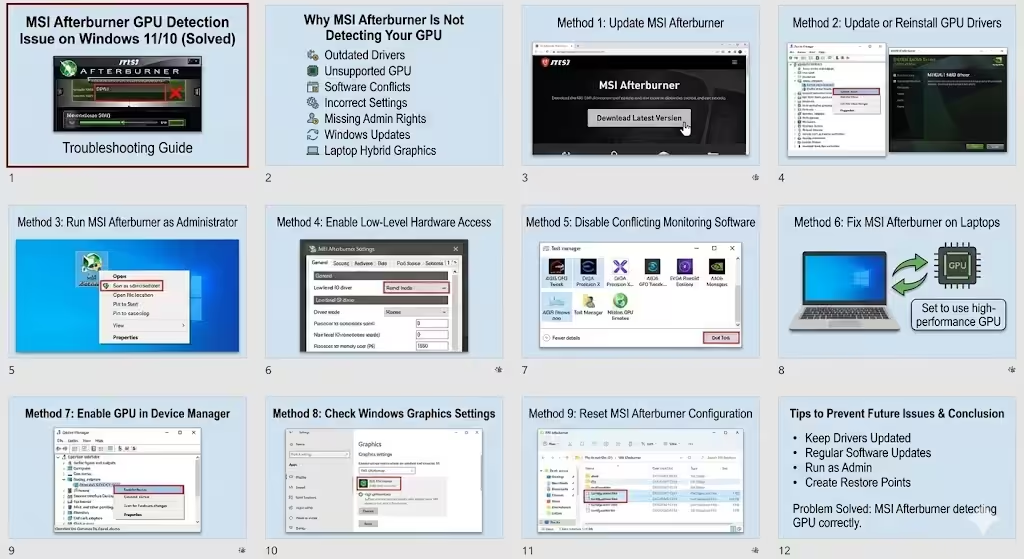
Why MSI Afterburner Is Not Detecting Your GPU
Before applying fixes, it helps to understand the common causes behind this issue.
Some frequent reasons include:
-
Outdated or incompatible GPU drivers
-
Unsupported or very new graphics cards
-
Conflicts with other monitoring software
-
Incorrect MSI Afterburner settings
-
Missing administrator permissions
-
Problems with Windows updates
-
Laptop hybrid graphics (integrated + dedicated GPU)
Identifying the root cause makes it easier to apply the correct solution.
Check Whether Your GPU Is Supported
MSI Afterburner supports most modern NVIDIA and AMD GPUs, but very new models may require a newer version of the software.
What to Do
-
Visit the official MSI Afterburner website
-
Download the latest available version
-
Read the release notes for GPU compatibility updates
If your GPU was released recently, older versions of MSI Afterburner may not recognize it correctly.
Method 1: Update MSI Afterburner to the Latest Version
Running an outdated version is one of the most common reasons for GPU detection problems.
Steps to Update MSI Afterburner
-
Uninstall the current version from Apps & Features
-
Restart your computer
-
Download the latest version from the official MSI website
-
Install the software
-
Launch MSI Afterburner as administrator
After updating, check whether your GPU is now detected.
Method 2: Update or Reinstall GPU Drivers
Outdated, corrupted, or incompatible GPU drivers often prevent MSI Afterburner from detecting the graphics card.
Update GPU Drivers
-
Right-click the Start menu
-
Select Device Manager
-
Expand Display adapters
-
Right-click your GPU
-
Choose Update driver
Clean Reinstall GPU Drivers (Recommended)
For best results:
-
Uninstall the current GPU driver
-
Restart the system
-
Download the latest driver directly from NVIDIA or AMD
-
Install the driver and reboot
A clean driver installation resolves most detection issues.
Method 3: Run MSI Afterburner as Administrator
MSI Afterburner requires elevated permissions to access hardware-level information.
How to Run as Administrator
-
Right-click the MSI Afterburner shortcut
-
Select Run as administrator
To make this permanent:
-
Right-click the shortcut
-
Open Properties
-
Go to the Compatibility tab
-
Check Run this program as an administrator
This ensures consistent GPU detection.
Method 4: Enable Low-Level Hardware Access
Incorrect hardware access settings can prevent MSI Afterburner from communicating with your GPU.
Steps to Enable Hardware Access
-
Open MSI Afterburner
-
Click Settings
-
Go to the General tab
-
Set Low-level IO driver to Kernel mode
-
Apply changes and restart MSI Afterburner
This setting improves compatibility with many GPUs.
Method 5: Disable Conflicting Monitoring Software
Other monitoring or overclocking tools can interfere with MSI Afterburner.
Common Conflicting Programs
-
ASUS GPU Tweak
-
EVGA Precision X
-
NZXT CAM
-
HWMonitor (in some cases)
-
AMD Adrenalin tuning features
What to Do
-
Close or uninstall conflicting software
-
Restart your PC
-
Launch MSI Afterburner again
Only run one GPU tuning tool at a time.
Method 6: Fix MSI Afterburner Not Detecting GPU on Laptops
Laptop users often experience this issue due to hybrid graphics.
Why This Happens
Many laptops use:
-
Integrated GPU (Intel or AMD)
-
Dedicated GPU (NVIDIA or AMD)
MSI Afterburner may fail to detect the dedicated GPU if it is not active.
Solution
-
Open NVIDIA Control Panel or AMD Software
-
Set MSI Afterburner to use the high-performance GPU
-
Ensure the dedicated GPU is active when launching MSI Afterburner
This helps the software recognize the correct GPU.
Method 7: Enable GPU in Device Manager
Sometimes the GPU is disabled at the system level.
Steps to Check
-
Open Device Manager
-
Expand Display adapters
-
Right-click your GPU
-
Select Enable device if available
Restart your computer after enabling the GPU.
Method 8: Check Windows Graphics Settings
Windows 10 and 11 include graphics preference settings that may affect detection.
How to Configure Graphics Settings
-
Open Settings
-
Go to System
-
Select Display
-
Click Graphics
-
Add MSI Afterburner
-
Set it to High performance
This ensures MSI Afterburner uses the dedicated GPU.
Method 9: Reset MSI Afterburner Configuration
Corrupted configuration files may cause detection failures.
How to Reset
-
Close MSI Afterburner
-
Navigate to the MSI Afterburner installation folder
-
Delete or rename the configuration files
-
Restart MSI Afterburner
This restores default settings.
Method 10: Check Windows Updates
In some cases, Windows updates can introduce compatibility issues.
What to Do
-
Ensure Windows is fully updated
-
If the issue started after an update, consider rolling back temporarily
-
Restart your PC after updates
Keeping Windows stable improves hardware detection.
What If MSI Afterburner Still Does Not Detect Your GPU
If none of the above solutions work:
-
Confirm your GPU works correctly in games or benchmarks
-
Test MSI Afterburner on another system if possible
-
Consider using alternative monitoring tools temporarily
This helps determine whether the issue is software-related or hardware-related.
Tips to Prevent Future Detection Issues
To avoid similar problems:
-
Keep GPU drivers updated
-
Avoid installing multiple overclocking tools
-
Update MSI Afterburner regularly
-
Run the software with administrator privileges
-
Create restore points before major updates
These habits ensure long-term stability.
Conclusion
MSI Afterburner not detecting your GPU on Windows 11 or Windows 10 is a common but fixable problem. In most cases, the issue is caused by outdated software, driver conflicts, incorrect settings, or hybrid graphics configurations on laptops.