


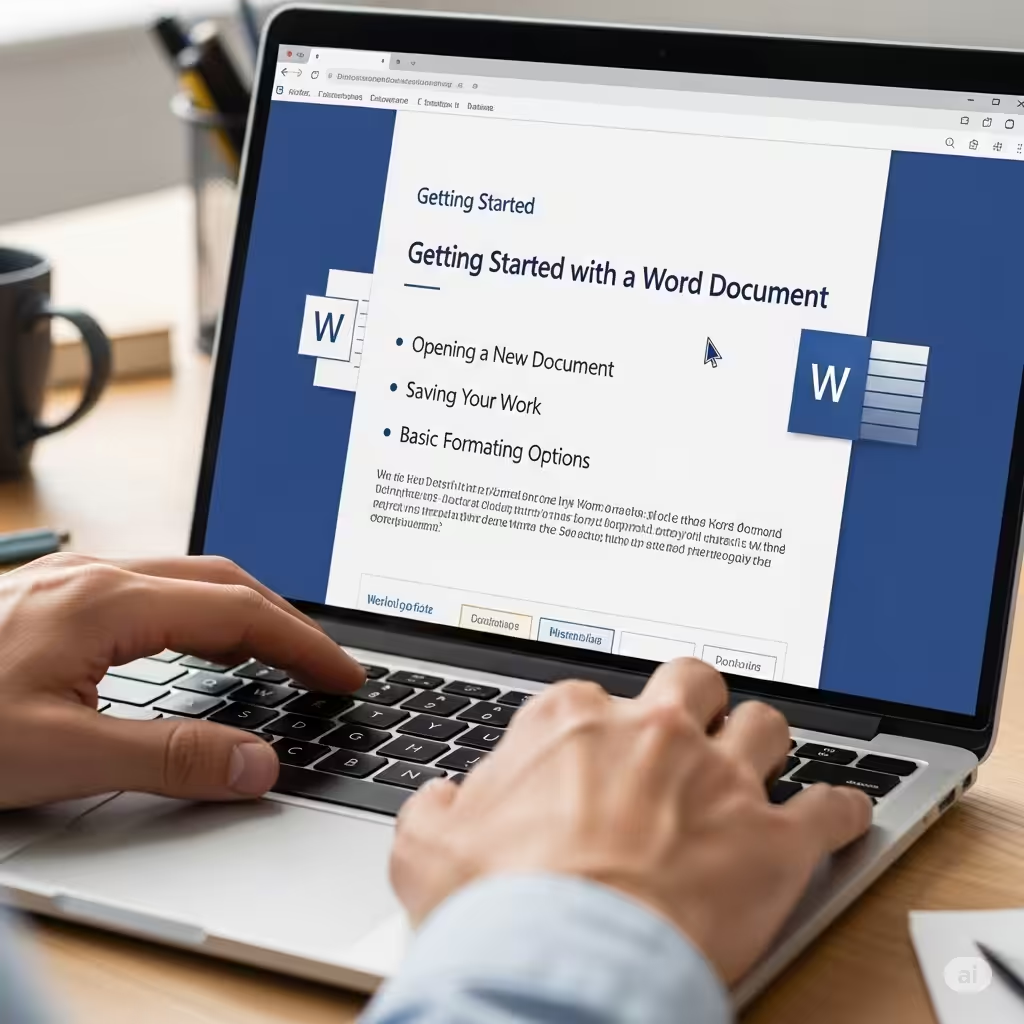
Getting Started with a Word Document
Microsoft Word is one of the most widely used word processing programs in the world. Whether you’re writing a letter, a report, a resume, or even a book, Word provides the tools to help you create polished and professional documents. If you are new to Word or just need a refresher, this guide will walk you through everything you need to know about starting a Word document from scratch.
Opening Microsoft Word
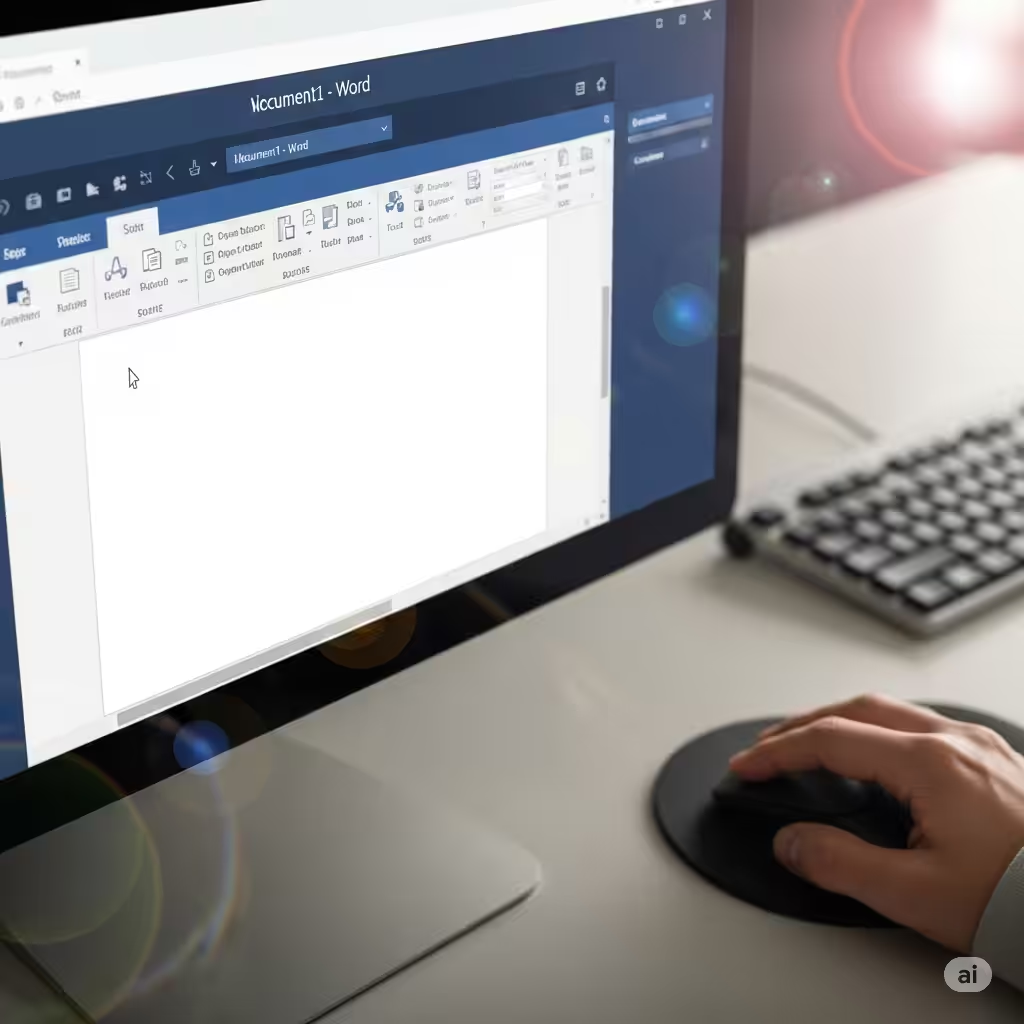
The first step is launching the Microsoft Word application.
Using the Start Menu (Windows)
-
Click on the Start Menu or press the Windows key on your keyboard.
-
Type Word in the search bar.
-
Click on the Microsoft Word app from the list of results.
Using Finder or Launchpad (Mac)
-
Click on Finder or open Launchpad.
-
Navigate to Applications.
-
Click on Microsoft Word to open the app.
Once Word opens, you will be presented with a screen where you can choose to create a new document.
Starting a New Blank Document
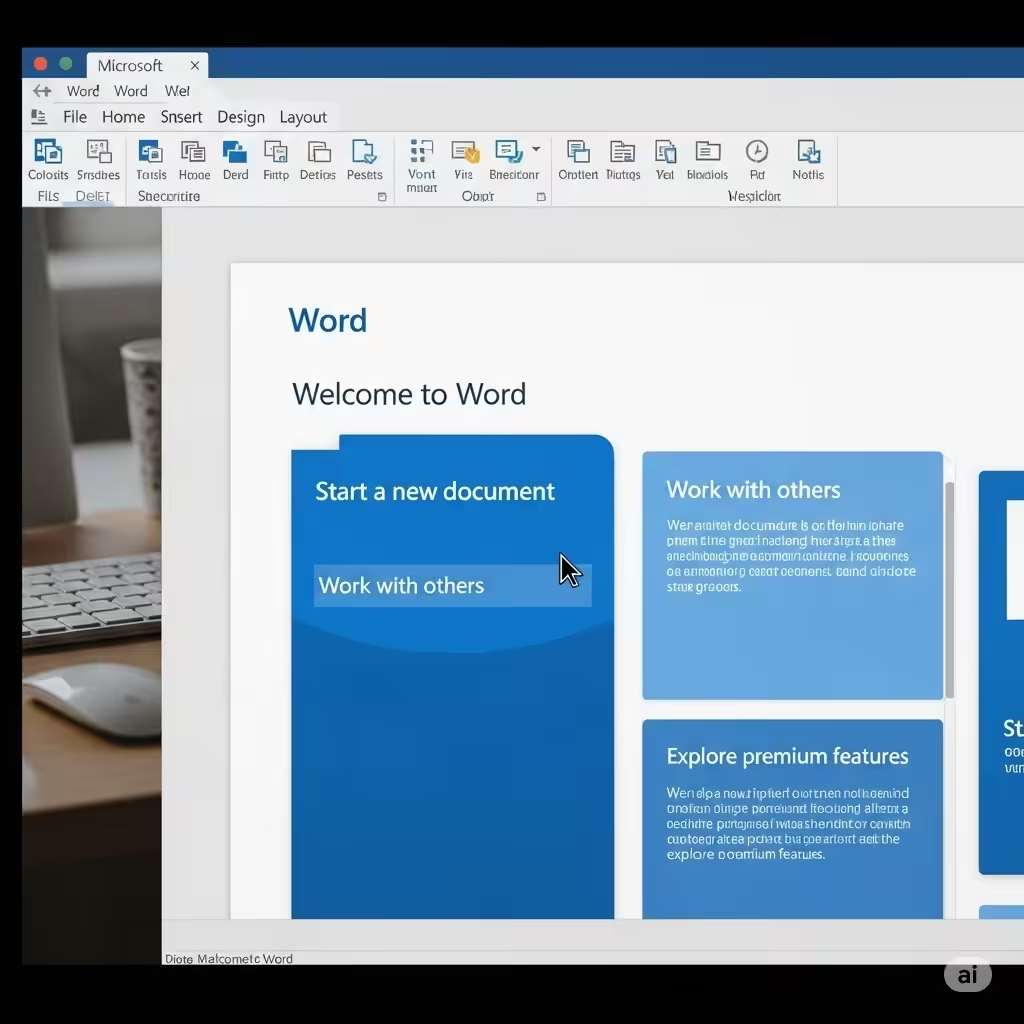
After opening Word, you’ll typically see the Start Screen with several template options.
-
Click on Blank Document to start from scratch.
-
A new Word window will appear with a blank page, ready for you to begin typing.
Alternatively, if Word opens directly to a blank document, you’re ready to go.
Exploring the Word Interface
Before you begin typing, it’s helpful to become familiar with the Word workspace.
Title Bar
At the top of the window is the title bar. This shows the name of your document. New documents are usually named Document1 by default until you save them with a new name.
Ribbon
Just below the title bar is the Ribbon, which contains multiple tabs like Home, Insert, Layout, References, and more. Each tab includes a set of related tools and options.
Document Area
This is the white space where you will type and format your content. The blinking cursor indicates where your text will appear when you start typing.
Status Bar
At the bottom of the screen, the status bar shows helpful information like word count, page number, and spelling/grammar status.
Typing and Formatting Text
Once your blank document is open, you can begin typing.
Typing
Click anywhere on the blank page and begin typing. Word automatically wraps your text and creates new lines as you reach the end of each line.
Basic Formatting
The Home tab offers basic formatting options:
-
Font style and size
-
Bold, Italic, and Underline
-
Text color
-
Alignment (left, center, right, justified)
-
Line spacing
You can highlight any text and apply formatting using the options in the Ribbon.
Saving Your Document
Saving your work regularly prevents data loss.
Save for the First Time
-
Click File in the top left corner.
-
Select Save As.
-
Choose the folder where you want to save your document.
-
Enter a file name.
-
Click Save.
You can also use the keyboard shortcut Ctrl + S (Windows) or Command + S (Mac) to quickly save your work.
Save to OneDrive
If you’re using a Microsoft account, you can save your document to OneDrive to access it from any device.
Using a Template
If you prefer to use a template, Word offers many pre-designed layouts for resumes, letters, reports, and more.
-
On the Word start screen, use the search bar or browse categories to find a template.
-
Click on a template to preview it.
-
Click Create to open the template.
-
Replace the sample content with your own.
Templates are especially helpful for users who want a professional look without building everything from scratch.
Inserting Elements
To make your document more dynamic, you can insert different elements like images, tables, and hyperlinks.
Inserting an Image
-
Go to the Insert tab.
-
Click Pictures, then choose This Device or Online Pictures.
-
Select the image and click Insert.
Adding a Table
-
Click on the Insert tab.
-
Click Table, then drag your cursor to select the number of rows and columns.
-
Click to insert the table.
Adding Hyperlinks
-
Highlight the text you want to link.
-
Right-click and choose Link, or go to the Insert tab and click Link.
-
Enter the URL and click OK.
Printing Your Document
When your document is ready, you can print it directly from Word.
-
Click on File > Print.
-
Choose your printer and adjust settings like number of copies, pages, and orientation.
-
Click Print.
You can also use the shortcut Ctrl + P (Windows) or Command + P (Mac).
Closing the Document
When you’re done working on your document:
-
Click File > Close, or simply click the X in the top right corner.
-
If you haven’t saved your changes, Word will prompt you to do so.
Tips for Beginners
-
Save often to avoid losing your work.
-
Use Headings under the Styles section to organize longer documents.
-
Press Ctrl + Z (or Command + Z on Mac) to undo mistakes.
-
Explore the Review tab to check spelling and grammar.
Final Thoughts
Starting a Word document may seem simple, but understanding all the available tools and options can greatly improve your productivity and the quality of your documents. With just a few clicks, you can go from a blank page to a polished document that is ready to be printed, shared, or submitted.
Whether you’re writing your first essay or managing a major report, Microsoft Word offers everything you need to get started. Once you’re comfortable with the basics, explore more advanced features like styles, references, and macros to take your skills to the next level.