


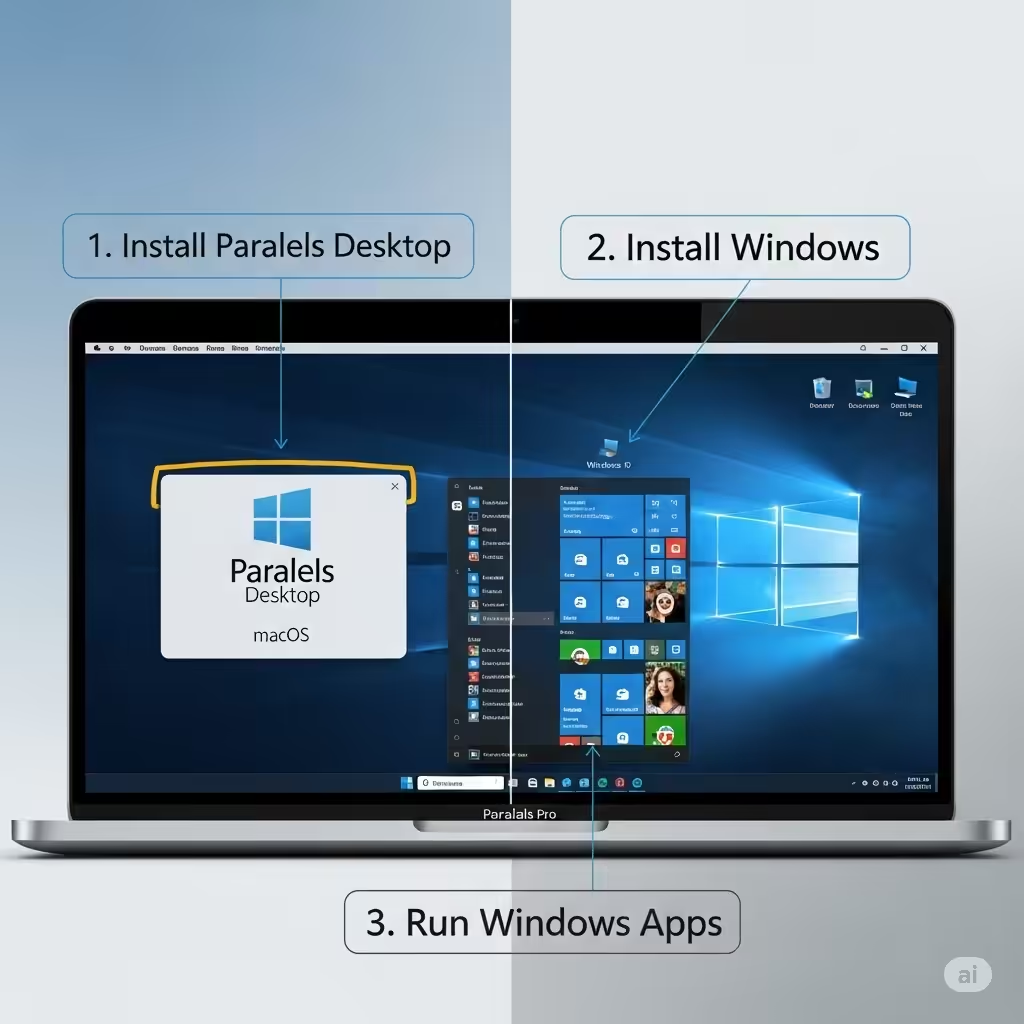
Guide to Running Windows on macOS Using Parallels Desktop
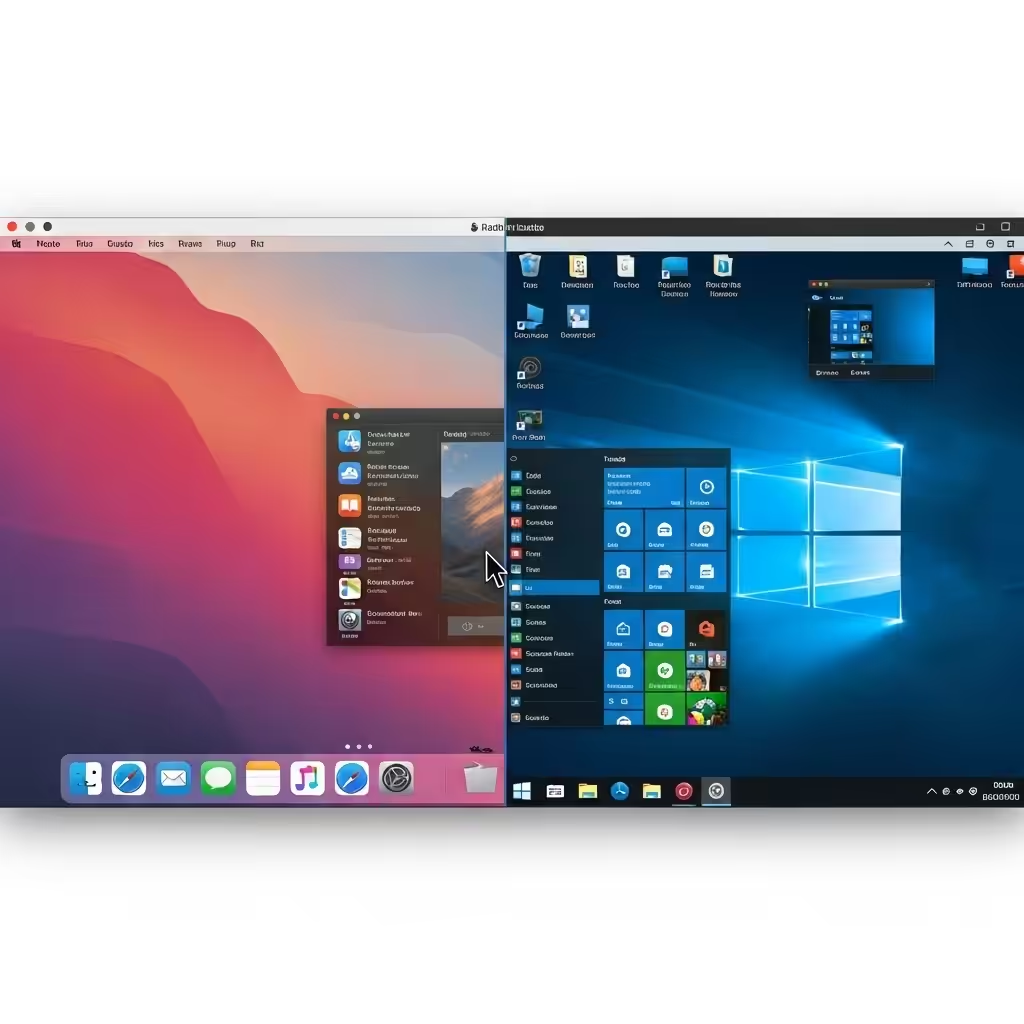
Many Mac users occasionally need to run Windows-only applications for work, education, or compatibility testing. Rather than switching to a Windows PC or using complicated dual-boot systems, Parallels Desktop offers an elegant solution. This software allows you to install and run Windows on your Mac seamlessly alongside macOS. In this guide, you’ll learn how to install Windows on your Mac using Parallels, step by step.
What Is Parallels Desktop?
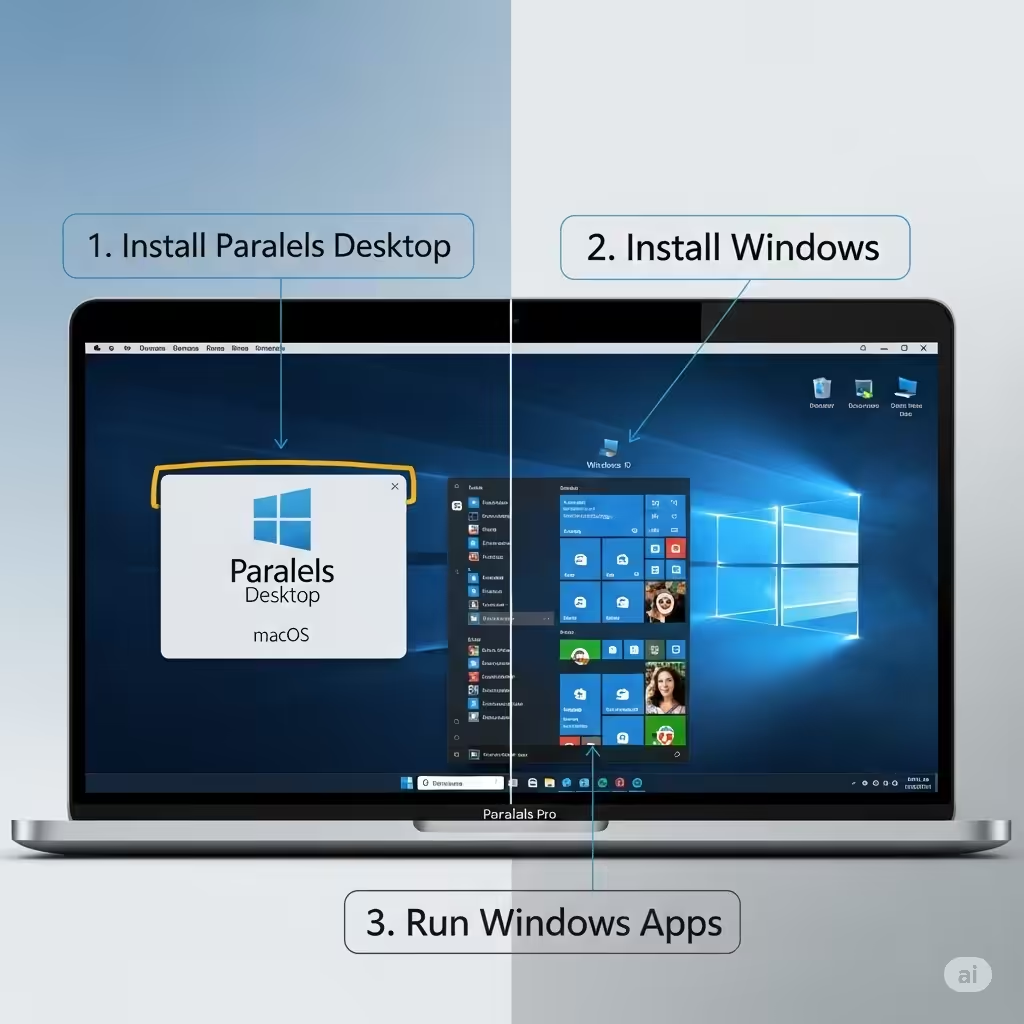
Parallels Desktop is a virtualization tool that enables Mac users to run Windows, Linux, or other operating systems as virtual machines. It is fast, easy to use, and designed to integrate smoothly with macOS. You can switch between Windows and Mac apps instantly without rebooting your system.
Parallels is ideal for users who:
-
Need to run Windows-only apps (like Microsoft Access or AutoCAD)
-
Want to test Windows environments without leaving macOS
-
Prefer not to partition their hard drive using Boot Camp
System Requirements
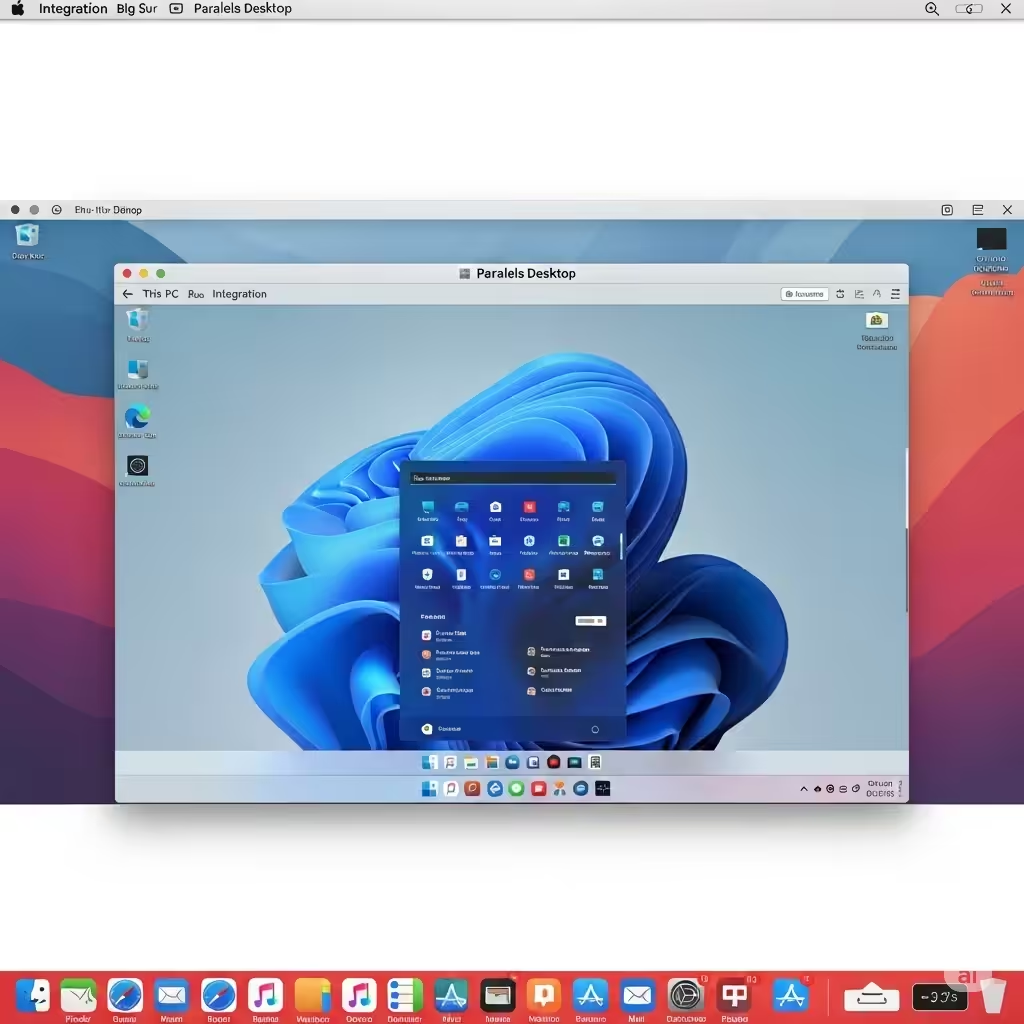
Before starting, make sure your Mac meets the minimum system requirements for installing both Parallels and Windows.
Hardware Requirements
-
Mac with an Intel or Apple Silicon (M1/M2) chip
-
At least 4 GB RAM (8 GB or more is highly recommended)
-
Minimum 16 GB free disk space (more if you’ll use Windows heavily)
Software Requirements
-
macOS Mojave or later
-
Parallels Desktop software (trial or full version)
-
A licensed copy of Microsoft Windows ISO file
Step 1: Download and Install Parallels Desktop
-
Visit the official Parallels website and click Download Free Trial or Buy Now.
-
Open the .dmg installation file from your Downloads folder.
-
Follow the on-screen instructions to install Parallels on your Mac.
-
After installation, launch Parallels Desktop.
The first time you run it, you may be prompted to create a Parallels account or log in with an existing one.
Step 2: Get a Windows ISO File
To install Windows in Parallels, you’ll need an ISO file—a digital image of the Windows installation disc.
-
Go to the official Microsoft Windows download page.
-
Select your version (Windows 10 or 11).
-
Choose Download tool now or Download ISO, depending on availability.
-
Save the ISO file to a known location, such as your Downloads folder.
Make sure you have a valid Windows product key if you’re planning on using Windows long-term.
Step 3: Start the Windows Installation
Once you have both Parallels and the Windows ISO file ready:
-
Open Parallels Desktop.
-
Click + or File > New to start creating a new virtual machine.
-
Select Install Windows or another OS from a DVD or image file, then click Continue.
-
Parallels should automatically detect the ISO file. If not, click Choose Manually and locate it.
-
Click Continue to proceed with the setup.
Step 4: Choose Installation Mode
Parallels offers two main modes during setup:
Express Installation
-
Automatically installs Windows using default settings
-
Installs Parallels Tools for better performance
-
Ideal for most users
Manual Installation
-
Lets you customize RAM, disk space, and CPU allocation
-
Suitable for advanced users who need control over settings
Choose Express Installation unless you have specific requirements.
Step 5: Select How You Will Use Windows
Parallels will ask how you intend to use Windows:
-
Productivity: Ideal for using Office apps and internet browsing
-
Games Only: Optimizes performance for gaming
-
Software Development, Design, or Testing (other available options)
Choose the most appropriate profile, then click Continue.
Step 6: Name Your Virtual Machine
Parallels will ask you to name the virtual machine (VM) and choose a location to store its files.
-
You can leave the default name (e.g., “Windows 11”).
-
Optionally, check the box to Customize settings before installation if you want to adjust RAM or CPU allocation.
-
Click Create.
Step 7: Complete the Windows Installation
Once everything is set up:
-
Parallels will launch the Windows installer inside a new window.
-
Follow the standard Windows installation steps:
-
Select your language and region
-
Enter your Windows product key or choose “I don’t have a product key” to continue with a limited version
-
Choose the edition of Windows (Home, Pro, etc.)
-
Accept license terms
-
Let the installer complete the process
-
The virtual machine will restart several times during setup. When it’s finished, Windows will boot up, and you’re ready to use it.
Step 8: Install Parallels Tools
Parallels Tools is a set of drivers and utilities that improve performance and integration between Windows and macOS. It allows features like:
-
Shared clipboard
-
Drag-and-drop between Mac and Windows
-
Auto-resize screen
-
Coherence Mode (seamless app switching)
You’ll usually be prompted to install Parallels Tools automatically. If not:
-
From the Windows VM menu, click Actions > Install Parallels Tools.
-
Follow the instructions within Windows to complete the setup.
-
Restart the VM when prompted.
Step 9: Activate Windows
If you haven’t already entered a product key, now’s a good time to activate Windows to ensure full functionality and receive updates.
-
Go to Settings > Update & Security > Activation.
-
Enter your product key or buy one directly from Microsoft.
Tips for Using Windows in Parallels
-
Coherence Mode: Press Control + Command + C to enable Coherence, letting Windows apps appear like Mac apps.
-
Snapshot: Before installing new software or making big changes, use Actions > Take Snapshot to save the VM’s state.
-
Sharing files: Enable shared folders between Mac and Windows for easy file transfers.
Final Thoughts
Installing Windows on your Mac using Parallels is a smooth, straightforward process that opens up a world of possibilities. Whether you need it for school, work, or specific software, Parallels lets you run Windows without compromising your macOS experience. You don’t have to reboot your system, and switching between platforms becomes as easy as switching tabs.
With the right configuration and a stable ISO file, you can enjoy the full power of Windows within the elegance and stability of macOS—all in one machine.