


A Guide to the EDATE Function in Excel
Microsoft Excel offers a wide range of functions designed to handle dates and time-related calculations. Among them, the EDATE function is particularly useful for adding or subtracting a specific number of months to or from a given date. It is widely used in financial modeling, project scheduling, loan planning, and subscription management.
In this guide, you’ll learn what the EDATE function does, its syntax, how to use it with examples, and common troubleshooting tips.
What Does the EDATE Function Do?
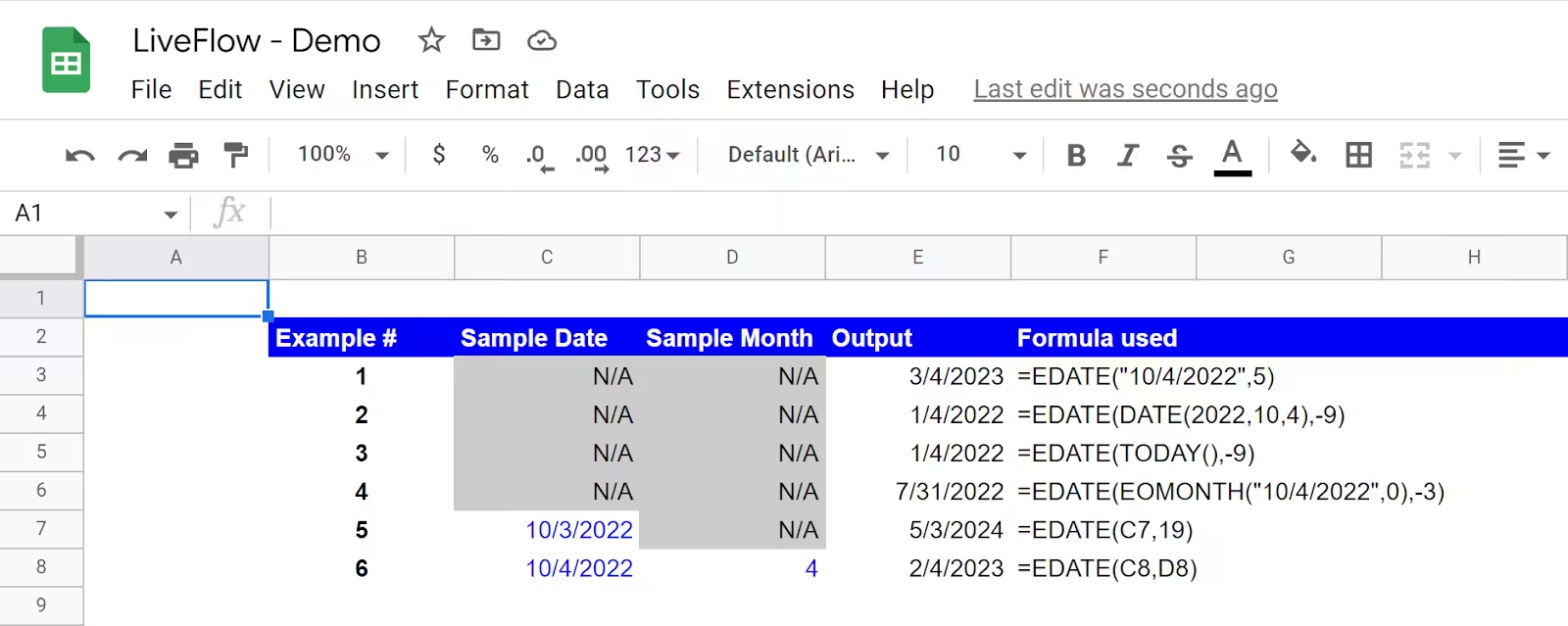
The EDATE function returns the serial number (i.e., the date) that is a specified number of months before or after a start date. This is useful when you need to calculate maturity dates, due dates, review cycles, or any future/past monthly event based on a starting point.
For instance, if you want to know the date that is 6 months after January 1, 2025, the EDATE function will calculate that for you automatically.
Syntax of the EDATE Function
The syntax of the EDATE function is very simple:
Parameters:
-
start_date: The initial date you want to start counting from. This can be a date entered manually, a cell reference, or a formula.
-
months: The number of months to add (positive value) or subtract (negative value) from the start_date.
Important:
-
Excel stores dates as sequential serial numbers. For example, January 1, 1900 is serial number 1. January 1, 2025 is serial number 44927.
-
The EDATE function returns the result in the form of a serial number, which is automatically formatted as a date if your cell is set to the “Date” format.
How to Enter the EDATE Function in Excel
-
Click on the cell where you want the result to appear.
-
Type
=EDATE(. -
Enter your start date either as a cell reference or a date in quotes.
-
Type a comma, then enter the number of months you want to add or subtract.
-
Close the parentheses and press Enter.
Example:
This returns the date 01/07/2025 (6 months after January 1, 2025).
Example 1: Using a Date in a Cell
Let’s say cell A1 contains the date 1/1/2025.
You can use the EDATE function as:
This will return 1/4/2025, which is three months after the date in A1.
Example 2: Subtracting Months
To go backward in time, use a negative value for the months argument.
If cell A1 contains 6/15/2025, then:
will return 4/15/2025, which is two months earlier.
Example 3: Using EDATE with TODAY()
You can dynamically calculate future or past dates based on the current date using the TODAY() function.
This will give you the same day next month, regardless of when you open the spreadsheet.
Formatting the Result
Sometimes the result of the EDATE function may appear as a serial number instead of a date. To fix this:
-
Right-click the cell with the formula.
-
Click Format Cells.
-
Select the Date category.
-
Choose your desired date format and click OK.
Now your cell will display the date in a readable format.
Common Use Cases
Financial Projections
EDATE is useful in financial spreadsheets where you need to calculate:
-
Monthly loan repayments
-
Bond maturity dates
-
Budget forecast dates
Subscription Renewal Dates
If a customer signs up on a certain date, you can use EDATE to calculate renewal dates at monthly intervals.
HR or Payroll Systems
Use EDATE to determine review cycles, probation periods, or scheduled pay raises:
This will give you the employee’s 6-month work anniversary.
Limitations of the EDATE Function
While EDATE is versatile, it has some limitations:
-
It does not adjust for the end-of-month edge cases. For example, adding 1 month to January 31 will return February 28 or 29, depending on whether it’s a leap year.
-
It works strictly in whole months—no partial months or days are accounted for.
-
EDATE will return an error if the
start_dateis not a valid date.
Troubleshooting Common Errors
#VALUE! Error
-
Occurs if the start_date is not a recognizable date format or the months argument is not numeric.
-
Solution: Ensure the first argument is a valid date or a properly formatted cell reference, and that the second is a number.
Result Displays as a Number
-
Excel might be formatting the result as General or Number.
-
Solution: Format the result cell as a Date, as shown earlier.
Leap Year Considerations
If you use EDATE with a leap year, Excel will adjust accordingly. For example:
Returns 02/28/2025 because 2025 is not a leap year.
Bonus Tip: Combine EDATE with Other Functions
You can nest EDATE within other Excel functions for more powerful calculations.
Example: Calculate if a subscription is due for renewal in the next 30 days:
This checks whether the 12-month renewal from the date in A1 is within the next 30 days.
Final Thoughts
The EDATE function is a powerful, reliable tool for anyone who needs to calculate dates based on monthly intervals. Whether you’re working on financial plans, human resources schedules, or subscription billing systems, EDATE helps automate and simplify your workflow.
By understanding how EDATE works and how to handle its limitations, you can build smarter spreadsheets and reduce the risk of errors in your date calculations.