


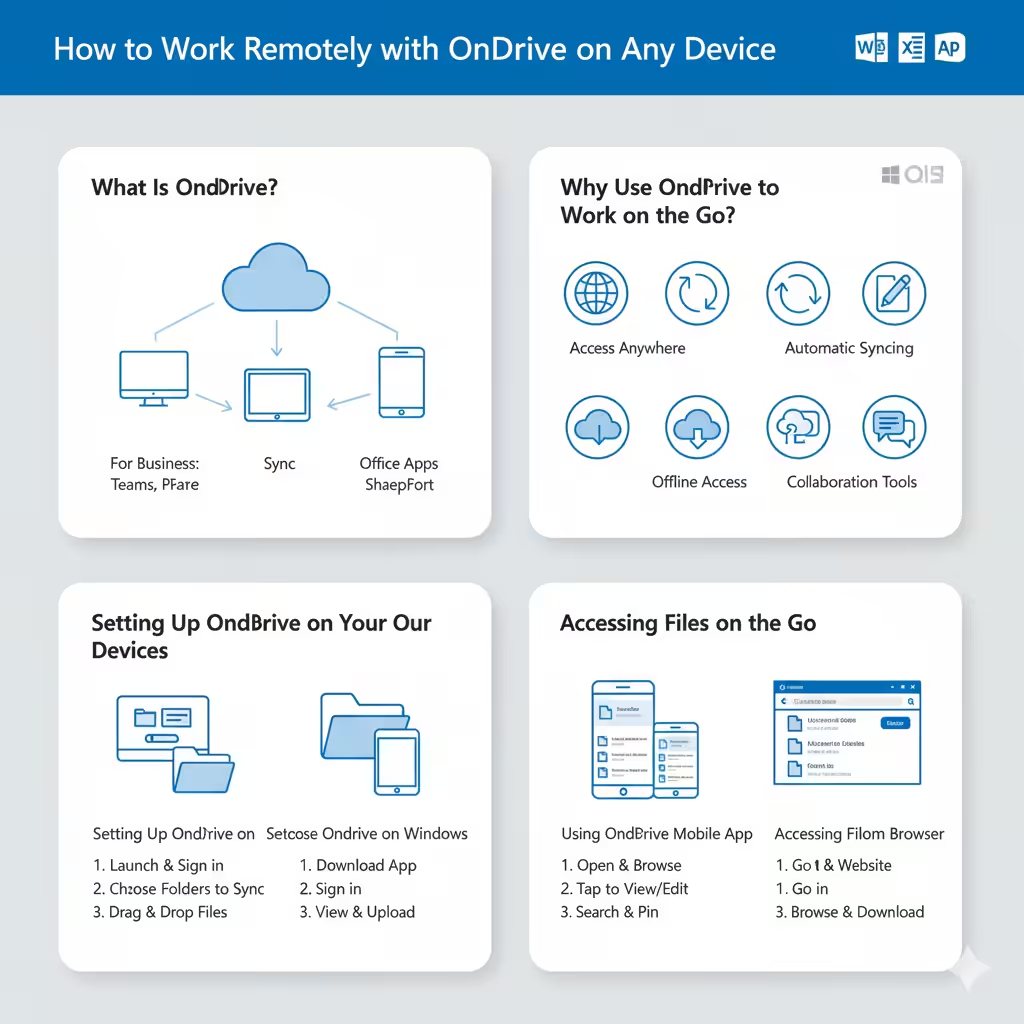
How to Work Remotely with OneDrive on Any Device
In today’s fast-paced digital environment, working on the go has become the new normal. Whether you are traveling, attending meetings outside the office, or working remotely, having access to your important files anytime and anywhere is essential. Microsoft OneDrive is the perfect solution for this. It allows you to store, access, and share your files securely from any device, making it easy to stay productive wherever you are.
This guide will walk you through how to use OneDrive effectively to work on the go — from setting up your account to accessing files offline and collaborating in real time.
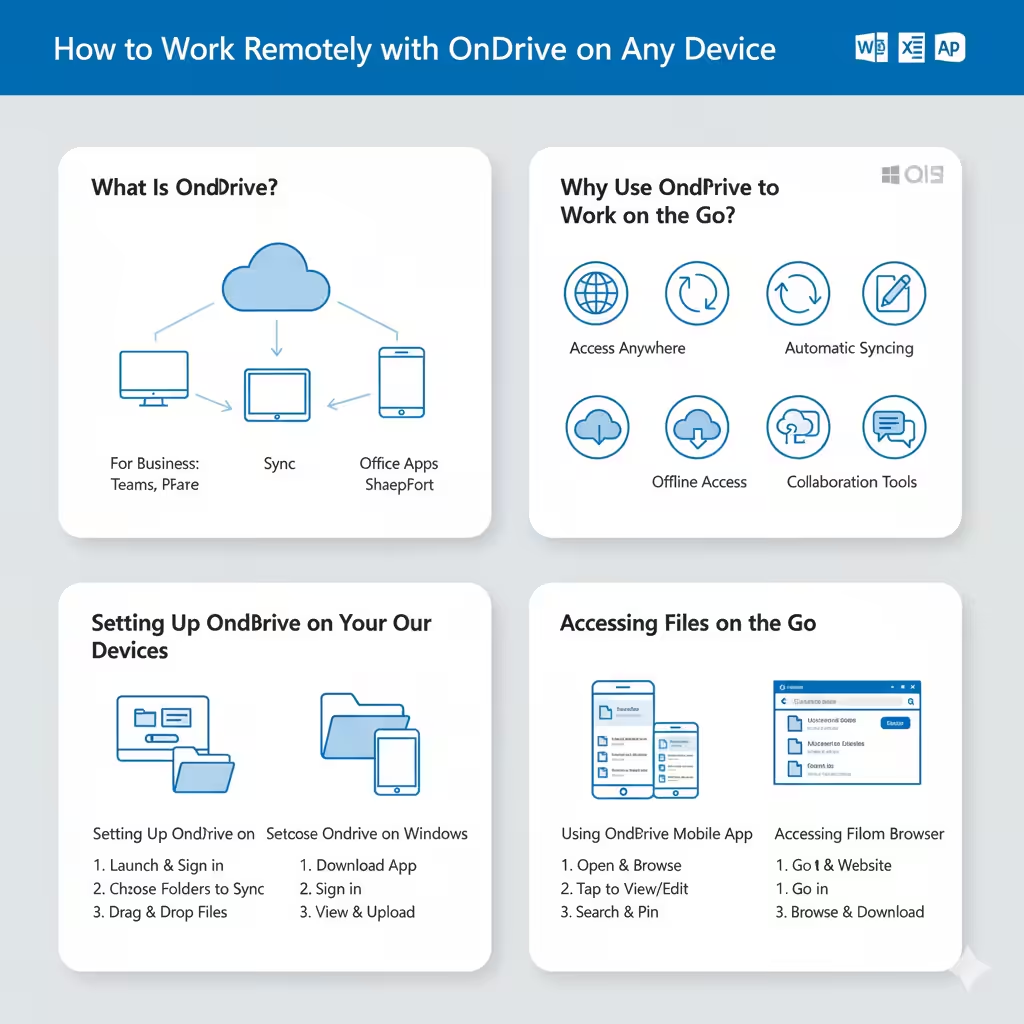
What Is OneDrive?
Microsoft OneDrive is a cloud storage service that enables users to store files online and sync them across devices. With a Microsoft 365 subscription, OneDrive provides personal and business users with ample storage space and seamless integration with Office apps such as Word, Excel, PowerPoint, and Outlook.
For professionals using OneDrive for Business, it’s part of the Microsoft 365 suite and includes enhanced security, file recovery, and collaboration tools designed for corporate environments.
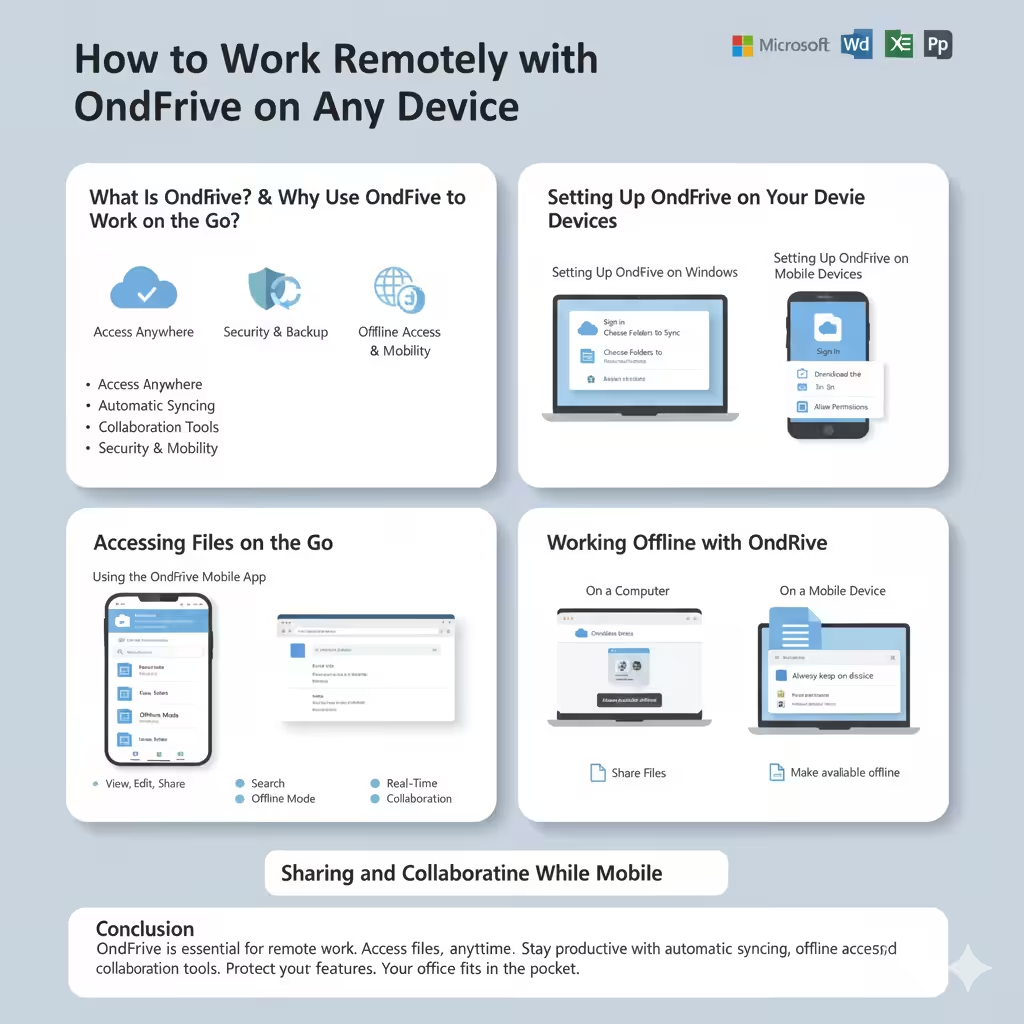
Why Use OneDrive to Work on the Go?
OneDrive offers several key advantages for people who work remotely or travel frequently:
-
Access Anywhere: Your files are stored securely in the cloud and can be accessed from any device connected to the internet.
-
Automatic Syncing: Edits and updates you make on one device automatically appear on all others.
-
Offline Access: Files can be downloaded or synced for offline use, ensuring you can keep working without an internet connection.
-
Collaboration Tools: Work together in real time with colleagues through shared files and co-authoring features.
-
Security and Backup: Files are encrypted and automatically backed up, protecting your data from loss or theft.
Setting Up OneDrive on Your Devices
Before you start working on the go, ensure that OneDrive is installed and configured on all your devices.
Setting Up OneDrive on Windows
-
Click Start and type OneDrive in the search bar.
-
Launch the OneDrive app and sign in with your Microsoft 365 or Microsoft account.
-
Choose the folders you want to sync between your PC and OneDrive.
-
Once configured, a OneDrive folder will appear in File Explorer.
You can now drag and drop files into this folder to automatically upload them to the cloud.
Setting Up OneDrive on Mobile Devices
-
Download the OneDrive app from the App Store (for iOS) or Google Play Store (for Android).
-
Open the app and sign in with your Microsoft account.
-
Allow permissions for file access and automatic photo upload if desired.
-
You can now view, upload, and share files directly from your smartphone or tablet.
The mobile app is perfect for accessing documents during travel or meetings and ensures your files are always up to date.
Accessing Files on the Go
Once your files are in OneDrive, accessing them on the go is simple.
Using the OneDrive Mobile App
The OneDrive mobile app provides a clean and user-friendly interface.
-
Open the app and browse through folders to find your files.
-
Tap a file to preview or edit it using Microsoft Office apps like Word or Excel Mobile.
-
Use the Search bar to quickly locate specific documents or photos.
You can also pin important files for quick access and enable offline mode for documents you need when you don’t have internet access.
Accessing Files from a Browser
If you don’t have your personal device with you, you can still access OneDrive through any web browser:
-
Go to https://onedrive.live.com or your organization’s OneDrive URL.
-
Sign in with your Microsoft account.
-
Browse, open, or download files as needed.
This flexibility ensures you can always reach your work, even from a shared or borrowed computer.
Working Offline with OneDrive
One of OneDrive’s best features for mobile professionals is offline access. You can download specific files or folders to your device so you can continue working without a network connection.
On a Computer
-
Open File Explorer and locate your OneDrive folder.
-
Right-click the file or folder you want offline.
-
Select Always keep on this device.
This ensures the file stays available locally, even when offline. Any edits will automatically sync once you reconnect to the internet.
On a Mobile Device
-
Open the OneDrive app.
-
Tap the three dots (…) next to the file.
-
Choose Make available offline.
Now you can open and edit files anytime, anywhere.
Sharing and Collaborating While Mobile
OneDrive makes sharing documents and collaborating with others simple, even when you’re not at your desk.
Sharing Files
-
Tap or right-click on the file you want to share.
-
Choose Share.
-
Enter the recipient’s email address or copy a link to send manually.
-
Set permissions — Can view or Can edit — before sending.
Real-Time Collaboration
When using Office apps such as Word or Excel from your mobile device, multiple people can work on the same file simultaneously. OneDrive automatically saves changes and highlights who is editing each section, making teamwork effortless even from different locations.
Backing Up Photos and Documents Automatically
OneDrive can automatically back up important files, including photos and documents, ensuring your data stays safe no matter where you work.
-
On mobile, go to Settings > Camera Upload and turn on automatic photo backup.
-
On a PC, open OneDrive Settings > Backup > Manage Backup, and select folders such as Desktop, Documents, or Pictures to automatically sync.
This eliminates the risk of losing files if your device is lost or damaged.
Managing Storage on the Go
Cloud storage space can fill up quickly, especially with large files or media. To manage your OneDrive storage effectively:
-
Delete unnecessary files or move them to another storage location.
-
Use Storage metrics (under OneDrive Settings) to identify large files.
-
Empty your Recycle Bin regularly to free up space.
-
Consider upgrading your Microsoft 365 plan if you need additional space.
Security Tips for Working on the Go
When accessing OneDrive outside of your office, security is critical. Follow these tips to keep your data safe:
-
Always sign out after using shared or public devices.
-
Enable Two-Factor Authentication (2FA) for your Microsoft account.
-
Avoid using unsecured Wi-Fi networks; use a VPN if possible.
-
Use device encryption and a strong passcode on mobile devices.
These practices protect your business data while maintaining accessibility on the move.
Integrating OneDrive with Microsoft 365 Apps
When combined with Microsoft 365, OneDrive becomes even more powerful. You can open, edit, and save files directly from apps like Word, Excel, PowerPoint, and Teams.
-
Work on presentations in PowerPoint Mobile while commuting.
-
Edit spreadsheets in Excel Mobile during a meeting.
-
Share reports instantly with your team in Teams using OneDrive links.
This integration ensures seamless workflows and maximum productivity from anywhere.
Conclusion
Working on the go doesn’t have to mean sacrificing productivity. With Microsoft OneDrive, you can access, edit, and share your files from virtually anywhere — whether you’re at home, on a flight, or in a coffee shop. Its syncing capabilities, offline access, and collaboration tools make it an essential companion for modern professionals.
By setting up OneDrive on your devices, learning to manage offline files, and using its powerful sharing and security features, you can stay connected to your work no matter where life takes you. With OneDrive, your office truly fits in your pocket.